
How to Transfer Files on Cloud Phones Easily: Common Methods, Speed Optimization and Key Tips
Why File Transfer Is a Daily Task on Cloud Phones
Most first-time cloud phone users run into the same question: how do I get game installers, video clips or documents into the cloud device? A cloud phone runs in a remote data center and cannot directly read your local storage, so file transfer is an unavoidable step. Fast, stable transfers make everything feel smooth; slow, failing uploads hold back even the most powerful cloud device. This guide covers the common transfer methods, practical speed optimization tricks and the precautions worth knowing, so you can move files into your cloud phone quickly and safely.
Common Ways to Transfer Files on a Cloud Phone
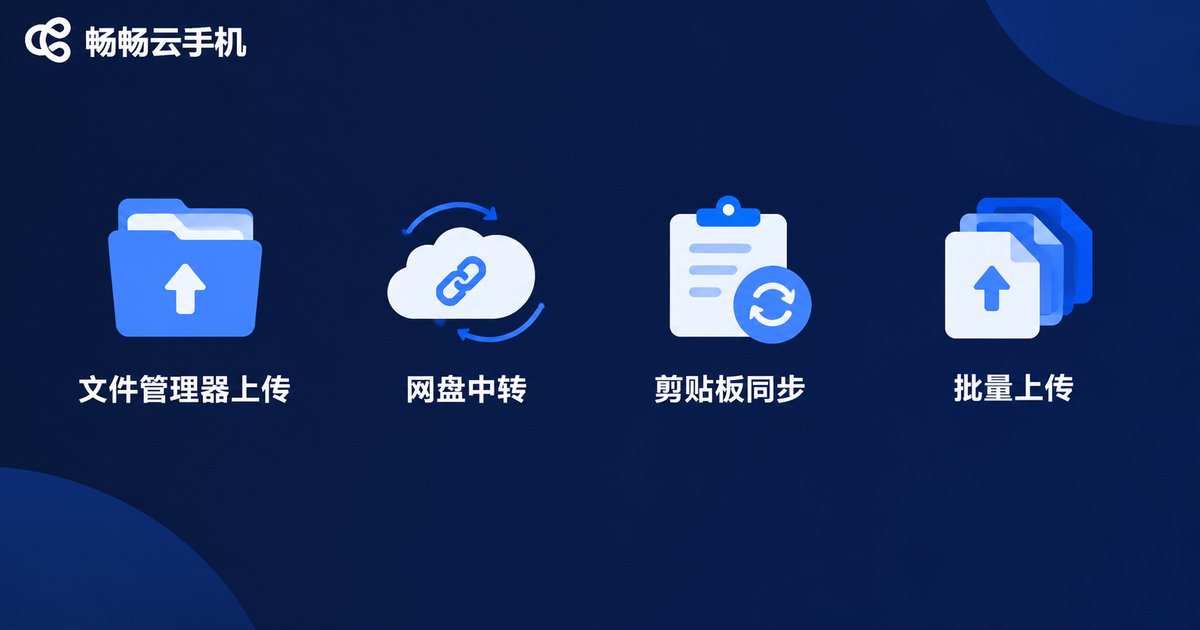
The mainstream transfer methods each suit different scenarios:
1. Built-in file manager upload: most cloud phones include a file management feature. Open the file or upload entry inside the cloud phone and pick a local file to upload. It is the most direct option for installers, photos and documents.
2. Cloud drive relay: upload the file to a cloud drive first, then sign in with the same account inside the cloud phone and download it. This suits large files and cross-device workflows, though the extra hop means speed depends on both networks.
3. Clipboard sync: text, links and short snippets can be pasted straight into the cloud phone through clipboard sync, skipping the file process entirely — perfect for links and account details.
4. Batch and folder upload: when migrating a whole game data package or a large photo library, use batch or folder upload to select everything at once and let the queue run, far easier than one-by-one transfers.
| Method | Best for | Convenience | Speed |
|---|---|---|---|
| File manager upload | Installers, photos, documents | High | Fast |
| Cloud drive relay | Large files, cross-device | Medium | Network dependent |
| Clipboard sync | Text and links | Very high | Instant |
| Batch upload | Many files, full migration | High | Stable |
How to Make Transfers Faster
With the same file and the same cloud phone, transfer speeds can still differ several times over — the difference usually lies in the details:
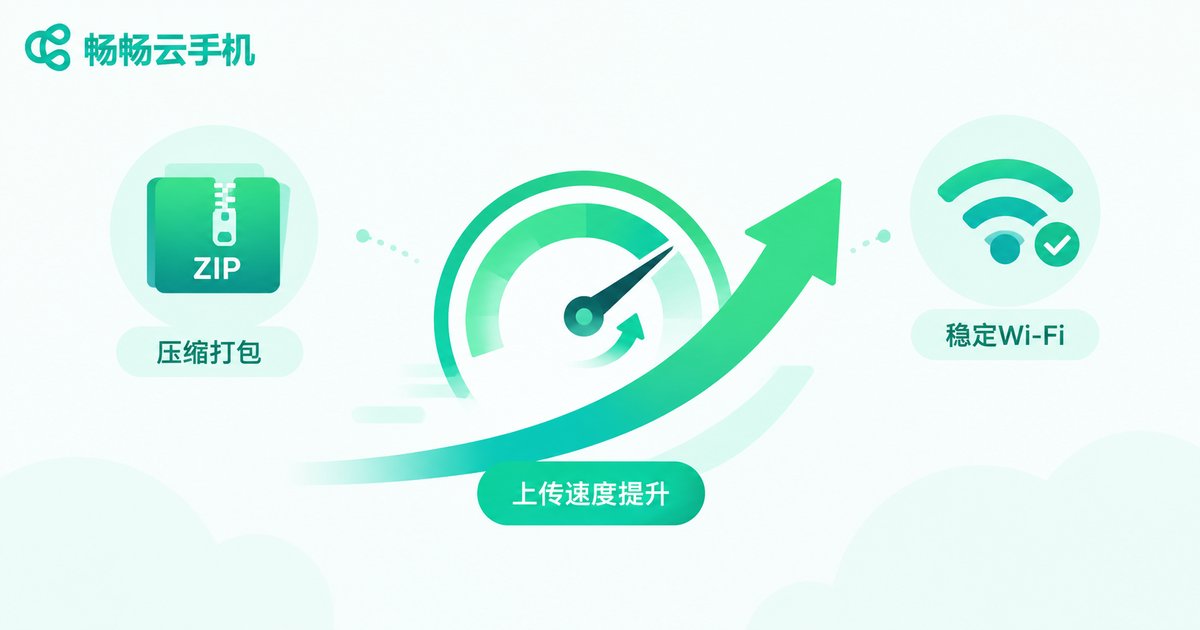
Compress before uploading: uploading many small files one by one is inefficient. Pack them into a single archive locally, upload it, then extract inside the cloud phone. Fewer files means faster transfers.
Prefer a stable Wi-Fi connection: uploads rely on your local network's upstream bandwidth. Connect to stable Wi-Fi away from weak-signal corners, or pick a spot with strong reception when using mobile data.
Transfer during off-peak hours: networks get congested in the evening. Moving large files in the morning or late at night is usually more stable.
Split large videos: multi-gigabyte videos can be trimmed, transcoded or split before uploading, saving both time and cloud storage space.
Avoid peak load on the cloud phone: pushing large files while the cloud phone is running a demanding game can cause the two tasks to compete for resources. Finish the transfer first, or stagger them.
Precautions Before and After Transferring
The process itself is simple, but these pitfalls are worth avoiding:
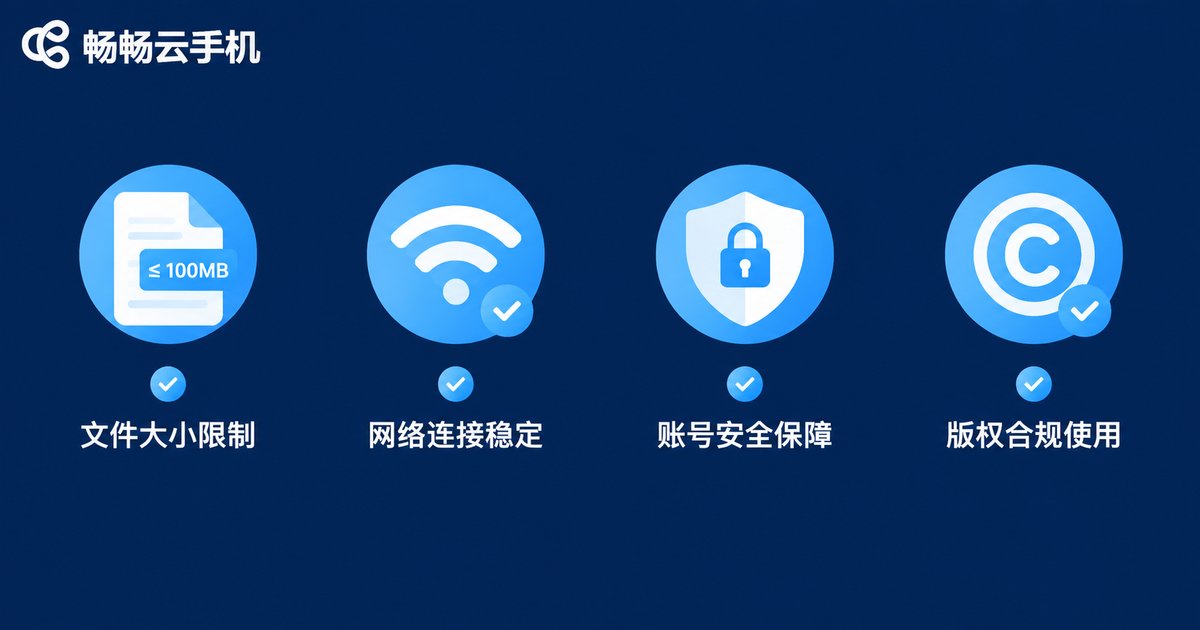
Watch size and format limits: some cloud phones restrict single-file size or supported file types. Confirm compatibility before uploading, and get installers from official sources.
Do not quit mid-transfer: force-closing the page or losing connection during an upload can leave a corrupted half-finished file. Verify the file is complete before using it.
Handle sensitive data carefully: for files containing passwords or ID photos, keep uploads to a minimum and clean up cloud files after use.
Stick to official channels: use the cloud phone's built-in upload feature or reputable cloud drives. Avoid unknown third-party transfer tools to protect account and data security.
Respect copyright: copyrighted movies and music are for personal, reasonable use only — avoid mass distribution.

File Transfers Made Easy with ccloudphone
Choosing the right tool solves half the problem. ccloudphone comes with a built-in file management feature that lets you upload local files directly to your cloud phone. Combined with a stable cloud device environment, installers, media assets and documents all move in and out with ease — whether you are running background tasks, managing multiple instances or just using everyday apps. Visit the ccloudphone official website to learn more and pick the plan that fits your needs.
FAQ
Q: Is there a file size limit on cloud phones?
Limits on single-file size and file types vary by platform, so check the official documentation before uploading. For very large files, compress or split them first.
Q: Why is my upload speed so slow?
It is usually limited upstream bandwidth or peak-hour congestion. Switching to stable Wi-Fi, compressing files and transferring off-peak usually brings clear improvement.
Q: Can I upload an APK installer into the cloud phone?
Yes. Upload the installer through the file manager and open it inside the cloud phone to install. Get installers from official sources for safety.
Q: Will files uploaded to the cloud phone be lost?
Normally files stay on the cloud device and are not affected when you change your local phone. Still, back up important files yourself and avoid accidental deletion in the cloud.
Q: Do text and links also need file upload?
No. Text and links can be pasted directly into the cloud phone via clipboard sync, which is faster than file transfer.


