

Cloud Phone File Transfer Guide: Upload, Download, Batch Organization & Efficiency Tips
Why Cloud Phone File Transfer Deserves Your Attention
Anyone new to cloud phones runs into the same question: my phone lives in the cloud, so how do I get my photos, installation packages, and documents in — and back out? The truth is, file transfer is the most fundamental, experience-defining part of using a cloud phone. Whether you run games, manage short-video assets, or juggle multiple apps, uploading and downloading are unavoidable.
This guide covers the common transfer methods, batch organization habits, and efficiency tricks in one place, so you can skip the trial and error.
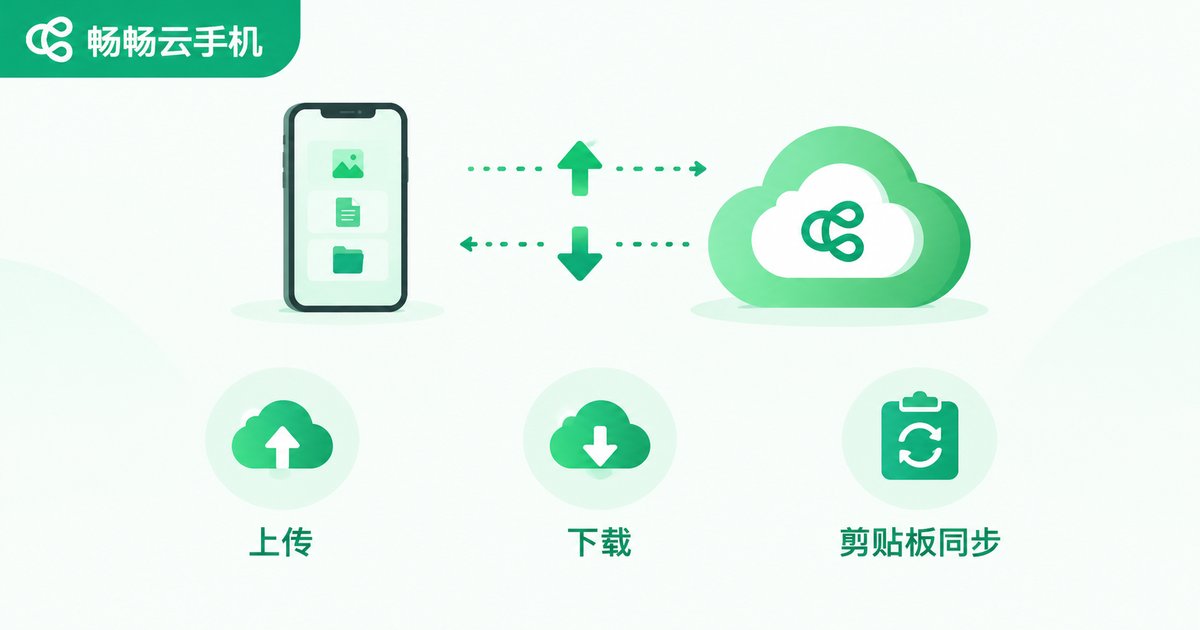
Three Common Ways to Upload Files
1. Upload through the built-in file manager. Most cloud phones include a file manager or upload entry on the desktop or toolbar. Open it, pick a local file, and confirm. It is the most intuitive option for the occasional image or installation package.
2. Drag-and-drop and batch selection. On the web or desktop client, you can usually drag a local folder straight into the upload window, or multi-select dozens of files at once. If you need to install a batch of apps or import a full set of assets, batch uploading saves a huge amount of repetitive tapping.
3. Upload from inside an app. Some content never needs to pass through local storage. Posting updates or changing a profile picture inside the cloud phone can pull directly from the cloud album or camera, keeping files in the cloud with a shorter, more stable path.
Downloading and Exporting: Getting Your Files Back
Downloading mirrors uploading: select the file in the cloud phone's file manager, tap download or export, and choose a local destination. Three reminders:
First, confirm where the file actually lives — the cloud phone's download folder may differ from each app's save location, so check the Download directory first when something seems missing. Second, split large files into smaller batches to avoid oversized tasks failing midway. Third, back up exported media such as videos and photos on your local device, so you can clean up the cloud later with confidence.
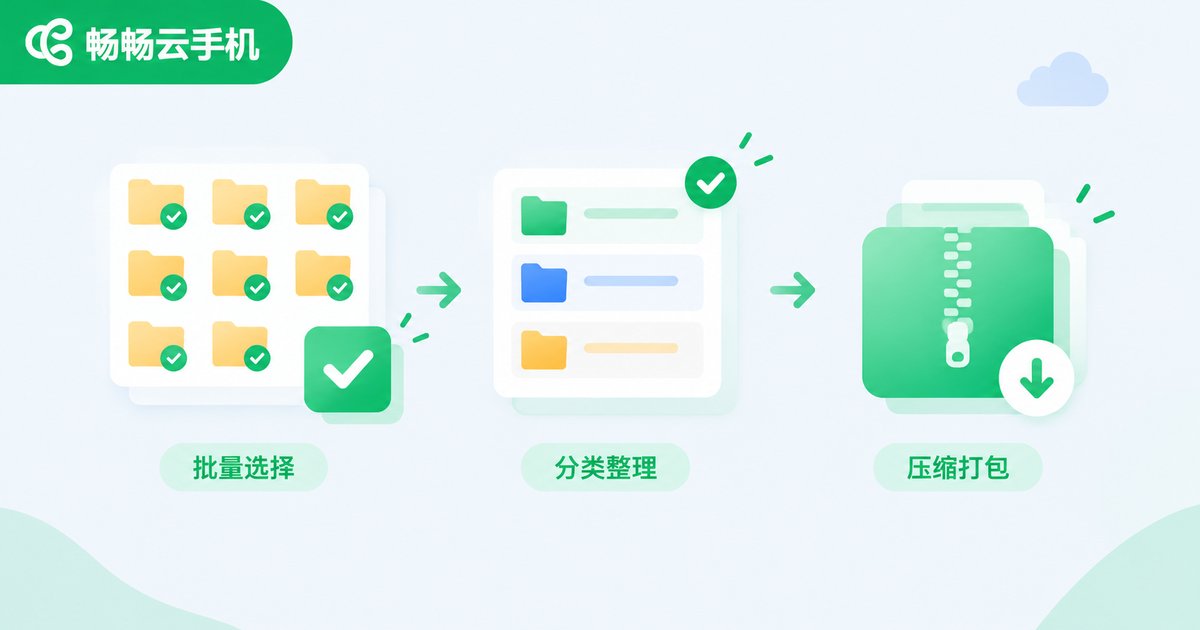
Batch Organization: Keep Your Cloud Storage Tidy
Once files pile up, chaos follows. Batch organization comes down to three habits:
Create category folders: set up directories for installers, image assets, documents, and backups, and file everything as you upload instead of dumping it into the root folder.
Use a unified naming scheme: follow a “date_purpose_version” pattern — for example, “20250601_assets_video_cover” — and searching and sorting become painless.
Clean up and archive regularly: spend a few minutes each week deleting temp files and archiving rarely used content, so your cloud phone keeps free space and runs smoothly.
| Method | Time cost | Error risk | Best for |
|---|---|---|---|
| One-by-one manual transfer | High | Easy to miss files or overwrite names | A file or two |
| Batch selection transfer | Medium | Lower | A set of similar files |
| Compressed archive transfer | Low | Lowest — one package does it all | Large mixed file sets |

Five Efficiency Tips for Faster Transfers
1. Compress before you send. Bundle sets of images or videos into a single archive — fewer transfers, higher success rate — then extract it in the cloud.
2. Pick the right network. Run heavy uploads and downloads on stable Wi-Fi; keep mobile data for small, urgent files.
3. Transfer off-peak. Daytime and evening hours are congested; early morning transfers are often dramatically faster.
4. Stick to universal formats. JPG/PNG for images, PDF/DOCX for documents, MP4 for video — maximum compatibility, ready to open in the cloud.
5. Verify immediately after transferring. Build the habit of checking file size and count before deleting your local originals.
ChangChang Cloud Phone: File Management Made Simple
If you are choosing a cloud phone service, ChangChang Cloud Phone (ccloudphone) offers a smooth file transfer experience: upload and download right from the web, batch operations supported, and all files centralized in the cloud file manager where categories are easy to browse. Because apps and data run in the cloud, your local device stays storage-free, and your files remain intact when you sign in from another phone or computer — ideal for users who switch devices often or keep instances running long-term.
Visit the ChangChang Cloud Phone official website to learn more and experience cloud-based file management for yourself.
FAQ
Q: Is there a file size limit for uploads on a cloud phone?
Policies vary by service. For oversized files, compress or split them into volumes and upload in batches for a higher success rate.
Q: If the connection drops mid-upload, is my file lost?
Unfinished transfers usually do not save a complete file. Reconnect and upload again from the transfer record, and verify the size after uploading important files.
Q: Can deleted files be recovered from a cloud phone?
Files deleted inside a cloud phone generally have no recycle bin. Confirm before deleting, and back up important data locally first.
Q: Does batch uploading preserve the file order?
Batch tasks may transfer in parallel, so completion order can differ from selection order. Use a consistent naming scheme and sort by name afterwards.
Q: If I sign in from another phone, will my cloud phone files still be there?
Yes. Cloud phone files are stored in the cloud, independent of your local device — just sign in with the same account on any device.


