
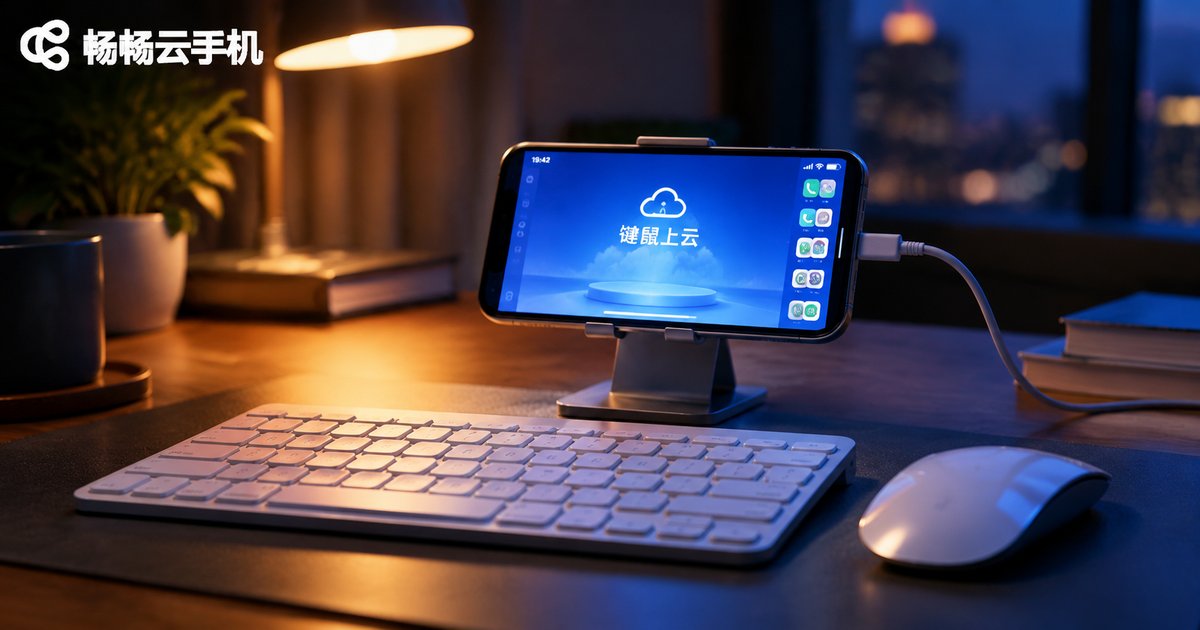
How to Connect a Keyboard and Mouse to a Cloud Phone: Peripheral Setup and Experience
Why Cloud Phone Players Reach for a Keyboard and Mouse
A cloud phone is essentially a full Android system running on a remote server — apps and games execute in the cloud, and the screen is streamed to your device. After long sessions on a small touchscreen, many players find that fingers tire quickly and aiming loses precision, especially in games with heavy key bindings or office tasks that involve a lot of typing. Adding a physical keyboard and mouse instantly makes a cloud phone feel like a real PC, which is exactly why more and more users are adopting this setup.
Three Main Connection Methods Compared
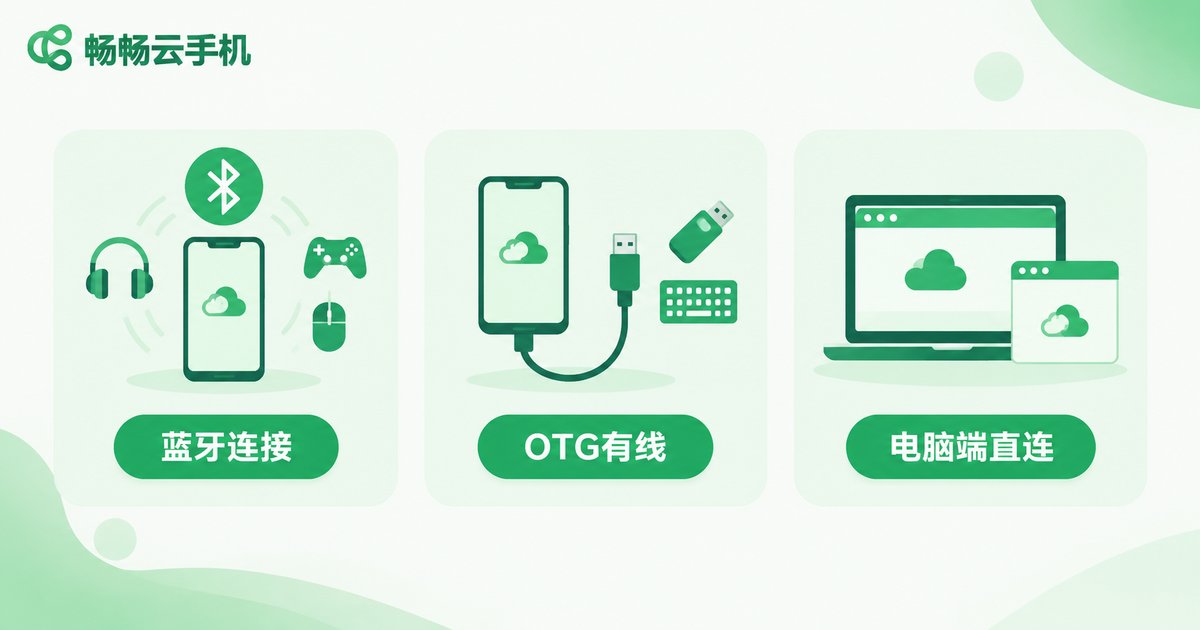
There are three common routes for hooking a keyboard and mouse up to a cloud phone, each suited to a different type of user:
| Method | Hardware Needed | Best For | Difficulty |
|---|---|---|---|
| Bluetooth | Bluetooth keyboard and mouse | Light office work, casual gaming | Low |
| Wired OTG | OTG adapter + wired peripherals | Latency-sensitive gamers | Low |
| Direct PC control | Computer browser or client | Hardcore gaming, multi-account AFK | Medium |
The first two options attach peripherals to your physical device; the third lets you control the cloud phone straight from your computer, so no physical phone is needed in the loop at all.
Method 1: Bluetooth — the Simplest Wireless Setup
If your physical phone supports Bluetooth (virtually all Android and iOS devices do), pairing is all it takes:
1. Turn on Bluetooth on your phone and put your keyboard and mouse into pairing mode;
2. Tap the detected devices in the Bluetooth list to connect;
3. Once paired, open ccloudphone and the keyboard and mouse input works right away.
Bluetooth keeps your desk cable-free, but its latency is slightly higher than wired — fast-paced games may feel a touch laggy.
Method 2: Wired OTG — the Lowest-Latency Option
If latency matters most, use an OTG adapter to plug wired peripherals directly into your phone. Most Android devices support OTG out of the box: peripherals are recognized automatically with no drivers needed. The advantages are clear:
Low latency: wired transmission is nearly instantaneous, ideal for shooters and fighting games; stable power: no batteries to die mid-match; broad compatibility: almost any standard keyboard and mouse works plug-and-play.
Note that OTG is disabled by default on some phone models and must be enabled in settings; iOS devices require a compatible adapter.
Method 3: Control the Cloud Phone Directly from Your PC
This is the experience closest to a real machine. ccloudphone lets you sign in from a computer browser or desktop client and operate the cloud phone with your PC keyboard and mouse while the screen streams in real time. Because the keyboard and mouse are natively part of your computer, no mapping or adaptation is required at all — typing, clicking and dragging feel exactly like using any ordinary desktop app.
For users who run long AFK sessions, manage multiple accounts or batch-process tasks inside a cloud phone, this is the most efficient route and the top recommendation for office scenarios.
Game Key Mapping: Making Controls Feel Natural
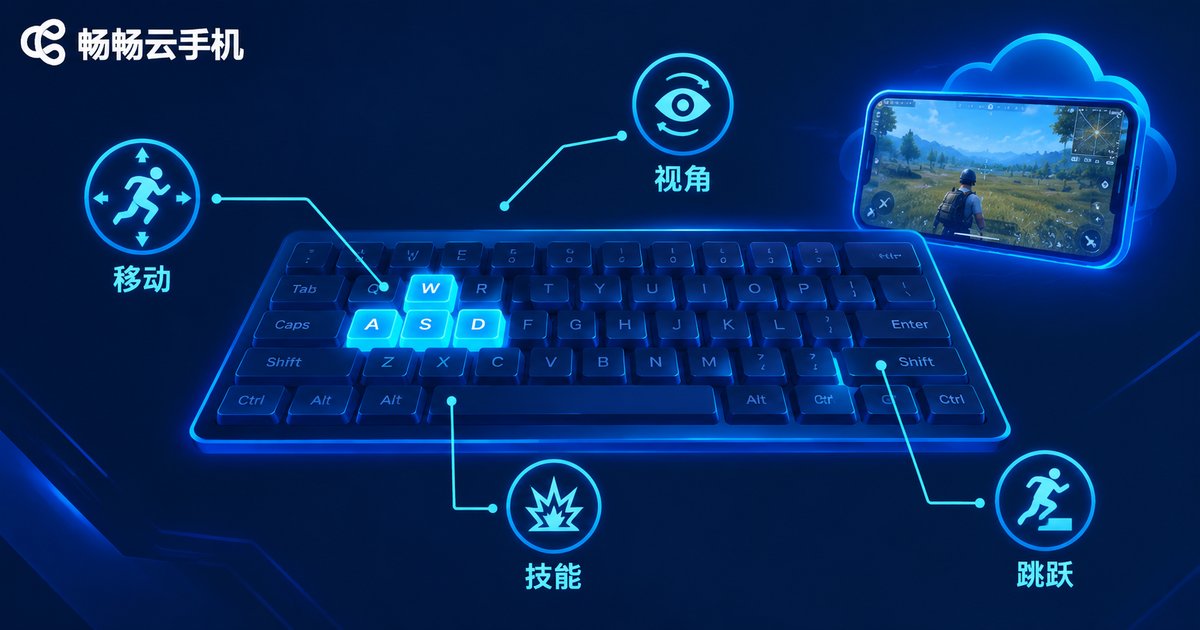
When running mobile games inside a cloud phone via the PC client, keyboard keys can be bound to the on-screen buttons of the game. A typical mapping looks like this:
WASD for movement, mouse for camera and aiming, number keys for skills, and spacebar for jump or confirm. Every game arranges its buttons differently, so spend a few minutes in a training ground or low-stakes match before jumping into ranked play.
Real-World Experience: Latency, Smoothness and Optimization
Based on broad user feedback, the keyboard-and-mouse experience on a cloud phone comes down to three factors:
Network quality: streamed video demands a solid connection — 5GHz Wi-Fi or wired ethernet usually keeps latency within tens of milliseconds; cloud instance specs: higher-tier cloud phone configurations run games more smoothly; the peripherals themselves: Bluetooth is inherently slower than wired, so competitive players should go wired.
If controls feel slightly out of sync, try lowering in-game graphics, closing bandwidth-hungry apps, or switching to a more stable network.
Why Choose ccloudphone
ccloudphone moves a complete Android environment into the cloud, supporting multiple app instances and 24/7 background running. Paired with PC-side keyboard and mouse control, it covers both gaming and productivity needs. Highlights include:
Strong multi-instance support: each cloud phone is an independent Android environment you can scale as needed; always online: tasks keep running in the cloud even when your own devices are powered off; great PC-side experience: sign in from a browser and control everything with zero setup.
If you regularly handle repetitive tasks on a phone, or want to play mobile games on a big monitor, ccloudphone is well worth a try.
FAQ
Q: Does connecting a keyboard and mouse to a cloud phone require root or drivers?
No. Bluetooth and OTG connections are supported at the system level and work instantly; signing in from a PC requires no configuration at all.
Q: Is Bluetooth latency noticeable in mobile games?
For office work and casual games it is barely perceptible; for competitive titles, switch to wired OTG or control the cloud phone directly from your PC.
Q: Can I connect a keyboard and mouse to a cloud phone from an iPhone?
Yes. Once connected through a compatible adapter, keyboard and mouse input works normally inside ccloudphone.
Q: Can one keyboard and mouse control multiple cloud phones?
Yes. After signing in on the PC side you can switch between cloud phone instances without reconnecting anything.
Q: Does the touchscreen still work when peripherals are connected?
Yes. Touch, keyboard and mouse inputs coexist and can be mixed freely at any time.


