
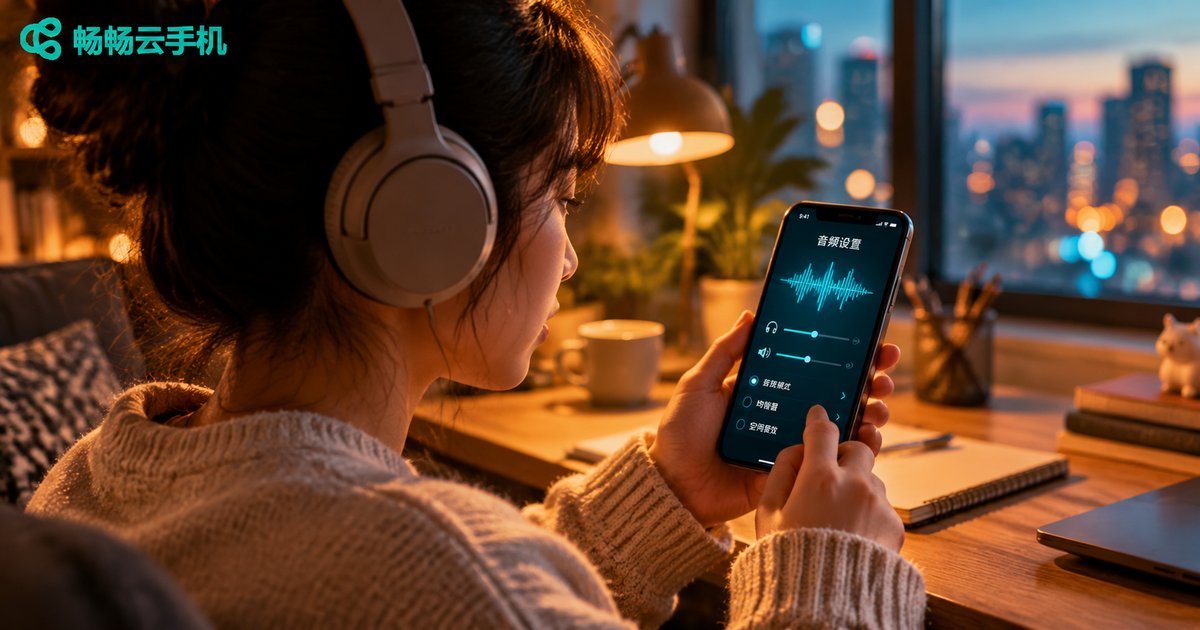
2026 Cloud Phone Audio Settings Guide: Fixing Audio Desync and Noise Issues
Why Cloud Phones Get Audio Desync and Noise
A cloud phone works differently from a regular phone: your games and apps actually run on a cloud server, and both the picture and the sound are streamed to your local device in real time. Every sound you hear travels through three stages: cloud rendering, network transmission, and local decoding and playback.
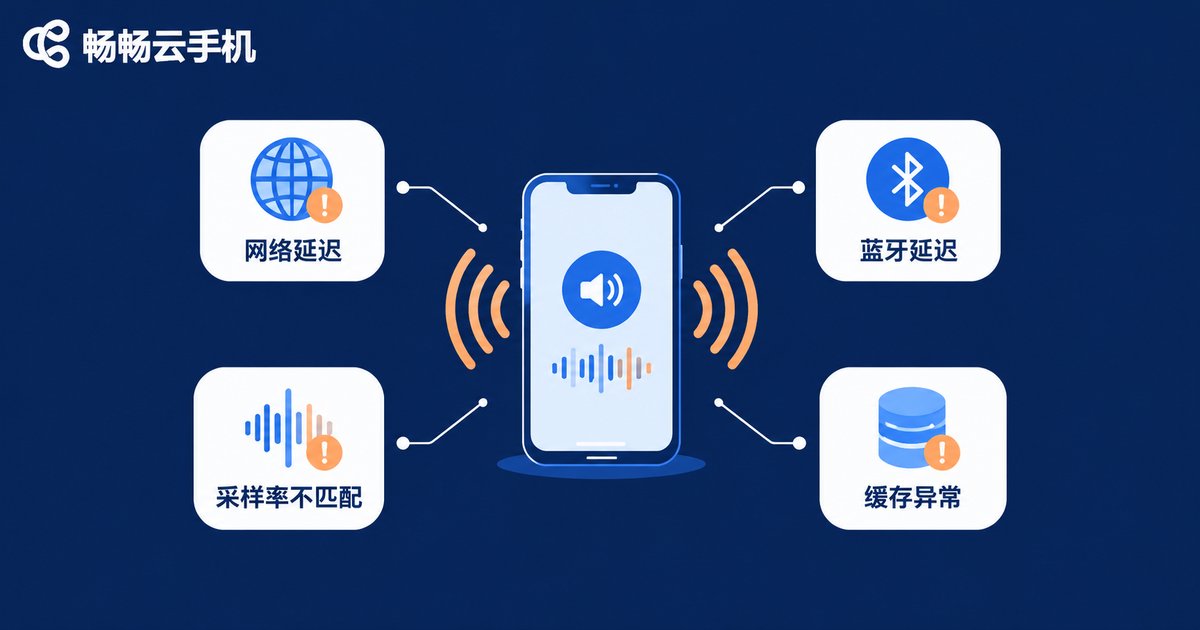
When any link in that chain stumbles, you get two classic symptoms: audio lagging behind the picture (desync) and hissing, popping or stuttering (noise). There are four common triggers. First, network jitter: insufficient bandwidth or packet loss makes audio packets arrive late or go missing. Second, Bluetooth latency: the encoding and decoding process of Bluetooth headsets adds tens to hundreds of milliseconds. Third, sample rate mismatch: when the cloud output rate differs from your playback device, static appears. Fourth, cache buildup: a cloud instance that has run for a long time accumulates cache and stutters during decoding.
Audio Desync: A Five-Step Troubleshooting Flow
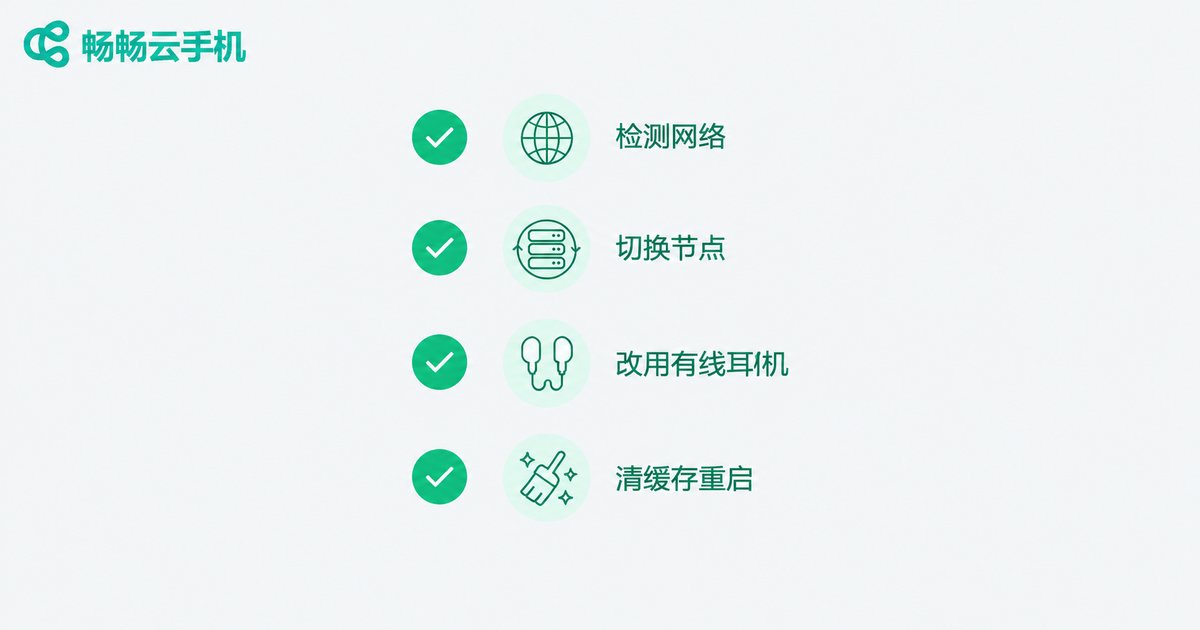
Step 1: Test the network. Run a speed test on your local connection. If latency is above 60 ms or packet loss exceeds 2%, switch to 5 GHz Wi-Fi or a stable 5G signal, and stay in the same room as your router.
Step 2: Switch the node. On ChangChang Cloud Phone, pick the server node closest to your location in the line settings. The shorter the physical distance, the lower the audio transmission delay.
Step 3: Go wired. Bluetooth headsets are the biggest source of lag. During troubleshooting, switch to a 3.5 mm or USB-C wired headset and compare whether the delay improves immediately.
Step 4: Close background apps and clear cache. Stop unnecessary local background apps, clear the cache inside the cloud instance, then restart the instance and test again.
Step 5: Adjust the audio mode. Where available, raise the audio priority in settings or disable picture-enhancement options, trading a little image quality for proper audio-video sync.
Noise and Popping: Three Key Checks
Check the sample rate. In your local sound settings, set the output sample rate to 48000 Hz to match the streaming format used by most cloud phones. This alone removes a lot of hiss and crackle.
Check Bluetooth interference. Bluetooth shares the 2.4 GHz band with Wi-Fi. Charging your phone while wearing Bluetooth earbuds, or placing the router right next to them, often causes stuttering audio. Move them apart or go wired to verify.
Check the volume chain. Keep local system volume above 80% and set a moderate volume inside the cloud phone, so a weak signal is not over-amplified into background hiss. Also disable local sound-effect enhancers.
Wired vs Bluetooth vs Speaker: Which Is Most Stable?
| Option | Latency | Interference resistance | Best for |
|---|---|---|---|
| Wired headset | Very low | Strong | Rhythm games, competitive play |
| Bluetooth headset | Medium to high | Average | Video, music |
| Built-in speaker | Low | Strong | Quick checks, hands-free use |
The conclusion is simple: for tight audio-video sync, go wired first; for convenience, choose Bluetooth. Speakers have low latency but pick up environmental noise, so they suit casual listening.
Recommended Audio Settings
Once troubleshooting is done, lock in this combination: 48000 Hz sample rate, 16-bit depth, local sound effects off, low-latency audio mode enabled inside the cloud phone, and a wired headset. If you mostly watch videos, you can relax the latency requirements for a more stable connection; for rhythm or shooting games, always return to the wired setup.
ChangChang Cloud Phone: Lower Latency at the Source
Instead of troubleshooting over and over, start with a service whose audio chain is stable by design. ChangChang Cloud Phone (ccloudphone) runs everything in the cloud and streams over low-latency channels with multiple node locations, so sound travels a shorter path from the cloud to your ears and stays in sync more reliably. Whether you are idling, streaming shows, or playing rhythm games, pick the node nearest to you inside ChangChang Cloud Phone first, then apply the local settings above. Tuning both ends is how you squeeze latency to the minimum. Visit the official ChangChang Cloud Phone website for more details.
Frequently Asked Questions
Q: The sound lags behind the picture. Is it always the network?
Not necessarily. The network is the most frequent cause, but Bluetooth latency and an oversized local decoding buffer can also desync audio. Follow the order in this guide: test the network first, compare with a wired headset, then adjust the audio mode.
Q: The noise comes and goes. Is my headset broken?
Do not replace it yet. Plug the same headset into another device. If it sounds clean there, the problem is most likely a sample rate mismatch, Bluetooth interference, or cloud phone cache, so work through the three checks in the noise section.
Q: Does ChangChang Cloud Phone support the microphone and voice chat?
Yes. ChangChang Cloud Phone can carry your local microphone input to the cloud device, so voice apps work normally. If the mic is not picked up, first check that the local microphone permission has been granted to the cloud phone app.
Q: I tried everything and it is still out of sync. What now?
Restart the cloud instance and reconnect so the audio channel is rebuilt. If the problem persists, contact the official ChangChang Cloud Phone support team with your device model and network details for targeted advice.


