
How to Use the Cloud Phone Camera: Invocation Methods, Permission Setup and Use Cases
Does a Cloud Phone Really Have a Camera
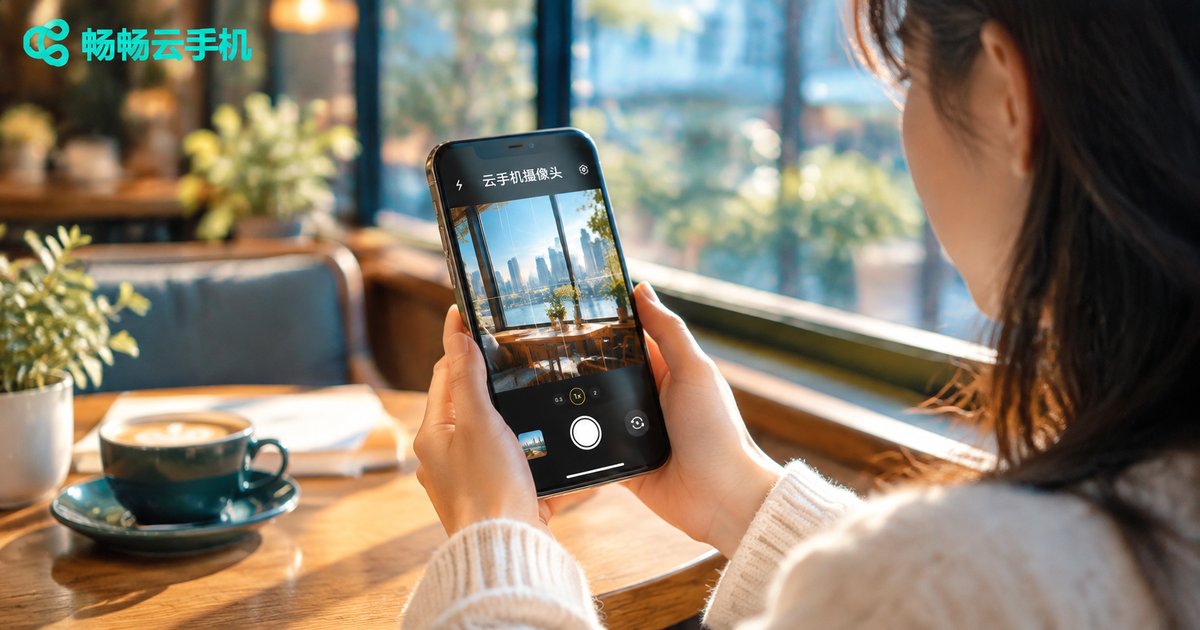
Many first-time users wonder: if a cloud phone runs on a remote server with no physical lens, how do features like QR scanning and face verification work inside its apps? The answer is camera mapping technology. A cloud phone streams the camera feed from your local device to the cloud in real time, so apps running inside the cloud phone behave exactly as if they were using a real camera. In other words, it does not matter where the physical camera is — whenever an app inside the cloud phone needs a camera feed, it gets one instantly.
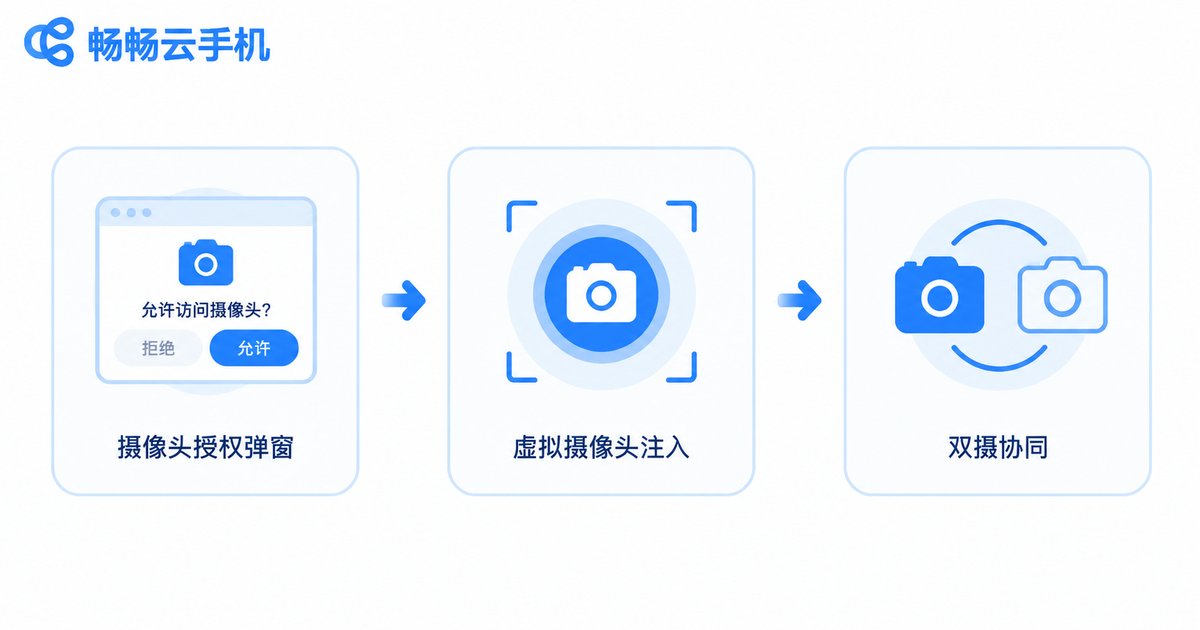
Take ccloudphone as an example: the first time an app inside the cloud phone requests the camera, the system shows an authorization popup just like a real phone. Tap allow, and your local camera feed is synced to the cloud app almost seamlessly.
Three Common Ways to Invoke the Camera
In daily use, the cloud phone camera works through three main invocation methods that cover almost every app scenario:
| Method | How It Works | Typical Uses |
|---|---|---|
| Direct invocation with permission | The app requests access, the system shows a popup, and the local camera is used after approval | QR scanning, photos, video calls |
| Virtual camera injection | A local album image or a fixed feed is provided to the app as the camera source | Testing and demo scenarios needing a static image |
| Dual-side cooperation | Local phone and cloud phone use cameras side by side without conflict | Live streaming, running two video apps |
Most apps use the first method — the familiar permission popup flow. Only a few special cases require virtual camera injection.
Step-by-Step Permission Setup
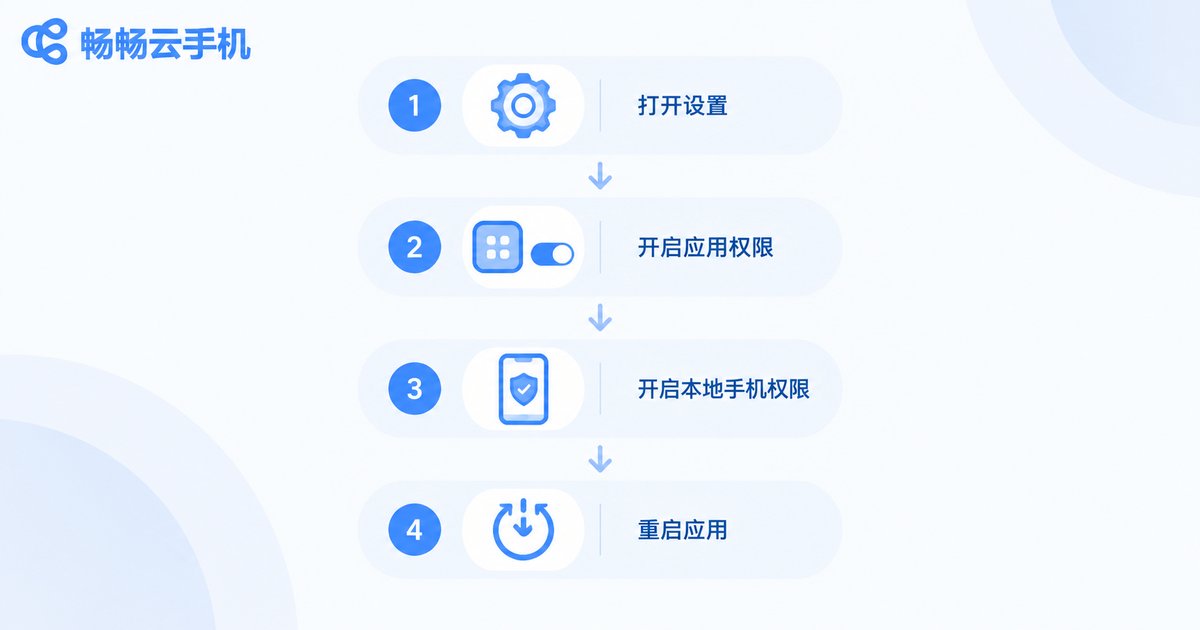
If the camera is not working, nine times out of ten it is a permission issue. Follow these four steps to fix it:
Step 1: Open Settings on the cloud phone desktop and go to App management or Permission management;
Step 2: Locate the app that needs the camera and set its camera permission to Allow;
Step 3: Back on your local phone, make sure the ccloudphone app itself has camera permission in system settings — this step is the most commonly missed;
Step 4: Restart the app or the cloud phone to trigger the camera authorization again.
Keep in mind that camera permission has a two-layer structure: the local system must allow ccloudphone to use the camera, and inside the cloud phone the target app must also be allowed to use it. Both layers must be switched on for the feed to appear.
Typical Use Cases
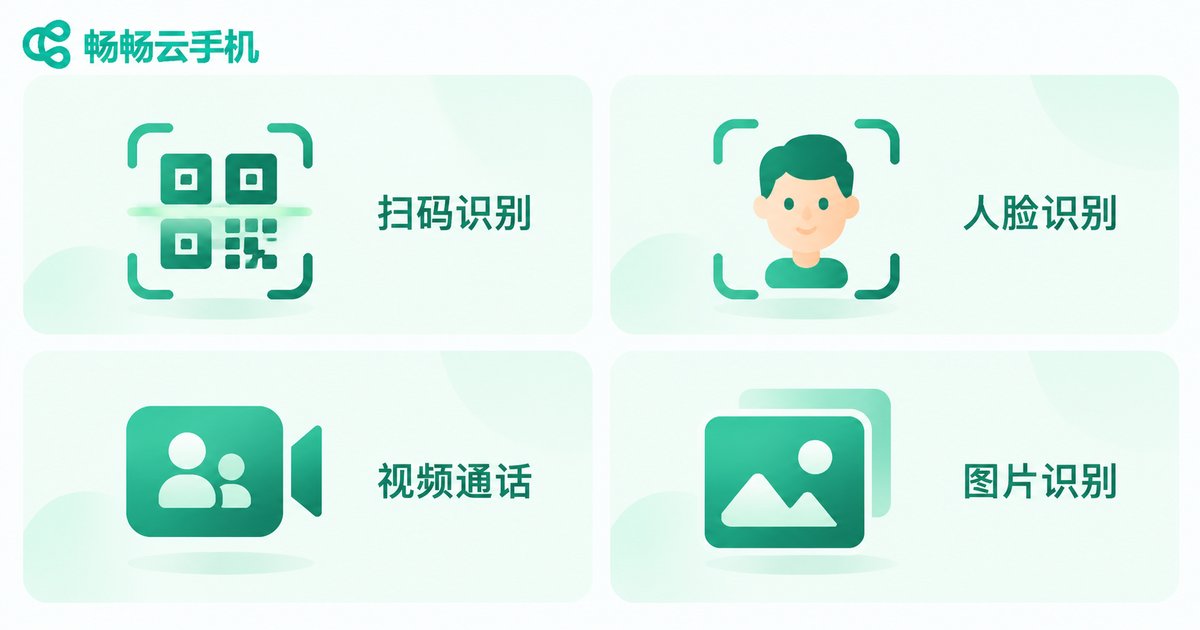
QR login and payment: open the page that needs scanning inside the cloud phone and point the camera at the QR code — handy for game logins and account verification;
Identity and face verification: some finance and government apps require face checks; camera mapping handles these too. Just keep the lighting good and face the lens directly;
Video chat and live streaming: during video calls or live streams, your local camera feed is synced to the cloud app in real time. A stable Wi-Fi connection is recommended for smooth performance;
Photo recognition tools: plant identifiers, object recognition and photo translation apps all work — shoot on the spot or pick a photo from the album.

Tips and Things to Watch
Black screen: first check that your local system allows ccloudphone to access the camera, then check the camera permission of the target app inside the cloud phone — enabling both layers restores the feed;
Laggy feed: camera streaming demands more bandwidth. Switch to a more stable Wi-Fi network or slightly lower the cloud phone resolution;
Switching cameras: tap the switch button inside the app as usual — the cloud phone switches your local camera accordingly;
Privacy tip: when you are not using the camera, turn off the camera permission for the relevant app in cloud phone settings and re-enable it when needed, for extra peace of mind.
FAQ
Q: Does using the camera on a cloud phone consume a lot of data?
The camera feed is uploaded to the cloud in real time, so it does use more data than normal operation. Video features are best used over Wi-Fi.
Q: Why does the authorization popup never appear?
Make sure the camera permission of that app inside the cloud phone is not set to Deny. If you previously denied it, change it back to Allow in the cloud phone settings.
Q: Face verification keeps failing. What should I do?
Ensure good lighting, face the local camera directly, and keep the network stable. Some apps apply strict environment checks, so a few retries usually help.
Q: Does every app support the cloud phone camera?
The vast majority of camera-dependent apps work normally. A few apps with deep device detection may vary — test them in ccloudphone first to confirm.


