

Cloud Phone Location Guide: Permissions, Privacy, and Troubleshooting
How Cloud Phone Location Actually Works
A cloud phone is a virtual Android device running in a remote data center, so it has no real GPS chip. When an app requests your location, the cloud phone returns a simulated position provided by the cloud service. This means whether location works depends on the cloud service configuration and permission status, not on satellite signals as with a physical phone. Understanding this principle helps you quickly identify where a fault lies when location fails — instead of blindly reinstalling apps.
Step One: Set Location Permissions Correctly
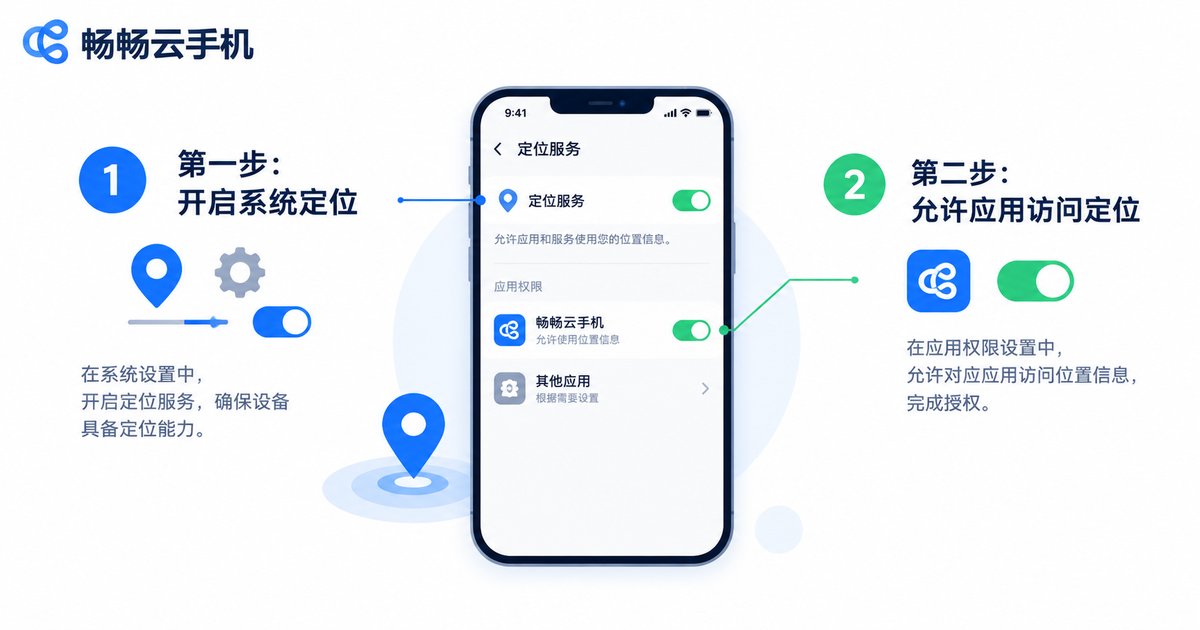
The most common cause of location failure is misconfigured permissions. Cloud phone location involves two layers: the system master switch and the per-app permission. Both must be enabled:
1. Open the cloud phone Settings → Location and make sure the system-level location service is on;
2. Go to Settings → Apps and find the app that needs location;
3. Tap Permissions → Location, then choose Allow only while in use or Allow all the time;
4. Reopen the app, trigger a location request, and confirm the map or check-in feature responds normally.
Many users enable the app permission but forget the system master switch, so the app never receives a location. Following these four steps resolves most permission-related issues in one pass.
Privacy Tips: Details You Should Not Ignore
Location is sensitive personal data. When using cloud phone location features, we recommend building these habits:
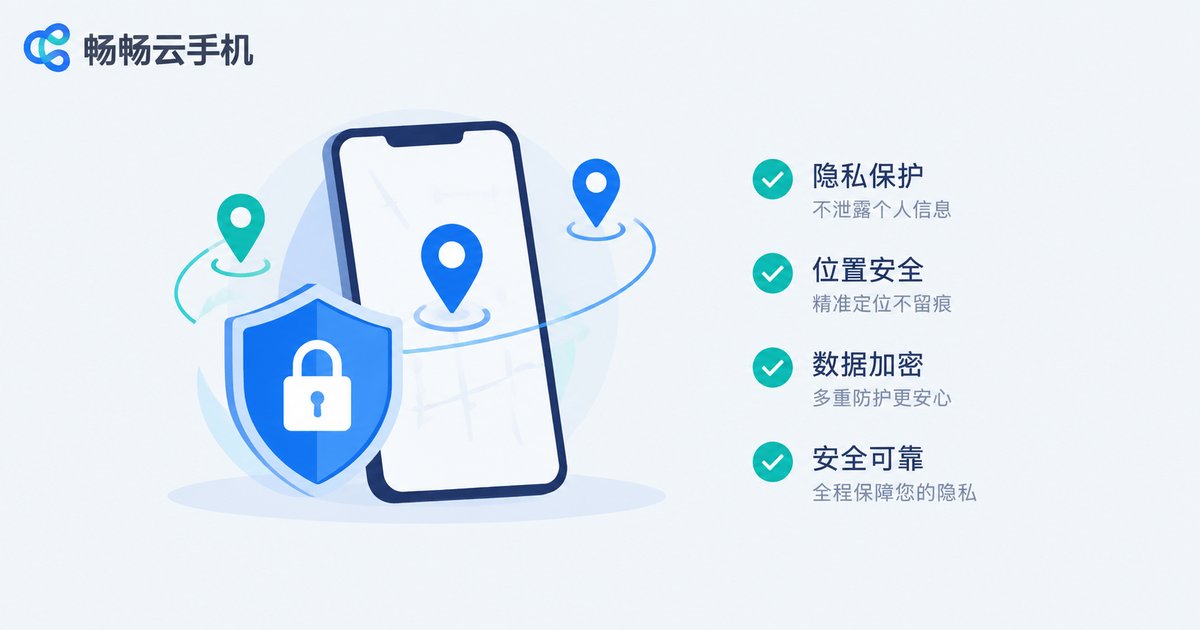
Grant permission only to essential apps. Turn off location access for apps that do not need it, reducing excessive location data collection at the source.
Watch out for background location. Some apps request background location. If you only need clock-in or check-in functions, choose Allow only while in use — it is safer and also reduces cloud phone resource usage, keeping multi-instance running smoother.
Clean up permissions when logging out. On shared or handed-over devices, revoke app location permissions and clear related records before signing out to avoid leaving location data behind.
Use it only for compliant purposes. Location features should be used only for legitimate scenarios such as app testing and daily multi-account operations, in accordance with app terms of service and local laws and regulations.
Troubleshooting: Find the Problem with One Table
| Symptom | Likely Cause | Fix |
|---|---|---|
| App says it cannot get location | App permission or system switch is off | Check both permission layers as above |
| Location drifts or is inaccurate | Cloud location signal fluctuation | Restart the cloud phone instance and retry |
| Position always shows the same city | Cloud default location not refreshed | Restart the instance and trigger a new request |
| Map apps load slowly | High network latency | Switch to a more stable network |
| Location suddenly stops working | Corrupted app cache | Clear the app cache and re-grant permission |
Recommended order: check permissions first, then the system switch, then restart the instance, and finally clear the cache. Most location issues are resolved in the first two steps — there is no need to reinstall the app or change devices right away.

ChangChang Cloud Phone: Stable Location, Easy to Start
If you are looking for a cloud phone with stable location and a clean, intuitive interface, try ChangChang Cloud Phone (ccloudphone). It provides a stable cloud Android environment with location services ready out of the box and a clearly organized permission management path, so even non-technical beginners can complete setup quickly by following the prompts. Whether for app testing, multi-account management, or daily use, ChangChang Cloud Phone delivers a smooth and reliable experience. Visit the official ChangChang Cloud Phone website for the latest features and plans, and start your cloud journey in minutes.
FAQ
Q: Is cloud phone location real GPS?
No. A cloud phone runs on cloud servers without a GPS chip; its location is simulated by the cloud service. The accuracy is sufficient for most daily needs such as check-ins and map browsing.
Q: Why does location still fail after I enabled the app permission?
Check whether the system-level location master switch is on. Location works only when both the app permission and the system switch are enabled; if it still fails, restart the cloud phone instance.
Q: Will cloud phone location expose my real position?
No. The cloud phone returns a simulated location from the cloud, unrelated to where your physical device is. Still, grant location only to necessary apps and keep good privacy habits.
Q: What should I do about severe location drift?
Restart the cloud phone instance first — this fixes it in most cases. If the problem persists, check your network stability, or clear the app cache and re-grant location permission.
Q: Does location on ChangChang Cloud Phone cost extra?
Location is a basic capability of the cloud phone. For specific features and plan details, refer to the latest information published on the official ChangChang Cloud Phone website.


