
Cloud Phone Notifications and Message Management: Alert Settings, Sync Mechanisms, and FAQs
Why Notification Management Matters on Cloud Phones
When you move games, social apps, or work tools to a cloud phone, notifications become the lifeline between you and your cloud device. Flash-sale alerts, direct messages, party invites, and order updates are often decided within minutes. Poor notification settings mean missed events at best and lost customers at worst. This guide explains, in plain language, how to configure alerts, how multi-device syncing works, and how to troubleshoot missing messages.
The Journey of a Message: How Notifications Reach You
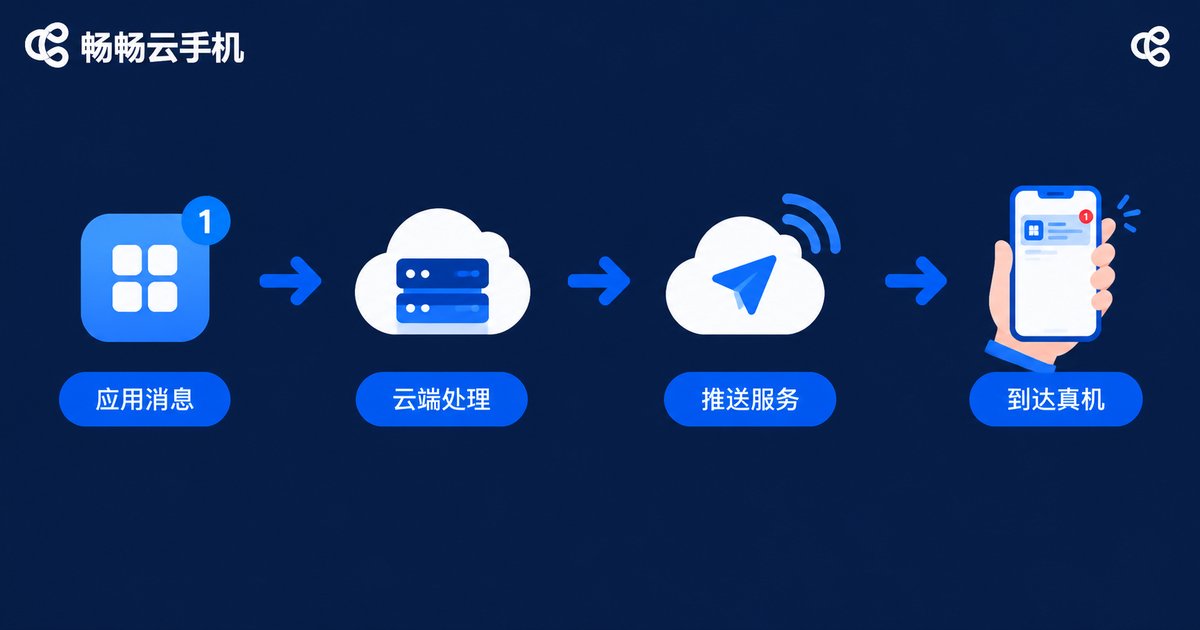
To manage notifications well, you first need to know where they come from and where they go. A message usually passes through four stages:
1. The app generates the message in the cloud: a party invite in a game or a new DM on social media happens on the cloud phone first.
2. The cloud Android system processes it: the system decides which app the message belongs to and whether it is allowed to surface an alert.
3. The push service forwards it: a summary is delivered to your physical device (phone or desktop client).
4. Your device shows the alert: you see it on the lock screen or notification bar and tap to jump back into the right cloud phone.
If any stage is blocked or switched off, the message gets stuck along the way. Troubleshooting notifications is essentially checking these four stages one by one.
Alert Settings in Practice: A Three-Step System
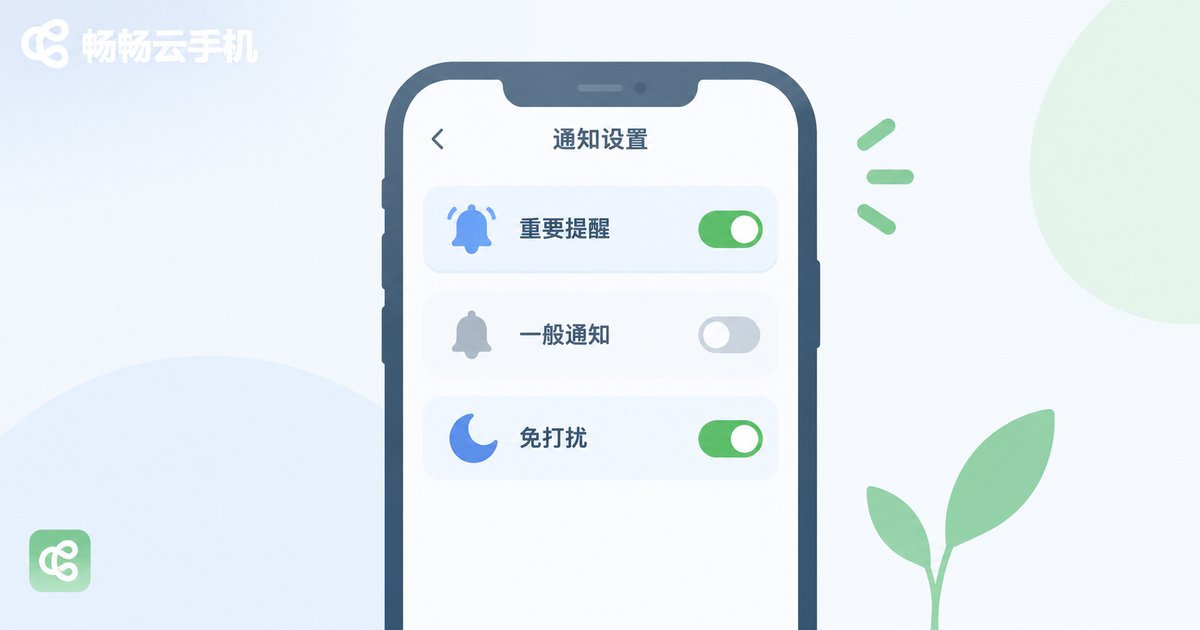
Notification settings on a cloud phone work just like on a physical phone. The key is tiered management rather than turning everything on or off:
Step 1: Rank your apps. Sort apps into three groups — must know instantly (trading, customer messages), check periodically (social comments), and safe to silence (news feeds).
Step 2: Configure by tier. Enable sound and banners for tier one; show tier two silently in the notification bar; disable notifications entirely for tier three.
Step 3: Use Do Not Disturb windows. During rest hours, allow only whitelisted apps to alert you so unimportant messages never wake you up.
| Setup | Pros | Cons | Best for |
|---|---|---|---|
| All notifications on | Nothing gets missed | Noisy, easy to go numb | Beginners, transition period |
| All notifications off | Totally silent | Critical messages get missed | Almost nobody |
| Tiered management | Key messages always arrive, minimal noise | Takes a few minutes to set up | The vast majority of users |
How Message Syncing Works Across Multiple Cloud Phones
Many users run several cloud phones at once, and the biggest concern is: will messages get mixed up or lost?
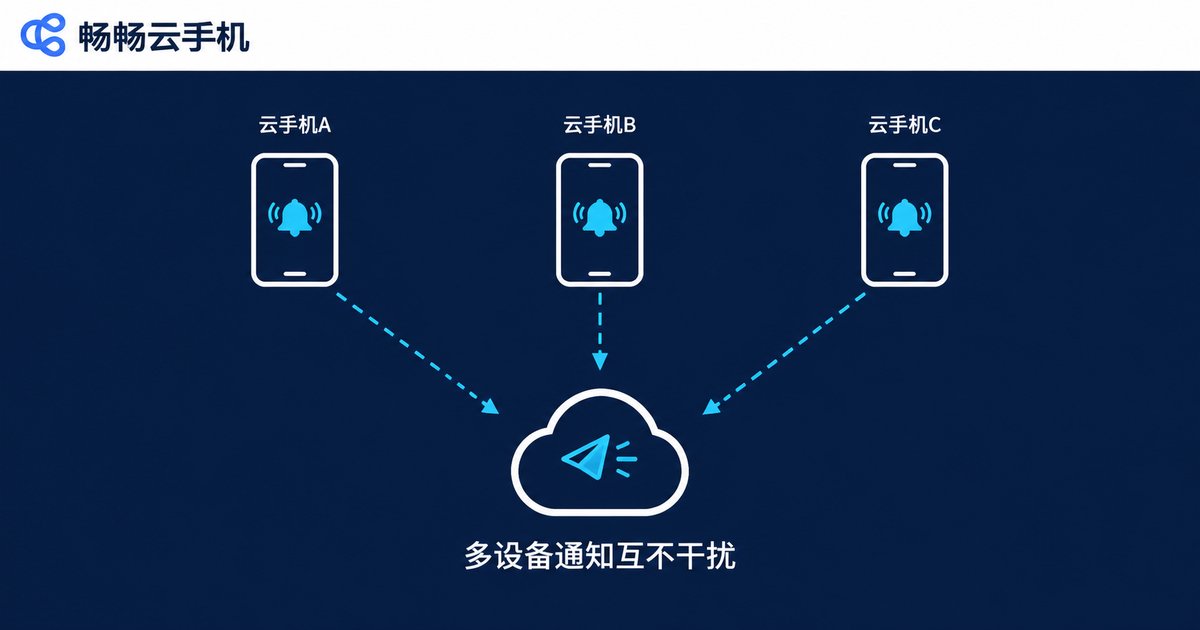
Proper cloud phone services give each device its own app data and its own notification channel. In other words, a message inside an app on device A never appears on device B; each device pushes independently without interference. Notifications indicate which cloud phone they came from, and tapping one jumps straight to that device.
Note that what syncs is the notification summary, not the chat history. Chat records live inside each cloud phone, and logging in on another device does not carry records over automatically. If your workflow requires several devices to see the same content, log in with the same account at the app level instead of relying on notification syncing.
Not Receiving Notifications? A Five-Step Checklist
When messages arrive late or not at all, check in this order and most issues can be located quickly:
Step 1: Check your physical device. Make sure the cloud phone client has notification permission and is not being restricted in the background by battery optimization.
Step 2: Check the cloud phone settings. Open system settings on the cloud phone and confirm the notification toggle for the app is on and was not switched off by mistake.
Step 3: Check in-app settings. Many social and trading apps have a separate alert switch inside the app itself that must be enabled separately.
Step 4: Check Do Not Disturb and schedules. Confirm the current time is not inside a quiet window and that your whitelist is configured correctly.
Step 5: Restart and retry. Restart the cloud phone from the client to rebuild the push channel; most occasional delays disappear after this.
Recommended Notification Setups by Scenario
Gamers: strong alerts only for party, trade, and event apps; silence everything else and mute idle or AFK apps to avoid spam.
Social media operators: keep DM and comment alerts on and mute likes and other weak interactions; name each device by role (such as support account or content account) so notifications are recognizable at a glance.
Multi-account studios: assign different alert rules per device — strong alerts for critical devices and batch review for the rest — and combine with Do Not Disturb windows for shift coverage.
Why Choose CCloudPhone
For notifications and message management, CCloudPhone (ccloudphone) is a dependable choice: a stable, always-on cloud Android environment delivers app messages to your physical device promptly, while multiple devices run independently with notifications that never cross wires. Whether you are a gamer, a social media operator, or a multi-account user, you can apply the settings in this guide on CCloudPhone so every cloud phone rings when it should and stays quiet when it should not.
FAQs
Q: Will my cloud phone keep receiving messages if I close the client?
Yes. The cloud phone keeps running in the cloud and apps continue to receive messages; reopen the client to catch up on what happened. Whether alerts are pushed to your physical device depends on the client's running state and notification permissions.
Q: Why are notifications sometimes delayed?
Common causes include battery optimization restricting the client, in-app alert switches being off, and network fluctuations. Follow the five-step checklist above; restarting the cloud phone resolves most delays.
Q: Do messages get mixed up between multiple cloud phones?
No. Each cloud phone has independent app data and its own notification channel, and notifications indicate the source device.
Q: Do cloud phone notifications drain my physical phone's battery?
The notifications themselves use very little power; what matters is the client maintaining a background connection. Enable alerts only for important apps and review the rest in the notification bar.
Q: How do I completely turn off notifications for one app?
Open system settings on the cloud phone, go to app notification management, and switch off notifications for that app; you can also disable alerts inside the app's own settings.


