
2026 Cloud Phone Screen Recording Evidence: Video, Audio and File Storage Tips
Why More People Use Cloud Phones for Screen-Recording Evidence in 2026
Chat histories, order pages, verbal promises made during a livestream, customer service conversations — when a dispute arises, screenshots are the easiest thing to question. Images can be cropped, stitched together, or dismissed as edited. A continuous screen recording preserves the entire operation: opening the app, typing a keyword, scrolling to a specific record, tapping into the detail page. One uninterrupted take is far more convincing than a single still image.
Cloud phones have become common for this task because they move the recording away from the local device. The phone runs in the cloud and the screen is rendered server-side, so the recording is unlikely to be interrupted by an incoming call, a dying battery or an accidental app switch. Not being interrupted is the first real value of recording evidence.
Image: Get 'Clearly Visible' Right First
Many recordings end up unusable not because the content is false, but because it cannot be read. Before you hit record, walk through the following.
1. Resolution and frame rate. Match the recording resolution to the cloud phone display. A normal frame rate is enough — very high frame rates only create oversized files that are harder to transfer and open.
2. Interface scale and font size. Bump the system font up one step so key text is not too small. Play back the first five seconds and confirm that order numbers, usernames and timestamps are legible.
3. Key details must be on screen. Account name or avatar, the full page title, order number, amount, date and time. You can point with a cursor, but do not cover the text for long stretches.
4. Keep the status bar clock visible. The time shown at the top of the screen is the most direct indicator of when the recording happened. Avoid hiding the status bar.
5. Slow the pace down. Pause for one or two seconds on each page so the frame has a clear moment on screen. Evidence recording does not need to look slick — every screen just needs to stay readable.
Audio: Pairing System Sound with Microphone Narration
Audio is often overlooked, yet in many situations it explains more than the picture does.
System audio capture records video playback, voice messages and livestream sound. If the disputed point is a spoken promise in a voice message or a clip, make sure internal audio is enabled, then play it back and check the volume. Nothing undermines a file faster than a silent recording.
Microphone narration fills in what the picture cannot show. Open with one sentence covering the time, the operator and the purpose. For example: 'It is 3 p.m. on 10 March 2026, I am Zhang San, and I am recording the refund conversation for order 8812.' It costs almost nothing and greatly improves the completeness of the material.
If your setup supports dual-track recording, keep both system sound and narration. If only one track is available, prioritise the original audio of the disputed content and place narration at the beginning and end.
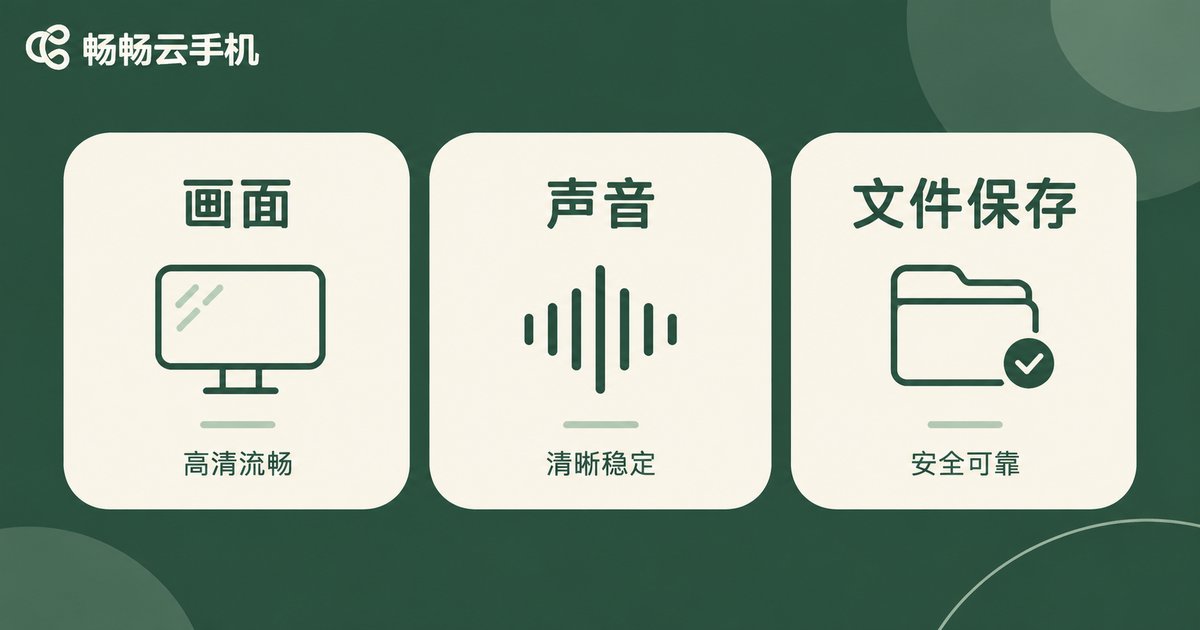
File Storage: Naming, Timestamps and Backup
Recording without organising is the same as not recording at all. This is the step most often skipped and the one where problems surface.
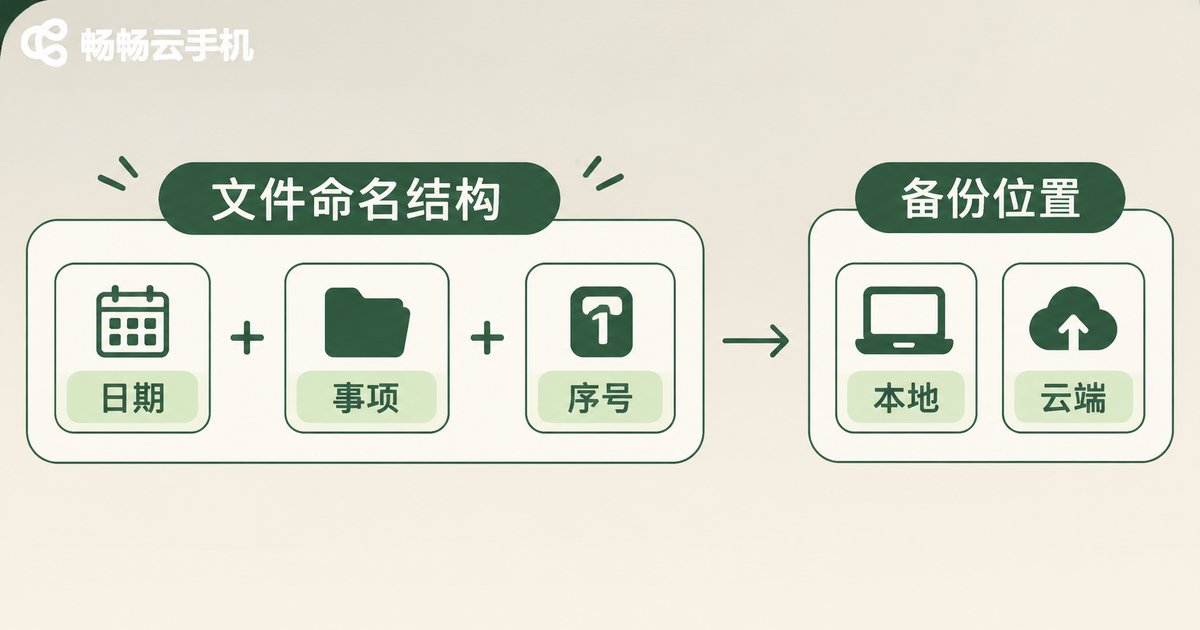
Use one consistent naming rule. A structure such as date_matter_key-number_sequence works well — for example 20260310_refund_order8812_01. When you record several times in a day, the sequence number lets you find the right clip instantly.
Never edit the original file. Do not trim the beginning or end, do not speed it up, do not overlay subtitles on the original picture. Write a separate text note if you need to explain something; leave the original untouched.
Record the file properties. Creation time, file size, duration and resolution are useful when you need to show the file has not been altered. If you can, generate a hash of the original file and keep it on record.
Keep two copies. At minimum, one on a local drive or portable storage and one in the cloud. Store them separately so a single device failure does not wipe out your material.
| Item | Local phone recording | Cloud phone recording |
|---|---|---|
| Recording stability | May be interrupted by calls, notifications or app switching | Runs continuously in the cloud |
| Long sessions | Limited by battery and heat | Does not depend on local battery |
| Multitasking | Little else can be done while recording | Local device stays free for other work |
| Environment consistency | Interface and settings may change with the device | Instance configuration stays relatively fixed |
| File retention | Manual export, easy to delete by mistake | Can remain in the cloud, then downloaded and archived |
Practical Setup for Evidence Recording on ccloudphone
If you want to make recording a repeatable routine, ccloudphone is a reasonable option to include in your workflow. It provides virtual phone instances that run in the cloud, with apps staying online while your local device is powered off or disconnected — helpful when you need to keep a session running for a long time or repeat the same operation flow consistently.
When setting up, run through a full rehearsal first:
Step 1. Adjust the font size, display scaling and recording resolution inside the cloud instance once, then keep them fixed so every recording in the series shares the same visual specification.
Step 2. Before the real session, record ten seconds and play it back to check image clarity and audio. Only start the actual recording once both are confirmed.
Step 3. After recording, keep a copy in the cloud first, then check the official site ccloudphone.com for the current documentation on retrieving files and managing instances. Feature locations may change between versions, so follow the latest official description.
Step 4. Download to your local machine, archive using the naming rule, and create a second backup.
One reminder: a screen recording is a way of preserving material, not a substitute for any legal process. For serious disputes, consult a professional and always keep the complete original files and the associated account information.
FAQ
Q: Is a cloud phone recording treated differently from a normal phone recording?
The device is not the deciding factor. What matters is whether the file is complete, continuous and unedited, and whether you can explain when it was made and where it came from. The method matters more than the tool.
Q: Is there a limit on recording length? Does a long file make storage harder?
Record in segments by topic, each a few minutes long, numbered in sequence. Segments are easier to search than one very long video and easier to reference when explaining a specific step.
Q: Can I record video only and skip audio?
It depends on the case. For text pages, video alone is enough. If voice messages, video content or spoken promises are involved, audio is essential — and always play it back to confirm the volume is normal.
Q: Can I add subtitles afterwards?
Not on the original file. Create a separate text note and keep it alongside the original recording, leaving the source video untouched.
Q: Will network fluctuations interrupt a cloud phone recording?
The cloud instance keeps running; network fluctuations mostly affect what you see locally while the recording continues in the cloud. Actual behaviour depends on your configuration, so run a full rehearsal before relying on it.
Q: Why fix one set of settings before recording?
Because matching visual specifications across multiple clips makes it much easier to show they come from the same operation process and reduces doubt about whether a clip was recorded separately.


