
Cloud Phone Autostart Management: Reduce Resource Waste and Boot Conflicts
Why cloud phones need autostart management too
A common misconception among first-time cloud phone users is that since the device lives in the cloud, you can simply add more resources when performance drops — so why bother about autostart? The reality is the opposite. A cloud phone is a virtual Android instance running in a data center, and the CPU and memory allocated to a single instance are limited. Autostart apps all wake up at the same moment during system boot and compete for those resources.
Three things usually follow: slower boot, where it takes a long time from waking the screen to actually being able to operate; less available memory, so the business app you really need feels sluggish when you finally open it; and boot conflicts, where several apps request push channels, overlay windows or accessibility services at the same time, interfere with each other, and cause crashes, black screens or endless loading spinners.
More importantly, cloud phones are rarely one or two devices — often dozens or hundreds run at once. Resource waste on a single instance gets multiplied, and so does the operational cost.
What autostart actually consumes
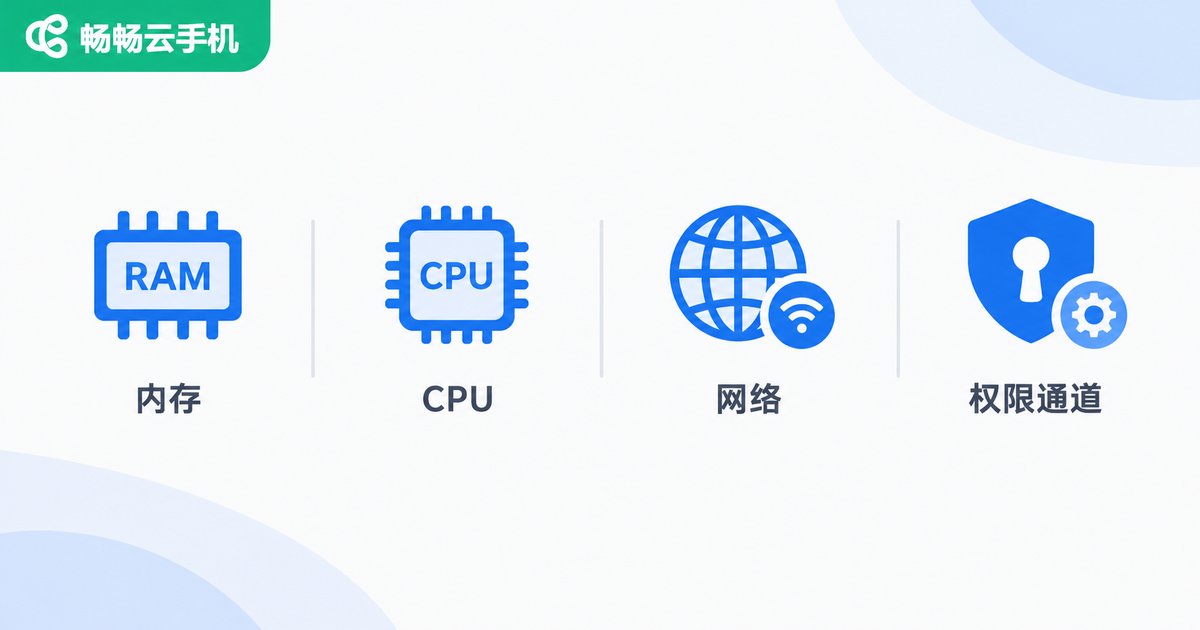
Autostart apps cost far more than "one extra program running." They occupy at least four kinds of resources:
Memory: every autostart app keeps a base process resident even if you never open it. Once there are enough of them, there is little room left for business apps.
CPU and disk I/O: at boot, multiple apps initialize, read configuration and create databases at the same time. Disk I/O gets saturated and the whole instance feels unresponsive during that window.
Network and background wake-ups: autostart apps usually bring push services, heartbeats and scheduled tasks along with them, generating continuous background wake-ups that drain resources during long online sessions.
System resource channels: push services, overlay windows, accessibility and location are resources that are really only suitable for one app at a time. Several apps grabbing them simultaneously is exactly how conflicts happen.
Cloud phones and physical phones are managed differently
On a physical phone, disabling autostart is mainly about saving battery and reducing lag. On a cloud phone, the goal is more about stable uptime and controllable resources. There are three key differences:
First, cloud phones usually need to stay online for long periods rather than rebooting frequently. Autostart management is therefore about making sure the instance quickly returns to a usable state after a restart, not about saving power.
Second, cloud phones are often used in multi-instance, batch-cloned setups. Every autostart entry left on the parent instance gets copied to every child instance — one oversight becomes a global problem.
Third, system images and instance configurations are often provided by the platform. Any changes you make inside an instance need to be recorded and reused by yourself, otherwise you will repeat the same work after rebuilding instances.
A three-step audit: look before you cut
Step one: count them. Go to Settings → Apps → Autostart on the instance and list every app allowed to start automatically. Most people are surprised by how many entries are tools they installed once and never opened again.
Step two: time it. Record how long it takes from instance startup to a fully clickable home screen, then watch memory usage during the first two minutes after boot. That number becomes your baseline for later optimization.
Step three: compare. Disable a batch of clearly unnecessary autostart entries and reboot to measure again. If boot speed improves noticeably, you are on the right track. If little changes, focus on the background service apps that stay resident.
Tiered autostart management: one table says it all
Rather than debating "keep or kill" for each app, classify autostart entries first. The table below is ready to use:
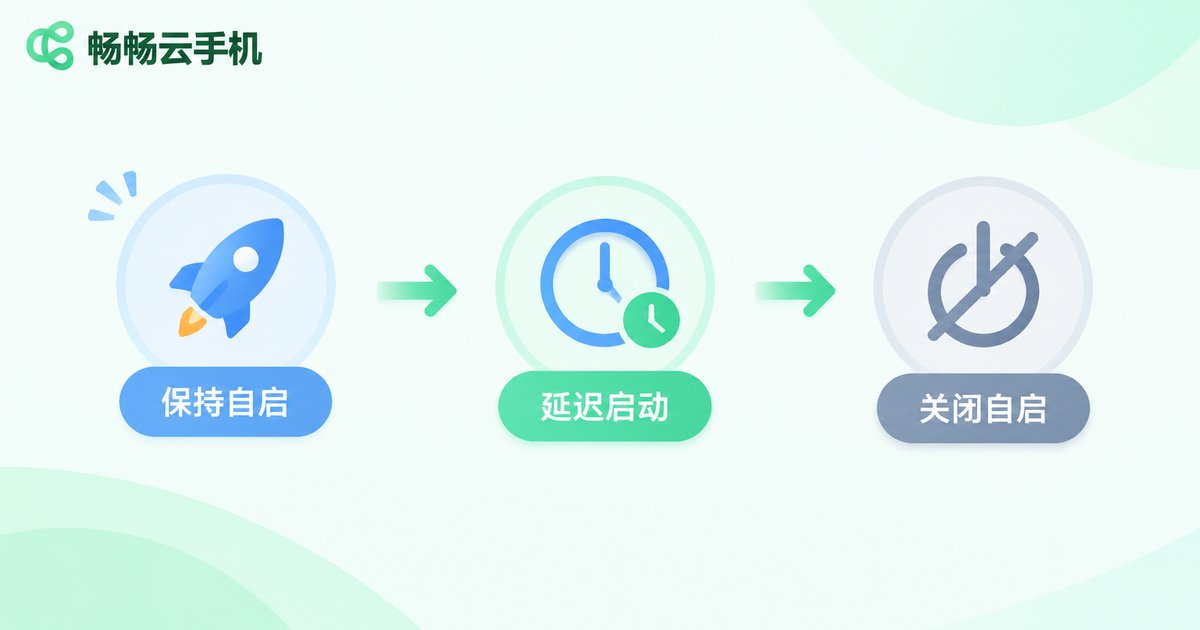
| Autostart entry type | Suggested policy | Reason |
|---|---|---|
| Core business app, primary push service | Keep autostart | Must receive commands and messages immediately after boot |
| Data sync, log upload, backup tasks | Delay startup | No need to be ready instantly; staggering reduces boot peak load |
| Utility apps, one-off test programs, leftover SDKs | Disable autostart | Consume memory but are almost never used |
| Overlay windows, accessibility helper apps | Keep cautiously, one per category | Multiple similar apps compete for the same permission channel and conflict most easily |
| Built-in system components that cannot be disabled | Leave as default | Forcing them off may affect instance stability |
Five practical management recommendations
1. Subtract first, then add back. Disable everything by default, then only add back what the business truly needs. This is far faster and less error-prone than judging dozens of entries one by one.
2. Separate "needed now" from "needed soon." Sync, reporting and backup tasks can wait a few minutes. Reducing the number of apps launching during boot noticeably cuts down boot conflicts.
3. Keep only one app per category. Push, overlay, input method and accelerator apps overlap in function. When they all autostart, they interfere with each other — keep just one.
4. Turn your configuration into a template. Tune the autostart policy on a single instance, verify it runs stably, then copy it to other instances. In batch scenarios, this saves a huge amount of repetitive work.
5. Re-audit after every app update. Many apps quietly add their autostart entries back in new versions. Make autostart list checks part of routine inspection, alongside boot time and post-boot memory usage.
Extra considerations for batch operations
Once the number of instances grows, two easily overlooked details matter.
The first is staggered startup. If dozens of instances boot in the same minute, even a light per-instance load becomes a visible resource peak overall. Start or restart them in batches grouped by business function.
The second is group-based configuration. Instances used for different purposes have different autostart needs. Display-only instances need almost no autostart, while message-receiving instances must keep their push channel. Managing by group makes far more sense than applying one configuration to everything.
Managing multiple cloud instances with ccloudphone
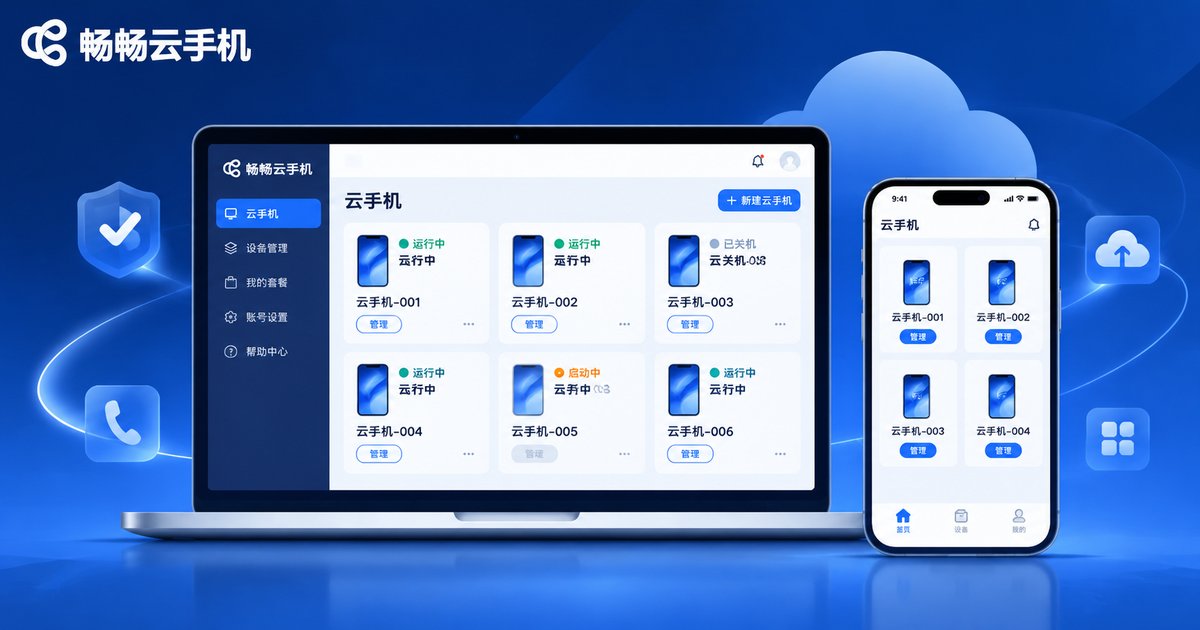
If you are looking for a cloud Android environment that stays online reliably over the long term, take a look at ccloudphone. It provides Android cloud phone instances built on cloud virtualization technology. You can log in and operate them through a client or a web browser without relying on high-performance local hardware, which suits scenarios that need multiple parallel instances running online for extended periods.
In practice, combine it with the approach described in this article: adjust the autostart policy on one instance until boot speed and memory usage meet expectations, then apply the same configuration to other instances. That way you get the convenience of unified cloud instance management without letting autostart entries grow along with your instance count.
FAQ
Q: Will disabling autostart stop me from receiving messages?
It depends on the app. Keep the apps responsible for message delivery on autostart and in the whitelist. For others, you can disable autostart and let them pull messages when opened. The key is knowing which messages must be real-time.
Q: Will autostart settings reset after a cloud phone reboot?
Generally no. Settings persist inside the instance system. However, if the instance is reset, reinstalled or switched to another image, settings may be lost. That is exactly why templating and documenting your configuration is recommended.
Q: Is fewer autostart apps always better?
No. Core business apps and push services must be kept. Over-disabling delays business readiness after boot and actually increases troubleshooting effort. The goal is "just enough," not "as few as possible."
Q: What do boot conflicts typically look like?
Common signs include an app repeatedly crashing right after boot, overlay windows displaying incorrectly, intermittent push notifications, accessibility services turning off by themselves, and an unresponsive home screen for a long time. When these appear, check first whether multiple similar apps are starting at once.
Q: How do I keep autostart configurations consistent across many instances?
Tune and verify on a single instance first, then copy or clone it to others. At the same time, group instances by business purpose and give each group its own whitelist, rather than forcing one configuration onto every scenario.


