
Cloud Phone Background Running Settings: Resource Usage, Power Saving, and Stability Optimization
Why Cloud Phone Background Running Settings Matter
Many people treat a cloud phone as 'another phone in the cloud' and install apps without adjusting anything. In practice, background running settings directly affect three things: resource usage, local power consumption, and long-running stability. With the right settings, a cloud phone can run tasks, multi-open, and stay online more smoothly. With the wrong settings, you may see lag, disconnects, instance issues, and even extra heat and battery drain on your local device.
ccloudphone runs Android instances in the cloud, while your local device mainly handles display and control. Understanding the division of labor between cloud and local is the first step to optimizing background running.
How Cloud Phone Background Running Differs from a Local Phone
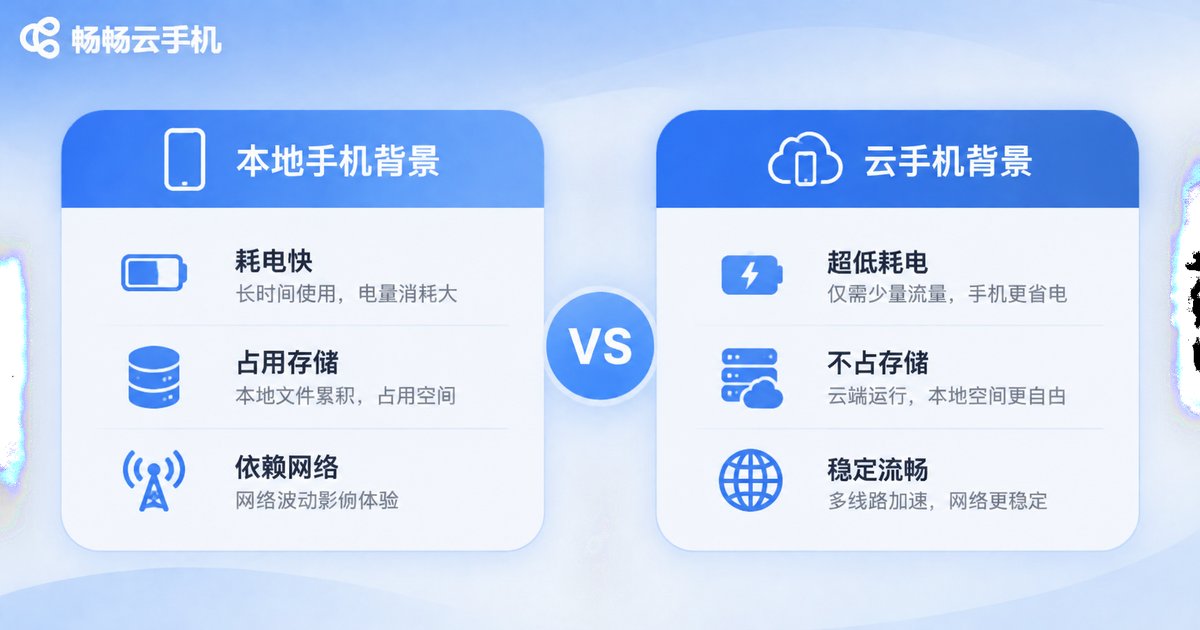
A local phone's background is limited by battery, heat, and system power-saving policies, so apps can be frozen or killed. Cloud phone background running happens on cloud servers. Even if your local screen is locked or the app is closed, cloud tasks can continue. But this does not mean no settings are needed: CPU, memory, storage, and network on the cloud instance still need reasonable allocation.
| Item | Local phone background | Cloud phone background |
|---|---|---|
| Running location | Local hardware | Cloud server |
| Power impact | Directly increases local battery drain and heat | Lower local power use, mainly screen and network |
| Background keep-alive | Limited by system power-saving policies | Depends on cloud instance configuration and keep-alive strategy |
| Resource scaling | Limited by hardware | Can choose different configurations as needed |
Resource Usage Optimization: Put Cloud Compute Where It Matters
Cloud phone resource usage mainly involves CPU, memory, storage, and network. The goal is not to push resources as low as possible, but to give key tasks enough resources while reducing waste.
CPU and memory: Disable unnecessary auto-start apps and reduce always-on background processes. When multi-opening, group tasks by type instead of putting all high-load apps into one instance. Choose an instance configuration that matches the app type. For idle tasks, stable online time usually matters more than peak performance.
Storage: Clean app caches and temporary files regularly, and manage important data separately from the runtime environment. During long-term idle running, logs and caches gradually take up space, so set a fixed cleanup cycle.
Network: Prefer a stable network and avoid frequent switching. Allocate bandwidth reasonably across multi-open instances so one instance does not saturate the connection and cause others to disconnect.
Power Saving: Save Local Battery While Staying Online in the Cloud
The power-saving advantage of a cloud phone is that computing runs in the cloud, but the local device still uses power. To save more power, work on both the local and cloud sides.
Local side: Lower screen brightness appropriately, turn off unnecessary high refresh rates, and use the web client or a lightweight client to check status. When real-time viewing is not needed, reduce long screen-on time.
Cloud side: Set scheduled running and idle sleep policies, and reduce resource usage during off-peak hours. For long-term idle tasks, use stable keep-alive settings to avoid extra consumption caused by repeated reconnections.
Stability Optimization: Avoid Disconnects, Drop-offs, and Instance Issues
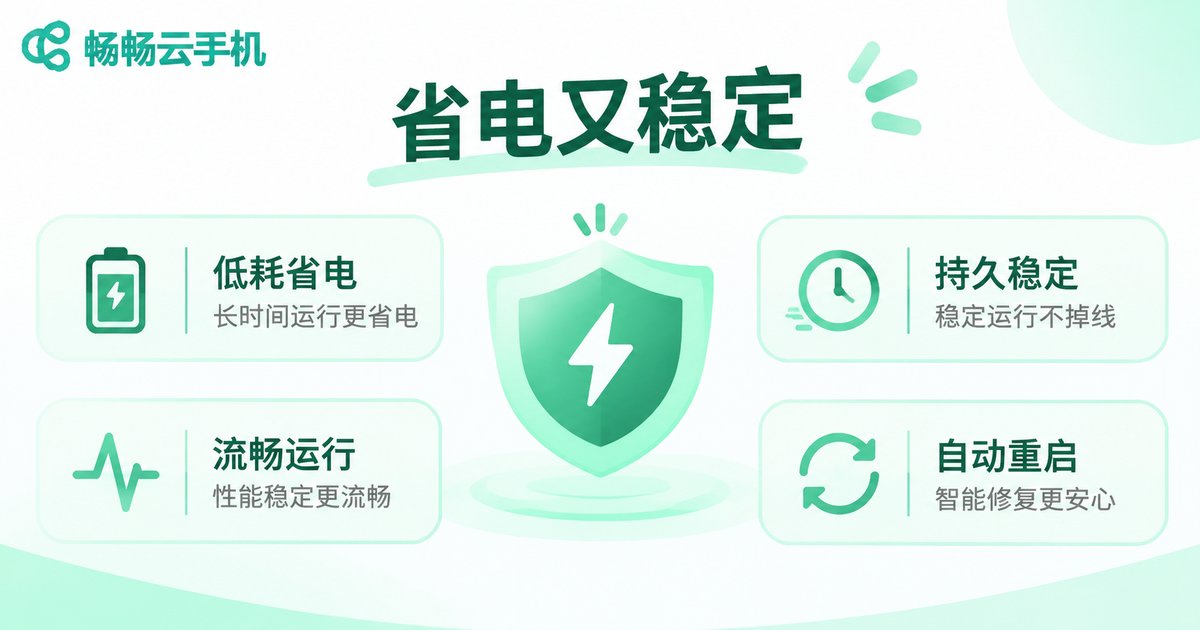
Stability is the core of background running. Common problems include disconnects caused by network fluctuations, apps being reclaimed by the system, and instances slowing down after long running. You can optimize from these aspects:
Network keep-alive: Keep the network stable and set reasonable heartbeat and retry mechanisms. If your local network is unstable, try a wired connection or more stable Wi-Fi.
Instance keep-alive: Remove unnecessary battery optimization restrictions on the local control end, and set app keep-alive and abnormal restart policies in the cloud. Check instance status regularly and handle issues promptly.
Version and compatibility: Keep apps and system versions compatible, avoid modified apps from unknown sources, and test updates on a small number of instances first.
Regular maintenance: Schedule regular instance restarts, cache cleanup, and storage checks to avoid problems that build up over long running periods.
Practical ccloudphone Background Settings Recommendations
ccloudphone provides cloud Android instances suitable for background idle tasks, multi-open management, and cross-device operations. For background running scenarios, consider these practices:
1. Choose configuration by task: Use a basic configuration for light idle tasks and a higher configuration for heavy multi-open workloads to avoid insufficient resources or waste.
2. Group multi-open instances: Put the same type of tasks in the same instance group for unified keep-alive, cleanup, and monitoring settings.
3. Use scheduled tasks: Arrange non-real-time tasks during idle hours to reduce resource contention during peak periods.
4. Check status across devices: View instance status from a computer or phone at any time without keeping the screen on.
5. Run regular inspections: Check network, storage, and instance status, and adjust configurations when issues appear.
Recommended Settings at a Glance
| Optimization area | Recommended practice | Note |
|---|---|---|
| CPU/memory | Disable auto-start, group tasks, choose suitable configuration | Do not blindly chase the highest configuration |
| Storage | Clean caches regularly and set a cleanup cycle | Back up important data separately |
| Network | Use a stable network and allocate bandwidth reasonably | Avoid frequent network switching |
| Power saving | Lower local brightness, use a lightweight client, set scheduled tasks | Do not keep the screen on for long periods |
| Stability | Keep-alive settings, abnormal restart, regular instance restart | Test before updating |
FAQ
Q: Does cloud phone background running drain my local phone battery?
Yes, but usually less than running apps directly on the local phone. Local power is mainly used by the screen, network, and client. Lowering brightness and using a lightweight client can save more power.
Q: Do I need to keep my local screen on for cloud phone background idle tasks?
No. The cloud instance can keep running, and tasks can continue after your local screen is locked or the app is closed. Open the client when you need to check.
Q: Is more multi-open always better?
No. The number of instances should match your configuration and task load. Too many instances increase resource contention and can reduce stability. Group tasks and scale up gradually.
Q: What should I do if cloud phone background running is unstable?
First check whether the network is stable, then review instance resource usage and keep-alive settings. You can also restart the instance regularly, clean caches, or adjust the instance configuration.
Q: What background running scenarios is ccloudphone suitable for?
It is suitable for app idle tasks, multi-open management, long-running online tasks, and cross-device operations. Choose configurations based on task needs, and start with a small number of instances before scaling up.


