

Cloud Phone Cache Cleanup and Storage Release in 2026: A Regular Maintenance Guide
Cloud Phones Slow Down Too: Understand What Cache Really Is
Many people assume that because a cloud phone runs remotely, it takes up no storage and never runs into space problems. In reality a cloud phone is an Android device sitting in a data center, with its own system partition and data partition. App caches, runtime logs and temporary files pile up exactly the same way. The only difference is that these files consume the space allocated to that cloud device, not the storage on the phone in your hand.
Once free space is gradually eaten away, the symptoms show up: apps launch slowly, background apps get killed, screenshots and screen recordings fail to save, and some apps report insufficient storage and refuse to update. Usually this is not a performance problem with the cloud phone, but a storage management problem.
What Is Actually Filling Up Your Cloud Phone
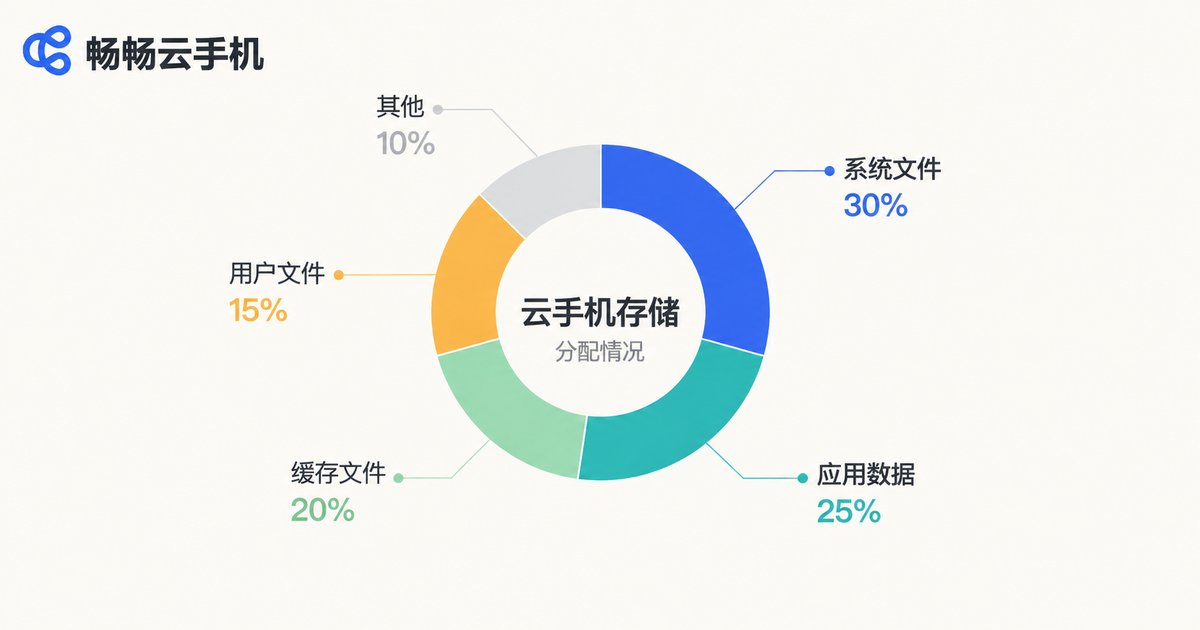
Break down the storage of a cloud phone and you find roughly these categories:
| Source | Typical share | Growth pattern |
|---|---|---|
| System firmware and preinstalled components | About 15%–25% | Mostly fixed, small changes with system updates |
| App installers and app bodies | About 25%–35% | Grows with the number of apps, controllable |
| App cache (images, video, web) | About 20%–40% | Fastest growing, easiest to clean |
| Chat history and downloaded files | About 10%–20% | Strongly tied to usage intensity |
| Logs and crash dumps | About 1%–5% | Accumulates slowly, most often overlooked |
The key takeaway: cache is the part of storage that can be safely reclaimed. Deleting it does not affect your accounts and does not lose data, because apps regenerate it the next time they open. That makes cache cleanup the highest-value step you can take.
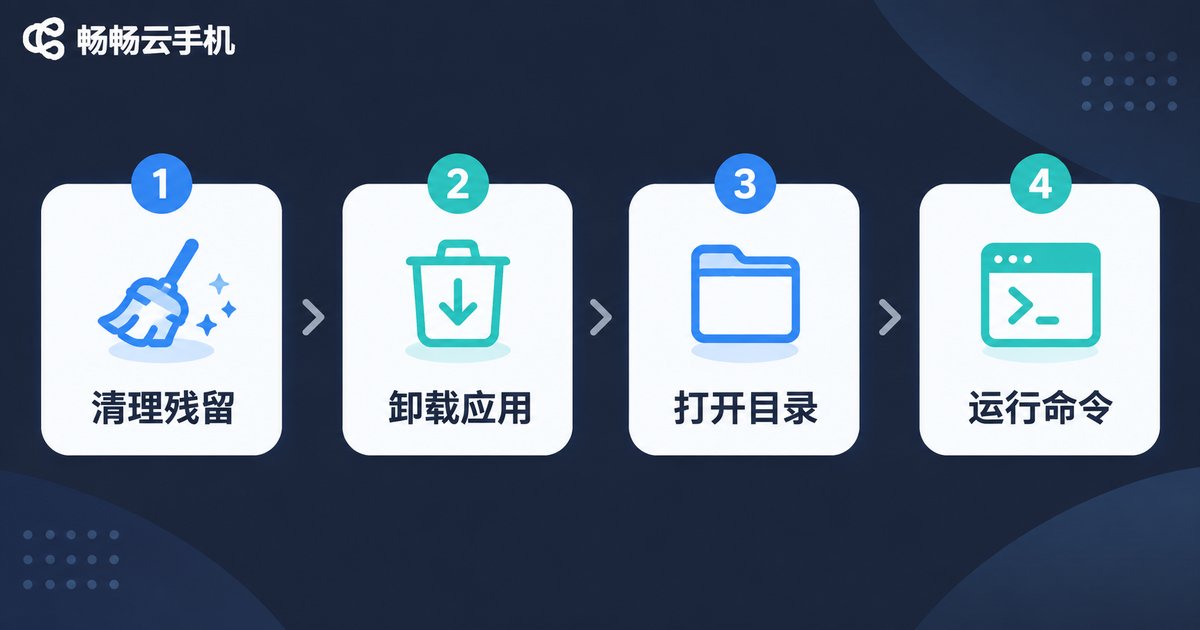
The Four-Step Cleanup: From Fastest Results to Most Thorough
Step 1: Clear app caches without touching data
Inside the cloud phone, go to Settings → Apps → choose the app → Storage → Clear cache. This is the safest step. Accounts, chat history and login states are all preserved; only temporary files are removed.
Step 2: Uninstall apps you no longer use
Sort apps by the last time they were opened and uninstall anything untouched for more than a month. Reinstalling later costs far less than letting it sit there occupying space indefinitely.
Step 3: Clean the download folder and chat attachments
The downloads folder, image and video caches from social apps, and screen recordings are the most commonly forgotten heavy hitters. Sort by file size and handle the files above a few hundred megabytes first; deleting just a handful usually makes a visible difference.
Step 4: Batch cleanup for multiple devices
If you manage several cloud phones at once, tapping through each one is slow. You can batch process them from the command line:
adb shell pm clear com.example.appNote that pm clear wipes all data for that app, including login state, so it suits unimportant utility apps. If you only want to clear cache, use the Clear cache button in the interface instead.
Regular Maintenance: Put Cleanup on the Calendar
Cleanup is not a one-off task, it is a rhythm. The table below is ready to copy:
| Frequency | What to do | Time needed |
|---|---|---|
| Daily | Close unused background apps, delete that day's screen recordings and large files | 1–2 minutes |
| Weekly | Clear caches of frequently used apps (social, short video, browser) | 3–5 minutes |
| Monthly | Review the storage usage ranking, uninstall unused apps, clean the download folder | 10 minutes |
| Quarterly | Do a full review and reset the device if you need a clean state | 20–30 minutes |
Turn the weekly cleanup into a fixed action, for example every Monday morning right after the device comes online. Low maintenance cost is not about how thoroughly you clean, but about how often you clean.
More Important Than Cleaning: Habits That Slow the Build-Up
Cleaning is the fix; habits are the root solution. A few small adjustments noticeably slow how fast space disappears:
- Turn off auto-cache and preloading in short video and shopping apps
- Export screen recordings and screenshots to local storage or cloud drives instead of leaving them on the device
- Do not install three or four apps of the same type; keep the one you actually use
- Watch for leftover installer packages after app updates and clear them periodically
- Before handling large files, check remaining space so the task does not fail midway
ccloudphone: Make Maintenance Effortless
If you would rather not dig through settings every time, choosing a cloud phone service with a clean management experience saves a lot of effort. ccloudphone (畅畅云手机) provides cloud Android devices where device status, storage usage and runtime conditions are visible in the console. When needed you can reset a device back to a clean initial state, and multiple devices can be managed together instead of logging into each one. For specific configuration options and how to use them, refer to the official website.
Make regular maintenance a habit and pair it with a clearly managed service, and keeping a cloud phone smooth over the long term becomes genuinely easy.
Frequently Asked Questions
Q: Does clearing the cache lose data?
A: No. Cache is temporary data that apps generate to speed things up. Accounts, chat history and login states stay intact, and the app rebuilds the cache on its next launch. Clearing data is different, since that resets the app entirely.
Q: The device says storage is insufficient, but it looks like there is plenty of space. Why?
A: It is usually a reporting mismatch caused by cache fragmentation or leftover installer files. Clear the caches, restart the device, then check the actual usage again.
Q: How often should I clean up?
A: For everyday use, a small cleanup once a week and a deeper one once a month works well. If you record screens frequently or download a lot, increase the frequency.
Q: Why is the space full again shortly after cleaning?
A: Some app is continuously caching in the background, most often short video and shopping apps. Turning off auto-cache and preloading in those apps noticeably reduces the growth rate.
Q: Is resetting the device the most thorough option?
A: It is the most thorough, but you have to log in and configure apps again. Use it only when you are repurposing the device or space is critically short; regular cleanup covers everyday needs.
Q: Does clearing cache affect cloud phone performance?
A: You may see slightly slower loading for a moment while apps regenerate their cache, but after space is freed up, launch and switching speeds usually become more stable overall.


