
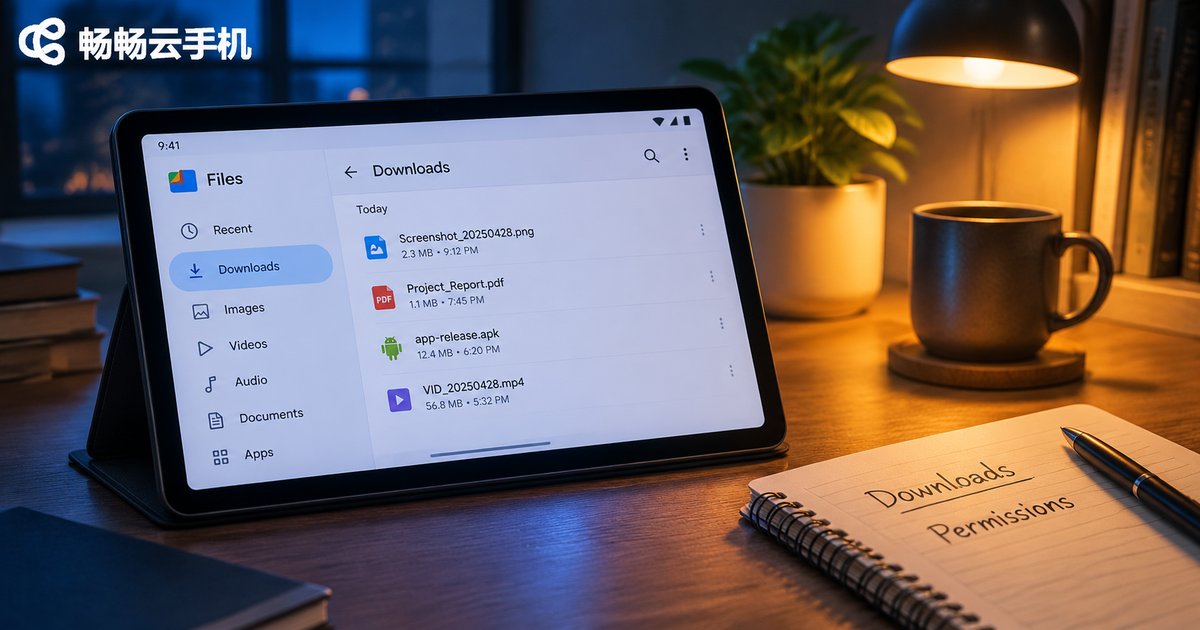
Cloud Phone Browser Usage and Download Management: File Locations and Permission Settings
Why Download Management on a Cloud Phone Is Easy to Overlook
A cloud phone is really an Android device running in a remote data center. You control it from your own handset, tablet or laptop, so there is no SD card to eject and no cable to plug in. That convenience is exactly why people forget where their downloads went. Only when they need to open a PDF, upload a photo, or notice cloud storage filling up do they start hunting through folders. The good news is that once you understand file locations and permission settings, browser downloads on a cloud phone are easy to keep tidy.
This guide follows a simple order: where downloads land, how to find them, which permissions to switch on, and how to keep things organized.
1. Where Downloaded Files Actually Live
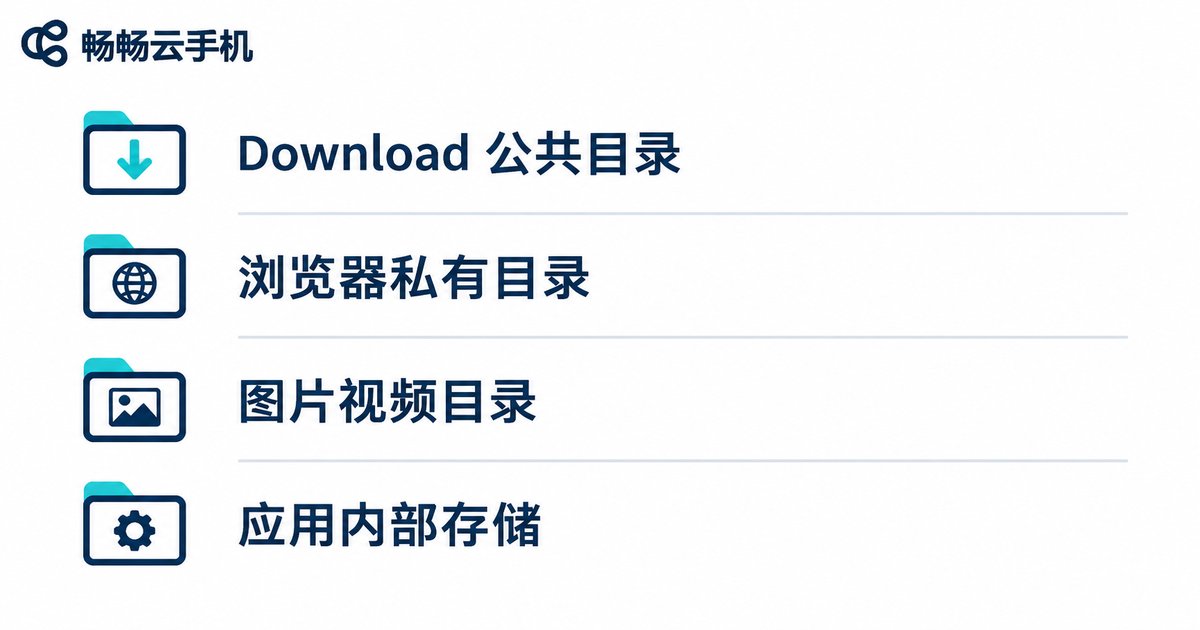
Almost every Android browser writes downloads to a fixed public directory first. Remember this rule of thumb: check the Download folder first, then the browser private directory.
| Location | Typical path | Notes |
|---|---|---|
| Public downloads folder | /sdcard/Download or /storage/emulated/0/Download | Most common default for browsers |
| Browser private folder | /Android/data/<browser package>/files | Some browsers keep cache and temp files here |
| Pictures and video | /sdcard/Pictures, /sdcard/Movies | Where long-press saves usually end up |
| App internal storage | /data/data/<package> | Requires elevated access; usually not needed |
Paths vary slightly between browsers and Android versions, but the word “Download” almost never changes — follow it and you will not get lost.
2. Three Ways to Find Those Files
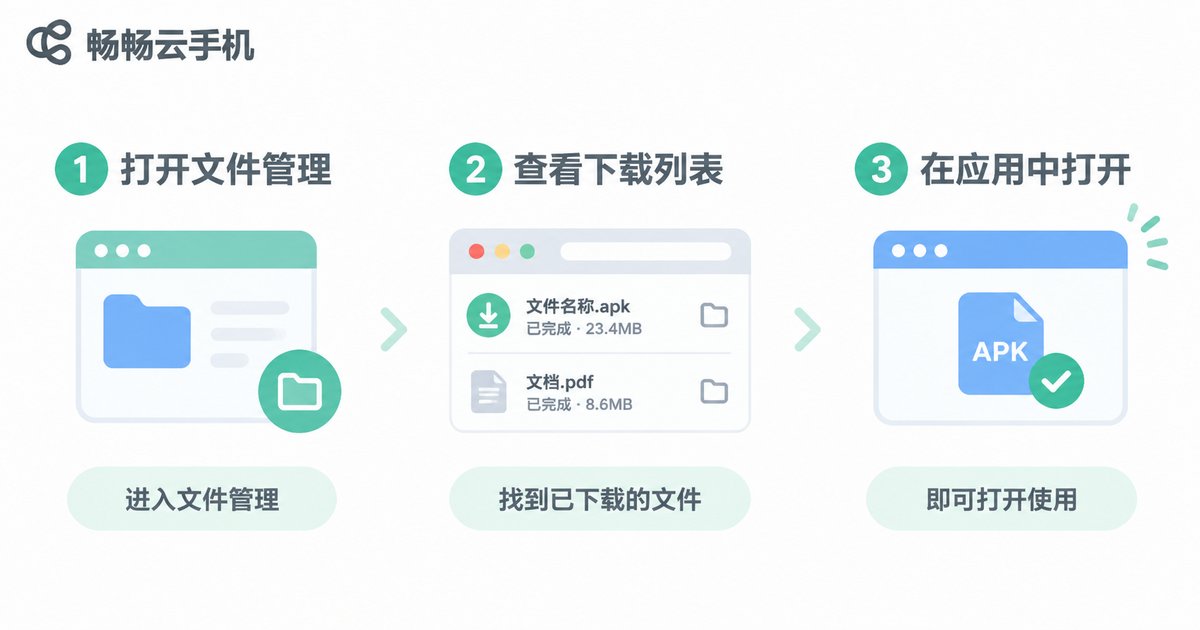
Option 1: the file manager. Open the file manager app on the cloud phone home screen, go to internal storage, open the Download folder and sort by date. The newest download is usually at the top.
Option 2: the browser download list. Most browsers have a Downloads entry in their menu. Many items offer “show in folder” or “open containing folder”, which takes you straight to the file.
Option 3: open from inside an app. If you just downloaded an image, check the most recent item in the gallery. If it was a PDF, look in “recently opened” in your document reader.
Still stuck? Use the file manager search box with part of the file name, or filter by “most recently modified” instead of opening folders one by one.
3. Permissions: Without These, Downloads Stall
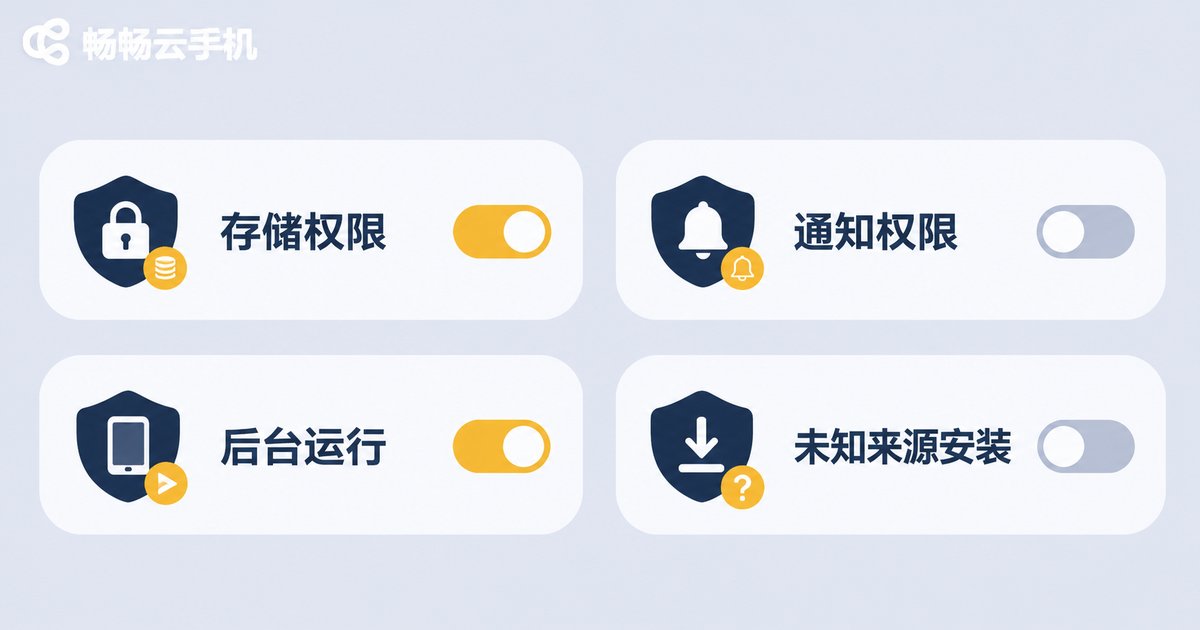
The Android system inside a cloud phone behaves like a physical handset: apps must be granted access before they can read or write files. The usual suspects:
Storage and file access. Android 11 and later use scoped storage, so a browser saving into the public Download folder generally needs no extra grant. Saving to a custom folder, or browsing Android/data with a third-party file manager, requires “all files access” from system settings.
Notification permission. Progress and completion messages depend on notifications. If they are switched off, a download looks like it failed while it actually finished quietly in the background.
Background running. Large files take time. If the system freezes the browser in the background, the task may break. Allow the browser to keep running in battery optimization or background management settings.
Install unknown apps. When you tap an APK, Android asks for permission to install from that source. This is a normal safety step and can be revoked afterwards.
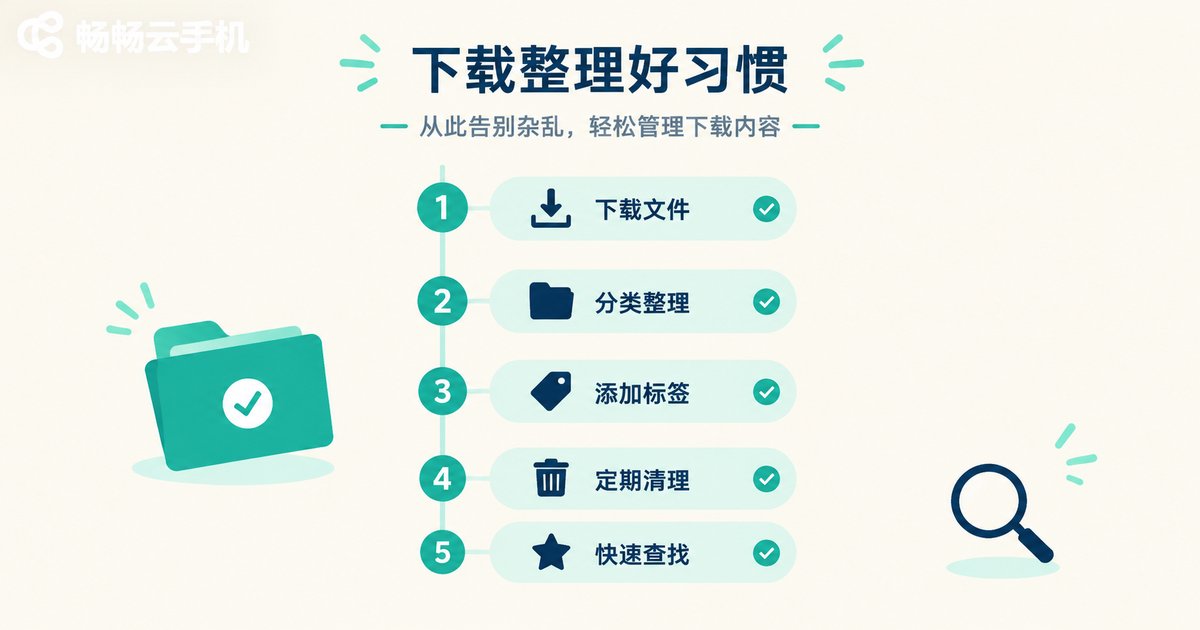
4. Five Habits That Keep Downloads Under Control
1. Clean the Download folder regularly. Delete installers and archives once used — it frees cloud storage fast.
2. Rename files. Browser-generated names are often a random string. Rename them right after download so they are easy to search later.
3. Sort by type. Create subfolders such as Documents, Images and Installers under Download and pick the target folder when saving.
4. Watch out for temp files. Interrupted downloads leave .crdownload, .part or .tmp leftovers that can be deleted safely.
5. Let downloads finish. A cloud phone keeps running, but closing the browser process can still cut off an unfinished transfer.
5. Managing Downloads on ccloudphone
畅畅云手机 (ccloudphone) runs a full Android system in the cloud, with a real home screen, file manager and browser — so everything above applies directly. Several features make download handling easier:
· The cloud device stays online, so browser downloads do not stop when your local phone is switched off;
· Files live inside your cloud instance, so signing in from another device brings them right back;
· File transfer between local and cloud lets you pull downloaded material onto your own device;
· Each cloud phone runs as an independent environment, so downloads never mix and never fill up local storage.
If you handle documents or save media in bulk, a fixed download routine plus an always-on cloud device makes a noticeable difference.
Frequently Asked Questions
Q1: Can I see files downloaded on the cloud phone from my local phone directly?
Not by default. They are stored in the cloud instance and need to be exported through the file transfer feature first.
Q2: The download says it succeeded, but the file manager shows nothing.
Check the browser download list to confirm the actual path. Some browsers save into their own private folder by default, which can be changed to the public Download folder in settings.
Q3: Installing an APK says installation is blocked.
The install-unknown-apps permission is off. Allow that browser to install apps in system settings.
Q4: Large downloads keep breaking.
Check whether the browser is being restricted in the background, and confirm the cloud instance still has enough free storage.
Q5: Will deleting files in Download affect the cloud phone?
No. Download is a normal user directory; clearing it only removes your downloaded content, not the system.


