
2026 Cloud Phone Archive Extraction & Upload Guide: Handling Common Formats
Why Archives Misbehave on Cloud Phones
Almost everyone hits the same scene the first time they handle an archive on a cloud phone: the upload reports success, but tapping the file says the format is not supported. Or the extraction finishes and every folder name is gibberish. Or a two-gigabyte asset pack dies halfway through the transfer. In most cases the device is not the problem — format, encoding and transfer method are simply out of sync.
In 2026, cloud phones are a common tool for running multiple game instances, testing apps, and doing light mobile work, so packing up local files and moving them to the cloud has become routine. The sections below walk through the workflow in three stages: before upload, during upload, and after upload.
Step 1: Pick the Right Format When You Pack
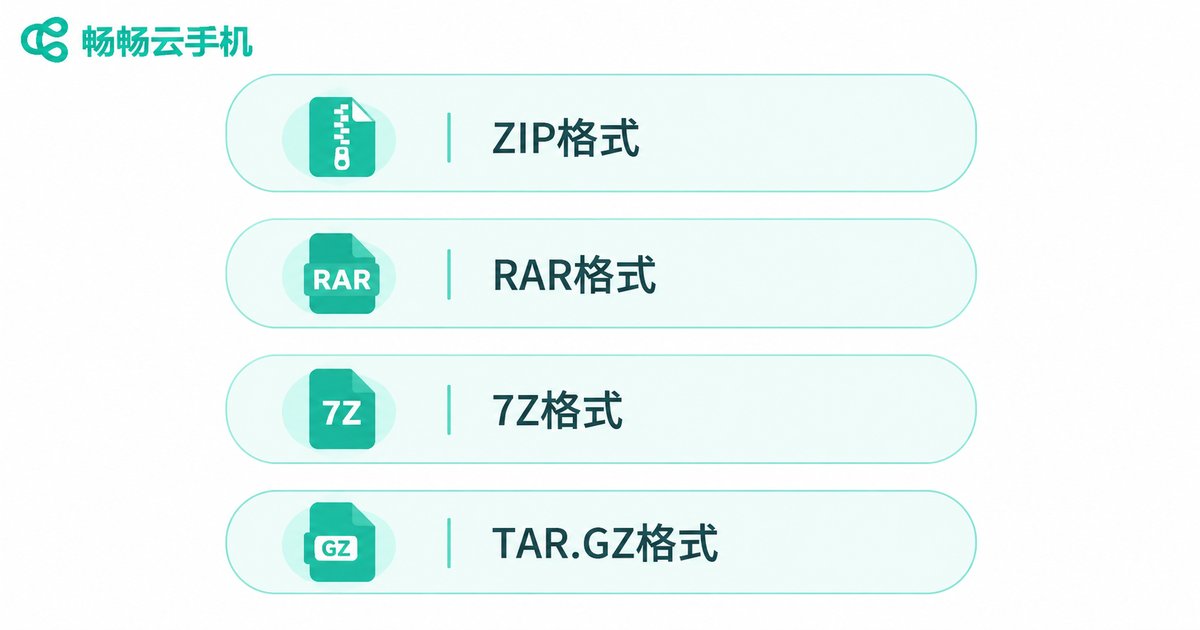
Android handles archive formats very unevenly. zip is essentially native; everything else usually needs a third-party extractor. Choosing the right format at packing time removes most of the pain later.
| Format | Native Android Support | Compression | Typical Use |
|---|---|---|---|
| .zip | Yes | Medium | Safest default choice |
| .rar | Needs an app | High | Asset packs, document sets |
| .7z | Needs an app | Highest | Large bundles where size matters |
| .tar / .tar.gz | Needs an app | Medium | Code and script resources |
| Split archives | Needs an app | — | Single file exceeds upload limit |
Step 2: Filenames and Encoding
Garbled filenames after extraction are the single most common complaint. The root cause is a mismatch: the archive stores filenames in one encoding (often GBK or UTF-8) while Android reads them assuming another, so the bytes no longer line up.
There are three ways to deal with it:
1. Prevent it at the source: pack with a tool that supports UTF-8 filenames and tick the UTF-8 option explicitly.
2. Fix it afterwards: use an extractor that lets you specify the source encoding manually, switch it to GBK, and extract again.
3. Change the naming scheme: rename everything to English or pinyin and sidestep the encoding question entirely.
It also helps to prefix archives with a date, for example 20260315_assets.zip, so you can spot the pack you need in a long cloud-side file list.
Step 3: Choosing an Upload Method
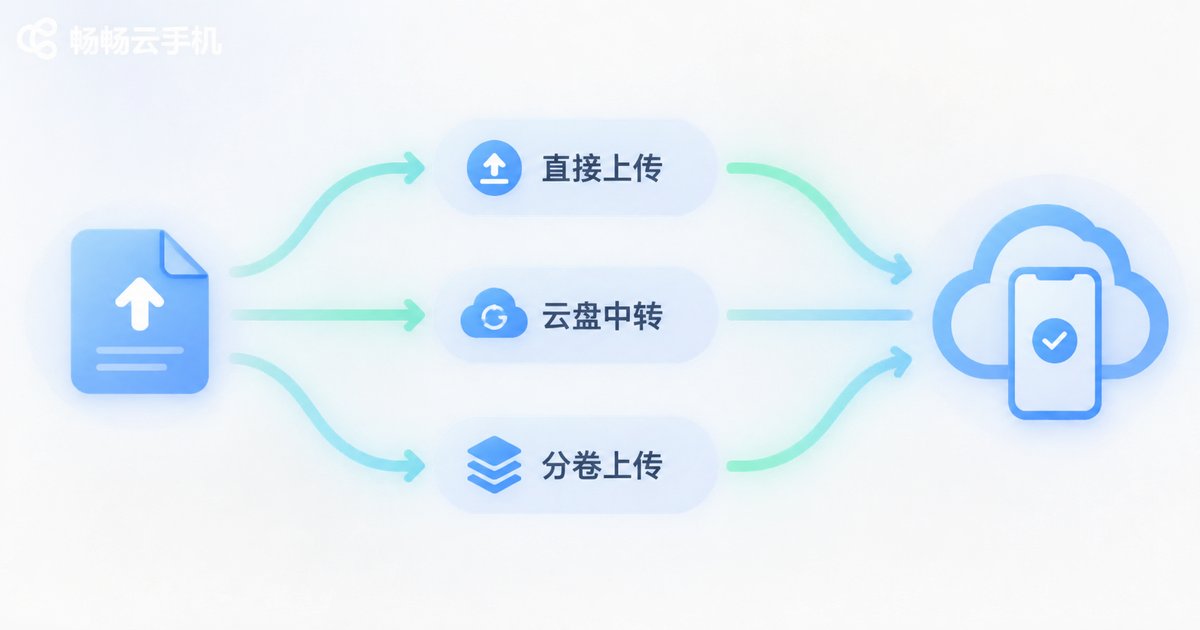
How the file gets up there largely determines whether it succeeds. The common options each have trade-offs:
- Upload directly from the client: best for files from tens of megabytes up to a couple hundred. Simplest, no app switching.
- Relay through a cloud drive: open the drive inside the cloud phone and download there. Good for large files, but you are subject to the drive's speed limits.
- Split and upload in batches: when a single package exceeds the limit, cut it into volumes, upload them one by one, then merge and extract on the cloud side.
Whichever route you take, verify the file locally first — compare the size or a checksum — so you do not discover after a long transfer that the archive itself was broken.
Step 4: Extracting Inside the Cloud Phone
Once the file is up there, extraction itself is straightforward. There are roughly three approaches:
Option one: the built-in file manager. Android offers basic zip support — long-press the file and choose extract here. Good for simple archives with no password.
Option two: a dedicated extraction app. For rar, 7z, split volumes or password-protected files you need a third-party tool with broader format support. These usually also let you set the encoding manually, which solves the garbled-name problem.
Option three: extract locally, then upload. If the archive is deeply nested or contains thousands of tiny files, unpacking it on your own machine and uploading a folder is often faster and far easier to debug.
After extraction, check the output path. On Android the default is usually the internal Download directory or the app's private folder — land in the wrong place and it looks like the files vanished.
Troubleshooting Order
Work through these in order before assuming the device is at fault:
- Does the file open at all? Confirm the upload completed and compare the size.
- Unsupported format message? Install an extractor that handles that format.
- Corrupted data error? Almost always a broken transfer — upload again.
- Garbled filenames? Change the encoding setting in the extractor or repack as UTF-8.
- Extraction succeeded but files are missing? Check the app's private directory as well as Download.
Why ccloudphone Fits This Workflow
When you move files to the cloud, stability and file management experience are the two things that actually matter day to day. 畅畅云手机 (ccloudphone) handles both of them well for people with regular file work:
· It provides a graphical file management entry point, so upload, download, rename and move can all be done in the interface without memorising commands;
· It supports installing common Android apps on the cloud device, so extraction tools can be installed and used directly rather than being limited by the system;
· The device keeps running in the cloud after you close your local computer, which suits the wait-for-extraction and wait-for-install steps perfectly.
If your routine is pack, upload, extract, install — over and over — running it on a cloud device is smoother than juggling local machines, and your files stay in one place instead of scattered across several.
FAQ
Q: Can a cloud phone extract rar files directly?
The built-in file manager usually only handles zip. For rar you need to install an extractor that supports it — after that it works exactly like on a physical phone.
Q: A 2 GB archive keeps failing halfway. What should I do?
Split it into volumes and upload them one at a time, or relay it through a cloud drive. Verify the local file size first so you can rule out a damaged source file.
Q: The extracted filenames are all gibberish. How do I fix that?
Use an extractor that lets you set the source encoding, switch it to GBK and extract again. If you control the packing step, compress with UTF-8 filenames and the problem never appears.
Q: Do all volumes of a split archive need to be uploaded before extracting?
Yes. The volumes form one continuous data stream and must be complete and correctly named (part1, part2 and so on). A missing volume will fail the extraction.
Q: Can I open a password-protected archive on a cloud phone?
Yes. Use an extractor that prompts for a password and type it in. Keep the password handy locally — the on-screen field is small and easy to mistype.
Q: Where did my extracted files go?
Check the output path shown by the extractor. It is usually the internal Download folder or that app's private directory. Sorting by modification time in the file manager will surface the newest files first.


