
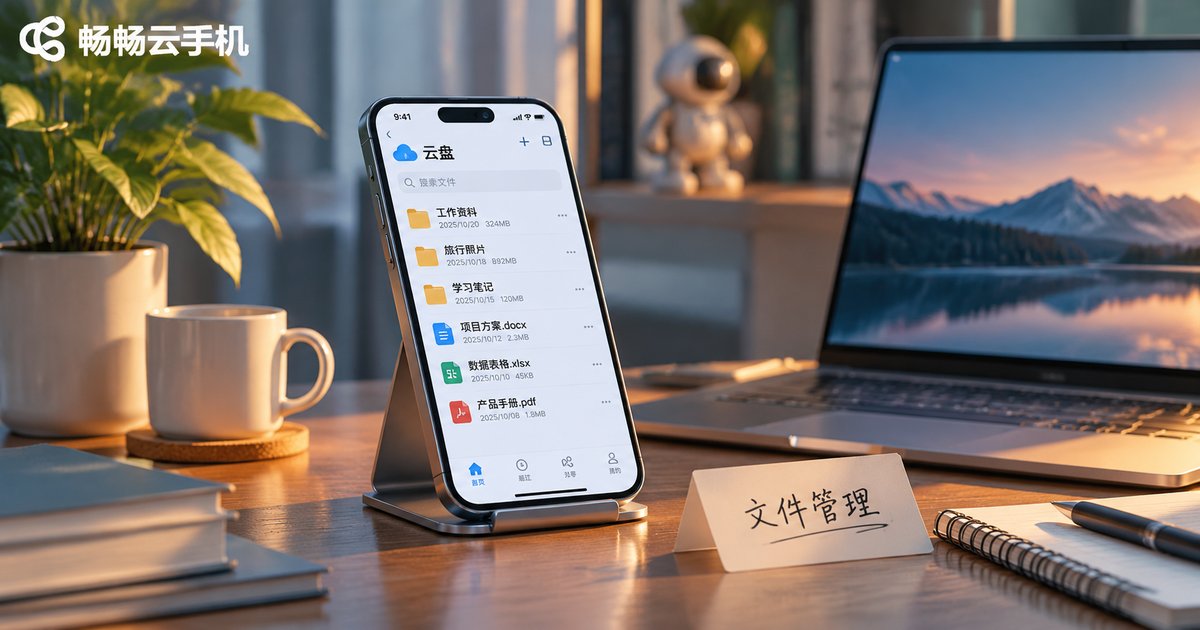
Cloud Phone File Manager Tips: Upload, Download, Rename and Archive
Start With One Fact: Cloud Phone Storage Is Not Unlimited
A cloud phone runs the Android system inside a remote data center, and you operate it through the screen in front of you. Its file system looks almost identical to the phone in your hand: internal storage, a downloads folder, a screenshots folder. The difference is that those files really do live in the cloud and have to travel over the network to reach your local device.
Many people only notice this after a few months: hundreds of screenshots, several gigabytes of screen recordings, and test installers scattered across random folders. Then the cloud phone warns about low storage and the cleanup begins, file by file. It is far easier to build a simple habit from day one.
Uploading: Moving Local Files Into the Cloud
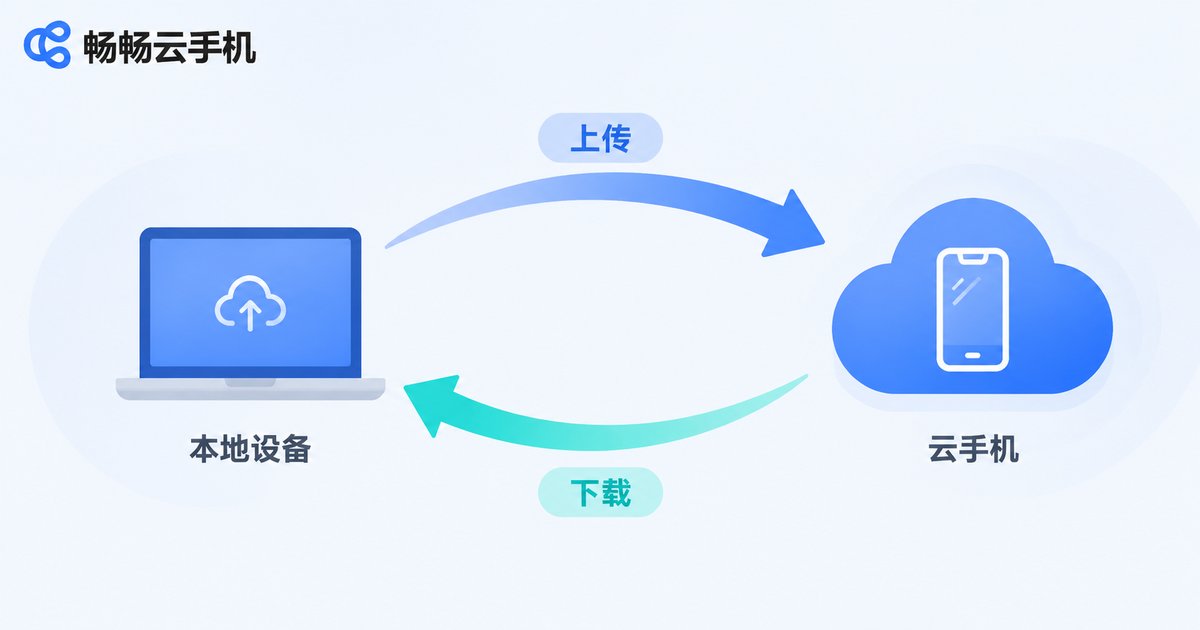
Uploading is one of the most frequent actions on a cloud phone. Whether you need to install an APK that only exists on your laptop or drop a media asset into the cloud for testing, upload is the only way in.
Compress first. Sending dozens of small files one by one costs far more network round trips than you would expect. Zip them, upload a single package, then unzip inside the cloud phone.
Pick a target folder. Do not drop files into the root directory. Create a dedicated inbox such as uploads_pending, and move files to their real home once you confirm they are usable. One careless upload will not pollute a whole project folder that way.
Check your connection for large files. Before uploading a big installer or video, make sure your local network is stable. A dropped connection can leave a half-written file that looks fine but will not open.
Downloading: Bringing Cloud Results Back
Screenshots, screen recordings, exported spreadsheets and logs created inside the cloud phone usually need to end up on your local machine for reporting or delivery.
Rename before you download. Screenshots in the cloud are usually named with a timestamp or a string of digits, and once they land locally they are impossible to tell apart. Ten seconds of renaming before the download saves a long search later.
Batch whenever possible. If you need dozens of files at once, select them all, zip them, and download a single archive. It is far more reliable than clicking file by file.
Verify after downloading. Open important files once they arrive to confirm the content is complete. Transfers between cloud and local can be affected by network conditions, and finding out early beats finding out at delivery time.
Renaming: Making Files Findable
A filename is the most reliable search clue you have in the cloud. A simple naming convention beats any advanced search feature.
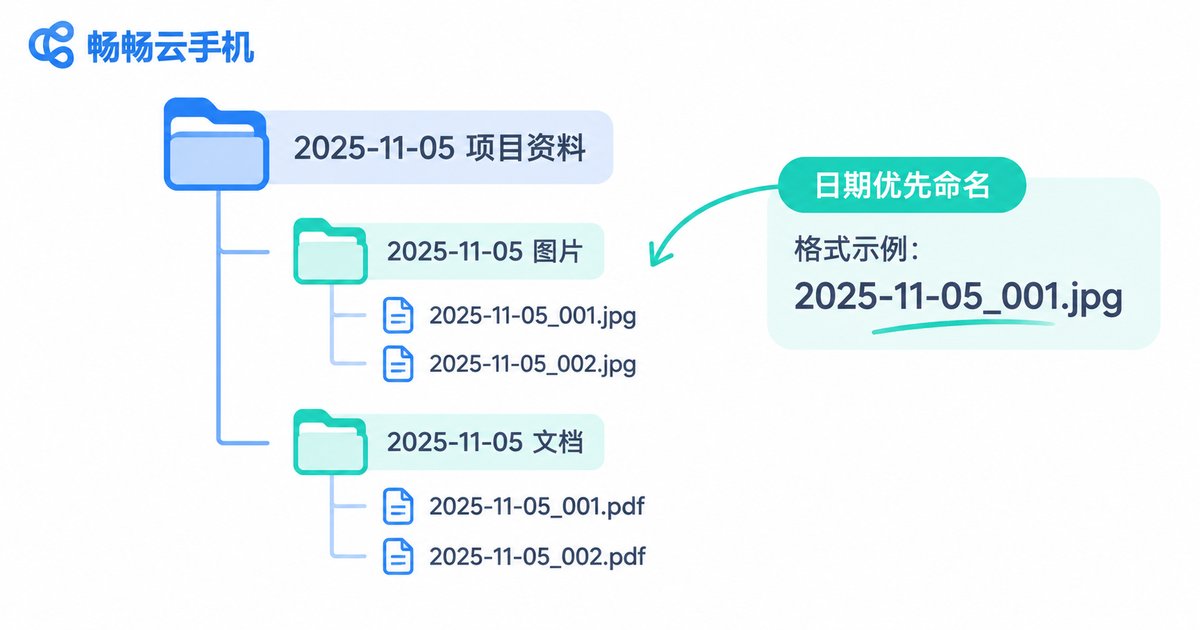
Recommended structure: date_project_version_note, for example 20240612_testA_v2_login-screenshot. Putting the date first makes the folder sort chronologically by itself, and the project name second tells you at a glance where the file belongs.
Common mistakes: never change the extension (.apk, .jpg, .zip) or the file simply will not open; never use slashes, colons, asterisks or question marks, because cloud and local systems tolerate them differently; non-English names are fine in general, but ASCII letters and underscores are safer when files travel between systems.
Archiving: Build a Structure You Can Actually Keep
The key to tidying up is not precision, it is sustainability. Folders nested too deep and rules that are too complex get abandoned within two weeks. This simple three-folder structure is something most people can maintain long term:
| Folder | What goes in | Cleanup |
|---|---|---|
| 01_active | Projects you are working on right now | Weekly |
| 02_archive | Finished projects you may revisit | Monthly |
| 03_temp | Screenshots, recordings, pending uploads | Empty every two weeks |
When archiving, create subfolders by project, not by file type. Sorting by type (images, documents, installers) looks neat, but when you actually look for something you always remember which project it belongs to, never which format it is.
Also remember to clean the downloads and temp folders regularly. Those two are where storage quietly disappears.
Which Action Fits Which Situation
| Action | Typical situation | Key reminder |
|---|---|---|
| Upload | Installers, assets and test data going into the cloud | Compress first, pick a target folder |
| Download | Screenshots, recordings and exports coming back locally | Rename first, bundle before transferring |
| Rename | Messy filenames, long-term retention | Keep the extension, avoid special characters |
| Archive | Project finished, storage running low, handover | Sort by project, not by file type |
Putting It All Together on Ccloudphone
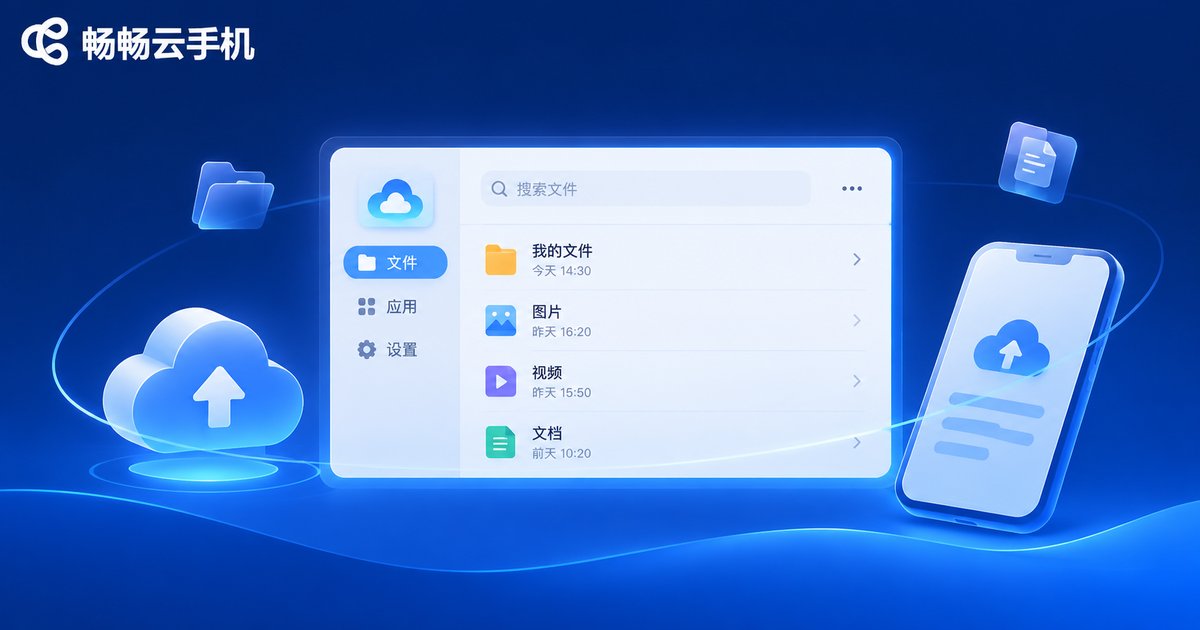
Ccloudphone provides Android instances that run in the cloud. Your local device mainly handles display and input, while the files stay inside the cloud instance. That makes upload and download an unavoidable part of daily use, and it makes the habits above even more valuable.
Here is a daily routine you can copy: after entering the cloud phone, drop the day's uploads into the temp folder; when work is done, rename the results and move them into the active folder; when a project wraps up, move it to the archive; empty the temp folder every two weeks. No extra tools are needed, just the file manager itself.
FAQ
Q: Can a cloud phone read files directly from my local phone?
No. The cloud instance and your local device are two separate storage environments. You move files in by uploading, and bring them back by downloading.
Q: What if large uploads keep failing?
First confirm your local network is stable, then try compressing the file or splitting it into smaller packages and uploading them in stages. Open the file after uploading to confirm it is readable before deleting your local copy.
Q: Why does renaming say the format is not supported?
Most likely the filename contains slashes, colons, asterisks or question marks, or the extension was changed. Switch back to regular characters and keep the original extension.
Q: With so many files, how do I find the oldest ones quickly?
Put the date at the front of the filename so sorting by name becomes sorting by time. That is exactly why a consistent naming rule is recommended from the start.
Q: Will cloud phone storage eventually run out?
Yes. Cloud instances have storage limits too. Screenshots, recordings and installers are the main culprits, and regular archiving and cleanup will meaningfully delay running out of space.


