
Cloud Phone App Update Failed: Troubleshooting Storage, Network and Compatibility
App Update Failed in Your Cloud Phone? Don't Reinstall Yet
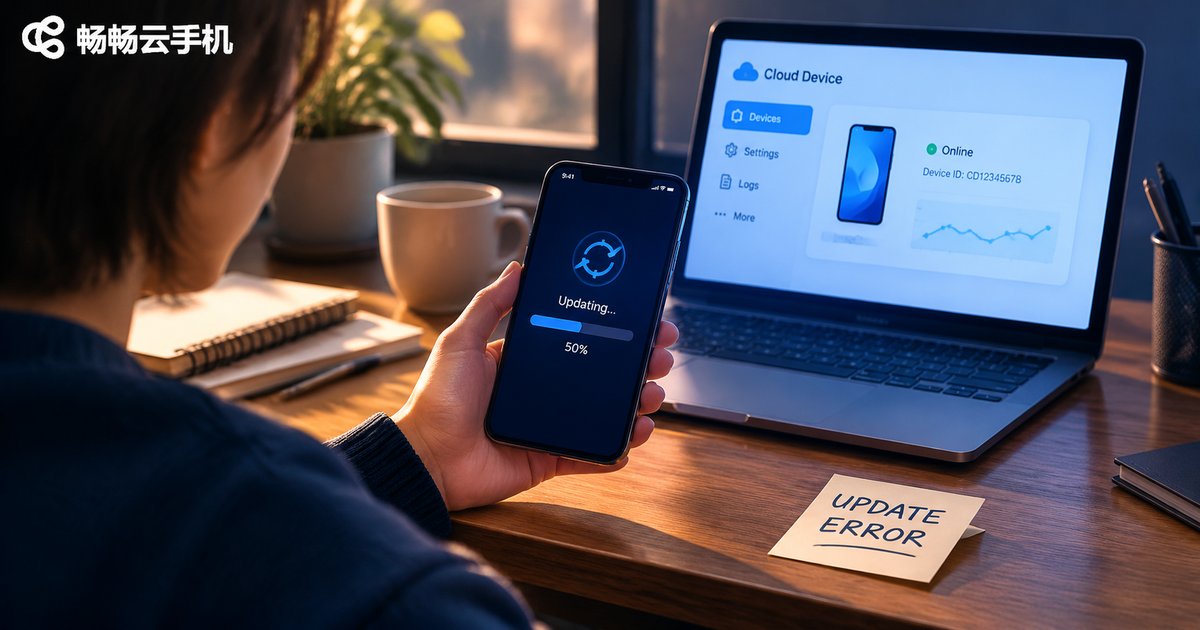
A cloud phone behaves a lot like a physical device: you tap update in the app store, the spinner turns twice, and you get a download failed message - or the progress bar simply freezes. The difference is that it runs on a virtual device in a data center, so you have fewer switches to flip but also fewer places to check. Most update failures can be narrowed down by following one order: storage → network → system compatibility → the app itself.
The process below needs no specialist knowledge. Work through it once and you will usually find the cause within fifteen minutes.
Step 1: Storage Space - Where Most Problems Live
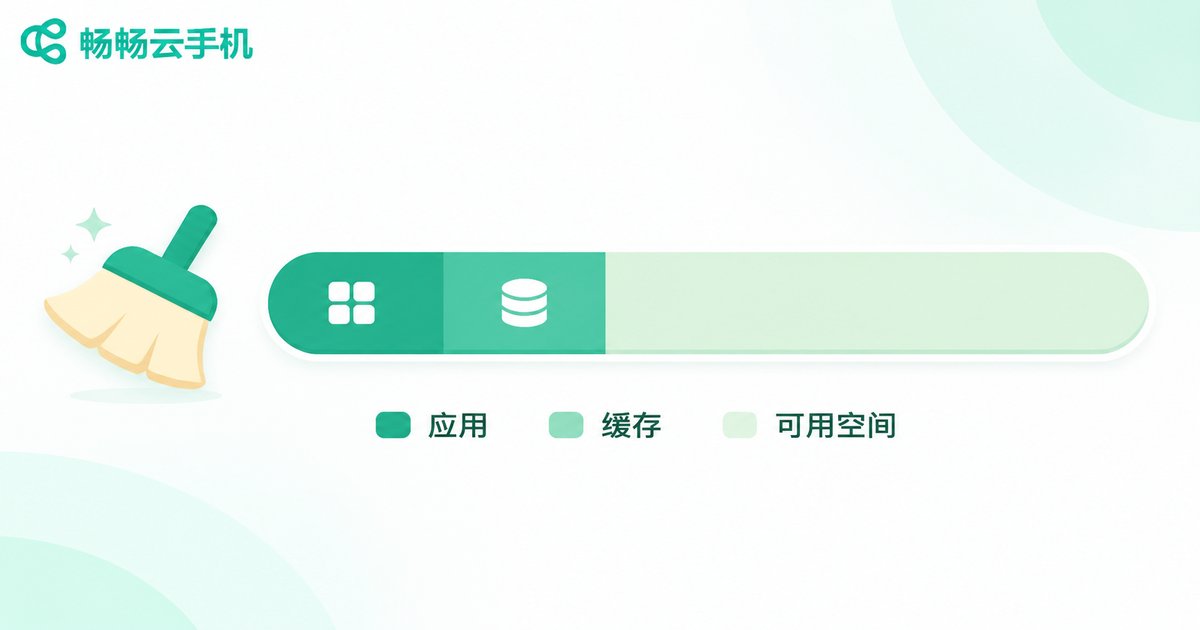
A cloud phone's disk is a fixed allocation per instance, and it fills up over time. An app update is not a simple overwrite: the system often needs to keep the old version, the new package and the extracted files at the same time, so space that was fine yesterday may not be enough today.
Typical symptoms: the progress bar stalls somewhere between 30% and 50%, you see a storage space insufficient message, or the store keeps retrying without ever reporting a clear error.
If your cloud phone offers a terminal or debugging entry point, one command shows the remaining space:
df -h /dataOnce the /data partition passes 85% usage, you are in the danger zone. Clear space in these directions:
- Clean caches inside messaging and short-video apps - these often eat several GB;
- Delete leftover installation packages under /data/local/tmp;
- Uninstall large apps you no longer use, especially games with big local resource packs;
- Sync photos and screen recordings elsewhere instead of leaving them on the instance.
After cleaning, restart the instance once so the system recalculates free space, then try the update again.
Step 2: Network Problems Are More Than Just 'Can I Browse?'
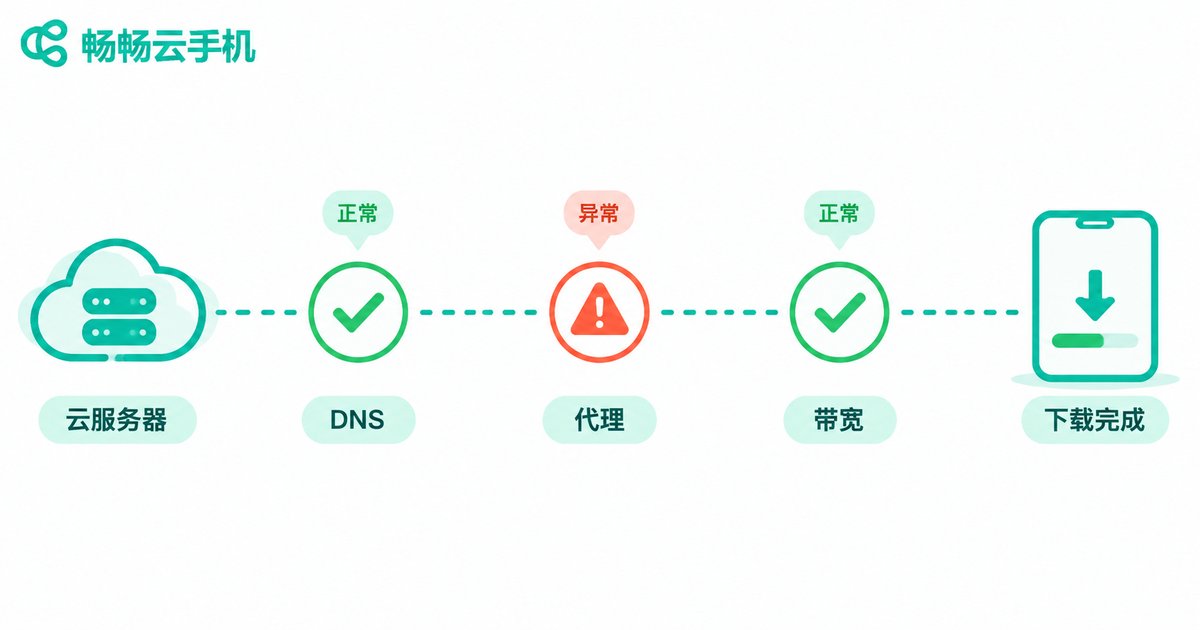
Many people assume the network is fine because a browser opens a page. But an app update uses a much longer path: resolving the store's download domain, establishing a long connection, resuming a partial download and verifying file integrity. If any link breaks, the result is simply 'update failed'.
There are four common network causes:
1. Domain resolution issues. The DNS configuration on a cloud phone instance can occasionally hold stale entries, sending download requests to an unreachable node. Test connectivity first:
ping -c 4 download.example.com2. Leftover proxy settings. If a proxy was configured for some app in the past, the setting may still be active after that app is removed, forcing new downloads through a dead route. Reset the proxy to none in system settings.
3. Bandwidth contention. If another app on the same instance is uploading large files or syncing cloud storage, the update download can time out. Stop those background tasks before updating.
4. Broken resumable downloads. Instance sleep, network switching or backgrounding can interrupt the download session, and some app stores do not resume automatically - they just report failure. In that case, clear the store's download cache and start over instead of tapping retry repeatedly.
Step 3: System Version and Compatibility Checks
If storage is plentiful and the network is healthy but updates still fail, compatibility is the likely culprit. A cloud phone instance runs a fixed Android version, while newer apps keep raising their requirements.
Check three things:
Android version. The minimum system requirement is listed on the store page. If the instance runs an older Android release, the update is rejected outright, usually with a device not compatible message.
CPU architecture. Android apps commonly ship as arm64-v8a or armeabi-v7a packages. If the instance only supports 32-bit, an update that provides only a 64-bit package will fail.
System services and permissions. Some apps rely on built-in framework services and stall at the installation verification stage when those are missing. Also watch free RAM - if memory is exhausted, the installer process gets killed.
Step 4: Small Details That Are Easy to Miss
A few causes hide deeper and are worth a quick check:
- Corrupted package: an interrupted download leaves an incomplete file. Uninstall and download again, and avoid third-party package sources.
- Account device limits: some apps cap how many devices a single account can sign in on, and a cloud phone counts as a new device.
- Wrong system time: if the instance clock drifts too far from real time, certificate validation fails during download and you see a cannot connect to server error. Enable automatic time sync.
- Unhealthy instance state: long-running instances can accumulate orphan processes. A restart resolves a surprising number of odd failures.
One Table: Which Symptom Points to Which Step
| Symptom | Most likely cause | What to do first |
|---|---|---|
| Progress stalls at 30%-50% | Not enough storage | Check /data usage and clear caches |
| Download failed, please retry | Network drop or DNS issue | Test connectivity, disable proxy, clear download cache |
| Device not compatible | Android version or ABI mismatch | Check the minimum requirement and use a matching instance |
| Fails at the final install step | Low RAM or missing system service | Close background apps, restart the instance |
| Cannot connect to server | Clock drift breaking certificate checks | Turn on automatic time sync |
Repeated Update Failures May Be a Cloud Phone Problem
If the same set of apps keeps failing across several instances, or you can only install them by clearing space and restarting every single time, the issue is no longer your workflow - it is that the instance resources and system maintenance cannot keep up.
When choosing a cloud phone, focus on three things: whether the instance's system version covers the apps you actually use; whether storage and RAM leave headroom for updates; and whether the platform offers basic operations such as instance restart and snapshot recovery so you can return to a working state quickly.
ccloudphone (畅畅云手机) takes a practical approach here: instances run in the cloud, so app installation and updates do not consume resources on your local phone; a structured instance management entry point makes it easy to review running status at a glance; and when an app refuses to install or an instance becomes sluggish, you can get troubleshooting advice through the official support channel. For users who keep several apps running long-term and update versions regularly, handing the update workload to a stable, maintainable cloud environment is far less painful than fighting with a physical phone.
FAQ
Q: The cloud phone says storage is insufficient when updating, but I don't see large files in the app list. What should I do?
The space is usually consumed by caches and logs that do not appear in the app list. Use a file manager to inspect /data and /data/local/tmp, remove old installation packages and cache folders, then restart the instance to refresh the usage figures.
Q: The same app updates fine on my physical phone but fails in the cloud phone. Is that a cloud phone problem?
It is usually a compatibility difference. Physical phones tend to run newer Android versions, while a cloud phone instance keeps a fixed one. Check the app's minimum system requirement and confirm the instance architecture matches.
Q: Updates keep failing - can I just uninstall and reinstall?
Yes, but back up in-app data first. A clean reinstall bypasses most corrupted-package and cache conflict problems.
Q: Still failing after clearing space. What next?
Move on to the network. Check for leftover proxy settings, verify the download domain resolves, and confirm no other app is hogging bandwidth. Clear the app store download cache before retrying.
Q: How do I reduce update failures going forward?
Build two habits: clean caches regularly and sync large files such as photos off the instance so it always has free headroom; and close heavy background download tasks before updating so the download does not time out.


