

Cloud Phone Scheduled Tasks in 2026: A Beginner's Guide to Automation and Checking Execution Logs
Why a Cloud Phone Needs Scheduled Tasks
When people first discover cloud phones, the question is usually “how many can I run” or “can I run multiple apps at once.” But after a month or two, the feeling almost always changes to something else: I want it to keep working while I sleep.
That is exactly where scheduled tasks come in. A cloud phone runs on servers in a data center, so it does not stop when you shut your laptop, lock your screen or run out of battery. But “always running” and “doing things on a plan” are two different things. Without scheduled tasks, you still have to open the app, tap the check-in button, start idling and collect rewards by hand every day — which makes your cloud phone nothing more than a regular phone that happens to live far away from you.
Add scheduled tasks and the cloud phone finally becomes an actual automatic machine: at 08:00 it launches the game and enters the idling map, every 30 minutes it checks the task status, and at 22:00 it takes a screenshot for the record. All you have left to do is glance at it occasionally to confirm it followed the plan.
First, Understand What a Scheduled Task Actually Schedules
Don't be intimidated by terms like “task scheduling” or “automation scripts.” The core logic is simple and has only three parts:
One: when to run. This is the time rule. The most common format is the cron expression, with five positions standing for minute, hour, day, month and weekday. You don't need to memorize it — a few examples are enough:
0 8 * * *      run once every day at 08:00
*/30 * * * *   run once every 30 minutes
0 20 * * 1-5   run at 20:00, Monday to Friday
Two: what to do. This is the action — launching an app, tapping a fixed point on screen, swiping, typing text, taking a screenshot, or running a recorded sequence of operations.
Three: what to record. This is the execution log. A task without logs is not really a task, because you have no idea whether it ran at all.
Once you have these three pieces clear, everything else is just filling in parameters in a console.
Manual Operation vs. Scheduled Tasks
This table shows why half an hour of setup is worth it:
| Item | Manual only | With scheduled tasks |
|---|---|---|
| Time cost | 10–30 minutes taken every day | One-time setup, near zero afterwards |
| Consistency | Easy to forget or skip | Triggers by rule, accurate to the minute |
| Night hours | Basically impossible | Runs around the clock |
| Troubleshooting | You rely on memory | Logs show success or failure clearly |
| Managing many devices | Tap one by one, error-prone | The same rule can be applied in bulk |
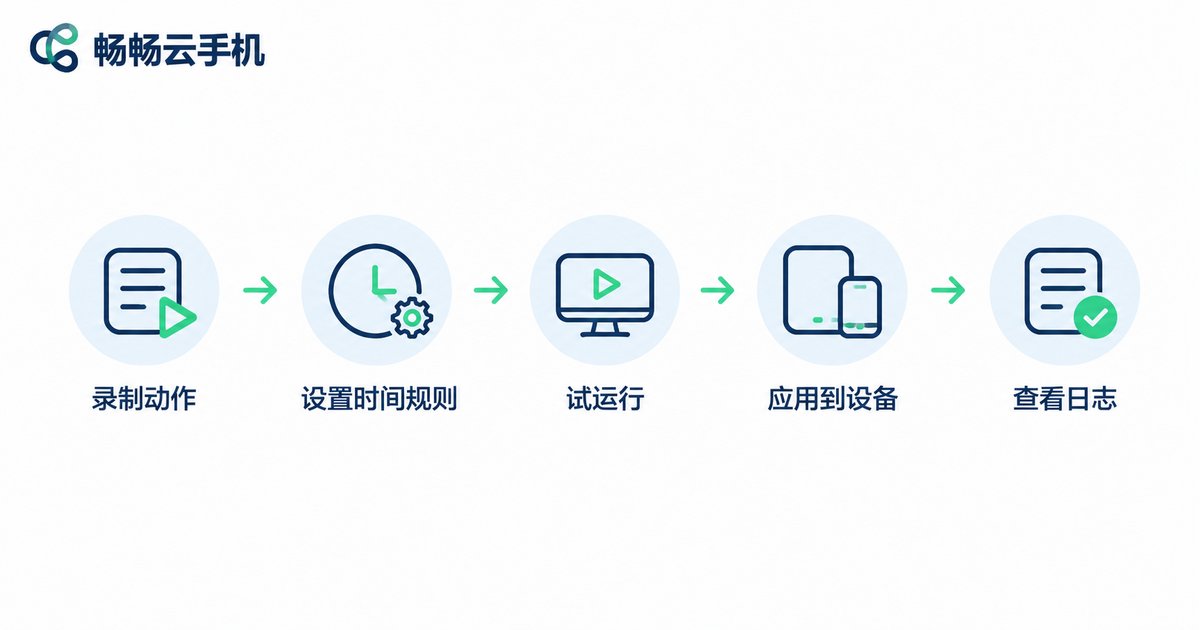
The Full Process of Setting a Scheduled Task on CCloud Phone
Menu names differ slightly between platforms, but the overall approach is the same. Using the CCloud Phone (ccloudphone) web console as an example, the process has five steps:
Step 1: Get one device working manually first. Don't start by writing rules. Complete the whole flow by hand inside the cloud phone once, and confirm there is no pop-up that blocks you halfway. This single step eliminates most of the failures you would otherwise hit later.
Step 2: Record the flow or break it into actions. If the platform supports operation recording, record it once — that is the easiest path. If not, split the flow into a clear action sequence, for example: launch app → wait 15 seconds → tap at (x, y) → wait 3 seconds → screenshot. Always leave waiting time between actions — this is the thing beginners skip most often, and the most common cause of failure.
Step 3: Fill in the time rule. Start with a low, safe frequency such as once a day rather than every five minutes. After a few stable days, increase the frequency gradually.
Step 4: Trial it on a small scale. Attach the task to a single device and watch it for a day or two. Once confirmed, copy the same rule to the other devices.
Step 5: Open the execution log and confirm it really runs. This is the step people skip — and it is the most important one.
How to Read Execution Logs and Troubleshoot
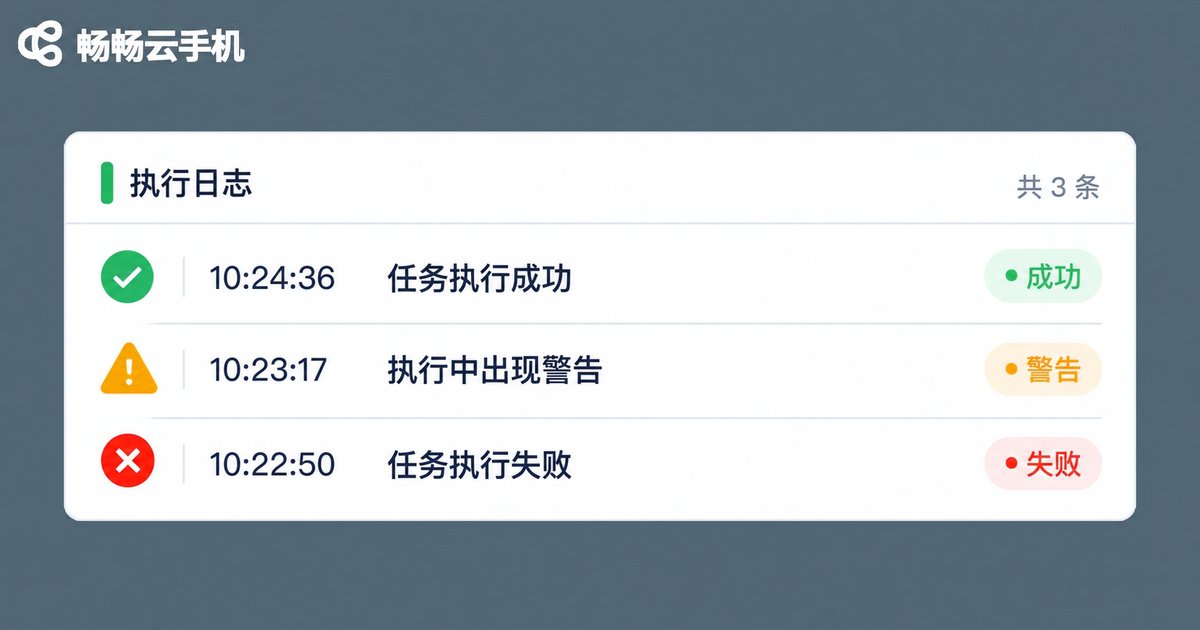
An execution log is essentially a task diary. It usually contains the run time, duration, result (success / failure / timeout) and a failure reason. When reviewing it, follow this order:
1. Check whether it triggered at all. If the entry isn't even there, the problem is the time rule — usually a time zone mismatch, a wrong schedule expression, or the task being paused.
2. If it triggered but failed. This is usually a problem with the flow itself: not enough waiting, a slow-loading interface, a pop-up covering the tap position, or an expired login session.
3. If it succeeded but the result is wrong. This is the sneakiest case — the task reports success while nothing actually happened. The fix is to add a screenshot as the final step and use that screenshot as evidence, which is far more reliable than the word “success.”
One practical habit: give every task a name you can understand, such as “08:00-game-idle-accountA” instead of “task1” or “task2.” Once you have a dozen devices and dozens of log entries, naming discipline saves you a huge amount of time.
Three of the Most Common Real-World Scenarios
Scenario one: keeping an app idling. Suitable for apps that need to stay online for a long time. The key parameters are start time, heartbeat interval and automatic restart. Add a safety rule: periodically check whether the app is still in the foreground, and relaunch it if not — otherwise you may idle all night on a session that dropped hours ago.
Scenario two: daily check-ins and routine tasks. These are time-sensitive but low-frequency, and the simplest to configure. Set them during off-peak hours such as early morning to avoid daytime network congestion, which noticeably improves the success rate.
Scenario three: scheduled screenshots and data collection. Suitable for cases where you need a record or want to watch for changes. The key is balancing frequency and storage — very dense screenshots fill up space quickly, so pair them with a regular cleanup rule.
A Few Small Habits That Keep Automation Stable
Stability rarely depends on how complex your rules are. It depends on a handful of small details:
· Leave generous waits between actions. Waiting an extra 3 seconds is far better than betting the interface has already loaded.
· Go from simple to complex. Get a low-frequency version working first, then tighten it step by step, keeping an observation period each time.
· Always keep screenshot evidence. “Success” is the system's judgment; the screenshot is yours.
· Review logs regularly. Spend five minutes a week scanning the failure entries — many problems develop gradually and are much easier to handle early.
· Keep accounts and tasks separate. One task should map to one account, so failures don't interfere with each other and troubleshooting stays simple.
Frequently Asked Questions
Q: What is the most common reason a scheduled task keeps failing?
A: Insufficient waiting time, in the vast majority of cases. App launch and loading inside a cloud phone are affected by network and server conditions, so they are slower than doing it by hand. Lengthening the wait after each action usually solves it.
Q: The task says “success” but nothing actually happened. What should I do?
A: Add a screenshot as the final step and look at the image. The screenshot tells you exactly which step the interface stopped on, which is far more useful than the status text.
Q: There is no entry for today in the execution log at all.
A: First check that the task is enabled, then check the time rule and time zone. A missing entry usually means the task never triggered.
Q: Can I run several scheduled tasks on one device at the same time?
A: Technically yes, but it is not recommended to overlap tasks in the same time window — they compete for the interface and often all fail. Staggering the schedules is the easiest way to stay safe.
Q: How often should I check execution logs?
A: Daily for the first three days after setup, then once a week once things are stable.
Q: Which task should a beginner start with?
A: Start with “take one screenshot at a fixed time every day.” It has the fewest actions and the most verifiable result, making it the cheapest way to learn before moving to more complex flows.


