
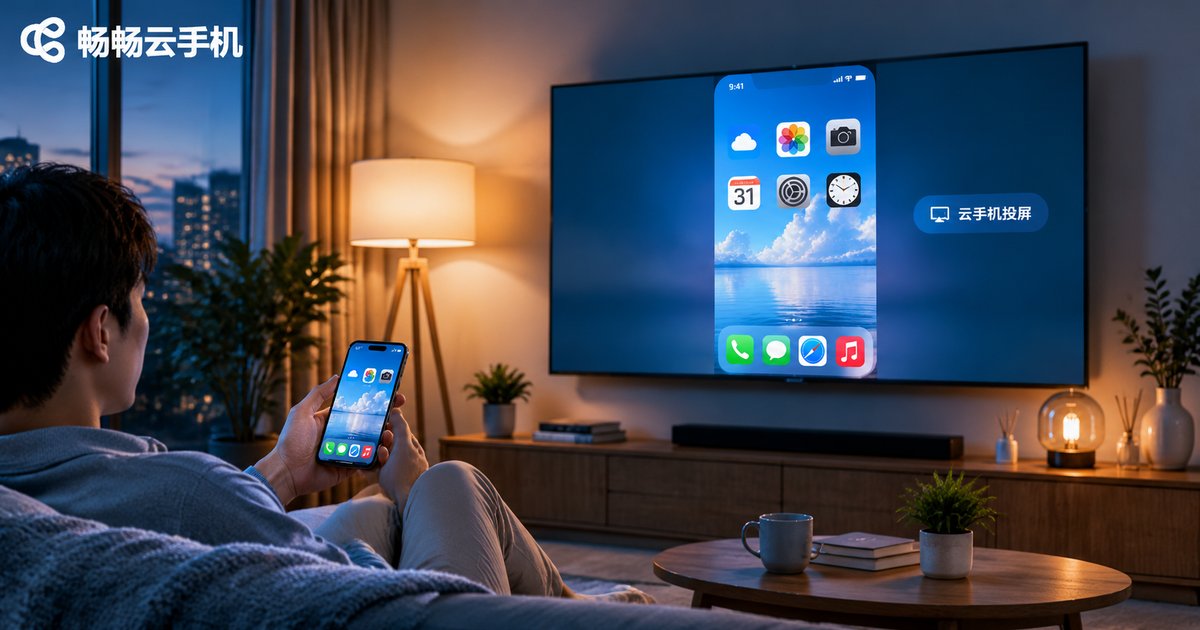
Cloud Phone Screen Mirroring Guide: Connecting to TV, Aspect Ratio and Audio Output
Cloud phone mirroring is easier than it sounds
People often ask: if the cloud phone is running somewhere in a data center, how do I get its picture onto my TV? Do I need extra hardware or software?
It is actually the opposite of complicated. The cloud phone's screen is already a video stream that gets encoded in the cloud and delivered to your phone. Mirroring simply hands that stream over to the TV. Compared with mirroring a local phone, it is often more stable, because all the rendering happens in the cloud: your device does not heat up, does not drop frames and does not drain its battery.
The real headaches start after the connection succeeds: the image looks stretched, there are thick black bars, a portrait app refuses to fill the screen, or you get a picture with no sound. This guide walks through it in order: connection, aspect ratio, audio.
Three things to check before you cast
Most failed attempts stall on step one. Two minutes of preparation saves a lot of frustration.
First, the network. A cloud phone depends on the network, and mirroring adds another layer of transmission on top. Connect both the phone and the TV to the same 5GHz Wi-Fi. Do not mix 5GHz and 2.4GHz, and definitely do not put one device on a guest network, since guest networks usually isolate devices from each other and they will never discover one another.
Second, check which protocol the TV supports. Look at the casting menu or the manual. Common options are DLNA (most smart TVs), Miracast (Android phones, Windows PCs), AirPlay (Apple devices) and Chromecast. If the protocols do not match, your TV will simply never appear in the device list.
Third, set the cloud phone resolution to 16:9 first. Either 1920x1080 or 1280x720. Do this up front and the picture will most likely fill the screen without further fiddling.
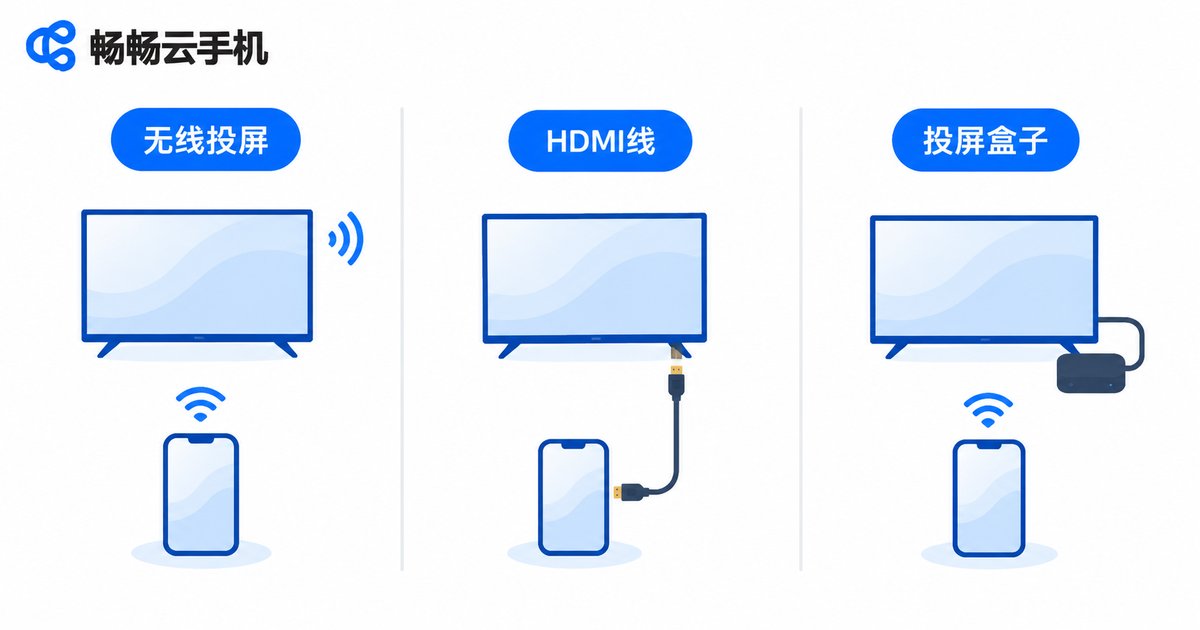
Method 1: Wireless casting, the easiest route
Best for watching video, live streams and series, where a little latency does not matter. No cables involved.
The steps are short:
1. Confirm the phone and the TV are on the same Wi-Fi;
2. Open the cloud phone and launch the app you want to cast (video app, live stream, browser);
3. Pull down the control center on your phone, find Cast / Screen Mirroring / Wireless Display, and select your TV;
4. A confirmation prompt appears on the TV. Accept it and the picture moves over.
One tip: some cloud phone apps have their own landscape or fullscreen toggle. Turn landscape on inside the cloud phone before casting, and you avoid rotating anything on the TV side.
The weakness of wireless casting is latency and jitter. For shows it is perfectly fine, but with fast-moving content such as live sports or action games you may notice slight ghosting or lips that do not quite match the audio. That is the moment to switch to method two.
Method 2: HDMI cable, the most stable
You need a USB-C to HDMI adapter plus an HDMI cable. Low cost, immediate results.
The advantages are clear: near-zero latency, audio and video that stay perfectly in sync, and zero Wi-Fi interference. For cloud gaming, live sports and on-site presentations, this is the route to pick.
Two caveats. The phone stays plugged into the adapter, so it will warm up during long sessions; take the case off and keep it ventilated. And on some models you must manually enable wired display or desktop mode in system settings, otherwise the TV reports no signal.
Method 3: A casting box or TV stick
If your TV is older and does not support any wireless casting protocol, this is the cheapest workaround. Plug the box into an HDMI port, push the cloud phone picture to it over DLNA, and the box outputs to the TV.
The upside is compatibility: any TV with an HDMI port will work. The downside is one extra hop in the chain, so overall latency is slightly higher than casting directly to the TV.
| Connection | Latency | Stability | Audio path | Best for |
|---|---|---|---|---|
| Wireless casting | Moderate, network dependent | Affected by Wi-Fi | Usually follows the picture to the TV | Series, live streams, short video |
| HDMI cable | Very low | Very stable | Straight to the TV | Cloud gaming, sports, presentations |
| Casting box | Slightly higher | Fairly stable | Box, then TV | Older TVs, temporary setups |
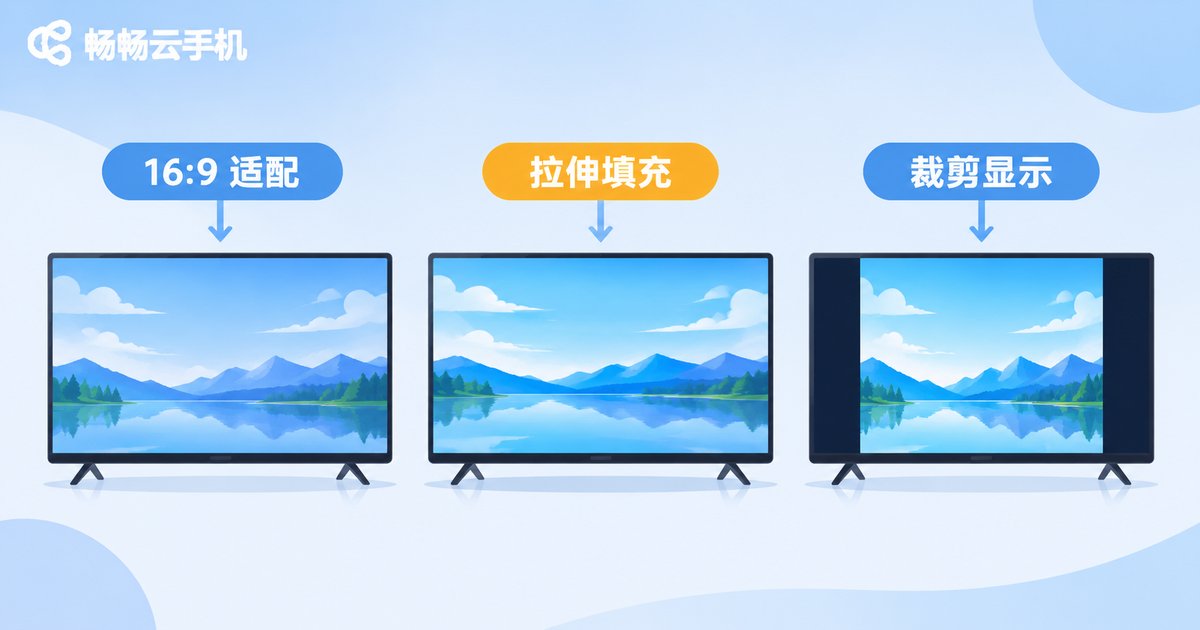
Aspect ratio: fixing bars, stretching and cropping
This is where most mirroring attempts go wrong, especially when a portrait app lands on a landscape TV. Understand three things and you can solve almost any case yourself.
One: the TV picture mode. Many TVs rescale the incoming signal by default, which makes the picture blurry or distorted. Open the TV image settings and switch the picture mode to point-to-point, original ratio or auto, so the TV displays exactly what it receives.
Two: the cloud phone resolution. 16:9 (1920x1080 or 1280x720) is the safest choice. If you set 4:3 or some portrait ratio, a 16:9 TV must either pad the edges or crop.
Three: how portrait apps are displayed. A portrait app on a landscape TV has only three options: centered (full content preserved, side bars, sharpest result), stretched to fill (image distorted, faces get wider) or cropped to fill (faces look normal but top and bottom content is cut off). For everyday vertical video, centered is recommended. If the side bars really bother you, use crop, but remember that buttons at the very top or bottom of the app may become unreachable.
| What you see | Why | Fix |
|---|---|---|
| Black bars above and below | Content ratio does not match the TV | Set the TV to point-to-point; set the cloud phone to 16:9 |
| Picture stretched horizontally | TV is in stretch or fullscreen mode | Turn off fullscreen stretch, use original ratio |
| Wide bars on both sides of a portrait app | Portrait content in a landscape frame | Accept the padding, or switch to crop mode |
| All four edges slightly cut off | TV overscan setting | Disable overscan or adjust picture size on the TV |
| Text looks soft and fuzzy | Cloud resolution lower than the TV panel | Raise the cloud phone resolution to 1080P |
Do not forget orientation switching: enable auto-rotate inside the cloud phone, then turn your phone sideways. The picture usually follows into landscape, which is much faster than hunting through TV menus.
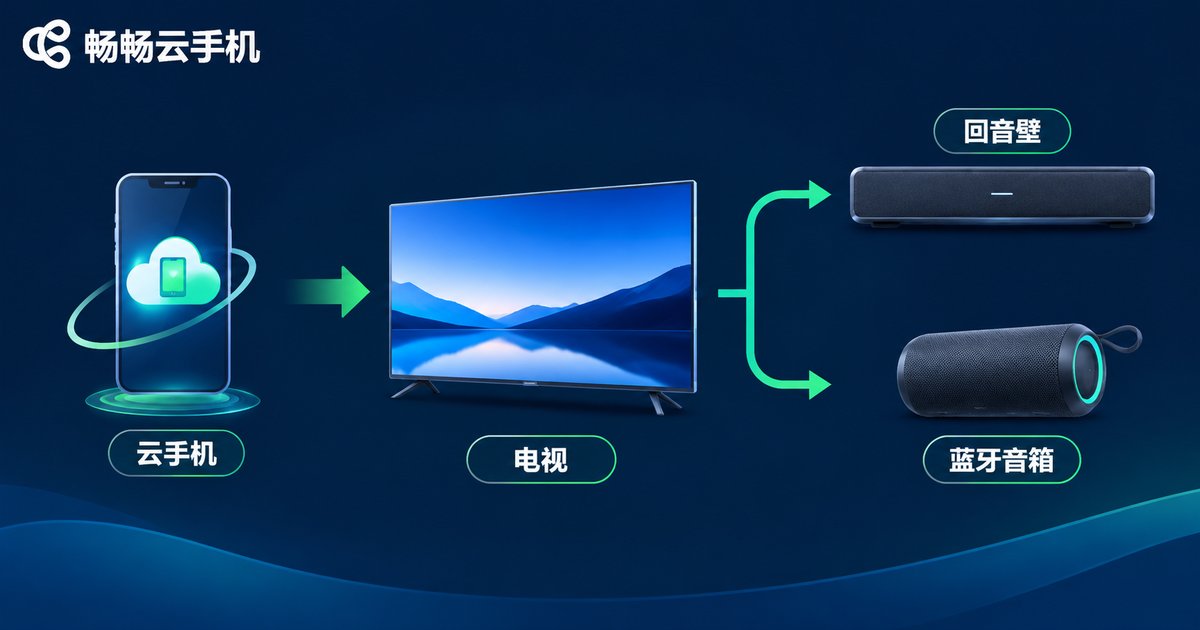
Audio output: handle three situations separately
"Picture but no sound" is the second most common mirroring complaint. Identify which case you are in and treat it accordingly.
Case 1: audio follows the picture normally. This is the standard behavior for most casts. Sound comes from the TV and the phone is muted. Note that volume is controlled in two places: both the TV remote volume and the phone media volume affect the final loudness. If it sounds quiet, nudge both up.
Case 2: picture only, the TV is completely silent. The casting protocol sent the video stream only, and the audio stayed on the phone. Three fixes: pair the phone with a Bluetooth speaker or headphones; switch to an HDMI cable so audio travels with the signal; or check whether the cloud phone app has a mute or separate-audio-channel setting enabled.
Case 3: sound exists but is out of sync. This is the classic wireless casting problem. Open the TV picture settings and enable game mode or low-latency mode, and switch off post-processing features such as sound enhancement, noise reduction and motion smoothing, all of which add processing time. In practice, turning these off solves most lip-sync issues.
One more detail: when watching shows, set the TV sound mode to standard or movie and keep the cloud phone volume around 70-80% rather than maxed out. Dialogue stays clear and loud scenes are less likely to crackle.

Practical scenarios for mirroring a cloud phone
Put the methods above together and a cloud phone on the TV becomes genuinely useful.
Cloud gaming on the big screen. Run a game inside the cloud phone, cast it to the living room TV and pair a controller. Rendering happens in the cloud, so your device never throttles from heat.
Live stream and account monitoring. People running live streams or short-video operations often need to watch several accounts at once. Leave one cloud phone cast to the TV for hours and the TV becomes a large monitoring display while your phone stays free for other work.
Home entertainment. Install your video apps inside the cloud phone and cast them to the TV. The phone battery barely moves.
Work presentations. Cast an app, dashboards or an operational walkthrough from the cloud phone to the big screen. Far easier to follow than everyone crowding around a small phone.
ccloudphone runs a complete Android environment in the cloud, and the local device mainly handles display and input, so mirroring puts very little load on your hardware and long sessions stay cool. Multiple cloud phones under one account can be switched to the big screen in turn, which suits anyone managing several accounts at the same time.
FAQ
Q: My TV never shows up in the cast list. What now?
First confirm both devices are on the same Wi-Fi (and not on a guest network, which usually isolates clients). Then check that the TV's casting feature is actually enabled. Finally, reconnect the TV and phone to the router. Most cases are solved in those three steps.
Q: The picture is laggy and drops frames badly.
Move to a 5GHz network and closer to the router, lower the cloud phone resolution to 720P, and pause other downloads or 4K streams in the house. If it is still bad, switch to HDMI and the problem disappears immediately.
Q: Text in a portrait app is tiny on the TV.
That is inevitable when vertical content sits in a horizontal frame. Use centered display to avoid distortion, try a landscape or big-screen version of the app, or crop the picture so only the main subject remains.
Q: Casting works but neither the phone nor the TV has sound.
Raise the TV remote volume, then raise the phone media volume, since both affect output. If there is still nothing, the audio channel did not follow the cast: pair a Bluetooth speaker or switch to HDMI.
Q: Can I cast one cloud phone to two TVs at once?
Most casting protocols support a single receiver at a time. For multiple displays, the practical approach is to run several cloud phones and cast each one to a different screen.
Q: My phone gets hot after wired mirroring. Is that normal?
Yes. The adapter generates heat, and charging while outputting makes it worse. Remove the case, keep the phone ventilated and never bury it under a cushion or blanket. The cloud phone itself does its computing remotely; the heat comes from the adapter and charging.
Q: Does cloud phone mirroring use more data than local mirroring?
The two flows differ: local mirroring travels inside your home network, while the cloud phone picture arrives as a continuous cloud stream. Use Wi-Fi, and set the cloud phone resolution to match your TV so you are not wasting bandwidth on pixels the panel cannot show.


