

Cloud Phone Multi-Instance Guide: Instance Creation, Group Management and Resource Control
What a Multi-Instance Cloud Phone Setup Really Solves
Most teams start with a single cloud phone instance to test the waters. Then the business actually takes off, and one instance turns out to be nowhere near enough: a dozen accounts need to stay online at once, data from different projects must not get mixed together, and nobody can say how much resource each device actually needs. A multi-instance cloud phone setup exists to solve exactly that: scaling from one device to dozens or even hundreds.
It usually comes down to three capabilities. Instance creation spins up new cloud phones quickly. Group management sorts a pile of instances by team or project. Resource control assigns appropriate CPU, memory, storage and bandwidth to each one. Drop any of the three and things get messy the moment you scale. Let us take them in order.
1. Instance Creation: From Buying Phones to Opening Instances
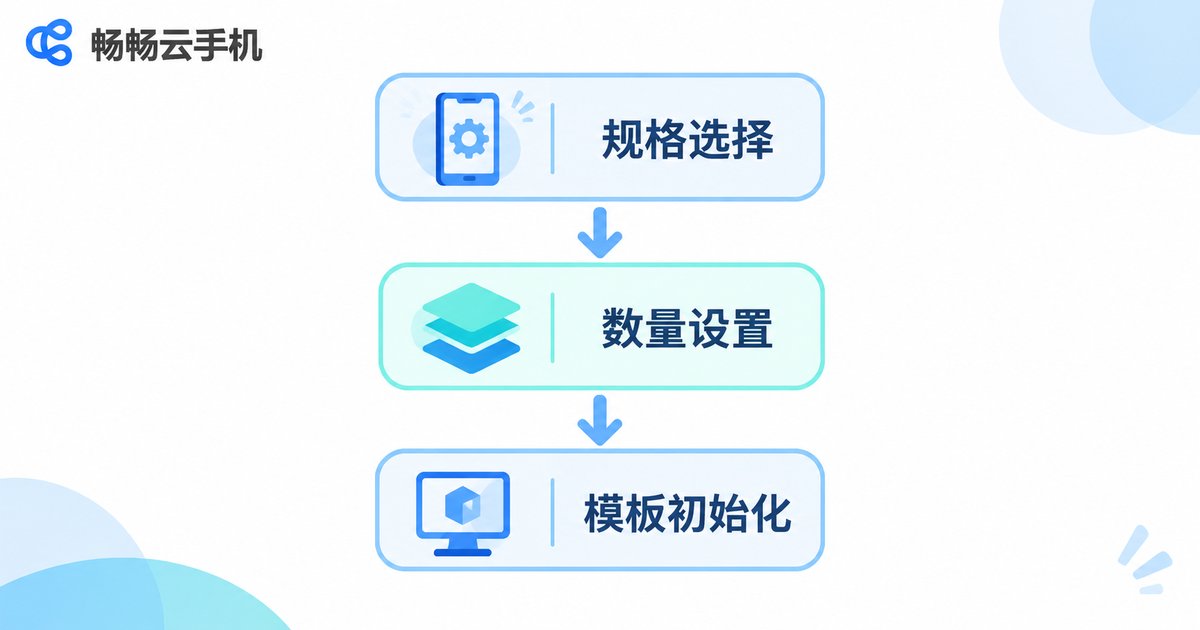
Running multiple accounts on physical phones means buying device after device, plugging each one in, and installing apps one by one. A multi-instance cloud phone setup turns that into a few clicks in a console: choose a spec, enter a quantity, confirm, and a batch of instances is ready within minutes.
A few decisions made correctly the first time will save a large amount of rework later.
1. Think about specs first; do not max everything out. Resource needs vary enormously between use cases. Accounts that simply stay online and get occasional taps run fine on mid-to-low specs. Only workflows that render graphics or switch screens constantly justify higher configurations. Opening every instance at the top spec makes for an ugly bill.
2. Lock down a naming convention once. A format such as project-purpose-number, for example projA-shop-07, works well. Messy names lead to messy grouping and painful troubleshooting.
3. Validate batch creation in small steps. When trying a new spec for the first time, open two or three instances and run them for a week. Confirming stability before rolling out is far cheaper than opening fifty and redoing them all.
4. Freeze your preinstalled environment. Turn the common apps, login environment and screenshot tools into an initialization template so new instances are usable the moment they boot.
2. Group Management: Keeping Dozens of Instances in Order
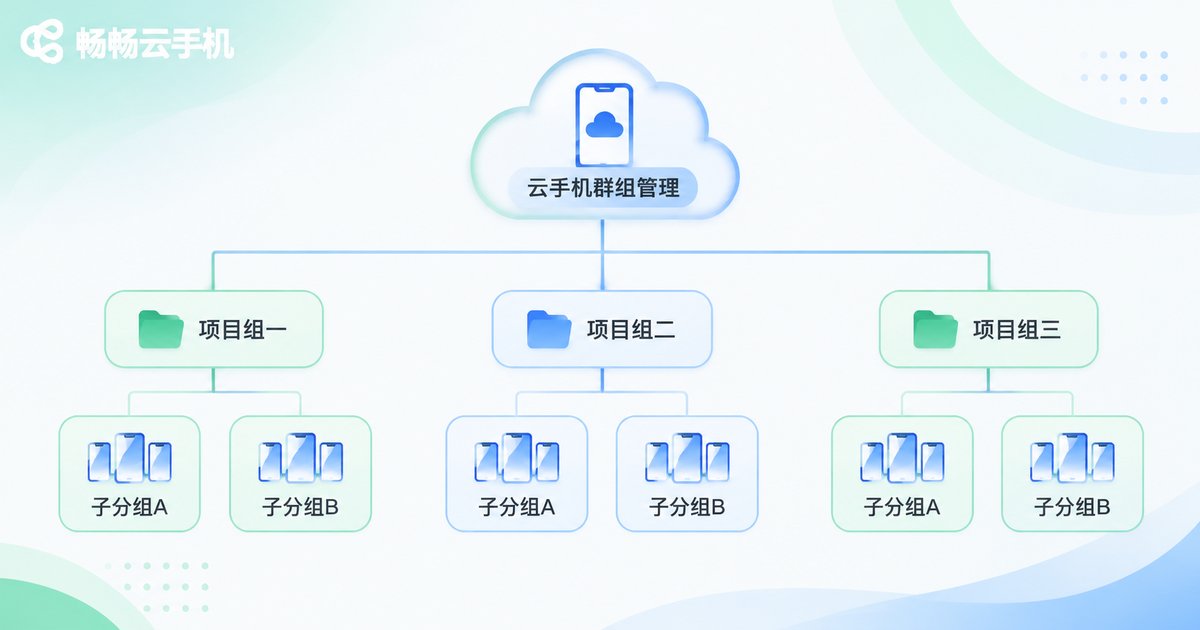
Once you pass ten instances, managing them from memory and device names stops working. Group management puts instances into drawers organized by business attribute, giving every operation a clear boundary.
Grouping by project is the most common approach. One project, one group, with sub-groups inside it by purpose, such as store operations, customer service, and content testing. Switching projects then shows a clean instance list, and nobody accidentally operates devices from another project.
Bulk operations are the real payoff of grouping. With a group selected, you can power on, power off, restart, install apps or restart specific apps in one action. What used to take fifty clicks now takes one. In day-to-day operations, the biggest time sink is rarely a technical problem; it is this kind of repetition.
Permissions should be tied to groups. Give a group owner the rights to that group and make other groups invisible to them. This reduces mistakes and makes accountability clear. The moment a team grows, this becomes essential.
Do not skip tags and notes. Tag instances with business line, owner and launch date. Six months from now you will thank yourself.
3. Resource Control: Cut Costs Sensibly, Not Painfully
The most common mistake in multi-instance setups is treating resource as something that should always be cheaper. Under-provisioned instances lag, drop connections and time out operations, and the productivity loss dwarfs the savings. Over-provisioned instances blow up the bill. The sensible approach is tiered configuration by scenario.
| Scenario | Configuration Approach | What to Watch |
|---|---|---|
| Accounts online long hours, low activity | Entry spec; prioritize stability | Uptime, disconnect rate |
| Many accounts operated at once | Mid spec; raise memory a notch | Responsiveness, concurrency |
| Graphical apps, content production | Higher spec; watch storage headroom | Frame smoothness, free space |
| Short-term testing and validation | Open temporarily and release afterwards | Avoid idle occupancy |
CPU and memory determine smoothness. The more apps running on one instance, the sooner memory runs out. If instances stutter frequently, check memory usage before adding CPU.
Leave storage headroom. Screenshots, screen recordings and cache files keep consuming space. When free space stays below a healthy ratio for a long time, clean up or expand before something breaks unexpectedly.
Plan bandwidth and network separately. When many instances upload and download at once, the network becomes the new bottleneck. Plan against peak-hour concurrency, not the average.
Deal with idle instances promptly. Make a habit of shutting down or releasing instances after a project or test ends. The single most effective resource control measure is often not squeezing each configuration, but refusing to leave idle instances running.

4. Rollout in Three Steps: From Requirements to Stable Operation
Connecting all three pieces, a typical rollout looks like this:
Step one, map your requirements. List how many accounts you need, which apps they run, how many hours a day they stay online, and whether the work is split across a team. This determines how many instances to open and how to group them.
Step two, validate at small scale. Open a small batch based on that list, run the full workflow end to end, observe resource usage and stability, then adjust the specs accordingly.
Step three, scale up and set the rules. Create instances in bulk, group them by project, bind permissions, set resource quotas and alerts, and finally write the naming and grouping rules into your team documentation so newcomers can follow them.
On tooling, ccloudphone provides cloud phone instances with instance creation, group management and configurable resource specs, which suits teams that need to run multiple accounts. For the exact available specs, features and billing, check the official website and estimate against your own workload before deciding on scale.
Frequently Asked Questions
Q: In a multi-instance setup, is more instances always better?
No. Instance count should follow your actual account count and concurrency needs. Opening too many adds management complexity and cost. Open in batches per project and expand after validation.
Q: Can groups be changed after they are created?
Generally yes, but it is worth getting the structure right while the instance count is still small. Frequent structural changes force you to redo permissions and bulk operation rules, which invites mistakes.
Q: When an instance lags, should I upgrade the spec or troubleshoot first?
Troubleshoot first. Confirm whether a single app is heavy, too many programs run at once, or storage is nearly full, then decide on an upgrade. Blindly adding resources rarely fixes the root cause.
Q: How do I know if resources are over- or under-provisioned?
Watch two signals: persistently low CPU and memory usage means the configuration is too high; frequent lag, operation timeouts and storage alerts mean it is too low. Observe over a period instead of guessing.
Q: How do we keep multiple team members from interfering with each other?
Isolate with groups plus permissions so each person only sees the instances they own, and back that up with consistent naming and tagging rules. That is usually enough to prevent mistakes.


