
Why Cloud Phones Show Garbled Screens: Resolution Settings, Network Jitter, and Compatibility
What a Garbled Cloud Phone Screen Actually Looks Like
Screen glitching is not the name of one specific fault. It is an umbrella term for a whole family of display problems. If you use a cloud phone for games, short videos, or live streams, you have probably seen it: the screen suddenly covered in colored blocks, green or purple smearing around the edges of characters, the image pulsing like a mosaic tile by tile, or the picture freezing on the last frame while the audio keeps playing.
Unlike a local phone, a cloud phone does not render the image on the device itself. The frame is rendered on a cloud server, encoded and compressed, sent over the network, and decoded for display on your screen. Any weak link in that chain can show up as a glitch. So before blaming your handset, work through the three causes below — it usually takes only a few minutes to find the direction.
Cause One: Display Settings That Do Not Match the Encoder
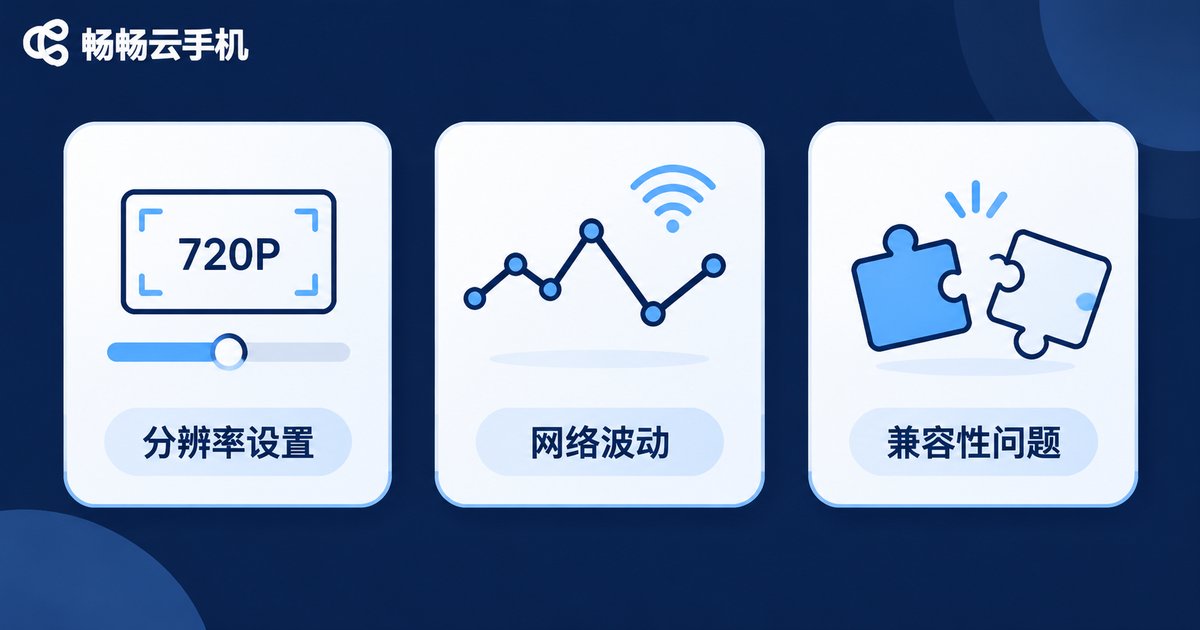
The rendered frame has to pass through a video encoder before it can be transmitted. If the quality you request exceeds what the device and network can carry, the encoder protects itself by cutting quality — the bitrate drops too low, and you see obvious banding and smearing.
Typical cases: resolution set too high (forcing 1080p into a 720p window); frame rate set to 60fps when the available bandwidth only supports 30fps; bitrate pushed to maximum, which strains the encoder and lengthens the keyframe interval, so a single packet loss takes a long time to recover from.
One easily overlooked setting is the codec. H.265 compresses more efficiently but demands more from the decoder. If your device handles H.265 only moderately well, switching to H.264 often fixes the problem immediately.
A safe baseline that works for most people:
Resolution: 720p
Frame rate: 30fps
Bitrate: 2-4 Mbps
Codec: H.264
The tuning logic is simple: start at a setting that is absolutely smooth, then increase one step at a time until artifacts appear, and step back once. This is far more stable than maxing everything out at the start.
Cause Two: Network Jitter and Packet Loss
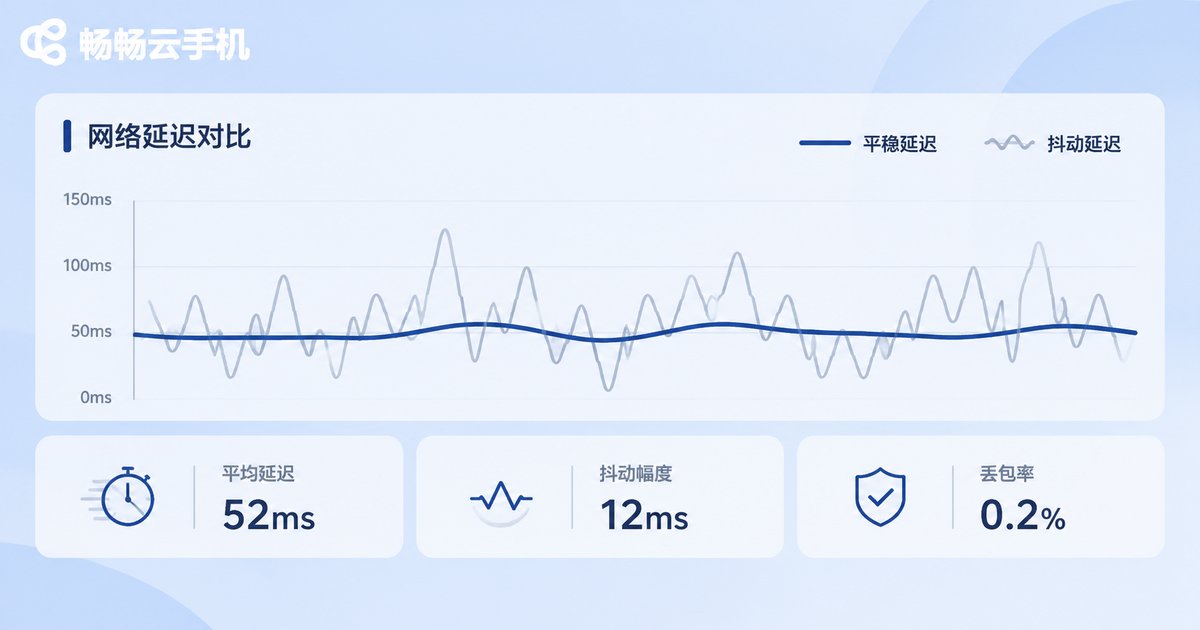
Network-driven glitches have a very recognizable signature: blocky damage in one part of the frame, scrambled colors, and self-recovery a few seconds later. When the network hitches, the image blurs for a moment. This happens because lost packets leave the decoder without complete reference frames, so it has to improvise from stale data.
Be careful to distinguish insufficient bandwidth from excessive jitter. Insufficient bandwidth produces an overall soft, low-quality image. Jitter produces an inconsistent one: the average latency looks fine, but it swings up and down, so stutter and glitching alternate. Public Wi-Fi, subways, elevators, and crowded shopping districts are jitter hotspots.
| Metric | Healthy | Worth Watching | Typical Symptom |
|---|---|---|---|
| Average latency | Under 60ms | Over 120ms | Controls feel delayed |
| Jitter | Under 20ms | Over 50ms | Image quality fluctuates |
| Packet loss | Below 1% | Above 3% | Local blocky damage |
Use the network status panel in the client to watch the live numbers, or run a continuous ping for a while and focus on variation rather than the average. If you are on Wi-Fi, try the 5GHz band, or switch to mobile data and compare — this single step rules out most cases.
Cause Three: Compatibility Issues
Compatibility problems are subtler. The tell-tale sign is a glitch that appears only in one app, on one page, or on one device.
Common sources include: apps that use unusual rendering paths (custom graphics APIs in some games, hardware decoding in video players) that the cloud environment or client decoder does not fully support; resolution handling errors during portrait/landscape rotation, split screen, or picture-in-picture; a mismatch between the client version and the cloud image version; and devices with incomplete hardware decoding support that need software decoding forced on.
The test is straightforward: try a different app, and try logging in from a different device. If the glitch appears on just one device, local decoding is the likely culprit. If it appears in just one app, the app's compatibility with the cloud environment is the likely culprit.
Three Causes at a Glance
| Cause | Typical Symptom | Fast Check |
|---|---|---|
| Display settings | Overall softness, visible banding, smearing | Improves immediately after lowering resolution or frame rate |
| Network jitter | Local blocky damage, self-recovers in seconds, comes and goes | Switch networks and compare |
| Compatibility | Only in one app or on one device | Cross-check by changing app and device |
The Five-Step Troubleshooting Routine
Work through these in order. It takes under ten minutes and usually pins down the direction clearly.
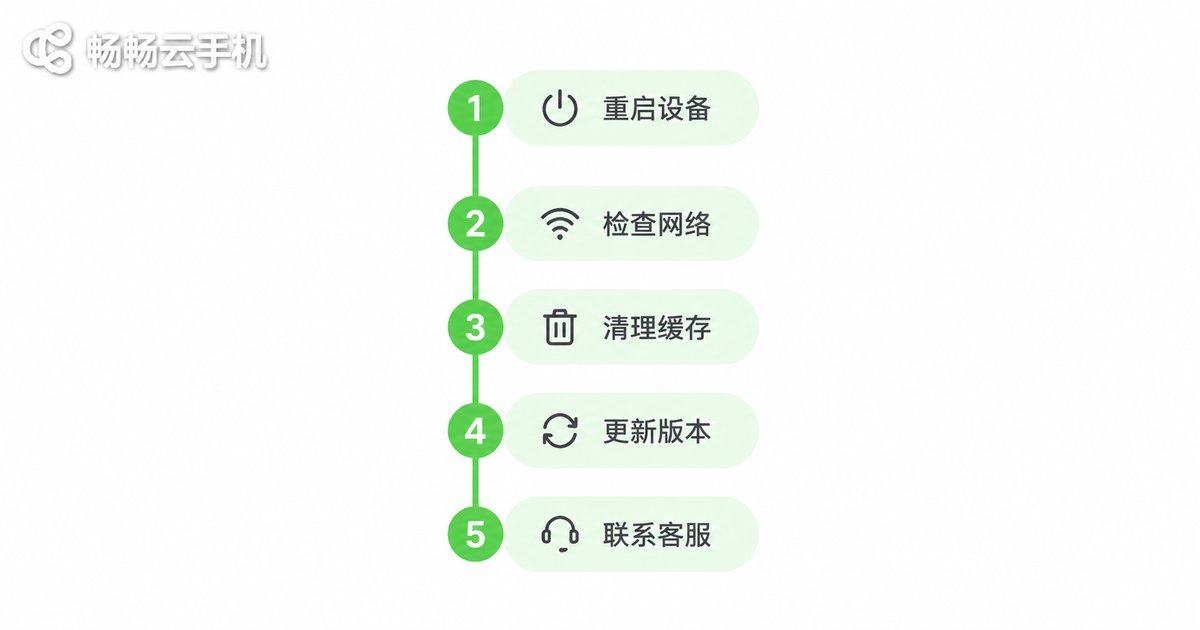
- Check the scope. Does every app glitch, or only one? Every device, or only one?
- Change the network. Move to the 5GHz Wi-Fi band or switch to mobile data and see whether the symptom changes.
- Lower the quality. Drop to 720p and 30fps and check whether the image stabilizes.
- Switch the codec. Toggle between H.265 and H.264 once and observe.
- Update and retest. Update the client to the latest version and, if needed, log in from another device to confirm whether local decoding is involved.
Reducing Glitches at the Source
Beyond troubleshooting, the easier approach is to keep the whole chain stable from the start. ccloudphone runs Android instances in cloud data centers while the client handles display and input, so image quality depends mainly on the cloud encoding profile and the network path. A few habits make a real difference:
Choose a nearby data center node — shorter physical distance usually means lower latency and jitter. Pick a quality profile that matches your current network — prioritize smoothness on mobile data, and raise the quality once you are back on stable Wi-Fi. Start low and step up — avoid maxing out the settings at the start, which puts unnecessary strain on the encoder.
In short: stabilize the link first, then chase image quality. The advantage of a cloud phone is that the compute lives in the cloud and the local device only displays the result — so how stable the picture is has far more to do with configuration and network conditions than with the phone in your hand.
Frequently Asked Questions
Q: Are glitching and lagging the same thing?
Not exactly. Lag means the picture updates late and controls feel delayed. Glitching means the picture content itself is damaged, blocky, or smeared. They often appear together, because jitter and packet loss cause both at once.
Q: Why does the same cloud phone glitch for me but work fine for someone else?
Most likely a local network or local decoding issue. Change networks first, then compare across devices — this quickly separates link problems from device compatibility problems.
Q: Is the highest quality setting always the best choice?
No. Higher resolution and bitrate mean more encoding pressure and bandwidth use, so any network fluctuation is more likely to cause glitches. In most scenarios 720p, 30fps, and H.264 are enough — stability matters more than an impressive spec sheet.
Q: Only one video app glitches while everything else is fine. What should I do?
That is a classic compatibility symptom. Try turning off hardware decoding inside the app, or switching the player's decode method, then check again.
Q: Could the glitch mean my phone screen is broken?
Very unlikely. If the local screen hardware were faulty, your local gallery and local videos would look wrong too. If only the cloud phone interface glitches, the cause is almost certainly the link or the configuration.


