
Cloud Phone Black Screen Fix: Rendering, Network, and Client Troubleshooting
First, Tell the Three Kinds of Black Screen Apart
Cloud phone black screens all look the same: a dark rectangle in the client and nothing responds. But the root cause usually sits in one of three layers - cloud-side rendering and local decoding, network transmission, or the client itself. One minute of diagnosis saves a lot of reinstalling.
The fastest check is the instance status. If the instance shows as running, tasks are still progressing, and tapping produces feedback such as sound or operation logs, the cloud side is fine and the problem is in the path that delivers the picture to your eyes. If the instance is offline or failed to start, that is a different category - check instance status and resources first, then talk about black screens.
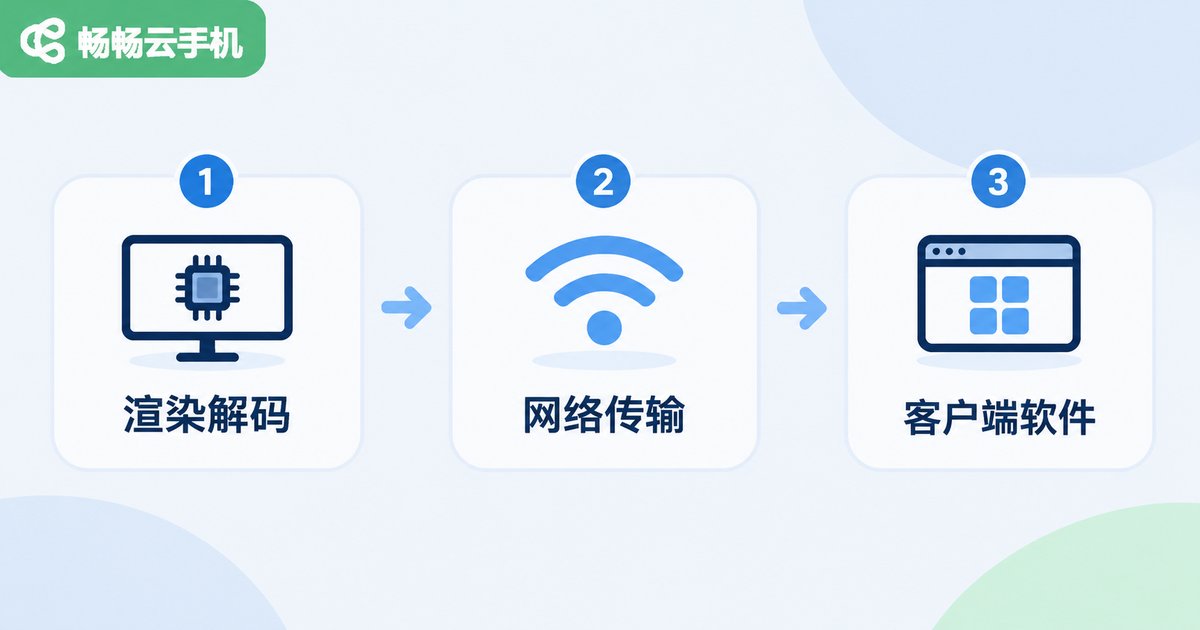
1. Rendering and Decoding: Black Screen but Inputs Still Work
This is the most common case. Typical causes are a decoding mode that does not match your local GPU, a quality preset beyond the device's capability, a resolution or frame rate set too high, or an outdated graphics driver. The signature: the picture is black, but you still hear audio and see tasks progressing.
Work from the lightest action upwards:
1. Switch the quality preset from HD or Ultra HD to Smooth and see if the picture returns immediately;
2. Toggle the decoding mode (hardware versus software decoding), save, and restart the client;
3. Update the graphics driver, especially on integrated graphics or older laptops;
4. Log in to the same cloud phone instance from another device as a comparison - if the second device is fine, the problem is local decoding.
One easily missed factor: system power-saving policies or security software can throttle background decoding threads, so the picture loads a single frame and then goes dark. Adding the client to the whitelist often fixes it outright.
2. Network: Spinning, Black for a While, Then Back
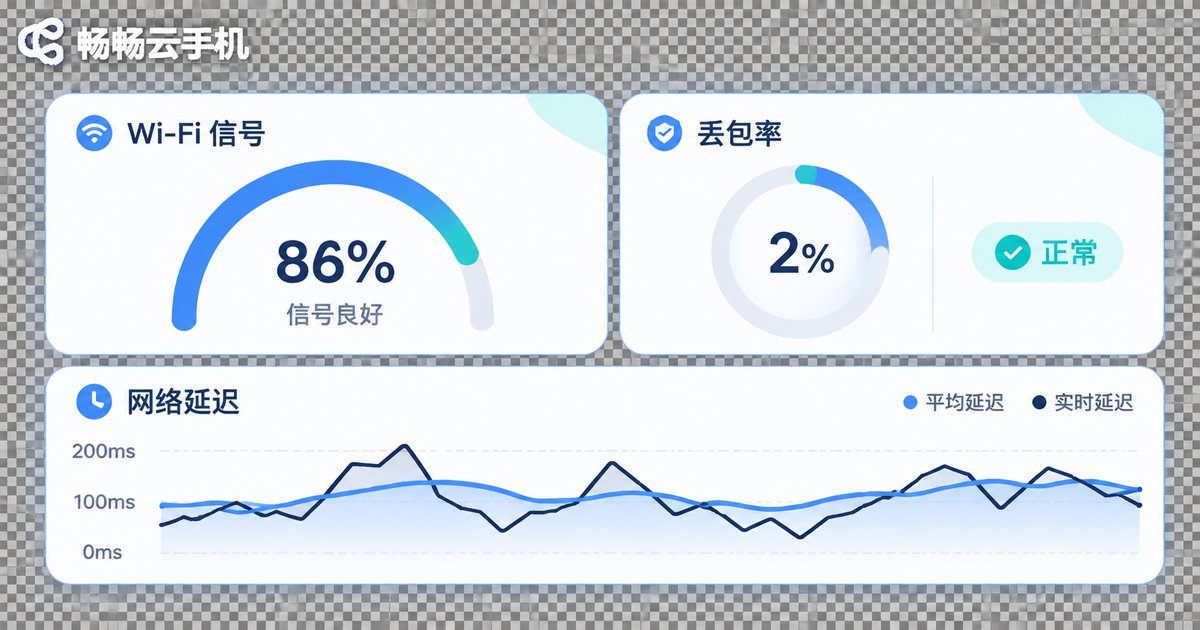
A cloud phone picture is essentially a continuous video stream, so stable bandwidth and low packet loss matter more than peak speed. The network signature is black for a few seconds and then recovery, or endless spinning with an occasional flash of picture.
Start with a basic check:
ping -c 20 your-access-endpoint
# Look at three numbers: packet loss, average latency, jitter
In practice, packet loss above 2-3 percent or wildly fluctuating latency is enough to cause black screens and visual artifacts. Common triggers include public Wi-Fi, large downloads running in the background, a router that is too far away, and an access node in another region.
What to do: switch to a wired connection or 5GHz Wi-Fi, stop background downloads and cloud sync, and cross-check with a phone hotspot - if the hotspot works, the original network is the culprit.
3. Client Troubleshooting: Cheapest Steps First
1. Fully quit and restart the client - not just closing the window, but ending the process in Task Manager;
2. Clear the client cache;
3. Check for updates, since older builds are often less compatible with new operating systems;
4. Review system permissions: blocked network access, overlay or screen recording permissions can prevent the picture from displaying;
5. Reinstall to rule out a corrupted configuration file.
If none of this helps, send the client logs, the exact time the problem occurred, and the instance ID to support. That shortens the diagnosis a lot and avoids back-and-forth testing.
4. A Symptom-to-Cause Self-Check Table
| Symptom | Most likely cause | First action |
|---|---|---|
| Always black, but audio and inputs work | Rendering or decoding issue | Toggle decoding mode, lower quality |
| Black for seconds, then recovers | Network fluctuation, packet loss | Change network, check ping loss |
| Same instance is black on another device | Network or instance-side issue | Cross-check network, check instance status |
| Black only on one computer | Local client or GPU driver | Update driver, clear cache, reinstall |
| Artifacts or green frames mixed with black | Unstable decoding or low bandwidth | Lower quality, switch decoding mode |
Narrowing It Down Faster with CCloud Phone
CCloud Phone (ccloudphone) runs Android cloud phone instances continuously in the cloud and streams the picture to the local client in real time, so the same three causes apply. When you hit a black screen, run three steps: drop the quality preset one level, toggle the decoding mode and restart the client, then cross-check on a different network.
If it is still black after those three steps, send the instance ID, the time the problem occurred, and a screenshot to CCloud Phone online support so the technical team can dig deeper. Day to day, keeping the client up to date, preferring a stable wired or 5GHz connection, and avoiding large background downloads noticeably reduces how often this happens.
Frequently Asked Questions
Q1: The cloud phone is black but audio works - what is wrong?
The cloud instance is running normally, so the problem is in picture transmission or local decoding. Toggle the decoding mode and lower the quality preset to test.
Q2: The same cloud phone is black on a second device too. What does that mean?
If both devices are black, the network or the instance is more likely at fault. If only one device is black, it is almost certainly local decoding or the client.
Q3: The black screen recovers by itself. Should I still fix it?
Yes. Self-recovery usually points to network fluctuation, so check packet loss and Wi-Fi stability - otherwise it will come back during a critical operation.
Q4: Will lowering the quality affect daily use?
Lowering quality is mainly a diagnostic step. Once the cause is confirmed, raise it back gradually to a preset that balances smoothness and clarity.
Q5: Do I need to reinstall the operating system or replace the device?
Usually not. Walk through the five client steps first - restarting, toggling decoding mode, and changing networks resolve the vast majority of black screen cases.


