
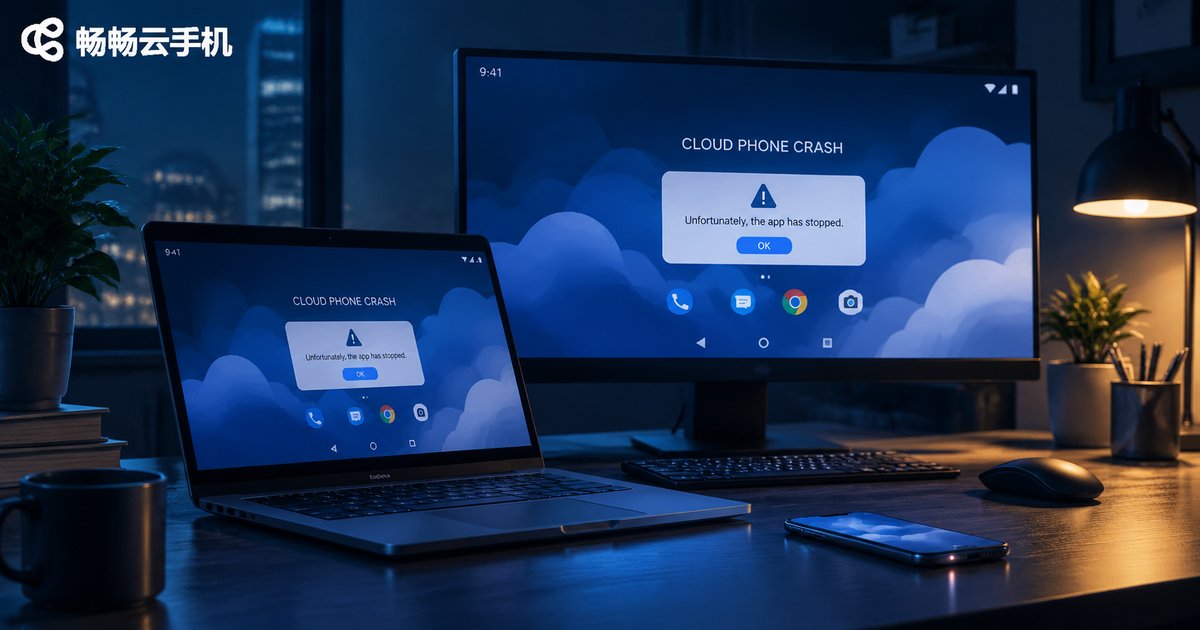
Why Cloud Phones Crash: App Compatibility, Missing Permissions and Resource Usage
Most cloud phone crashes are not a broken device
When you use a cloud phone to run games, execute scripts or do batch testing, the most frustrating moment is the screen going black and the app dropping straight back to the home screen. Many people immediately assume the cloud phone is bad, but most crashes come down to three areas: app compatibility, permission configuration and resource usage. Understand these three and you can diagnose and fix the vast majority of crashes yourself.
A cloud phone is essentially an Android instance running on a data center server, with the screen streamed to you in real time. It runs into the same old issues as a physical phone - system version, permissions, memory - except the troubleshooting entry point moves from phone settings to a cloud console, which is why a structured approach matters.
Cause 1: app compatibility mismatch
Cloud phones run Android system images, and different instances may use Android 9, Android 11 or newer. If your app (especially games, finance apps and certain utility apps) only supports specific system versions, or depends on Google services or native libraries built for a particular CPU architecture, it can crash right at launch.
Typical symptoms: the app closes the moment you tap the icon, crashes happen on the splash screen, and switching to another cloud phone fixes it. These problems have almost nothing to do with network or account - the app simply does not recognize the environment.
- Check the Android version range the app requires and compare it with the instance image
- Confirm whether the app needs Google services or a specific runtime
- Test on instances with different Android versions to compare results
- If only the newest app version crashes, rolling back one version often fixes it immediately
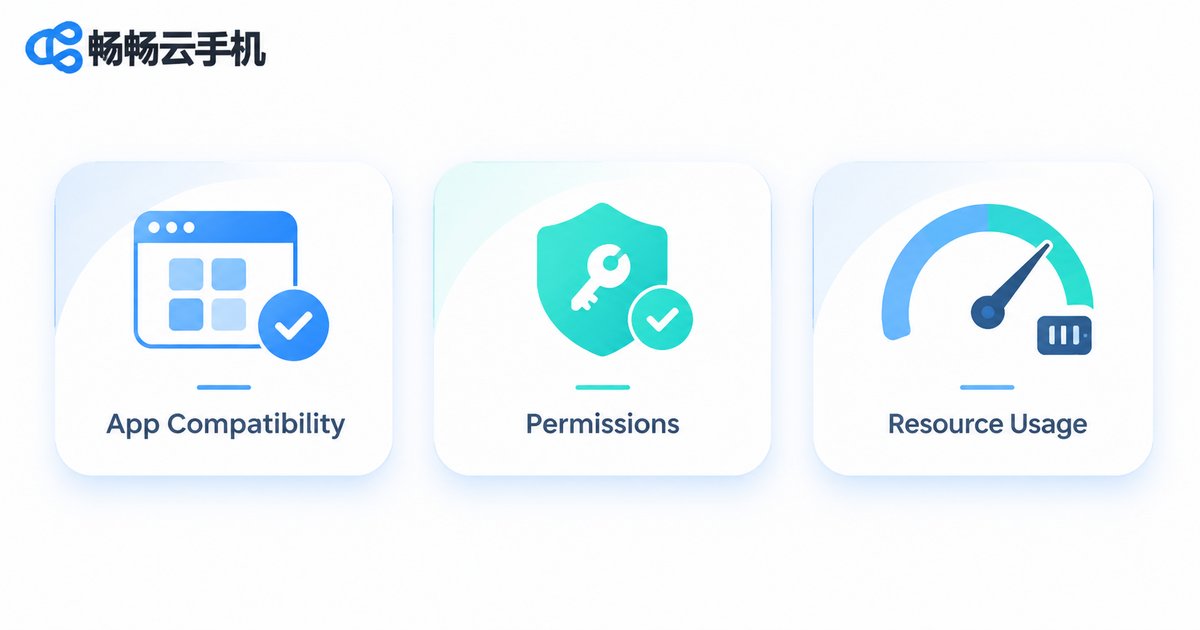
Cause 2: insufficient permissions force the app to quit
Android apps check a long list of permissions at startup: storage, notifications, phone state, location, floating windows, background execution and more. Cloud phones apply stricter limits to sensitive permissions by default, and when a key permission is denied, some apps do not show a polite prompt - they simply crash.
The quick test: the crash happens right as the app opens, before the main screen appears, and the log contains permission-related errors. In that case, open the cloud phone settings, enable each permission the app needs, then restart it.
Two other permission issues are easy to overlook: background keep-alive limits, where the system reclaims the app and it crashes when you switch back, and file read/write permissions, where the app cannot write to its cache directory and fails during initialization.
Cause 3: resource usage exceeds the instance spec
A cloud phone has fixed CPU, memory and storage - the instance tier you choose defines the performance ceiling. When the app itself is memory-hungry, or you run too many apps at once, the system kills processes due to out-of-memory (OOM), which looks like a crash out of nowhere.
Typical symptoms: crashes after running for a while, more frequent when multi-instancing, and guaranteed when opening large games or high graphics settings. The app is not written incorrectly - the instance simply cannot keep up.
| Cause | When it crashes | Typical sign | How to fix |
|---|---|---|---|
| App compatibility | At launch | Works on another instance, works after version rollback | Match system version and environment |
| Insufficient permissions | Immediately on open | Log shows permission denied | Enable permissions, allow background running |
| Resource usage | After running a while | Always happens with multi-instance or high graphics | Upgrade the instance, run fewer apps |
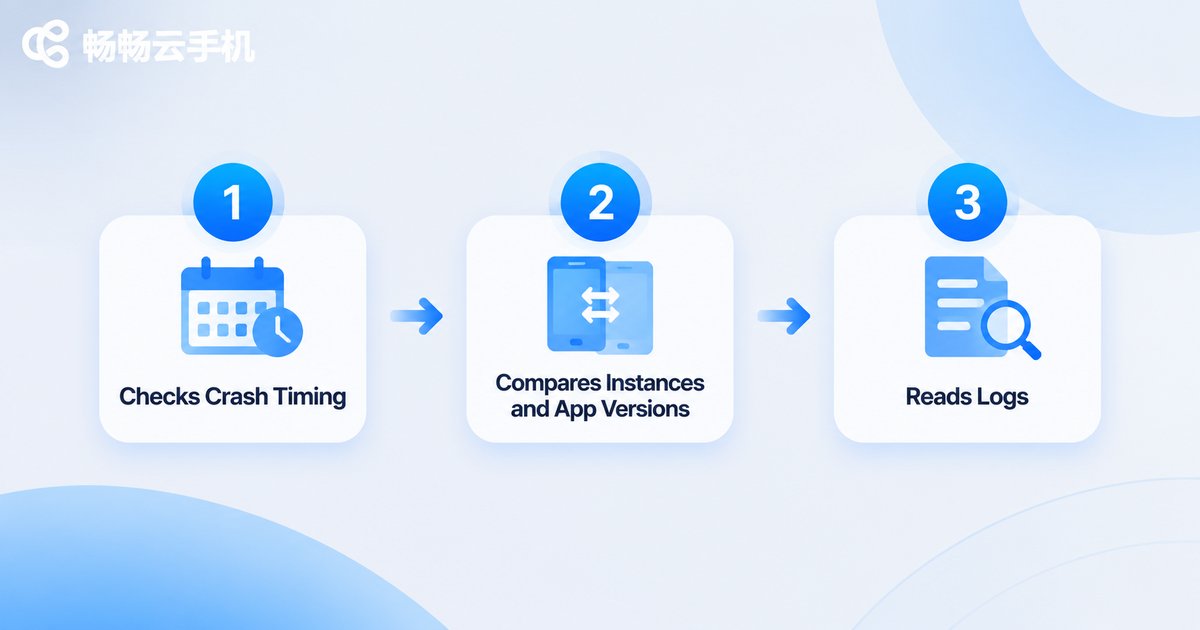
Three steps to pinpoint the cause
- Check the timing: crashes at launch usually mean compatibility or permissions; crashes after a while usually mean resources.
- Run comparisons: switch to a different Android version, drop to a single instance, or install an older app version. Whichever change stops the crash identifies the cause.
- Read the log: most cloud phone consoles let you view runtime logs. Search for error, crash, OOM or permission - far faster than guessing.
If all three steps fail, record the app name, instance system version and crash time and send it to support. That is far more useful than saying the app keeps crashing.
Choose the right instance to prevent crashes
Troubleshooting is the cure; choosing the right spec is the prevention. If you mainly run games, multiple instances or automation scripts, pick your instance tier on CcloudPhone (ccloudphone) according to workload: a basic configuration is enough for light tasks, while large games and multi-instance setups should use a higher tier rather than forcing a low-spec instance to carry a heavy load.
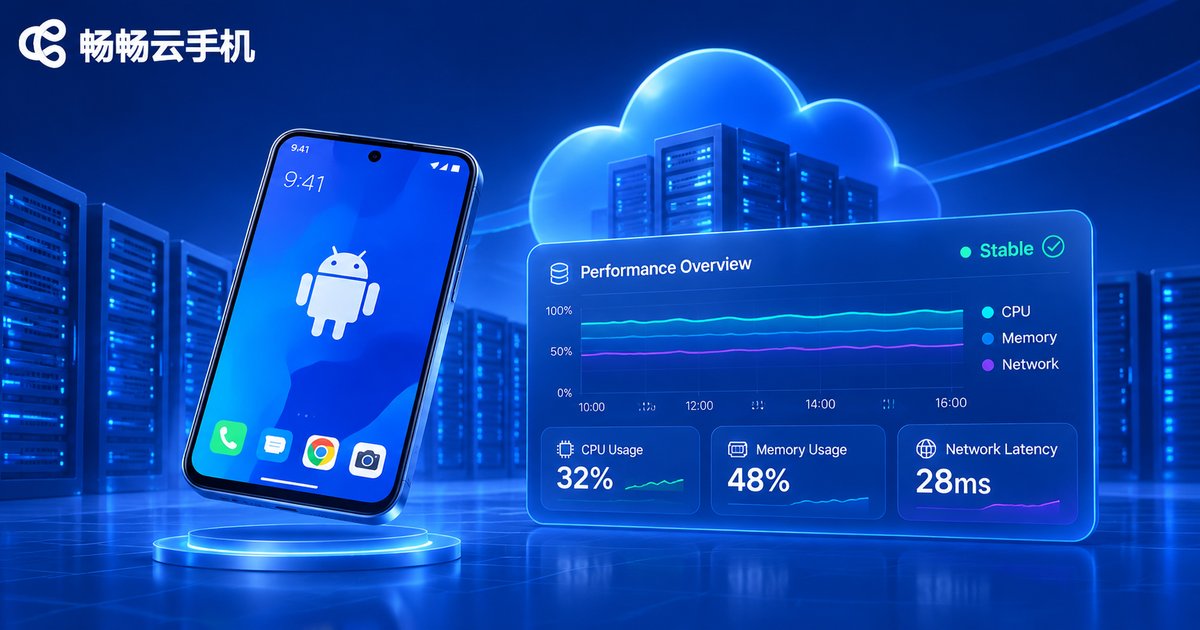
CcloudPhone offers cloud Android instances in multiple configurations, and the console lets you view instance resource usage so you can tell whether the current load is approaching the limit. If something goes wrong, you can restart or reset the instance to recover the environment quickly. Two small habits cut crashes noticeably:
- Leave headroom for each instance when multi-instancing instead of maxing out memory before opening the next one
- Clean up unused apps and cache regularly so a full disk does not break app initialization
FAQ
Q1: Is a cloud phone crash related to my network?
Usually not. Network issues show up as lag, screen artifacts or delayed input, while a crash means the app process was terminated and typically returns you to the home screen. A brief disconnection and reconnect restores the screen without closing the app.
Q2: Why does the same app crash on some instances but not others?
Most likely a compatibility difference caused by system version or instance spec. Note the image version of the instance that works, standardize on it, and the problem usually disappears.
Q3: With multiple instances, why does one specific instance keep crashing?
Run that instance alone first to see whether it still crashes. If it is stable alone but crashes with others, overall resources are being spread thin - run fewer instances at once or upgrade the spec.
Q4: The app started crashing right after an update. Is it the cloud phone?
Usually the new version raised its system or performance requirements. Roll back one version to verify; if the older version is stable, it is an app-side compatibility issue and you can wait for an update.
Q5: All permissions are granted but it still crashes. What now?
Confirm background running and auto-start permissions are enabled, then clear the app cache and retry. If it still fails, note the crash time and app version and send it to support for further investigation.


