

Cloud Phone Lag Troubleshooting: Configuration, Cache, Network, and Background Tasks
Cloud phone lag: first tell 'slow' apart from 'disconnected'
When people first run into cloud phone lag, the immediate assumption is that cloud phone performance is simply poor. In reality, 'slow' and 'disconnected' are two different things. Dropped frames, delayed taps, and dragging gestures are usually about performance and network quality. Crashes, black screens, and dropped connections are more often caused by network jitter or background processes being cleared by the system. Identify the symptom first, then troubleshoot accordingly. Most cases can be traced in a few minutes.
Walk through these four steps in order, and you will cover more than 90 percent of lag situations: is the configuration enough, is cache piling up, is the network stable, and is anything competing in the background.
Step 1: Check whether the configuration matches your use case
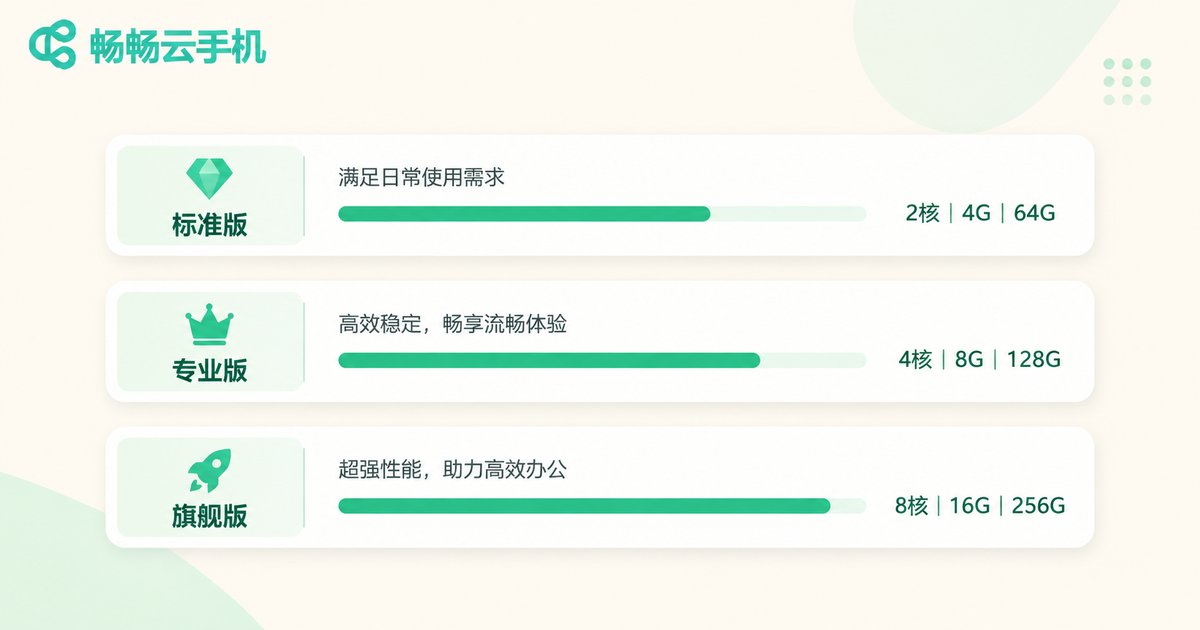
The configuration of a cloud phone determines how many tasks it can run at the same time. Daily chatting, short videos, and a single game are on a completely different level from running multiple accounts at once or keeping a large mobile game online for hours. With a low-spec instance, even a great network will feel like the device cannot keep up with your taps.
| Use case | Configuration feel | Typical behavior |
|---|---|---|
| Single chat or news browsing | Mainstream specs are usually fine | Smooth, occasional slight delay |
| One mid-to-heavy game | Needs mid-range specs or above | Playable, but switching back reloads the app |
| Multiple accounts or long idle sessions | Needs higher specs | Noticeably slower after opening several apps |
A quick test: if one app runs smoothly but a second one makes everything slow, the configuration is the bottleneck, not the network. Changing networks at this point will not help much.
Step 2: Clean cache and storage so junk does not drag the system down
A cloud phone is like a physical phone: over time it accumulates cache files, leftover downloads, and app logs. When storage fills up, read and write operations slow down, and launching or switching apps becomes sluggish. That is the 'every tap takes forever' feeling.
Do a light maintenance pass once a week: clear the cache of frequently used apps, uninstall apps you no longer need, and empty the download folder and temporary files. If your cloud phone shows storage usage, start with the apps taking up the most space.
Note: clearing cache usually does not delete account data, but clearing app data logs you out. Confirm what you are clearing first so important accounts do not need to be verified again.
Step 3: Diagnose network latency instead of trusting a speed test
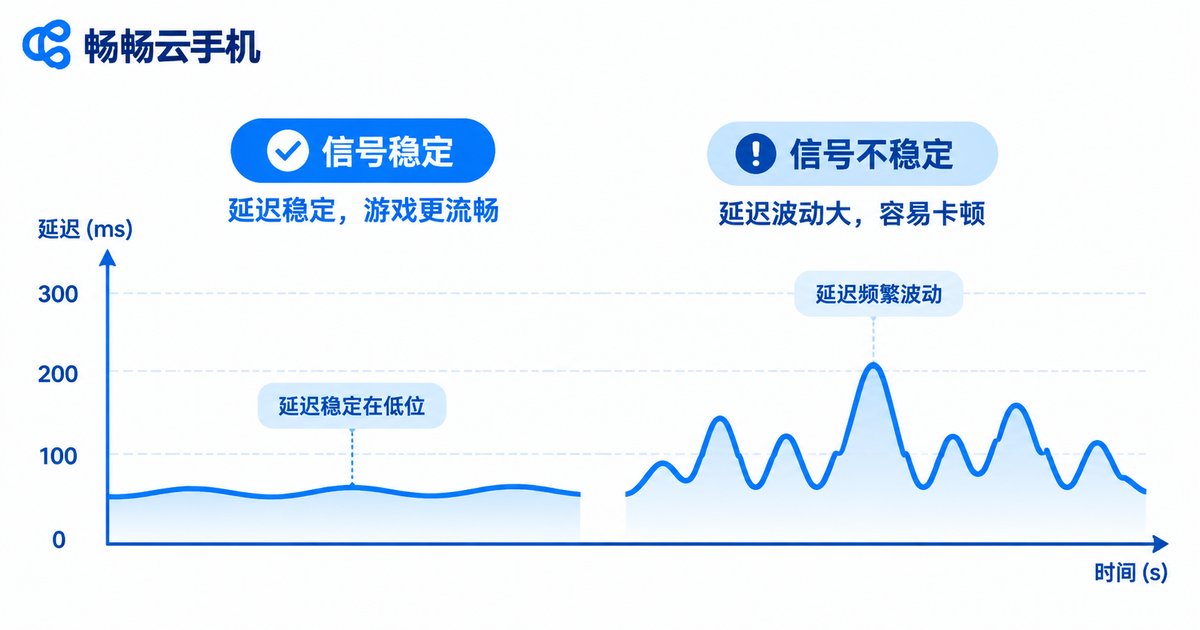
Many people see a high bandwidth number in a speed test yet still experience lag. That is because cloud phones care about latency and packet loss, not raw download speed. Latency that keeps jumping around hurts more than a steady higher value.
- Switch networks and compare: move the same cloud phone to another network, such as from Wi-Fi to mobile data. If lag improves clearly, the issue is local.
- Watch latency stability: small fluctuations are normal. Frequent large jumps usually mean congestion on the route or an unstable wireless signal.
- Avoid peak hours: evening home network peaks and shared public Wi-Fi both cause rhythmic lag in the streamed display.
- Reduce local load: downloading large files or streaming HD video on your local device also competes with the cloud phone connection.
If lag remains after changing network and time slot, and only affects the streamed display, then it is reasonable to suspect the cloud phone service side.
Step 4: Control background tasks and auto-start apps
The hidden cause of cloud phone lag is often in the background. Apps waking each other up, auto-start on boot, background location, and push services all keep consuming CPU and memory, leaving the foreground app without resources.
| Background item | Impact | Recommendation |
|---|---|---|
| Auto-start on boot | Long-term resource use after startup | Keep only one or two essential apps |
| Background auto-sync | Periodic read and write, causing intermittent lag | Switch to manual sync or longer intervals |
| Always-on push services | Frequent system wake-ups | Turn off notifications for rarely used apps |
| Background downloads and updates | Short bursts of heavy bandwidth and storage use | Update only while in use |
After adjusting, restart the cloud phone instance once so resources are reallocated, then observe for a while. Many 'mysterious' lag cases come from background apps waking each other up.
When to consider a more stable cloud phone solution
If you have gone through all four steps, cleared cache, switched networks, and controlled background tasks, and lag still appears consistently, the problem is probably not your operation but the solution itself. Undersized instances and unstable resource scheduling keep the experience from improving.
At that point, consider ccloudphone. It provides ready-to-use cloud phone instances with clear configuration tiers, well suited to multi-account, idle-running, and long-online scenarios. Before choosing, define your usage intensity first: light single-app use, or several accounts online at the same time. Then match it against the configuration details published on the official website so you do not overload a small instance. For specific plans and features, refer to the official ccloudphone website.

FAQ
Q: Is cloud phone lag a network issue or a performance issue?
Look at the symptoms. Dropped frames, delayed taps, and dragging gestures point to performance and network. Crashes, black screens, and dropped connections point more to network jitter or processes being cleared. If one app is smooth and the second makes everything slow, the configuration is likely insufficient.
Q: Will clearing cache delete my account data?
Clearing app cache usually will not, but clearing app data logs you out. Confirm before you act, and make sure you can verify important accounts.
Q: My speed test looks great but the cloud phone still lags. Why?
Cloud phones depend more on latency and packet loss than download speed. When latency jumps up and down frequently, the experience feels laggy even if the speed test numbers look good.
Q: Do background tasks really matter that much?
Yes. Apps waking each other up, auto-start on boot, and background sync all consume resources continuously. When the foreground app cannot get enough, everything slows down. Trimming auto-start and restarting the instance usually helps.
Q: How often should I do this maintenance?
For light use, once a month is enough. For multi-account or long idle sessions, clear cache and review background apps once a week. Once it becomes a habit, lag becomes much less frequent.


