
How to Configure Screen Always-On and Background Running Permissions for Automation Scripts on Cloud Phones
Why Does Your Script Quietly Stop at Night?
Anyone who runs automation scripts on a phone — auto check-ins, batch interactions, scheduled data collection — eventually hits the same wall: everything looks fine at bedtime, but by morning the script has silently stopped. The screen went dark hours ago and the task got frozen, or the system cleared the app from the background entirely.
The reason is simple: to save power, Android does two things by default — turns off the screen after a timeout and freezes or kills background apps. Automation scripts need exactly the opposite: the screen kept on, since most scripts operate by reading the screen, and the app kept alive in the background for hours on end.
So before deploying any script, you must get two things right: screen always-on and background running permissions. Otherwise even a perfectly written script will let you down.
Cloud Phone vs. Physical Phone: Different Permission Logic
On a physical phone you have to change every setting by hand, and system updates may reset them later. A cloud phone is an Android environment running in a data center: it is permanently powered, always online, never runs out of battery, and its power-saving policies are far more lenient than a real device.
| Item | Physical phone | Cloud phone |
|---|---|---|
| Screen timeout | Dark in a few minutes by default | Cloud-powered, can stay on indefinitely |
| Background cleanup | Aggressive policies, apps get killed | Clean environment, whitelist lasts |
| Tasks after screen off | Network and CPU may be throttled | Always online, tasks keep running |
| Parallel tasks | One device, one task stream | Multiple instances in parallel |
In short: a cloud phone removes the hardware-level headaches; all you need to do is flip the right switches in settings. Here is how, step by step.
Screen Always-On: Three Switches to Check
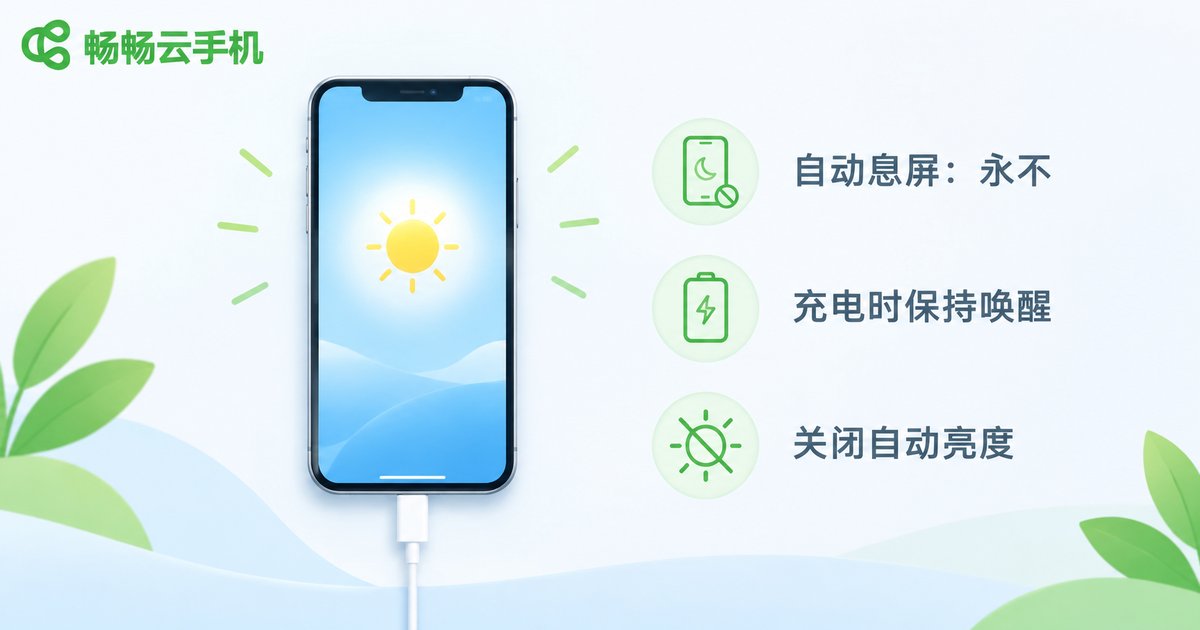
Step 1: Set screen timeout to 'Never'. Go to Settings → Display → Sleep and choose 'Never'. If the system caps it at 30 minutes, combine it with Step 2.
Step 2: Enable 'Stay awake while charging'. In Settings → Developer options, turn on 'Stay awake'. A cloud phone is permanently powered in the cloud, so this switch effectively keeps the screen on forever.
Step 3: Disable auto-brightness. Most scripts rely on screenshot matching; auto-brightness makes the screen drift between light and dark and breaks recognition. Fix a medium brightness level instead.
If you prefer the command line, two ADB commands do the job:
# Set the screen timeout to a huge value, effectively 'never sleep'
adb shell settings put system screen_off_timeout 2147483647

# Keep the screen on while the device is powered
adb shell svc power stayon true
If your script framework supports the accessibility interface, you can also request a keep-screen-on lock at startup as a second line of defense:
// Request keep-screen-on for 1 hour at script start; renew it in your loop
device.keepScreenOn(3600 * 1000);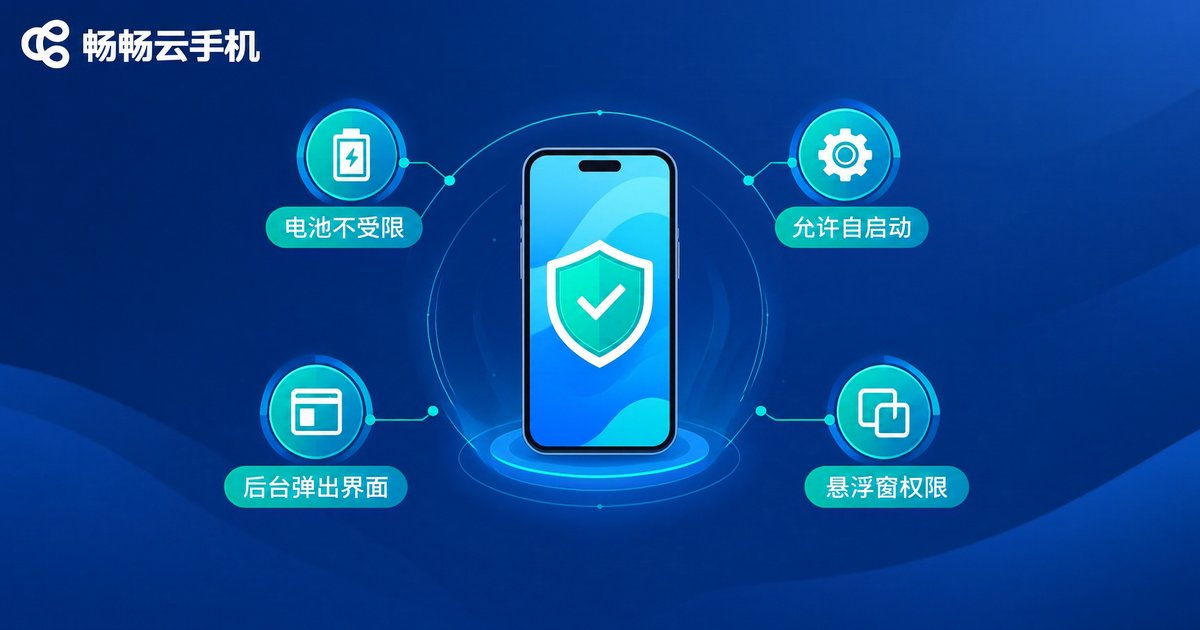
Background Permissions: Make Your Script Unkillable
The always-on screen solves 'being seen'; background permissions solve 'staying alive'. Android kills background apps with three weapons: battery optimization, auto-start management and one-tap cleanup. Counter them one by one:
1. Set battery to 'Unrestricted'. Go to Settings → Apps → your script app → Battery and choose 'Unrestricted / Allow background activity'; then in Settings → Battery → Battery optimization, set the app to 'Not optimized' so the system never freezes it to save power.
2. Enable auto-start and associated start. In the app's permission management, allow 'Auto-start'; if your script launches other apps to do tasks, allow 'Associated start' as well, otherwise a killed script can never relaunch itself at night.
3. Grant pop-up and overlay permissions. Enable 'Display pop-up windows while running in the background' and 'Display over other apps', so the script can operate the UI from the background or the lock screen.
Two details are easy to miss: turn off battery saver mode, which restricts background activity globally, and lock the script app in the recent tasks screen so one-tap cleanup skips it.
The Full Checklist: Run Through It on Every New Instance
| Setting | Location | Recommended |
|---|---|---|
| Screen timeout | Settings → Display → Sleep | Never / longest |
| Stay awake | Settings → Developer options | On |
| Auto-brightness | Settings → Display | Off |
| Battery policy | App info → Battery | Unrestricted |
| Battery optimization | Settings → Battery → Optimization | Not optimized |
| Auto-start | App info → Permissions | Allow |
| Background pop-ups | App info → Permissions | Allow |
| Overlay | App info → Permissions | Allow |
| Battery saver | Settings → Battery | Off |
| Recent tasks lock | Recents screen | Locked |
UIs differ slightly between cloud phone systems, but the option names are similar — search by keyword and you will find them. Run through this checklist on every newly created cloud instance before deploying scripts; it saves hours of troubleshooting later.
Why Run Automation Scripts on ChangChang Cloud Phone
With ChangChang Cloud Phone (official site: ccloudphone), the core benefit is that your tasks run in the cloud around the clock: your physical phone can be switched off or used normally while the scripts keep running — no power worries, no accidental touches, no local resources consumed.
For multi-account and multi-task workloads, the service lets you run multiple independent cloud phone instances in parallel, each one an isolated Android environment where scripts never interfere with each other. Once configured — always-on screen, whitelists and scripts — the environment persists, and a new instance can be set up in minutes with the checklist above. If you are still burning your real phone overnight, visit ccloudphone and move your automation to the cloud.
FAQ
Q: The screen is set to never sleep, but the script still stops at night. Why?
Most likely the background process was cleared. Check three things: battery set to 'Unrestricted', the app added to the battery optimization whitelist, and the app locked in recent tasks — all three are required. Also make sure battery saver mode is off.
Q: Can scripts keep running after the cloud phone screen turns off?
The cloud instance stays powered and online, so it never truly stops; but scripts that rely on screen recognition should keep the screen always on as described above for maximum reliability.
Q: Can I use ADB commands on a cloud phone?
Some cloud phones provide an ADB debugging entry — check the help documentation on the ccloudphone official site. If ADB is not available, manual configuration following the checklist works just as well.
Q: Does every new cloud instance need to be configured again?
Yes, a new instance is a fresh system. Save the checklist in this article and run through it on each new instance — it takes only a few minutes and the settings last long-term.
Q: Screenshots keep failing to match. Any fix?
Check brightness first: disable auto-brightness and fix a medium level so screenshots stay consistent; also confirm that overlay and background pop-up permissions have been granted.


