
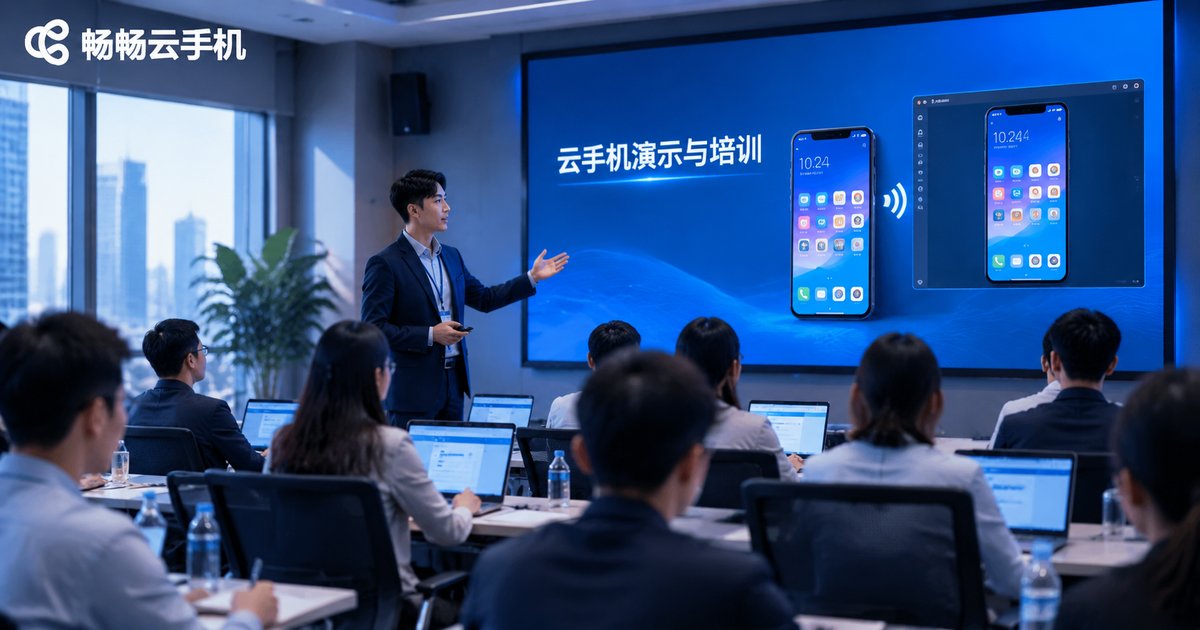
How to Use Cloud Phones for Demos and Training: Batch Environment Distribution, Remote Screen Casting, and Operation Recording
Why Demos and Training Increasingly Rely on Cloud Phones
Whether you are demoing a new app to customers or onboarding employees to an internal system, the traditional approach depends on piles of physical devices: purchasing them, installing apps one by one, and configuring each unit by hand. Preparing devices for a single training session can easily eat up half a day, and every system or app update means doing it all over again. A cloud phone simplifies the entire workflow — it runs in the cloud as a virtual Android device that can be created, cloned, and controlled on demand, letting a single trainer manage dozens or even hundreds of phone environments from an ordinary computer.
The value of cloud phones for demos and training comes down to three capabilities: batch environment distribution, remote screen casting, and operation recording. Let us break down how each one works and what it delivers.
Batch Environment Distribution: Configure Once, Sync Everywhere
In training, the most time-consuming part is rarely the lecture itself — it is getting every trainee device into exactly the same state: same system version, same app list, same account setup. The cloud phone approach is to build one master device, then replicate it in bulk:
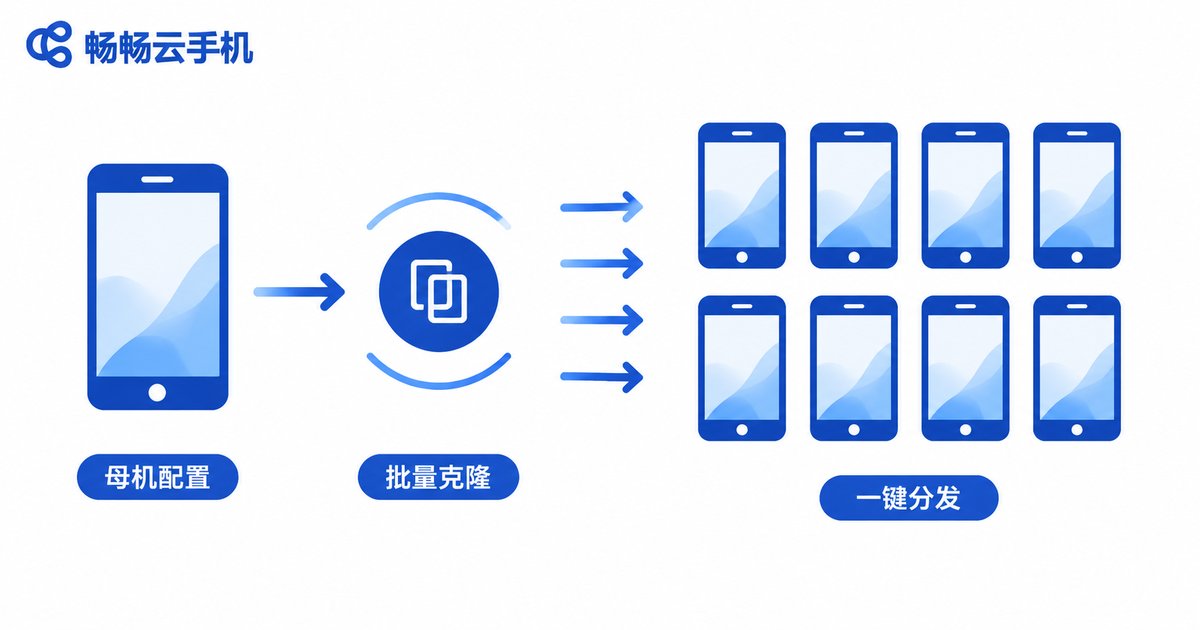
A typical workflow looks like this:
1. Set up one cloud phone with the required system settings, apps, and demo data.
2. Save this configured environment as a template or clone it directly.
3. Distribute it in one click to dozens of cloud phone instances, one for each trainee.
4. Collect and reset all instances after the session, ready to reuse next time.
The contrast with physical devices is stark:
| Item | Physical Devices | Cloud Phone Batch Distribution |
|---|---|---|
| Environment setup | Manual install and config, device by device | Configure the master once, clone in bulk |
| Version updates | Upgrade each unit, slow and error-prone | Update the template, then redistribute |
| Hardware cost | Buy a fleet of real phones | Spin up instances on demand, release after use |
| Remote training | Ship devices or buy locally | Trainees simply log in from anywhere |
Remote Screen Casting: Put the Cloud Phone on Any Big Screen
Live demos come with two classic headaches: the device will not connect to the projector, or the demo unit differs from what the audience uses. Remote screen casting solves both at once — because the cloud phone runs in the cloud, its screen can be cast through a web browser to a meeting-room display, a projector, or an online conference, and the presenter does not even need to carry a phone into the room.
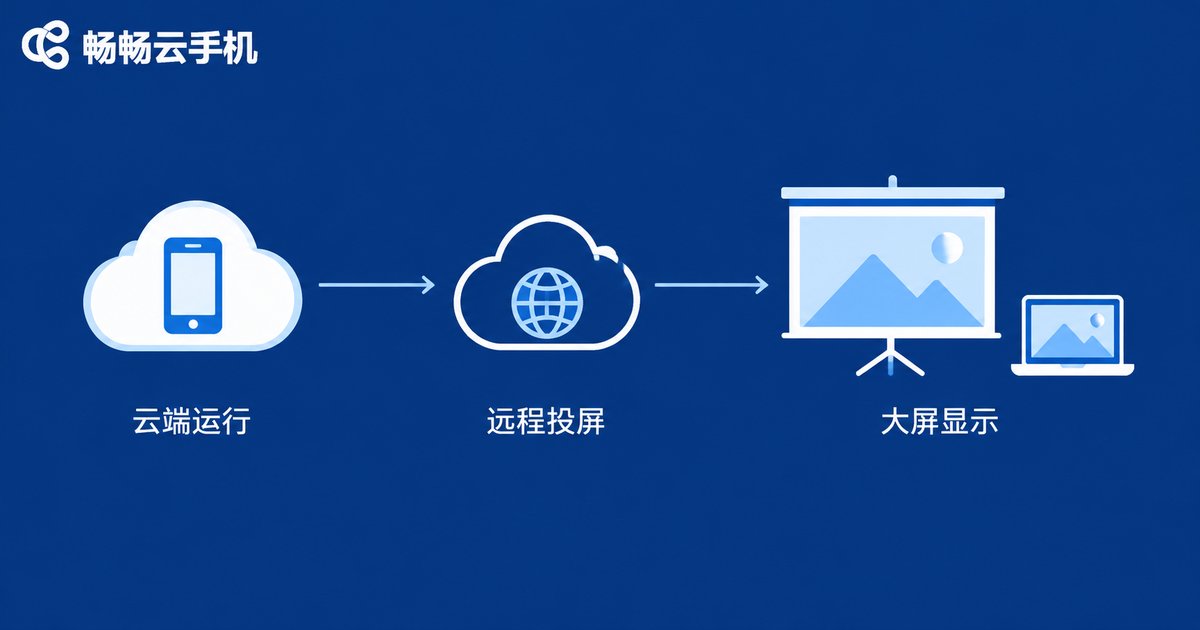
Three common casting scenarios:
1. On-site big-screen demos: Open the cloud phone console in a browser and cast the screen full-size onto the display; the smoothness is nearly identical to a real device.
2. Live online training: Share the cloud phone window in a video meeting or livestream so remote trainees see every tap in real time.
3. Multi-device comparison: Cast several cloud phone screens side by side — ideal for showing how an app behaves on different models or system versions.
Operation Recording: Turn Standard Procedures into Reusable Material
Training content is the asset companies most often fail to capture. The instructor demonstrates once, trainees remember it in the moment, and then forget half of it back at their desks. Operation recording on a cloud phone turns the entire demo into a video that becomes standard teaching material:
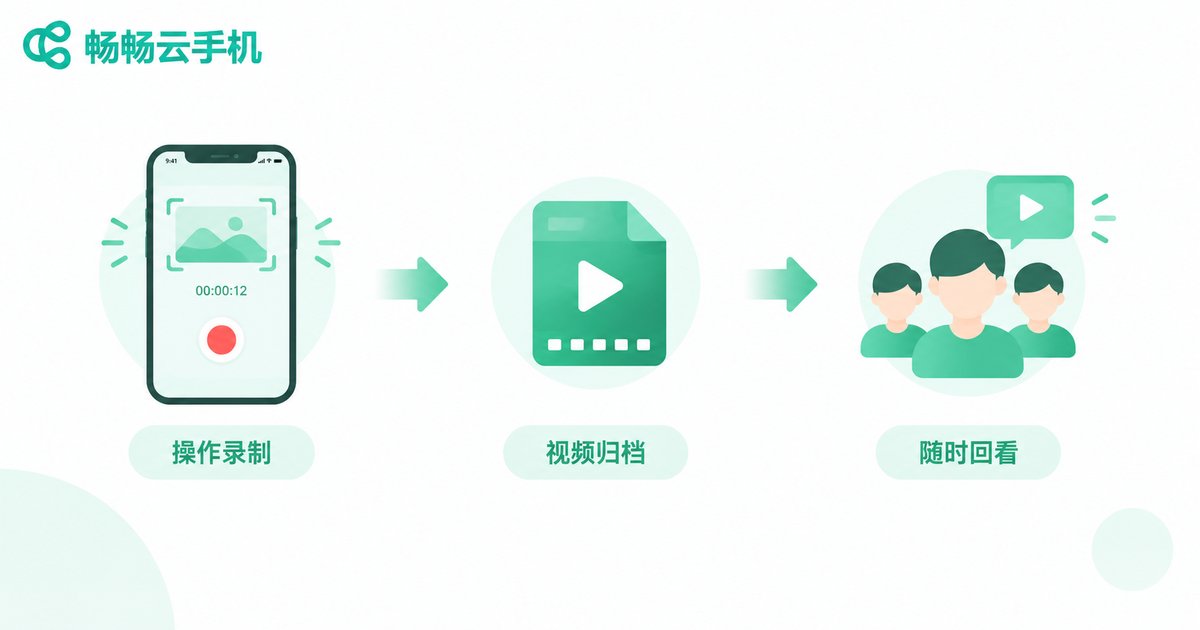
Typical uses for recorded sessions:
- Employee onboarding: Record core system workflows as a video series so new hires can review them repeatedly, sparing instructors from repeating themselves.
- Product feature demos: Record a walkthrough after every release so sales and support teams can pull it up on demand.
- Companion videos for manuals: Pair written guides with real screen recordings for a clear boost in learning efficiency.
Best of all, recording happens in the cloud: the footage is clean, unaffected by local hardware, and it consumes none of the presenter computer resources — so you can narrate and record simultaneously in a single take.
A Complete Cloud Phone Training and Demo Workflow
Chain the three capabilities together and you get a repeatable workflow for demos and training:
Step 1: Build the master environment — install the apps and data needed for the demo on one cloud phone. Step 2: Distribute in batch — clone the environment to every trainee instance. Step 3: Cast remotely — project the live screen onto a big display or online meeting while teaching. Step 4: Record operations — capture key workflows as videos for the archive. Step 5: Reset and reuse — wipe the instances after the course and prepare for the next cohort.
Throughout the entire process, the instructor only needs a computer. Services like ChangChang Cloud Phone (ccloudphone) let you create and manage cloud phone instances directly from a web console, and with multi-instance and batch-control features, everything from environment prep to course archiving happens in one place — a strong fit for teams that run frequent product demos and internal training.
FAQ
Q: Will the screen lag during a live casting demo?
Cloud phones run in data centers, and with a stable network the streaming latency is low enough for everyday app demos and operation training. For best results, use a wired connection or reliable Wi-Fi at the venue.
Q: Can trainees join without an Android phone?
Yes. Cloud phones are accessed through a browser or client app, so trainees can log in and operate their own instance from a Windows PC, a Mac, or even a tablet — no physical handset required.
Q: How customizable are the batch-distributed environments?
System settings, installed apps, pre-configured accounts, and demo data can all be prepared on the master device in advance. Every cloned cloud phone matches the master exactly, so trainees can start immediately.
Q: Can the recorded videos be shared with trainees directly?
Yes. Finished recordings can be downloaded and saved for internal training libraries, onboarding programs, or product demo archives, ready to replay at any time.


