
Cloud Phone Scheduled Tasks Tutorial: How to Launch Apps on Schedule and Automate Operations
Want your cloud phone to open a game automatically at 8 a.m. every day and claim daily rewards? Want check-in apps to punch in while you are still asleep? The scheduled task feature of a cloud phone makes all of this possible. This tutorial walks you through setting up timed app launches and automated operations step by step, turning your cloud phone into a 24/7 digital assistant.
1. What Are Cloud Phone Scheduled Tasks?
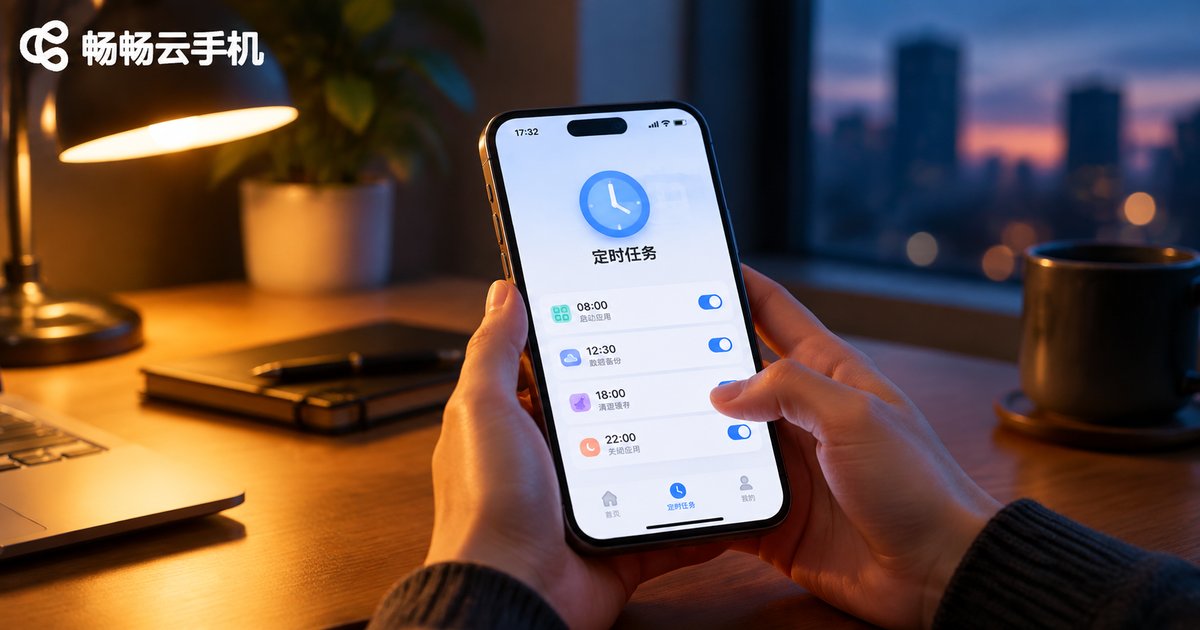
A cloud phone runs on remote servers and does not depend on your physical device being powered on. A scheduled task is essentially an 'alarm clock plus command' for your cloud phone: at the time you specify, it automatically performs preset actions, such as opening an app, running an automation routine, or cleaning up background apps.
In short, scheduled tasks replace manual operations with automatic execution. Set it up once, and your cloud phone will complete the job on time every day or every week.
| Comparison | Manual Operation | Scheduled Task |
|---|---|---|
| Timing | Requires you to be present | Triggers automatically on schedule |
| Repetitive work | Set up again every day | Configure once, runs long term |
| Risk of forgetting | Easy to miss | System fires on time |
| Local device | Drains your phone battery | Runs in the cloud, no local resources used |
2. Common Use Cases for Scheduled Tasks
Scheduled tasks fit almost any routine that has to be repeated day after day:
- Daily game quests: launch the game on schedule to auto check in, claim daily rewards, and grind dungeons while AFK;
- App check-ins: open check-in apps on time so points and bonuses are never missed;
- Content operations: start livestreams or publish short videos at scheduled times;
- E-commerce stores: list or delist products on schedule and handle inquiries on time;
- Community management: send messages and post updates at fixed times.
3. How to Set Up a Timed App Launch
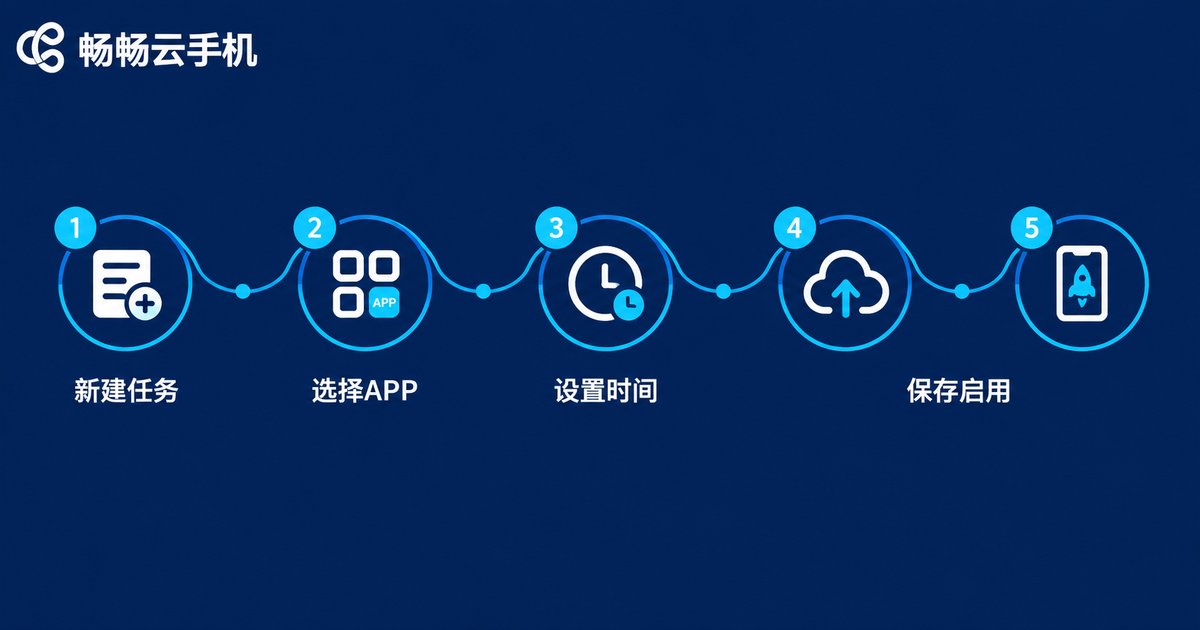
Following the typical workflow of mainstream cloud phones, setting up a timed app launch usually takes five steps:
Step 1: Open the scheduled task panel. Launch CCloudPhone and find 'Scheduled Tasks' (sometimes labeled 'Planned Tasks') in the tools or features menu.
Step 2: Create a new task. Tap 'New Task' and choose the task type 'Launch App'.
Step 3: Pick the target app. Select the app you want to launch from the list of apps installed on your cloud phone.
Step 4: Set the execution time. Choose the exact time and the repeat mode: once only, every day, or on specific days of the week.
Step 5: Save and enable. Double-check the task details, save it, and toggle it on. The cloud phone will now open the app automatically at the scheduled time.
4. Automated Operations: From 'Timed Launch' to 'Fully Automatic'
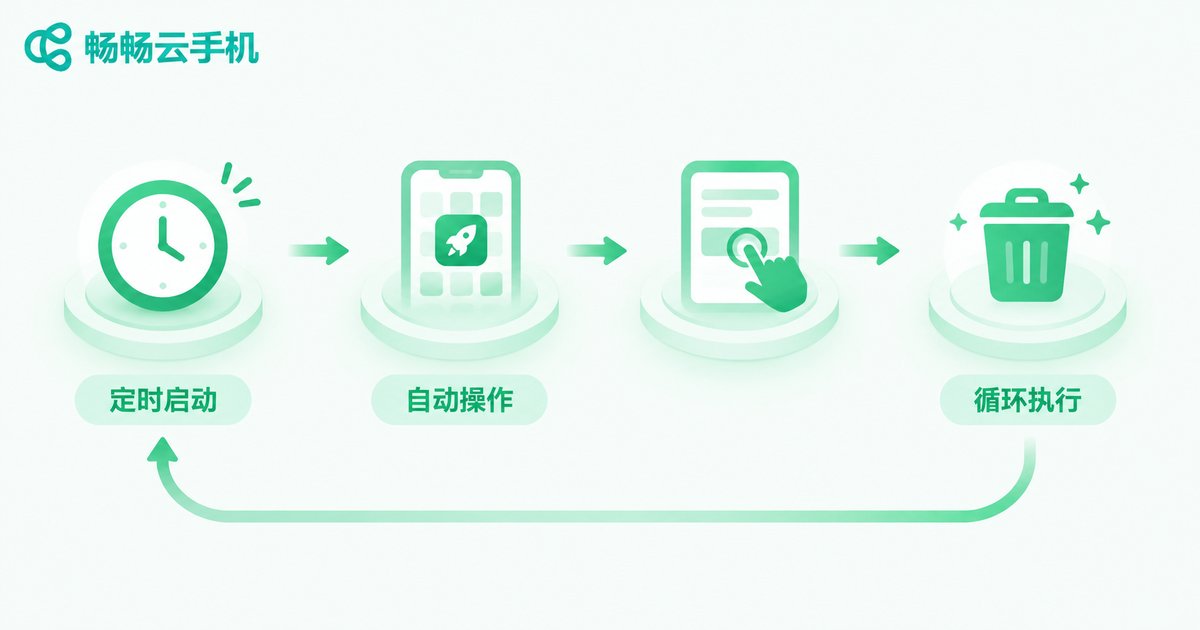
A timed launch is only the first step. In many scenarios, the app needs further taps, swipes, and claims after it opens. That is where automated operations come in:
1. Build the automation flow: record or manually add the actions to perform after launch (tapping the check-in button, closing pop-ups, claiming rewards) as one automation routine.
2. Bind it to the scheduled task: link the automation routine with the timed launch to form a complete chain: launch the app on schedule, run the operations, then clean up the background.
3. Arrange order and intervals: when running multiple tasks, set a reasonable sequence with gaps in between to avoid conflicts.
4. Handle exceptions: add fault-tolerant steps such as closing pop-ups or skipping ads to raise the success rate.
5. Tips and Best Practices for Scheduled Tasks
- Leave a buffer: if a task must finish before a deadline, schedule it 10-30 minutes early;
- Stagger your tasks: avoid stacking multiple tasks at the same minute; space them a few minutes apart to prevent failures;
- Keep the network stable: tasks run in the cloud, but a stable connection lets you monitor and manage them anytime;
- Review execution logs: check task records regularly and fix failures promptly;
- Watch for app updates: app updates may change interfaces, so adjust existing automation flows in time.
6. Why Run Scheduled Tasks on CCloudPhone?
Whether scheduled tasks run reliably depends on the stability of the cloud phone itself. CCloudPhone (ccloudphone) provides a cloud-based Android environment where apps stay online on the server side, consuming none of your local phone's battery or memory. Even if your local device is powered off or offline, cloud tasks keep running. With a clear task management interface, you can assign different schedules to different cloud phones and run multiple devices in parallel, covering daily game quests, app check-ins, content operations, and more.
If you are looking for a cloud phone that handles scheduled tasks reliably, visit the official CCloudPhone website to learn more.

FAQ
Q: Will scheduled tasks still run when my local phone is powered off?
Yes. Scheduled tasks are triggered by cloud servers and executed inside the cloud phone, independent of your local device.
Q: Can I create multiple scheduled tasks?
Yes. You can create separate tasks for different apps and times; for the exact limit, refer to the details inside CCloudPhone.
Q: After a timed launch, can the app perform taps automatically?
Yes. Bind an automation flow to the timed launch to achieve a full pipeline: launch the app, run the operations, and wrap up automatically.
Q: What if a task does not fire on time?
Check whether the task is enabled and the time is set correctly, then review the execution logs. If the issue persists, contact official CCloudPhone customer support.
Q: Which repeat modes are supported?
Generally one-time execution and recurring schedules (such as daily or specific weekdays) are available; see the actual options on the task settings page in CCloudPhone.


