

Cloud Phone Performance Optimization Tutorial: Adjusting Resolution, Frame Rate, and Memory for Smoother Gameplay
Why Cloud Phones Need Performance Tuning
Many people assume that a cloud phone automatically means max frame rates and zero stutter. In real use, however, you may still run into screen tearing, frame drops during team fights, or input lag. The problem is usually not the cloud phone itself, but three core parameters — resolution, frame rate, and memory — that have not been tuned properly.
A cloud phone renders your screen in the cloud and streams it to your device; your network, settings, and game load together decide the final experience. Spending ten minutes on the steps below often delivers a dramatic boost in smoothness.
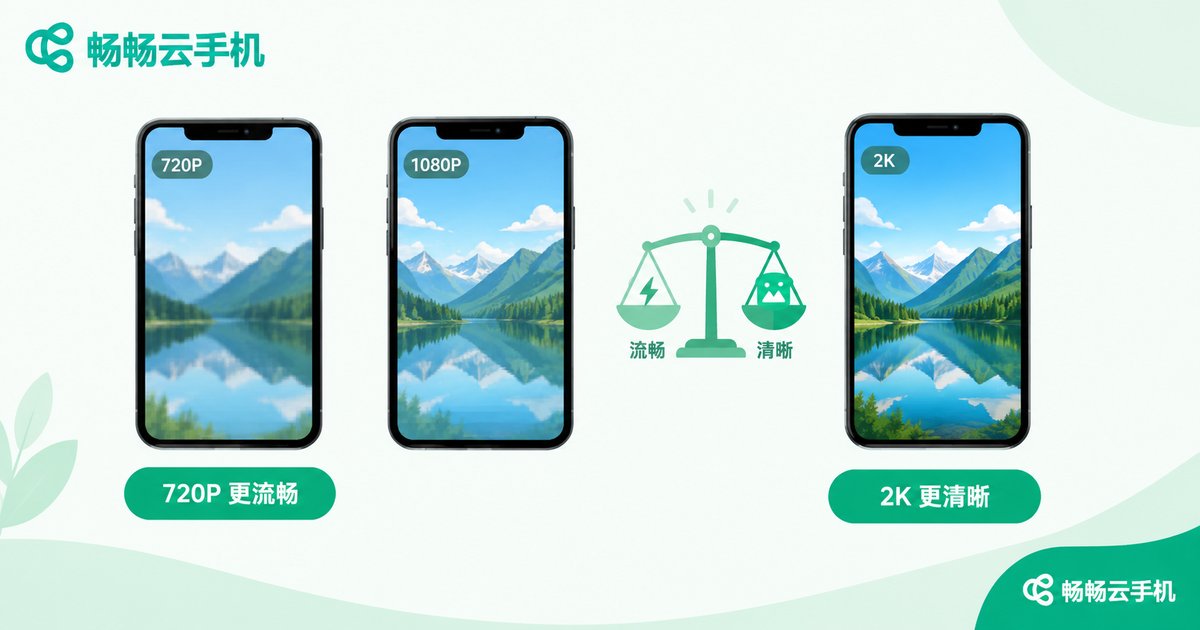
Step 1: Resolution — Balancing Sharpness and Fluidity
Higher resolution means sharper visuals but higher demands on bandwidth and decoding. When the network fluctuates, a high resolution is more likely to cause stutter and visual artifacts.
| Resolution Tier | Visual Quality | Best For |
|---|---|---|
| 720P | Fluidity first, decent detail | Average networks, MOBA and card games |
| 1080P | Balanced sharpness and smoothness | Most games and everyday use |
| 2K | Maximum detail, heavier load | Stable networks, video streaming and AAA titles |
Tip: On an unstable connection, drop to 720P first, confirm it runs smoothly, then step up tier by tier. If you mainly idle-farm or watch videos, a high resolution is perfectly fine.
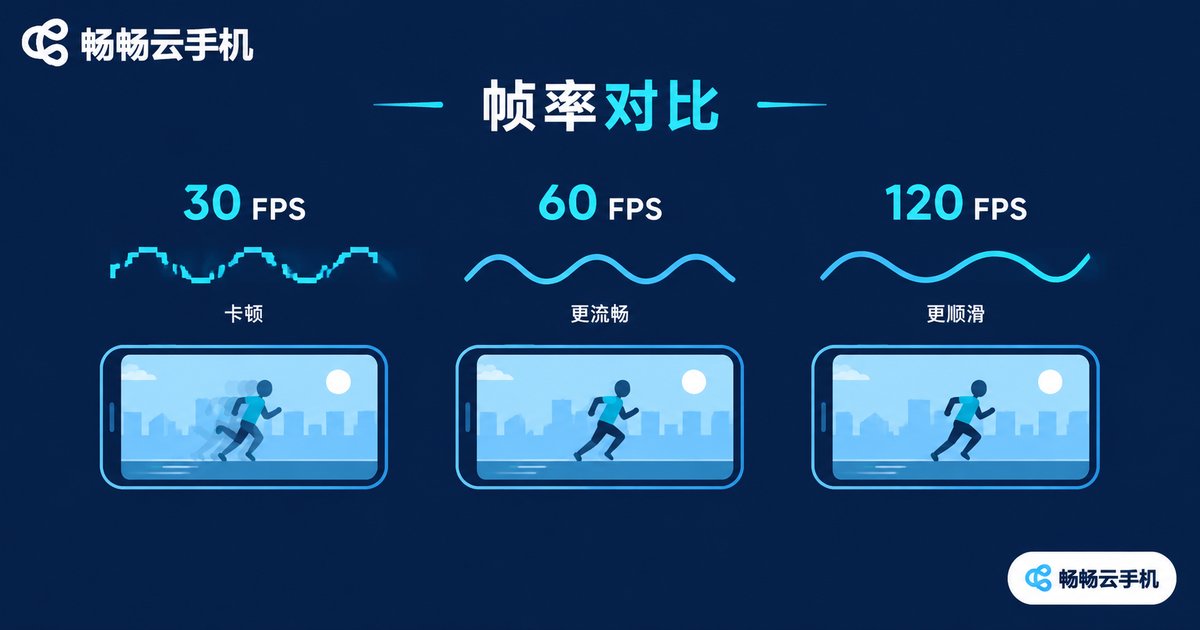
Step 2: Frame Rate — The Parameter That Defines Your Controls
Frame rate determines how fluid the picture feels: 30FPS is barely acceptable, 60FPS feels genuinely smooth, and competitive games become noticeably more precise at higher frame rates — tracking, aiming, and positioning all respond better.
The rule is simple: raise it when your network is good, lower it when it is not. Pushing the frame rate beyond what your bandwidth can handle only brings latency swings and screen tearing; a slightly lower frame rate often makes your controls steadier.
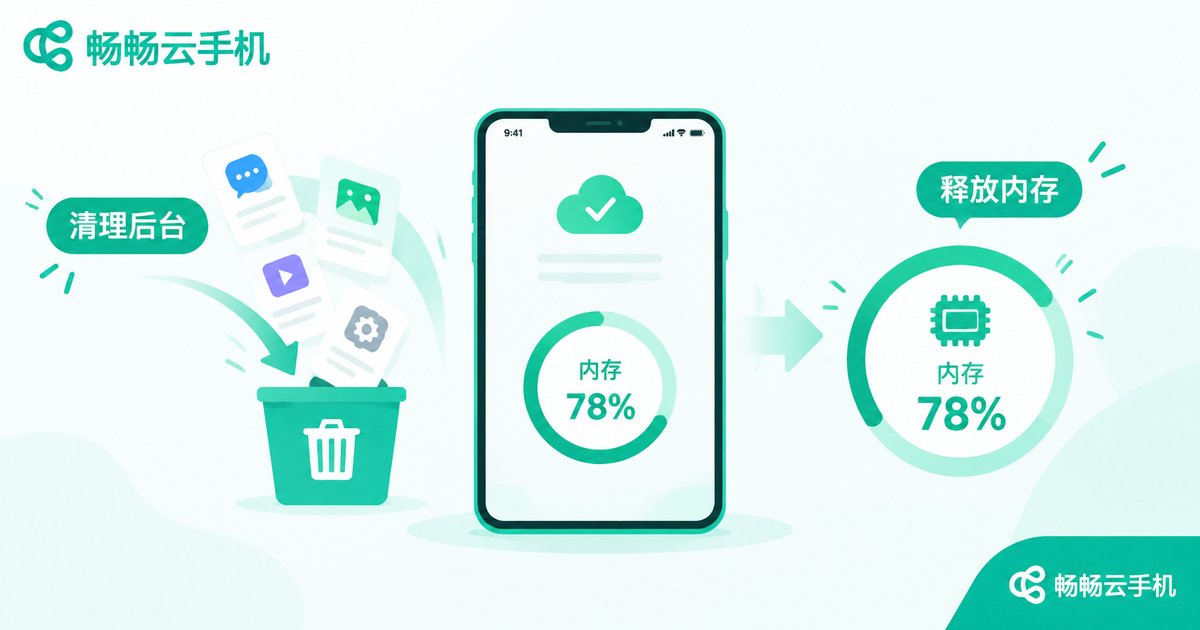
Step 3: Memory and Background Apps — Free Up Resources
Even though the heavy computing happens in the cloud, a cloud phone crammed with background apps still has its resources divided up. Regularly clearing background apps and switching off idle tasks you no longer need is the fastest, zero-cost improvement.
An even smarter approach is to divide the work: with a cloud phone service like Changchang Cloud Phone (ccloudphone), you can keep separate instances for different purposes — one for idle farming, another for your main game — so they never compete for resources and your primary instance stays smooth.
Three Bonus Tips
1. Pick the right network: Prefer 5G or a stable Wi-Fi connection, and avoid intense gaming in places where the signal swings wildly, such as subways or elevators.
2. Trim in-game effects: Shadows and anti-aliasing heavily affect frame rates. Turning them down in ranked matches costs you almost nothing visually but buys a lot of smoothness.
3. Schedule idle tasks off-peak: Networks are congested during evening peaks. Run resource-collection tasks automatically in the daytime or early morning, and save the good bandwidth for your key matches.
FAQ
Q: Will lowering the resolution make the image blurry?
A: 720P looks fine on a phone screen, especially paired with a high frame rate — the smoothness gain is worth far more than the tiny loss of detail.
Q: Is a higher frame rate always better?
A: No. Your frame rate cap should match your bandwidth; anything beyond that only causes latency swings. 60FPS is usually the best value.
Q: Does a cloud phone need periodic restarts?
A: After long idle-farming sessions, restarting the instance once in a while releases accumulated background usage and brings the system back to its best state.
Q: Can one cloud phone run multiple games at once?
A: Yes, but the more tasks running simultaneously, the fewer resources each game gets. Keep important games on a dedicated instance.


