

Cloud Phone File Transfer Tutorial: Local-Cloud File Transfer and Batch Upload/Download Guide
Why File Transfer Is an Essential Cloud Phone Skill
Most first-time cloud phone users run into the same problem: the APK installer sits on the computer but not in the cloud phone, while screenshots and screen recordings stay inside the cloud phone with no obvious way to save them locally. File transfer capability largely determines how convenient a cloud phone feels. Whether you are installing apps, importing video assets, or backing up game data, everything starts with mastering transfers between your local device and the cloud.
This tutorial explains the common transfer methods, detailed upload and download steps, batch operation tips, and troubleshooting advice in plain language, so you can put it into practice right away.
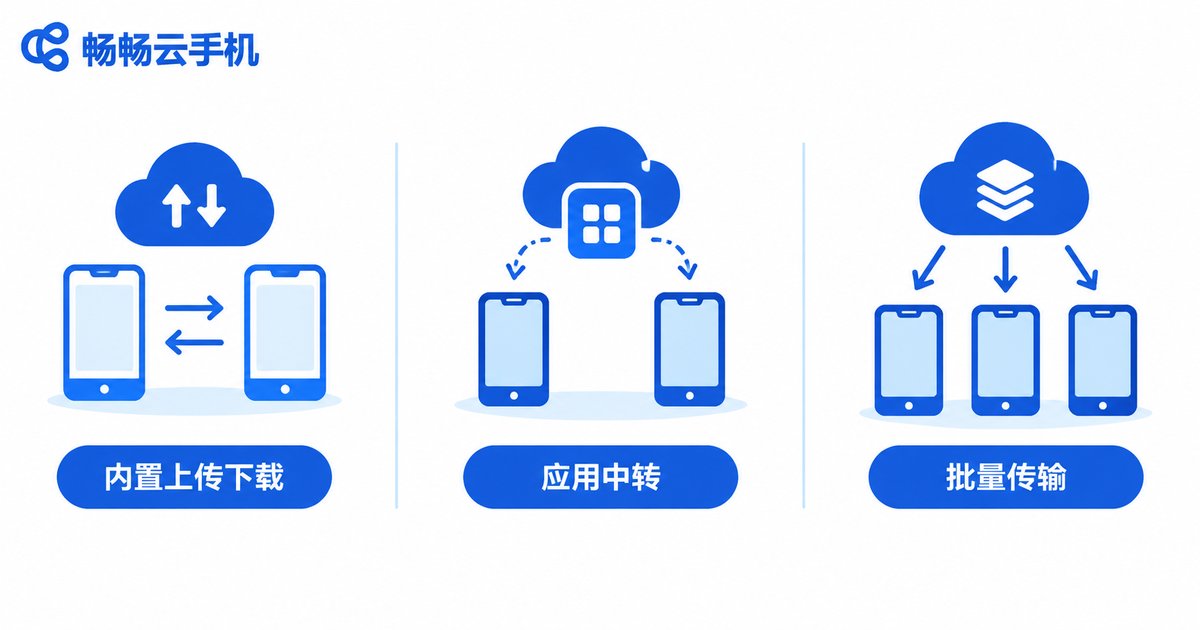
Three Common Ways to Transfer Files on a Cloud Phone
Before you start, get familiar with the available transfer paths so you can pick the right method for each scenario:
| Method | Best For | Notes |
|---|---|---|
| Built-in upload/download | APKs, documents, photos, videos | Most direct, point-to-point between local and cloud |
| In-app sharing relay | Relaying files via cloud drives or chat apps | Flexible, suits multi-device workflows |
| Batch import/export | Large volumes such as batches of APKs or asset packs | High efficiency, ideal for multi-instance and bulk management |
For one or two files, the built-in upload/download is the easiest; for dozens of files at once, use batch operations; if files already live in an external app, in-app sharing saves the most effort.
Local to Cloud: How to Upload Files Step by Step
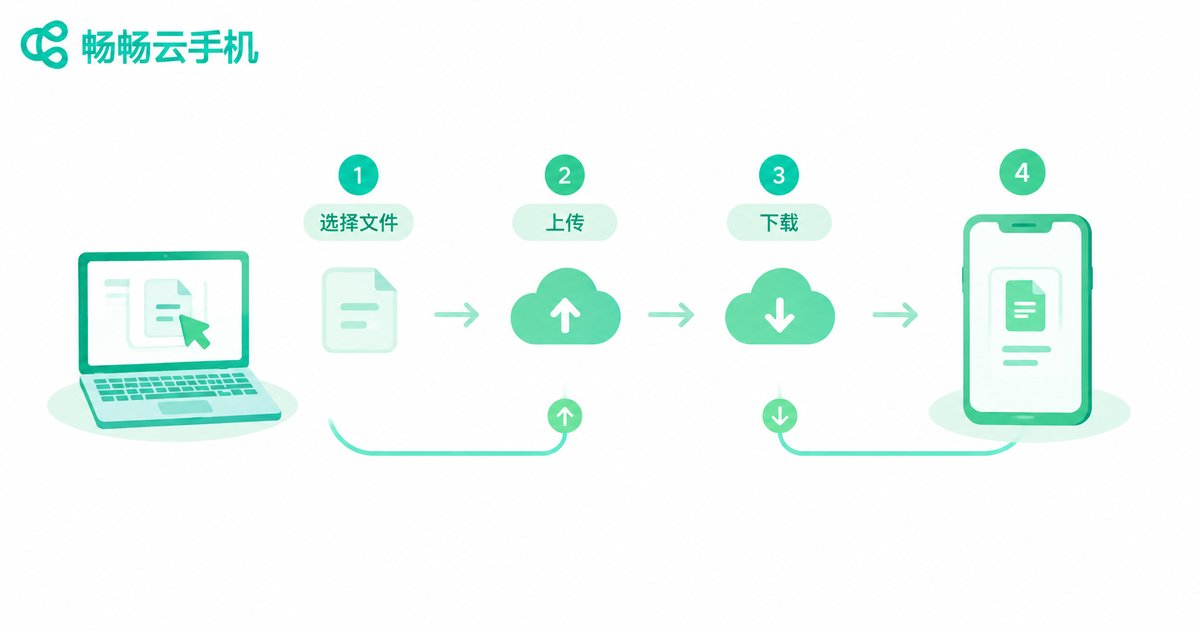
Using the most common example, moving an APK from your computer into the cloud phone, the typical flow looks like this:
Step 1: Log in to your cloud phone and find the File Upload entry (sometimes labeled File Management or Upload) in the toolbar or sidebar.
Step 2: Choose Upload File, locate the target file on your local computer or phone, and hold Ctrl (Command on Mac) to select multiple files.
Step 3: Confirm and wait for the transfer to finish; a completed progress bar means the upload succeeded.
Step 4: Open the file manager or the target app inside the cloud phone to find the uploaded file; APKs can be installed directly with a tap.
Tip: Organize files into one folder with clear names (such as '0401-installers') before uploading; it makes later management much easier.
Cloud to Local: How to Download Files Step by Step
Getting screenshots, recordings, or documents out of the cloud phone is just as simple:
Step 1: Open the cloud phone's file manager and navigate to the folder, such as the album (Screenshots or DCIM) or the Download folder.
Step 2: Long-press or right-click the target file and choose Download or Export to Local.
Step 3: Pick a local save location and wait for the download to complete. For large videos or archives, let the progress bar fully finish before closing the page.
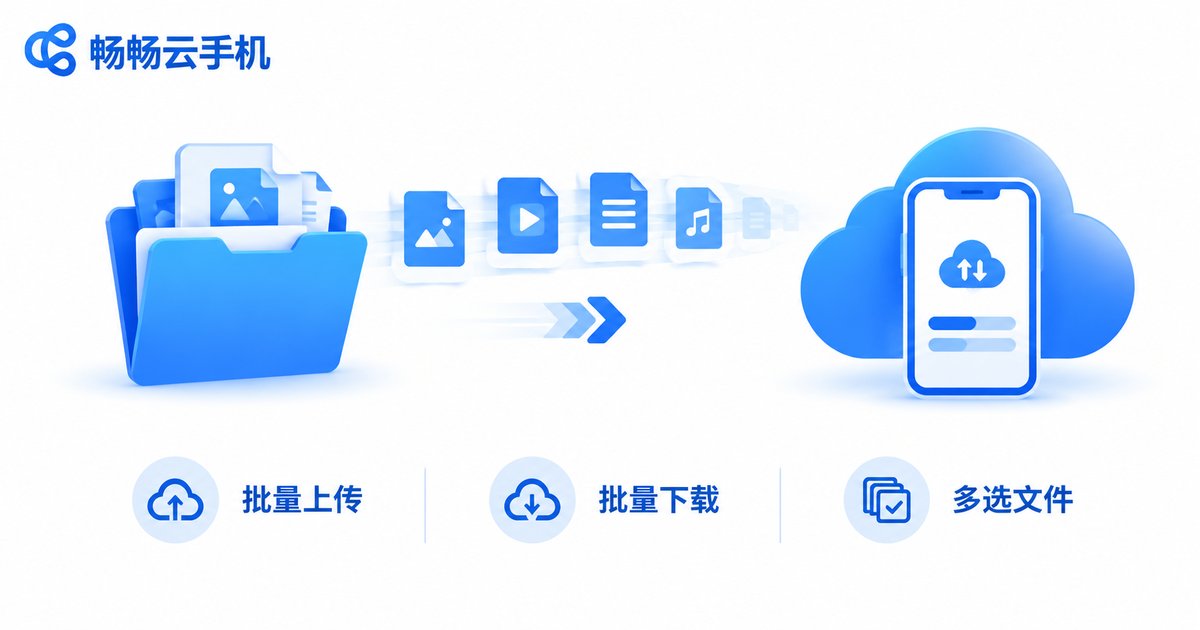
Batch Upload and Batch Download Guide
If you run multiple cloud phone instances, manage a gaming studio, or handle assets in bulk, moving files one by one is far too slow. Batch operations are the right approach:
Batch upload: Put all files into one local folder, then select the entire folder (or select all files) at the upload entry and submit once. The system queues and uploads them sequentially, so you do not need to watch the process.
Batch download: In the cloud phone file manager, use multi-select mode to check multiple files (some interfaces support select-all for the current folder), then tap download. Files will be packed or saved one by one to your chosen local directory.
Three practical batch tips:
1. Sort before you send: Create folders by purpose (installers, assets, recordings) so batch selection is less error-prone.
2. Avoid peak network hours: Schedule large batch transfers during periods of stable connectivity for better speed and fewer interruptions.
3. Spot-check after transfer: Randomly open a few files to verify integrity once a batch job finishes, especially installers and archives.
Transfer Failed or Slow? Troubleshooting Guide
Upload stuck on the progress bar: Check your local network first, refresh the page, and try again; compressing very large files before uploading improves the success rate.
Downloaded file will not open: Verify the file extension is intact; some files get renamed during transfer, so add the extension manually if needed (such as .apk or .mp4).
Cannot find the upload entry: Its location varies slightly between versions, usually in the toolbar, sidebar, or More menu on the main interface. Look for labels like Upload, Download, or File Management.
Slow transfer speed: Use a wired connection or stable Wi-Fi, close bandwidth-heavy programs locally, and avoid pushing too many files in a single batch.
Why Choose ChangChang Cloud Phone (ccloudphone)
If you are still comparing cloud phone services, give ChangChang Cloud Phone (ccloudphone) a try. It offers a clean, easy-to-use file upload and download interface with batch transfer support, backed by a stable and smooth cloud environment, whether you are pushing installers, exporting recordings, or managing assets in bulk. Visit the official ccloudphone website for more details.
FAQ
Q: Does file transfer on a cloud phone cost extra?
File upload and download are basic cloud phone features. Major products including ChangChang Cloud Phone support them for normal use; specifics follow each platform's official policy.
Q: Is there a size limit per file?
Limits vary by platform. Common files such as APKs and videos usually transfer directly; for very large files, compress or split them into volumes before uploading.
Q: What if the network drops during a batch upload?
Reconnect, check which files completed, and resubmit only the failed ones; files already uploaded generally do not need to be sent again.
Q: Do files in the cloud phone take up local storage?
No. Files are stored on cloud servers and only occupy local disk space when you download them.
Q: Will my files still be there if I log in from another device?
Yes. Cloud phone files live in the cloud, independent of the login device, so they remain available on any computer or phone.


