
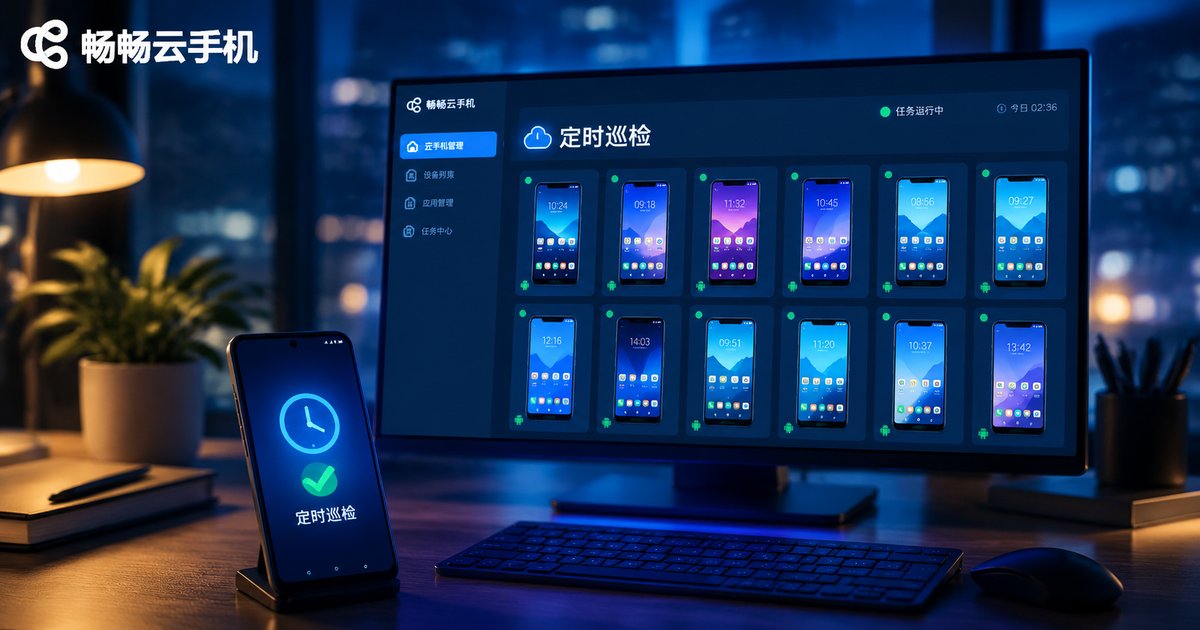
How to Implement Scheduled App Inspection on Cloud Phones: Automated Monitoring Task Setup Guide
What Is Scheduled App Inspection, and Why Cloud Phones Are the Perfect Host
In plain terms, scheduled inspection means letting a device automatically open an app at predefined times while you are not watching, verify that it is running properly, and record the results (screenshots, logs, status). If the app crashes, freezes, or fails to load, the system immediately raises an alert or recovers automatically.
Common inspection scenarios include: app availability monitoring, automatic daily game check-ins, keeping live streams alive, merchant backend status checks, and health checks across batches of accounts. These tasks share three traits: fixed frequency, repetitive operations, and 24/7 uptime — exactly what cloud phones are built for.
A cloud phone is essentially a real Android system running in a data center. It does not depend on your physical device, and it is immune to overheating, battery drain, and task interruptions from reboots. Paired with a service like ccloudphone that supports unified management of multiple devices, you can run inspection workloads in the cloud around the clock — your local computer can be shut down at any time without affecting anything.
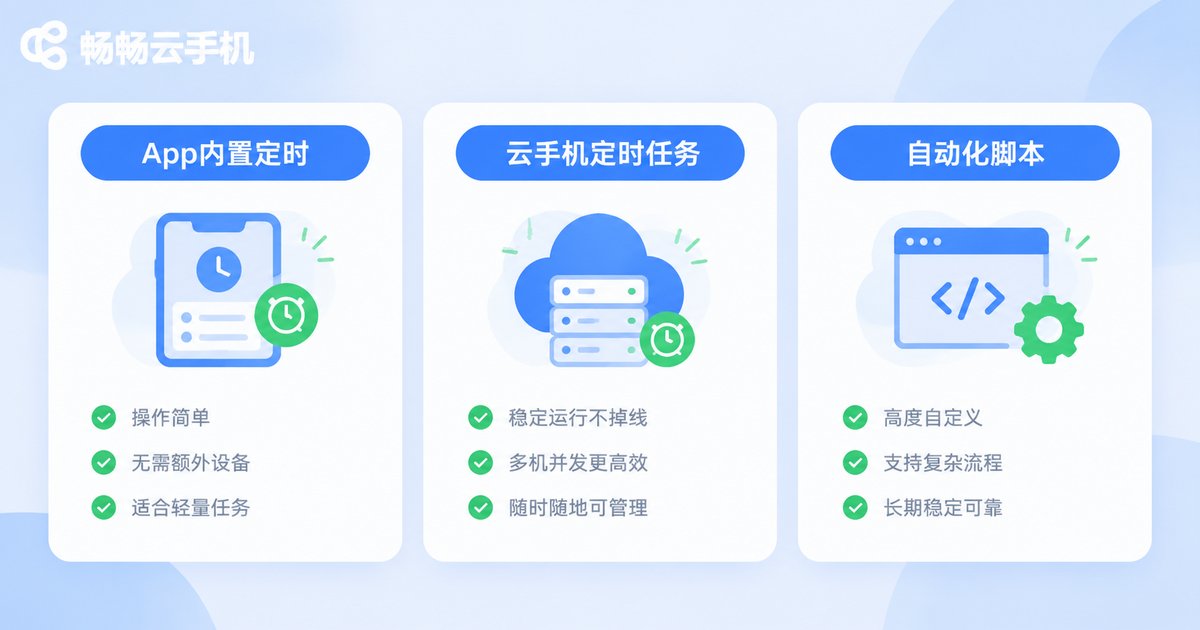
Three Implementation Approaches: Pick the One That Fits
There are three common routes to scheduled inspection on a cloud phone, differing in difficulty and flexibility:
| Approach | Difficulty | Flexibility | Best for |
|---|---|---|---|
| Built-in app timers | Zero | Low | Simple check-ins and reminders |
| Cloud phone scheduled tasks + screenshots | Low | Medium | Timed app launches with an evidence trail |
| Automation scripts + schedulers | Moderate | High | Advanced users needing deep checks and alerts |
Recommendation: if you only need daily check-ins, the app's built-in timer is enough. If you need to monitor whether an app stays alive and loads its core pages, you will need scripting. The approaches also combine well — for example, a scheduled task launches the app while a script handles verification and screenshots.
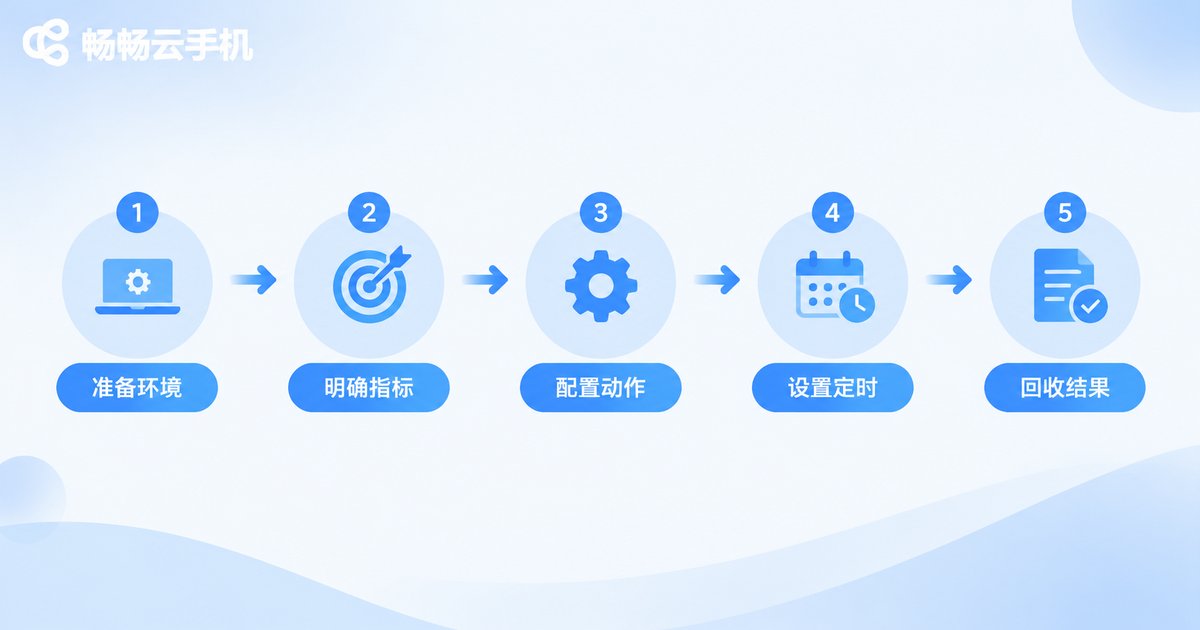
Configure an Automated Inspection Task in Five Steps
Using the goal of verifying that an app launches and loads its home page correctly, here is the complete setup process:
Step 1: Prepare the cloud phone environment. Sign up and log in to ccloudphone, create a cloud phone, install the target app, complete the login, and run through it manually once to confirm everything works. Inspection only makes sense on a healthy environment.
Step 2: Define your inspection criteria. Keep it focused and define exactly what counts as 'normal': for example, the app launches within 30 seconds, home page elements render completely, and no crash dialogs appear. The clearer the criteria, the easier the script.
Step 3: Build the inspection actions. The core actions are just three: launch the app, wait for it to load, then check status and take a screenshot. If your cloud phone provides ADB access, you can do it all from the command line:
# Launch the target app (use the actual package name and activity)
adb shell am start -n com.example.app/.MainActivity

# Wait 15 seconds for the page to load
sleep 15

# Check whether the foreground window is the target app
adb shell dumpsys window | grep mCurrentFocus

# Capture a screenshot as evidence
adb exec-out screencap -p > check_result.png
Step 4: Set up the scheduled trigger. Package the actions into a script and hand it to a scheduler: use crontab on Linux servers, or Task Scheduler on Windows, for example once every morning. Tip: avoid scheduling exactly on the hour to reduce congestion and timeouts.
# Linux crontab example: run the inspection at 9:05 every day
5 9 * * * /home/user/inspect.sh
Step 5: Collect results and set up alerts. Save screenshots named by date for easy review. When the check logic detects a failure, push a message through a webhook to your group bot or inbox, so that you know immediately even when you are away.
Five Tips to Keep Your Inspection Running Reliably
Running the check once is easy; running it flawlessly every day is the hard part. These practices dramatically improve stability:
1. Add retries: a momentary network blip should not trigger an alert. Wait 60 seconds and retry once; only alert after two consecutive failures.
2. Keep both screenshots and logs: screenshots show the symptom, logs reveal the cause. Archive both by timestamp to halve your troubleshooting time.
3. Cross-check with multiple cloud phones: for critical apps, inspect from two devices. When one reports an issue, the other confirms whether it is the app or the device.
4. Maintain the environment regularly: clear the cache and check for app updates weekly to prevent stale environments from causing false alarms.
5. Control the inspection frequency: once an hour is plenty for most apps. Overly frequent checks waste resources and may trip the app's risk controls.
Why ccloudphone Is a Great Fit for Inspection Workloads
The requirements of scheduled inspection boil down to three phrases: always online, clean environment, and batch management. ccloudphone's cloud Android environment runs 24/7 without consuming your local computer's resources; each cloud phone is an independent, isolated Android system; and multiple devices can be managed together from one console, which makes it easy to scale inspections. Visit the ccloudphone official website to learn more — get one cloud phone through the full inspection workflow first, then scale out to more devices gradually.
FAQ
Q: Will scheduled inspections still run after the cloud phone shuts down?
No. Inspection tasks require the cloud phone to be running, so keep it powered on after configuration. Since cloud phones run in the cloud, they stay online continuously as long as you do not shut them down manually — far more reliable than a physical device.
Q: Can one cloud phone inspect multiple apps?
Yes, but run them sequentially: finish inspecting one app before launching the next, to avoid resource contention causing false positives. For many apps, spin up additional cloud phones to share the load.
Q: Can I do scheduled inspection without coding skills?
Yes. The simplest approach uses the app's built-in timers or check-in features, combined with scheduled screenshots on the cloud phone for evidence. Scripting is an advanced option you can pick up later when needed.
Q: Will inspections be flagged as abnormal by apps?
Cloud phones are real Android environments, and normal launching, browsing, and screenshots are routine operations. Keep the frequency reasonable and mimic human pacing, and the risk is very low. Avoid aggressive high-frequency polling.
Q: How do I get inspection results automatically?
Hook a webhook into your script: stay silent when checks pass, and push the screenshot and timestamp to your group bot or inbox when something fails — fully unattended.


