
How to Extract Cross-App Data with Cloud Phones: AI Auto-Export and Reporting Setup Workflow
Why Use a Cloud Phone for Cross-App Data Extraction?
If you run an e-commerce store, handle operations, or create content, you probably spend hours every day jumping between apps: opening dashboards, copying order details, watching competitors, then pasting everything into a spreadsheet. Manual work is not only exhausting, it is also easy to get wrong.
That is exactly where cloud phones shine. A cloud phone is an Android device running in the cloud: it uses none of your own hardware, stays online 24/7, can be multiplied across many instances, and works with scheduled tasks to get things done automatically. Hand cross-app data collection to it, and all you do each morning is open a report that has already been organized.
Take ChangChang Cloud Phone (ccloudphone) as an example: it supports batch management of multiple cloud devices with long-term stable uptime. Multiple app instances plus scheduled tasks make it a natural fit for multi-app, multi-account, around-the-clock data collection.
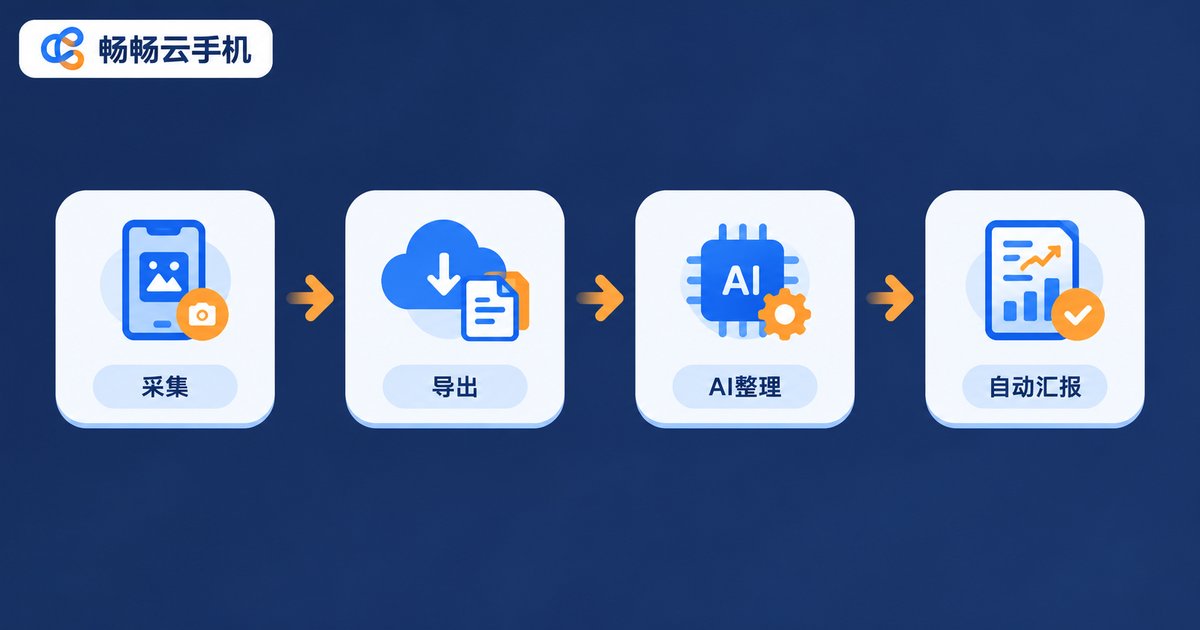
The Big Picture: A Four-Step Data Loop
The whole workflow breaks down into four linked stages:
1. Collect: the cloud phone takes scheduled screenshots or exports data inside each app; 2. Export: raw materials are gathered into one place; 3. AI organizing: recognize screenshots, extract fields, clean and categorize; 4. Auto-reporting: generate daily or weekly reports from a fixed template and push them on schedule.
Compare that with pure manual work and the gap becomes obvious:
| Item | Manual operation | Cloud phone + AI automation |
|---|---|---|
| Daily time cost | 1 to 3 hours | Near zero after setup |
| Accuracy | Prone to misses and errors | Fixed rules, easy to verify |
| Coverage | One app at a time | Multiple apps and accounts in parallel |
| Uptime | Depends on staff availability | Runs in the cloud 24/7 |
Step 1: Set Up the Cloud Phone Environment
Start by creating cloud phone instances on ChangChang Cloud Phone and installing every app you need to pull data from. A few practical tips:
One device, one job: run a single line of business per device to keep tasks from interfering; Log in first: sign into all app accounts and keep the sessions alive; Reduce interruptions: disable unnecessary notifications and pop-ups so automation is never broken; Uniform naming: number every cloud device for easier batch management later.
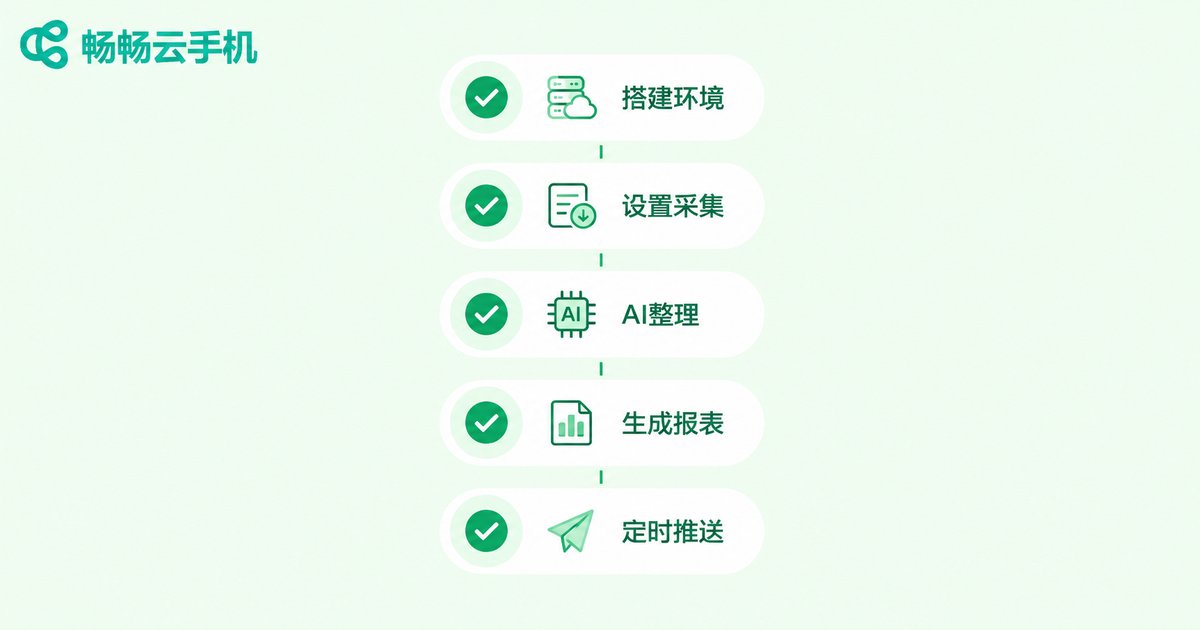
Step 2: Schedule Collection Tasks for Each App
Different apps expose data in different ways, so mix and match these three common methods:
Scheduled screenshots: ideal for dashboards and ranking pages where a quick glance is enough—set an automatic daily capture; In-app export: some apps offer built-in exports such as order lists or billing details—trigger them on a schedule and save the files to a designated folder on the cloud device; Screen-by-screen capture: for content that must be checked line by line, use automation scripts to simulate scrolling and tapping while capturing every screen.
The scheduled-task logic looks roughly like this (adapt it to your own automation tool):
09:00  Launch the target app and open the data dashboard
09:01  Wait for the page to finish loading
09:02  Take a full-screen screenshot, save as date_appname.png
09:05  Switch to the next cloud device and repeat
Step 3: Let AI Recognize and Organize the Data
Once the raw materials pile up, it is AI's turn. Have it do three things:
Recognize and extract: use OCR to read key fields such as sales figures, order numbers, and titles from screenshots; Clean and categorize: remove duplicates, standardize date and currency formats, and split columns by app or business line; Merge into one table: consolidate scattered data into a single master sheet.
The more specific your instructions, the cleaner the output. Here is a template you can adapt:
Extract from the following screenshots:
1. Today's sales, order count, and visitor count
2. List by store, output as a table
3. Compare with yesterday and mark the changes
4. Flag anything fluctuating beyond plus or minus 20% with notes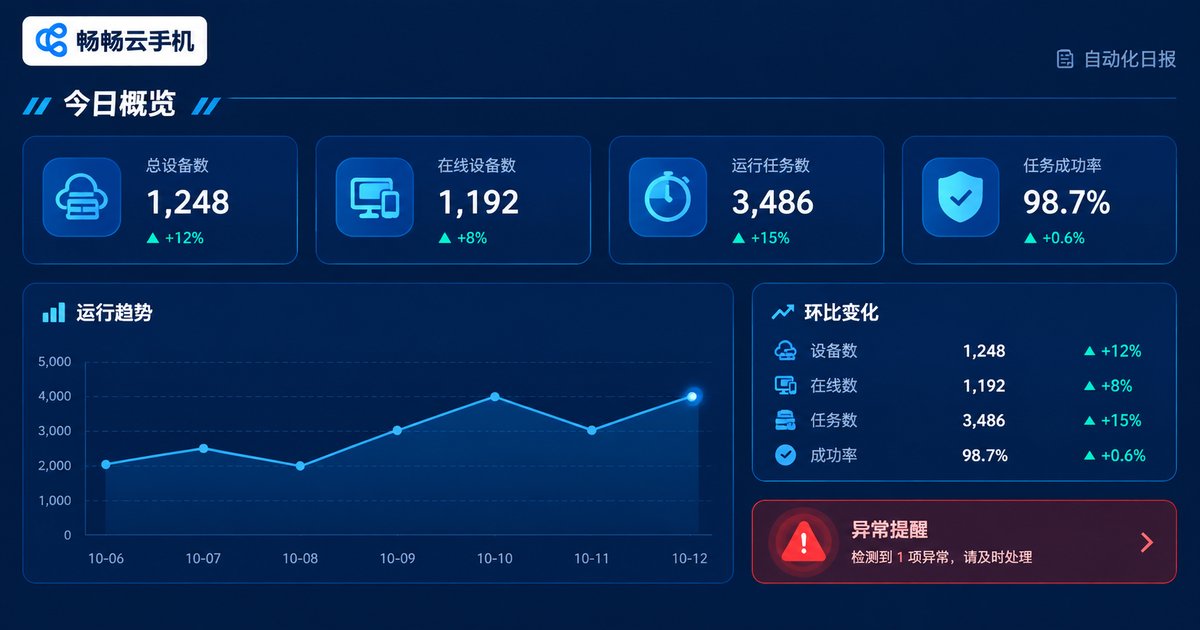
Step 4: Auto-Generate Reports and Deliver on Schedule
The final step is turning organized data into a human-readable report. Have the AI follow a fixed four-part template: today's overview, day-over-day changes, anomaly alerts, and tomorrow's to-dos. Clear, consistent, and friendly for both teammates and managers.
Choose delivery channels based on your team's habits: post to a group chat, write to a shared document, or generate a morning report link. The key is a fixed template, fixed time, and fixed channel, so everyone reads numbers from the same source of truth.
Real Case: A Multi-Platform E-Commerce Daily Report
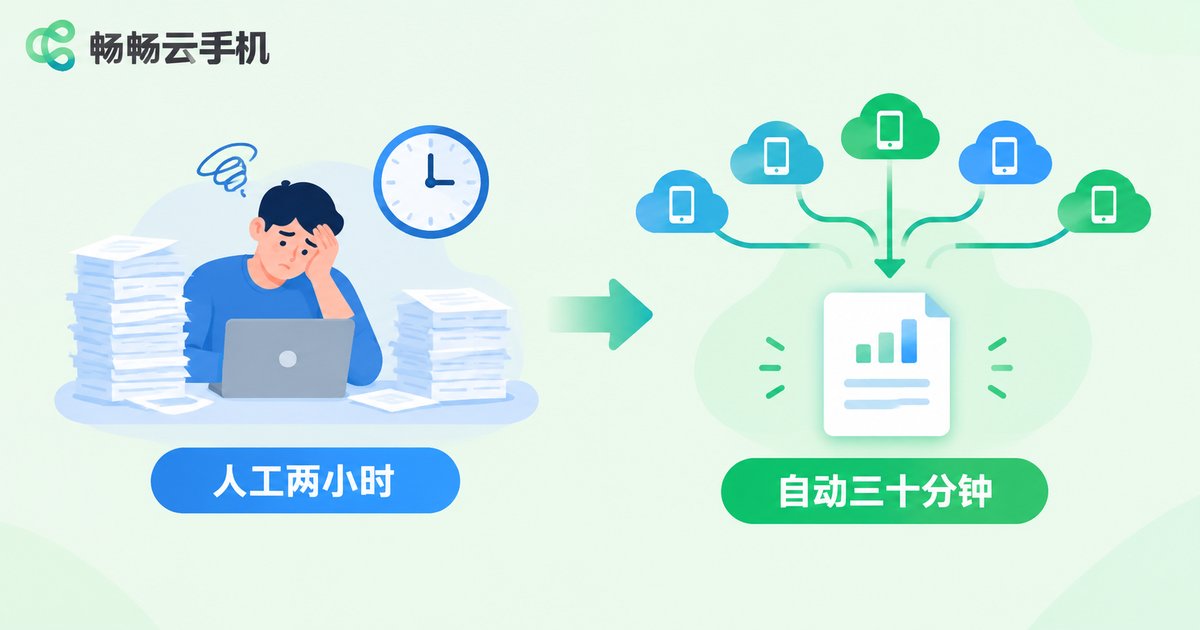
One e-commerce agency operator manages six stores across three platforms. He used to spend two hours every morning logging into each backend to copy numbers. The upgraded flow looks like this:
At 8:00 a.m., six cloud devices automatically open their store backends and take screenshots → AI extracts the core metrics → everything merges into one comparison table → at 8:30 the daily report is pushed to the group chat. With the pipeline running, he went from data copier to a decision-maker who only reads conclusions.
Precautions and Pitfalls to Avoid
Stay compliant: only collect data you are authorized to see, follow each app's terms of service, and never touch other people's private data;
Keep screenshots sharp: low resolution drags down OCR accuracy, so use high-quality captures in your collection settings;
Keep a human check: review the AI-extracted results weekly to confirm the rules have not drifted;
Scale gradually: prove the pipeline on one or two devices before expanding to the full fleet;
Mind data security: never paste passwords or credentials into AI prompts, and keep them out of the reports as well.
FAQ
Q: Will automation lag on a cloud phone?
Lightweight tasks like scheduled screenshots and file exports run smoothly on standard cloud devices. For heavier workloads, stagger the collection times so each device runs a few minutes apart.
Q: Can I set this up without coding?
Yes. Scheduled screenshots and in-app exports can be configured visually, and the AI step only requires clearly written instructions—no programming needed.
Q: How many apps can one cloud phone handle?
Stick to one or two core apps per device. The narrower the task, the lower the error rate and the easier troubleshooting becomes.
Q: How do I guarantee data accuracy?
Three layers of protection: fixed collection times to avoid fluctuation, weekly manual spot checks on AI output, and automatic red-flagging of anomalies for review.
Q: Is ChangChang Cloud Phone a good fit for this?
Yes. Batch management of multiple cloud devices, long-term uptime, multi-app instances, and scheduled tasks match multi-app, multi-account, around-the-clock collection needs. Check the official website ccloudphone for plan details.


