

How to Batch Install Apps and Execute Tasks on Cloud Phones: Multi-Device Unified Management Tutorial
Why Batch Control Matters for Cloud Phones
If you only run one or two cloud phones, tapping through each screen manually is fine. But once your fleet grows to a dozen, fifty, or even hundreds of devices—for account matrix operations, multi-instance gaming, app testing, or short-video distribution—installing apps and performing actions device by device becomes painfully slow.
Take the simplest example: installing the same app on 50 cloud phones. Manually, at 2 minutes per device, that is nearly two hours of work. With batch installation, you upload the APK once, select all devices, click confirm, and everything finishes within minutes. That is the real value of batch control: let the system handle repetitive actions so you can spend time on results.
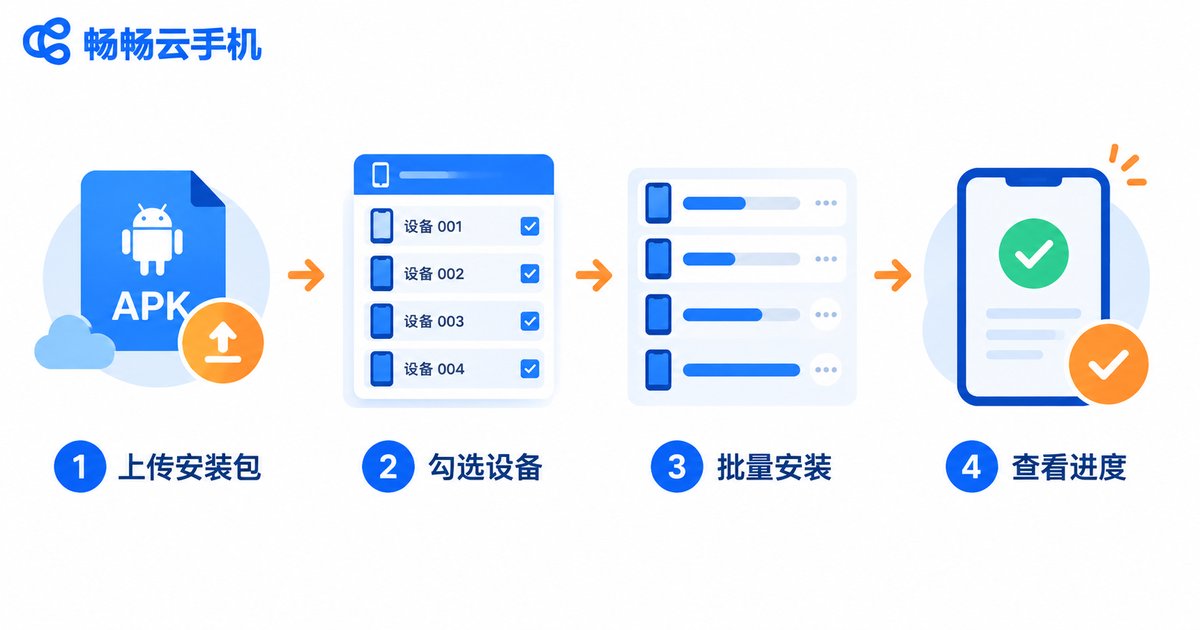
How to Batch Install Apps: A 4-Step Workflow
Using CCloudPhone as an example, batch app installation comes down to four steps:
Step 1: Prepare the installation package. Download the APK file to your local computer in advance, and make sure it is compatible with the Android version running on your cloud phones, or installation may fail.
Step 2: Upload the APK. Log in to the CCloudPhone management console, find the “upload app” entry under app management, and upload the APK to the cloud. Once uploaded, the app is stored in your app list and can be reused anytime.
Step 3: Select the target devices. In the device list, check the cloud phones that need the app. You can select all devices or filter by group and tag to avoid installing on the wrong ones.
Step 4: Install in bulk and track progress. Click “batch install” and the system distributes the app to all selected devices in parallel. The task list shows the installation status of every device, and any failed device can be retried individually without redoing the whole batch.
The whole process requires zero coding skills—it is essentially “upload once, select a batch, click to execute”.
How to Batch Execute Tasks
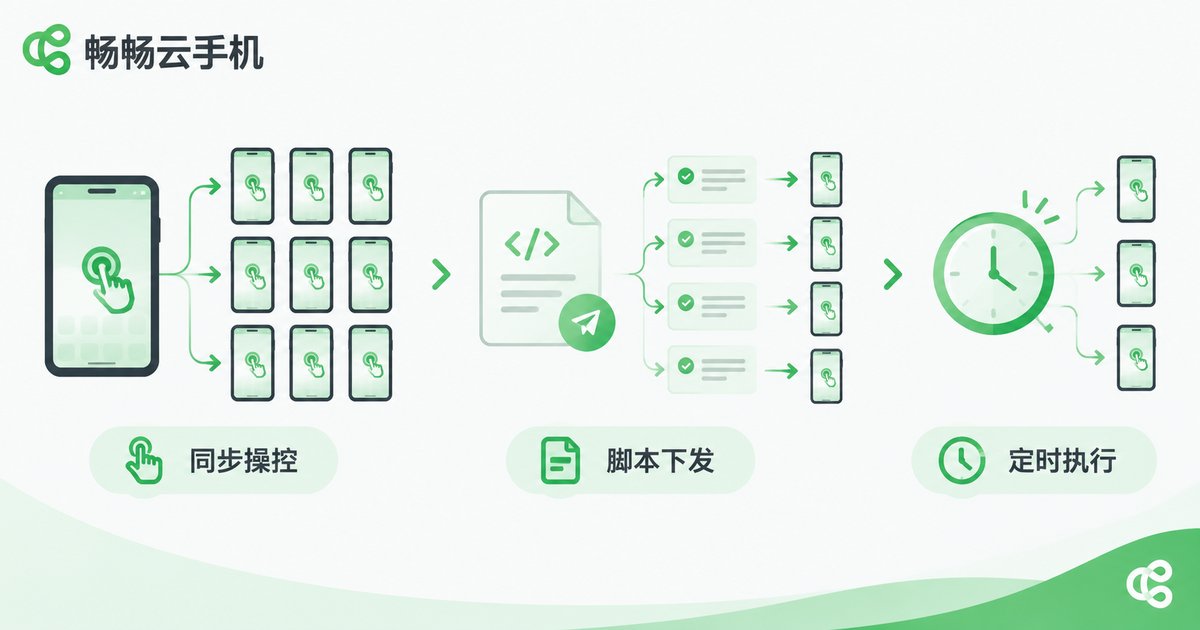
Batch task execution means making many cloud phones perform the same set of actions at the same time—for example, opening an app on every device, clearing backgrounds in bulk, or running an automation script across the fleet. There are two common approaches:
1. Synchronized control: one master, many followers. Designate one device as the master. Your taps, swipes, and inputs on its screen are mirrored in real time on all controlled devices. This suits scenarios that need human judgment, such as completing onboarding flows or logging into accounts in bulk.
2. Script and task batch dispatch. Upload pre-prepared task scripts or operation plans to the cloud, choose a target device group, and execute in bulk. The system runs the tasks automatically on each device as scheduled—no screen-watching required. Ideal for highly repetitive work such as daily check-ins, account nurturing, and content publishing.
During execution, the console outputs logs and result status for every device, so you can see at a glance which devices succeeded and which failed, then rerun only the failures.
4 Core Techniques for Unified Multi-Device Management
Knowing how to use batch features is just the start. To keep dozens or hundreds of cloud phones organized, focus on these four practices:
1. Group devices by business. For example, “Matrix Group A,” “Gaming Group B,” and “Testing.” When batch installing or executing tasks, select by group—it is faster and far less error-prone.
2. Make use of scheduled tasks. Turn daily routines (check-ins, app launches, cache cleaning) into scheduled jobs so cloud phones execute them automatically at set times—run tasks at night, review results in the morning.
3. Review execution logs every round. Check the success rate after each batch task and handle failed devices promptly, so small issues never grow into big ones.
4. Pilot small, then scale up. Test new scripts or apps on three to five devices first. Once verified, roll them out to the entire fleet to keep risk to a minimum.
| Comparison | Manual, Device by Device | Batch Unified Control |
|---|---|---|
| Installing one app on 50 devices | About 1–2 hours | Done within minutes |
| Consistency | Easy to miss or misinstall | Identical actions on every device |
| Labor cost | Requires dedicated staff | One person manages 100+ devices |
| Failure handling | Hard to detect in time | Clear logs, targeted retries |

Batch Management with CCloudPhone
Among cloud phone services, CCloudPhone (ccloudphone) offers well-rounded support for batch scenarios: devices can run in multiple instances and be organized into groups, apps can be uploaded once and distributed in bulk, and tasks can be dispatched in batches and executed on a schedule. The console shows every device's online status and task progress clearly. Whether you run a matrix of dozens of devices or a studio with hundreds, you can start with a small batch of devices to validate your workflow, then scale up gradually. For the latest plans and device configurations, visit the official CCloudPhone website.
FAQ
Q: Is batch app installation slow?
No. The APK is uploaded only once, and distribution runs in parallel in the cloud. Dozens of devices usually finish installing within minutes, depending on app size and device count.
Q: If one device fails during batch execution, does it affect the others?
No. Each device's task runs independently. A failure on one device does not affect the rest—locate it in the logs and retry individually.
Q: Can I use batch execution without writing scripts?
Yes. Synchronized control requires no scripts at all—actions on the master device are mirrored automatically. Script mode is for advanced users with automation needs.
Q: How many devices can batch management handle?
It depends on the number of devices and the plan you subscribe to. CCloudPhone supports on-demand scaling—start with your current business size and add more devices from the console as you grow.
Q: How do I keep batch-installed apps safe?
Only obtain APK files from official channels or trusted sources, verify file integrity before uploading, and avoid packages from unknown origins.


