
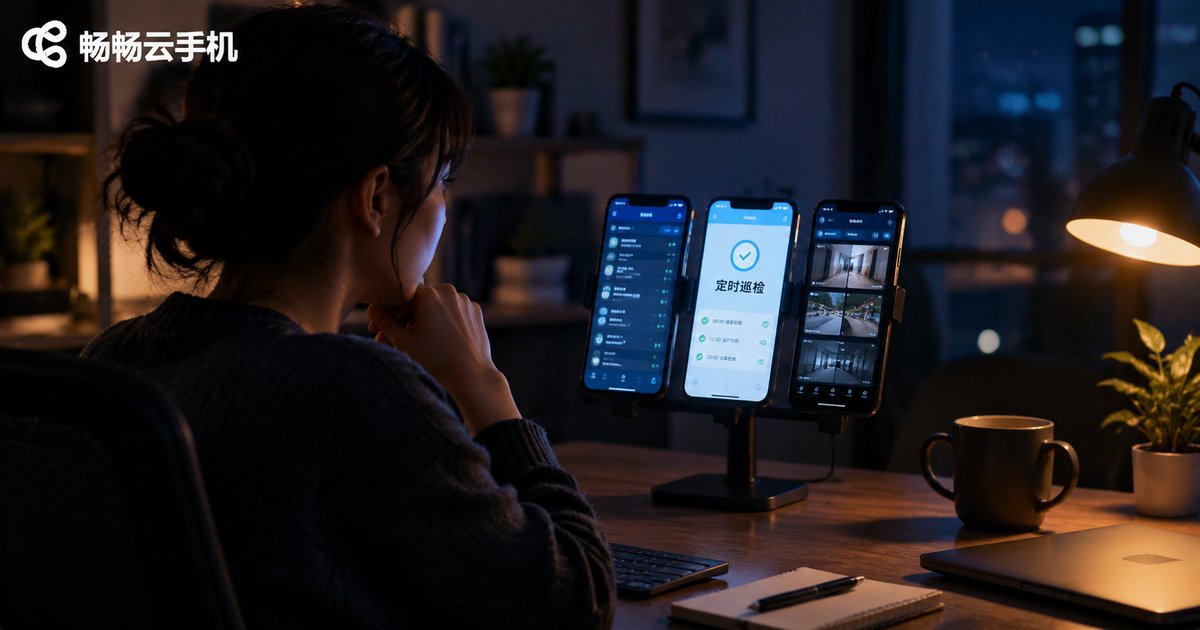
How to Implement Scheduled App Inspection on Cloud Phones! Automated Monitoring Configuration
Why App Inspection Must Be Automated
For apps that need to stay online around the clock — game grinding, livestream duty, or business monitoring — the biggest risks are disconnections, freezes, and popup interruptions. Manual inspection means lighting up a screen every so often to check status: time-consuming, labor-intensive, and easy to miss issues. Cloud phones run in data centers with uninterrupted power and network, and combined with scheduled inspection and automated monitoring configuration, your apps can keep running stably without anyone watching.
How Scheduled Inspection on Cloud Phones Works
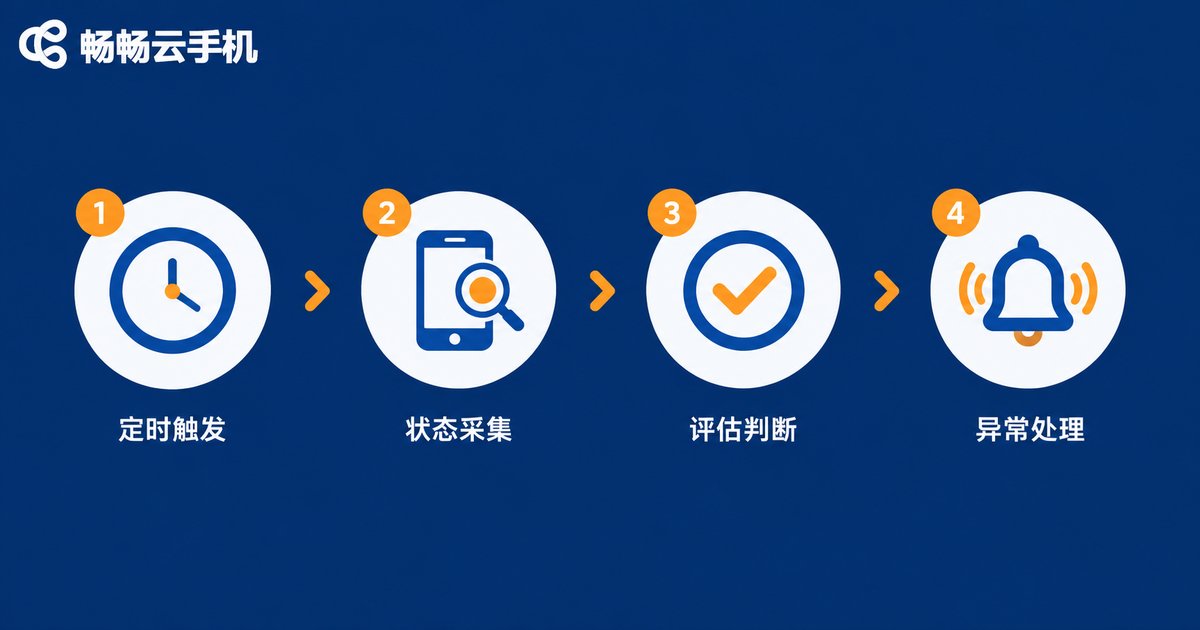
Scheduled inspection means automatically executing a series of checks on a preset timetable: wake the cloud phone, launch the target app, capture screenshots for records, evaluate running status, and trigger alerts or auto-recovery the moment something goes wrong. The whole loop is driven by cloud-side scheduling — no local PC required, and no drain on your own phone.
A complete inspection loop covers four stages: scheduled trigger → status collection → result evaluation → exception handling. If any stage detects a problem, the system notifies you immediately via push message.
Four Core Capabilities of Automated Monitoring Configuration
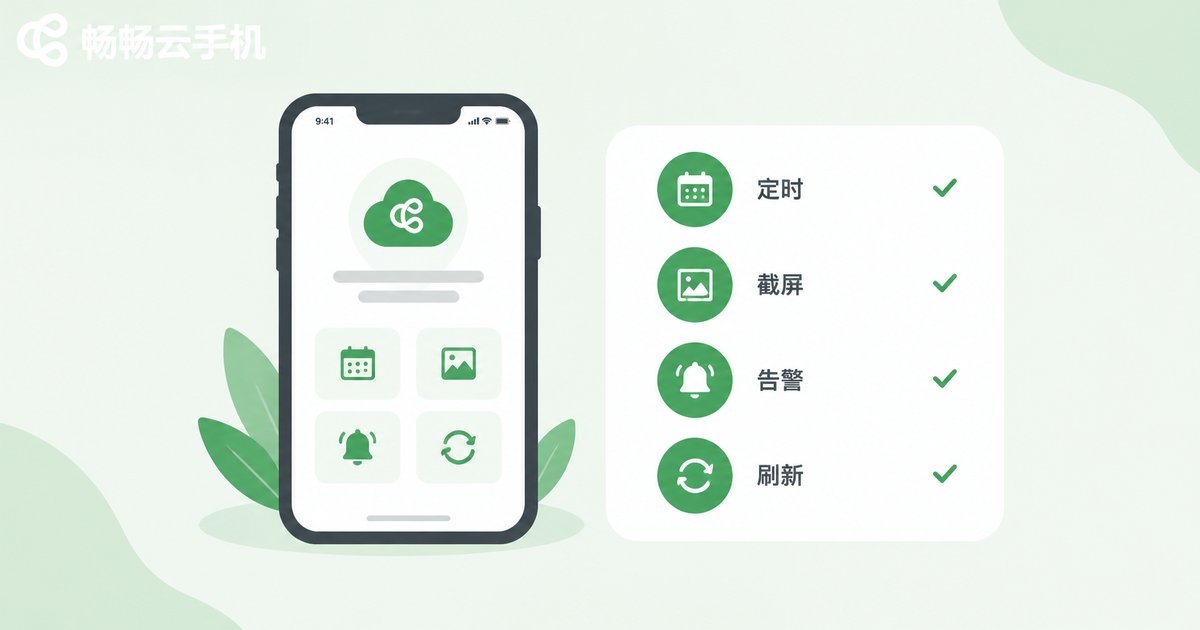
1. Scheduled task plans: trigger inspections at fixed intervals (e.g., every 30 minutes) or at specific times, with daily and weekly cycles to cover round-the-clock app operations.
2. Running status collection: automatically detect whether the app is in the foreground, whether the process is alive, and whether the screen is frozen, with periodic screenshots archived for later review.
3. Exception alerting: when disconnections, crashes, or unresponsiveness are detected, alerts are pushed immediately so you can track cloud-side status right from your own phone.
4. Auto-recovery policies: configure fallback actions such as restarting the app, clearing popups, and reconnecting after drops, so most minor issues heal without manual intervention.
Complete Inspection Setup in Four Steps
Step 1: Create a cloud phone instance. Set up a device on ChangChang Cloud Phone (ccloudphone), install the app you want to inspect, and finish logging in.
Step 2: Define the inspection schedule. Choose frequency based on business importance — high-frequency checks for critical workloads, longer intervals for routine idle tasks.
Step 3: Configure check items and alerts. Select the status items to monitor and set how alerts are delivered, making sure exceptions reach you immediately.
Step 4: Trial run and optimize. Start with short cycles, watch for false and missed alerts, then gradually tune thresholds and recovery policies until inspections run accurately.
Typical Use Cases and Inspection Frequency
| Scenario | Inspection Focus | Suggested Frequency |
|---|---|---|
| Game grinding | Disconnection, freeze, popups | Every 30-60 minutes |
| Livestream / short-video duty | Streaming status, frozen frames | Every 15-30 minutes |
| App business monitoring | Process alive, page response | Every 10-15 minutes |
Why Choose ChangChang Cloud Phone for Scheduled Inspection
Inspection reliability ultimately depends on the stability of the cloud phone itself. ChangChang Cloud Phone (ccloudphone) delivers a stable cloud Android environment where apps can stay online long-term, unaffected by local battery levels or network fluctuations. Multiple devices are managed centrally with inspection plans configured in one place — ideal for users watching several cloud phones at once. Hand repetitive checking to the cloud, and you only deal with exceptions when an alert arrives; operational efficiency improves noticeably.
FAQ
Q: Does scheduled inspection on a cloud phone cost extra?
Inspection is a way of using automation; refer to the plan details published on the official ccloudphone website, and start by configuring a trial run on your existing device.
Q: What if the app goes offline during inspection?
Configure recovery policies such as auto-restarting the app and reconnecting after drops, and keep alert push enabled so you step in manually only for major exceptions.
Q: Can one cloud phone inspect multiple apps?
Yes — stagger multiple inspection tasks by time, but focus on the core app at any given moment to avoid tasks interfering with each other.
Q: Can inspection records be reviewed later?
With screenshot archiving enabled, every inspection keeps a visual record, making it easy to trace when and why an exception occurred.


