
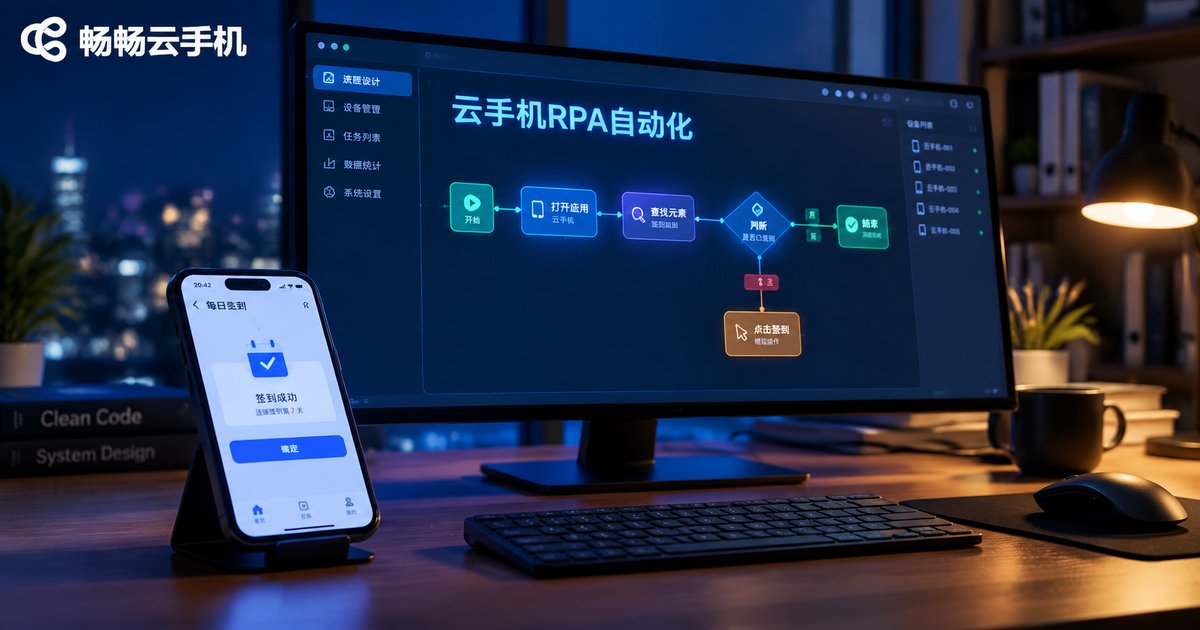
How to Combine Cloud Phones with RPA Tools: A Script Writing Tutorial for Automating APP Tasks
Cloud Phone + RPA: Let Your APP Tasks Run Themselves
Repetitive app operations — daily check-ins, scheduled browsing, batch data entry — are tedious and time-consuming. RPA (Robotic Process Automation) turns these operations into scripts that click, type, and swipe for you. A cloud phone is the ideal environment to run those scripts: a real Android system running on cloud servers, online 24/7, without occupying your own phone or computer. Together, they mean the script works in the cloud while you save your time in the real world.
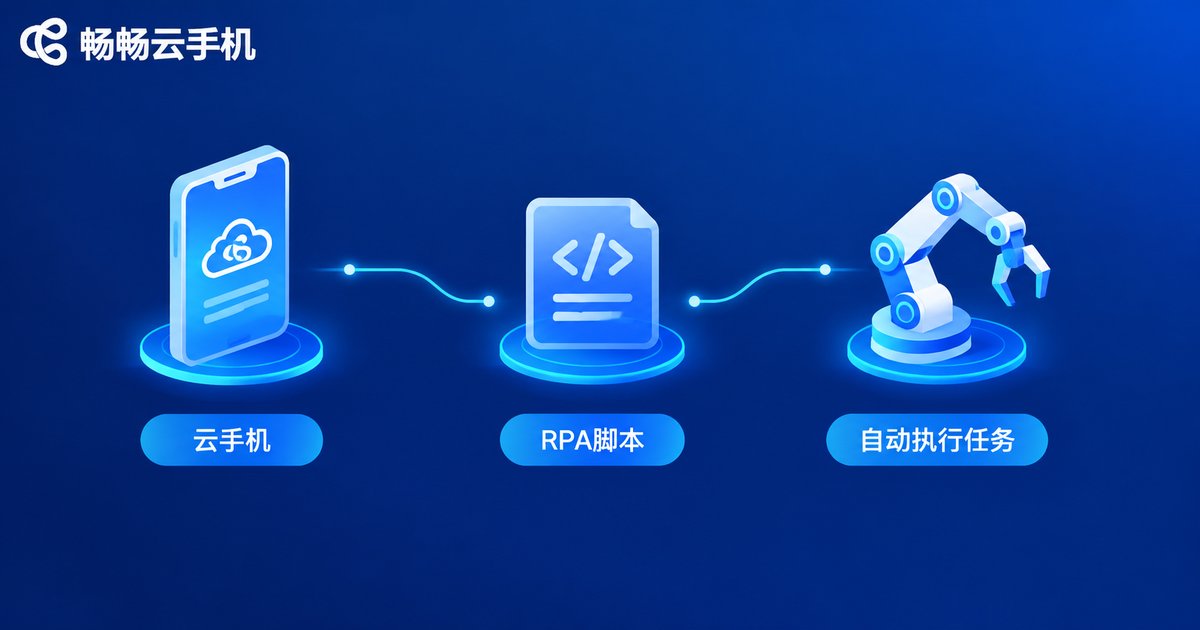
Why Run RPA Scripts on a Cloud Phone?
Running scripts on local devices has familiar pain points: tasks break when the computer shuts down, your phone is occupied for long periods, and multi-account parallelism requires multiple physical devices. A cloud phone solves each one:
| Comparison | Local Device | Cloud Phone |
|---|---|---|
| Uptime | Limited by power on/off | Online 24/7 in the cloud |
| Device usage | Ties up a phone or PC | Local devices fully freed |
| Parallel tasks | Needs multiple devices | Multiple cloud instances run side by side |
| Migration | Reconfigure on a new device | Log in and take over instantly |
Preparation Checklist
Four things to prepare before writing scripts:
1. A cloud phone instance: Register and launch a ChangChang Cloud Phone (ccloudphone) instance, which provides a full Android environment where you can install the target app.
2. An automation tool: Two common approaches — Android automation tools based on the Accessibility service, or sending commands via the ADB debugging protocol with Python. Beginners should start with the accessibility-based approach, which is easier to pick up.
3. Target app and a test account: Validate the whole flow with a secondary account before scaling up.
4. A clear automation goal: Write the flow down in plain words, e.g. 'open the app, go to the task page, tap check-in, take a screenshot'. The script is simply that description turned into code.
Tip: enable Developer Options and Accessibility permission in the cloud phone's system settings so the automation tool can detect and operate UI elements.
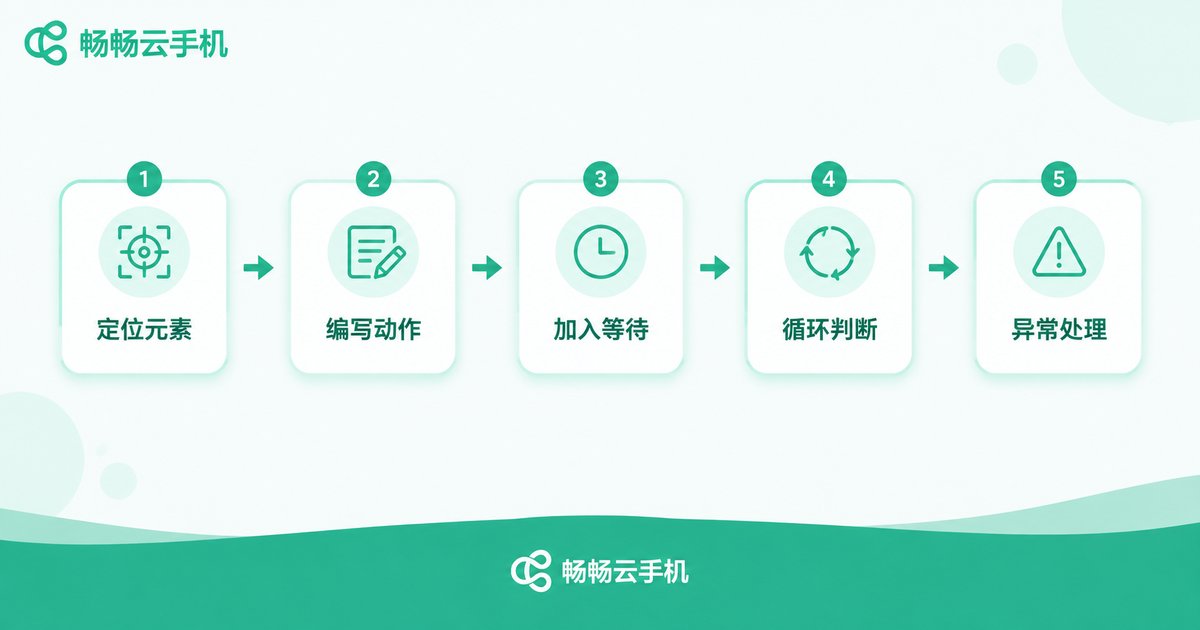
The Five-Step Script Writing Method
Whatever tool you use, the logic is the same and breaks down into five steps:
Step 1: Locate elements. Tell the script 'where to tap'. Locate buttons and inputs by control ID, text content, or screen coordinates. Prefer IDs and text over fixed coordinates for better stability.
Step 2: Write actions. Translate manual operations into commands: tap, input text, swipe, go back, launch app.
Step 3: Add waits. Apps take time to load and networks vary. Instead of fixed delays, use 'wait until an element appears' — the key to script stability.
Step 4: Set loops and conditions. Use if/else logic to handle both cases: if the element is found, follow the main flow; otherwise, take a fallback path.
Step 5: Exception handling and logging. When the script gets stuck, automatically take a screenshot and record the time for easy troubleshooting the next day.
Hands-On Example: Daily Check-In Script
Take the most common scenario — a daily app check-in — and write the full flow in pseudocode:
# Daily check-in script (pseudocode)
launch_app('target app')
wait_for_element('home loaded', timeout=10s)
tap('task center')
wait_for_element('check-in button', timeout=5s)
if exists('check-in button'):
    tap('check-in button')
    wait_for_element('success message', timeout=5s)
    save_screenshot('checkin_result.png')
    log('check-in succeeded')
else:
    save_screenshot('error_page.png')
    log('check-in button not found')
close_app()
Build this logic in your automation tool, schedule it to trigger at 9:00 every morning, and the cloud phone completes the whole check-in automatically — you only review the logs and screenshots to confirm the result.
From One Instance to Many: Scaling Up
Once a single instance works, copy the same script to multiple cloud phone instances to run in parallel. Keep three points in mind: stagger the triggers — don't launch all instances in the same second, a few minutes apart looks more natural; keep versions unified — replace scripts on all instances after every update; centralize the logs — see at a glance which instance failed. For a stable multi-instance environment, visit the ChangChang Cloud Phone website (ccloudphone) to learn about its cloud Android instances and instance management capabilities, and choose a setup that matches your task volume.
Stability Tips and Common Pitfalls
Writing the script is only the beginning; long-term stable operation is the goal. A few field-tested tips:
Waits over delays: replace every 'sleep 3 seconds' with 'wait for the element' so slow loading never breaks the flow.
Control the pace: leave reasonable intervals between actions to mimic human rhythm — more stable and safer.
Keep evidence of failures: automatic screenshots on exceptions beat digging through logs.
Maintain scripts regularly: app updates change UI elements, so scripts need updating too.
Compliance Reminder
Use automation scripts only for accounts you own and lawful, compliant scenarios, such as personal task check-ins or testing your own apps. Read the target app's terms of service first, and never use scripts for fake traffic, scalping, or bulk registration. Account security and legal risks are your responsibility.
FAQ
Q: Can I write RPA scripts without coding?
Yes. Most Android automation tools offer visual editors where you record or drag-and-drop to build flows. The five-step method still applies — think through the logic first, then build.
Q: Will scripts run slowly on a cloud phone?
Cloud phones run on cloud servers with stable configurations. Script smoothness mainly depends on your network and the instance spec — pick a suitable instance size.
Q: What if the script stops in the middle of the night?
That's exactly where cloud phones shine: cloud instances stay online 24/7 regardless of your local devices. With exception screenshots and logs, you can quickly locate the issue and rerun the next day.
Q: Can one cloud phone run multiple scripts at once?
Run one task flow per instance to avoid interference. For parallelism, use multiple instances and aggregate the logs in one place.
Q: How do I choose a cloud phone for automation?
Focus on instance stability, uptime, and management features. Check the ChangChang Cloud Phone website (ccloudphone) for its cloud Android instance configurations and management options, then match them to your workload.


