
Cloud Phone for Retro Games: Android 7 vs Android 9, Tested in Practice
Why Are Retro Games So Picky About Android Versions in the Cloud?
Many players load their childhood favorites onto a cloud phone and immediately hit black screens or crashes. In most cases it is not the cloud phone's fault; it is a mismatch between the Android version and the game's legacy engine. Mobile titles from 2013 to 2017 were built on old SDKs and expect the runtime environment of the Android 7 era, while Android 9 introduces stricter permission management, newer APIs, and a 64-bit-first policy that can leave senior games out of their comfort zone.
On the other hand, Android 7 offers great compatibility but conservative performance scheduling, memory management, and GPU drivers, so slightly newer games tend to drop frames. Choosing between Android 7 and 9 for retro gaming is essentially a trade-off between compatibility and performance.
Android 7 Tested: The Comfort Zone for Old Games
We ran a batch of classic titles from around 2015 inside an Android 7 cloud phone environment, and the results were clear:
· Cute-style turn-based and idle MMOs: launched normally and stayed stable through long idle sessions, with almost no crashes;
· Older match-3 and runner single-player games: worked on the first try with intact textures and audio;
· Games wrapped in legacy encryption shells: crashed on launch under Android 9 but ran fine on Android 7.
The reason is simple: these games hard-code calls to old system APIs and follow the old install-means-approve permission model. Android 7 keeps those old rules intact, giving legacy titles native soil to run on. Its weaknesses are just as clear: higher memory usage in multi-instance setups, lower frame rate ceilings, and graphics options often forced down to low.
Android 9 Tested: The Balance Between Compatibility and Smoothness
Android 9 is not the enemy of old games. In our tests, it actually suits the semi-retro generation best:
· Games from 2017 to 2019: noticeably steadier frame rates and faster loading;
· Titles that require 64-bit libraries: only Android 9 can run them, and Android 7 cannot even install them;
· Graphics enthusiasts: newer GPU drivers deliver better lighting and anti-aliasing.
The titles that fail on Android 9 fall into two main groups: super-old games with legacy encryption shells and nostalgia servers that refuse to launch when they detect a newer system version. If your playlist is dominated by these two types, Android 7 will save you a lot of headaches.
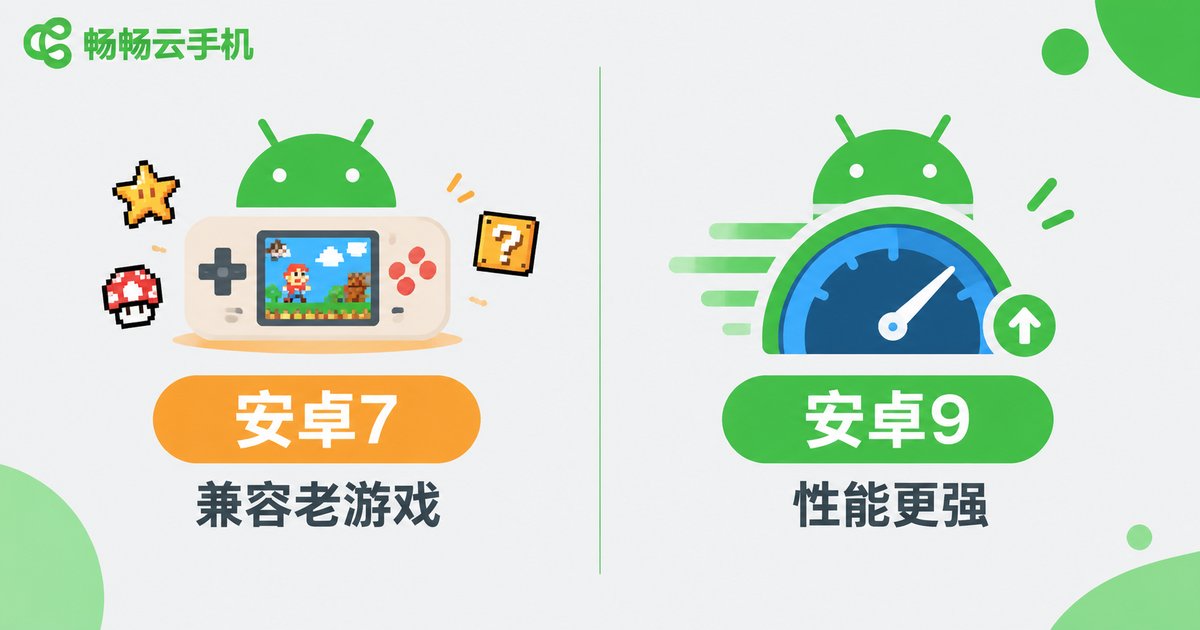
Android 7 vs Android 9: One Table to Decide
| Dimension | Android 7 | Android 9 |
|---|---|---|
| Pre-2016 legacy games | Best compatibility | Some crashes and black screens |
| Games from 2017 to 2019 | Playable but average frame rates | Noticeably smoother |
| 64-bit apps | Not supported | Fully supported |
| Graphics rendering | Conservative | Better lighting and anti-aliasing |
| Multi-instance overhead | Higher | Smarter memory management |
| Legacy-encrypted games | High pass rate | Prone to crashes |
How to Switch System Versions on ChangChang Cloud Phone
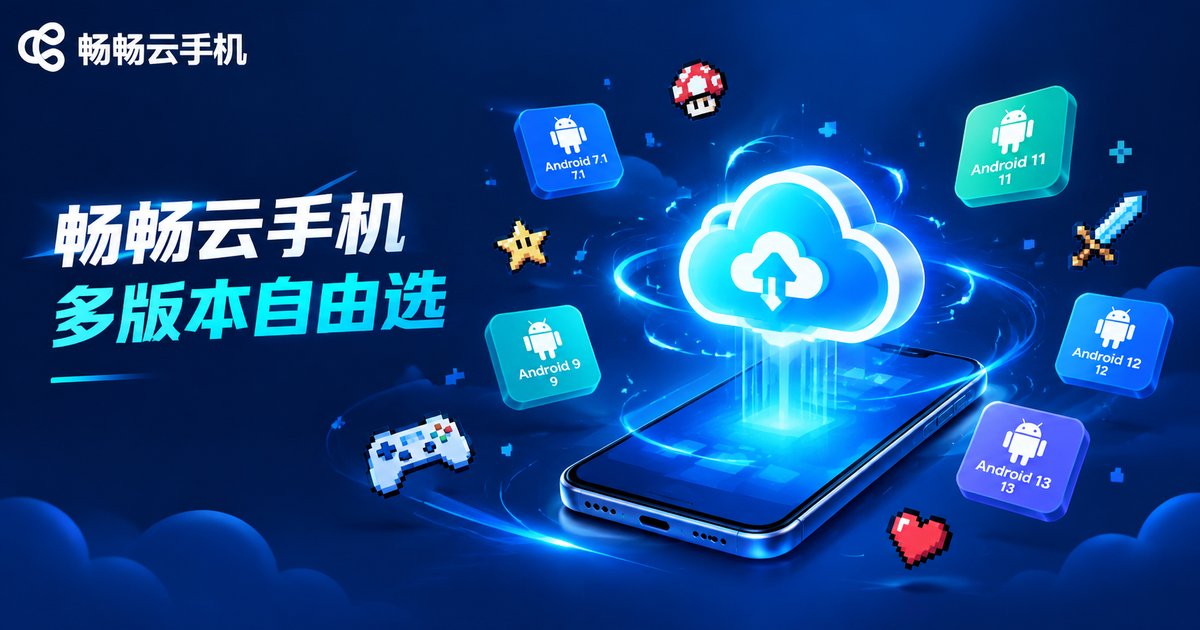
On ChangChang Cloud Phone (ccloudphone), different Android versions are delivered as device images: you choose the system version when creating a cloud phone (based on the version list currently offered on the official website). For existing devices, check the current system in the device settings, then decide whether to spin up a new cloud phone with the right image dedicated to your retro games.
The practical tip is one device, one job: keep an Android 7 device dedicated to legacy games and nostalgia servers, and pair it with an Android 9 device for mainstream games and daily apps. ChangChang Cloud Phone supports managing multiple devices in parallel, so the two environments never interfere and you avoid constant reinstalling.
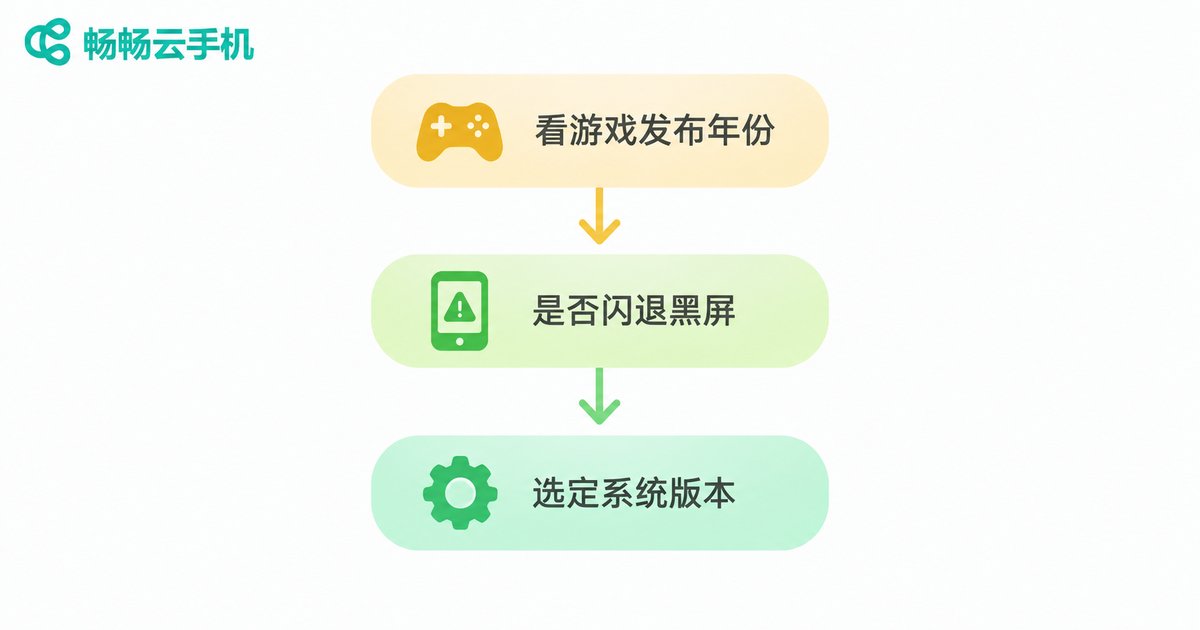
Quick Guide: Pick a Version by Game Type
Still unsure? Follow these three rules and you will rarely go wrong:
1. Games released before 2016: start with Android 7, because compatibility comes first;
2. Games from 2017 to 2019, or any title requiring 64-bit: go straight to Android 9 for better performance and visuals;
3. Unknown release date: try Android 9 first, and switch to Android 7 if you see crashes, black screens, or a stuck splash logo. This order has the highest success rate.
FAQ
Q: Why does a game run on my physical phone but crash on the cloud phone?
It is usually a system version mismatch. If your physical phone runs an older Android, the game feels at home there, while the cloud phone's default image is newer. Switching the cloud phone to the same or an older Android version resolves most cases.
Q: Can an Android 7 cloud phone run new games?
Not recommended. Many games released after 2019 use 64-bit libraries that Android 7 cannot run, and even installable ones suffer in frame rate and visuals. Leave those to Android 9.
Q: The old game is stuck on the splash logo. What should I do?
Clear background apps and relaunch first. If it keeps freezing, the system version is likely incompatible, so switch to an Android 7 environment and try again. For a few titles, also disable boost features that skip the startup animation.
Q: Can I run Android 7 and Android 9 devices at the same time on ChangChang Cloud Phone?
Yes, you can create cloud phones with different system versions and run them in parallel (based on the versions currently offered on the official site), keeping legacy games and mainstream games on separate devices.
Q: Will switching system versions wipe my game data?
The Android version is tied to the device image, so switching means moving to a different device. Bind your game account or enable cloud saves before switching so your progress can be restored on the new device.


