

Balancing Cloud Phone Resolution and Bandwidth in 2026: Recommendations for Different Network Environments
Resolution and Bandwidth Are Two Ends of a Seesaw
A cloud phone does not render images on your device. The cloud renders the frame, compresses it into a video stream, and pushes it to your screen in real time. That leads to a simple conclusion: the sharper the picture, the more data it takes, and the more bandwidth you need.
In 2026, cloud rendering and video encoding are far more efficient than they were a few years ago, so the same bandwidth now delivers a better picture. But the physics has not changed: a 1080P frame is inherently heavier than a 720P frame. There is no single best setting for everyone. What you need is a resolution that matches your actual network condition: good enough to see clearly, light enough to stay smooth.
Three Numbers You Need to Know: Resolution, Bitrate, Frame Rate
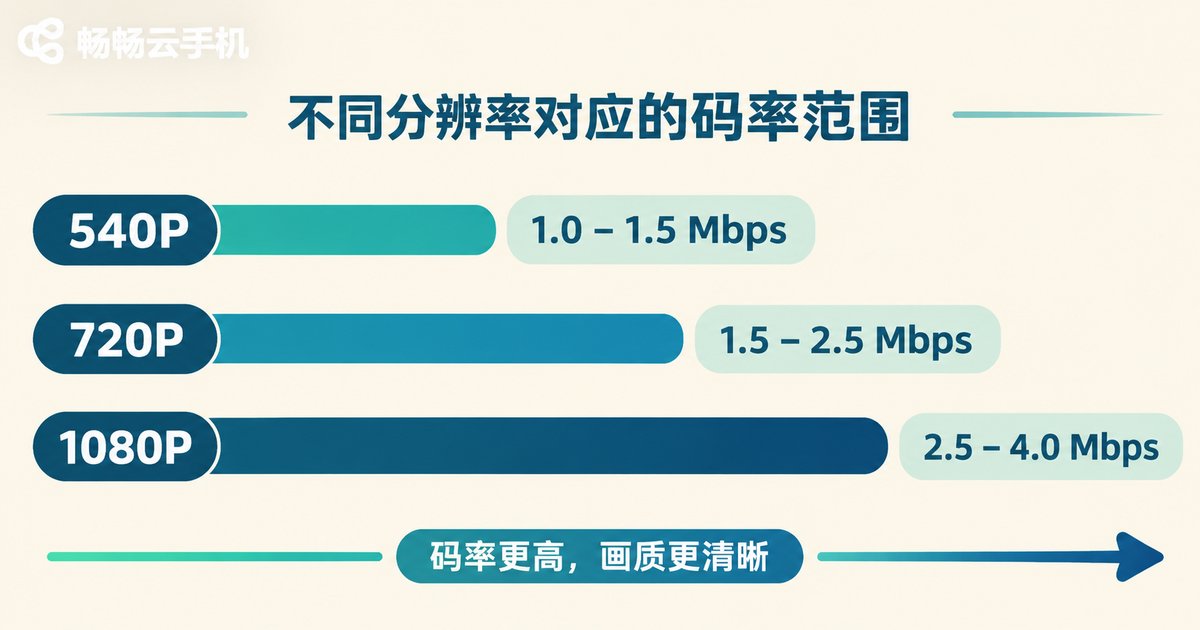
Many people stare only at resolution. In practice, smoothness is decided by bitrate (how much data is sent each second) and frame rate (how many frames are shown each second). Resolution sets the size of the picture, frame rate sets how continuous it feels, and bitrate decides how much traffic has to travel down the pipe.
| Resolution | Typical bitrate | What it looks like | Best for |
|---|---|---|---|
| 540P | about 1–2 Mbps | Soft; text needs zooming | Long idle sessions, checking status only |
| 720P | about 2–4 Mbps | Good enough day to day, readable text | Tasks, social apps, routine taps |
| 1080P | about 4–8 Mbps | Sharp and detailed, close to local feel | Video, precise tapping, multiple windows |
| 2K and above | about 8–15 Mbps | Very crisp | HD previews, screenshot material, frame review |
One easily missed point: two 1080P streams at 30 fps and 60 fps can differ in bitrate by nearly double. On a weak network, dropping frame rate from 60 to 30 is often a better trade than dropping resolution from 1080P to 720P. The image looks less blurry, and you save roughly the same bandwidth.
Recommended Settings by Network Environment
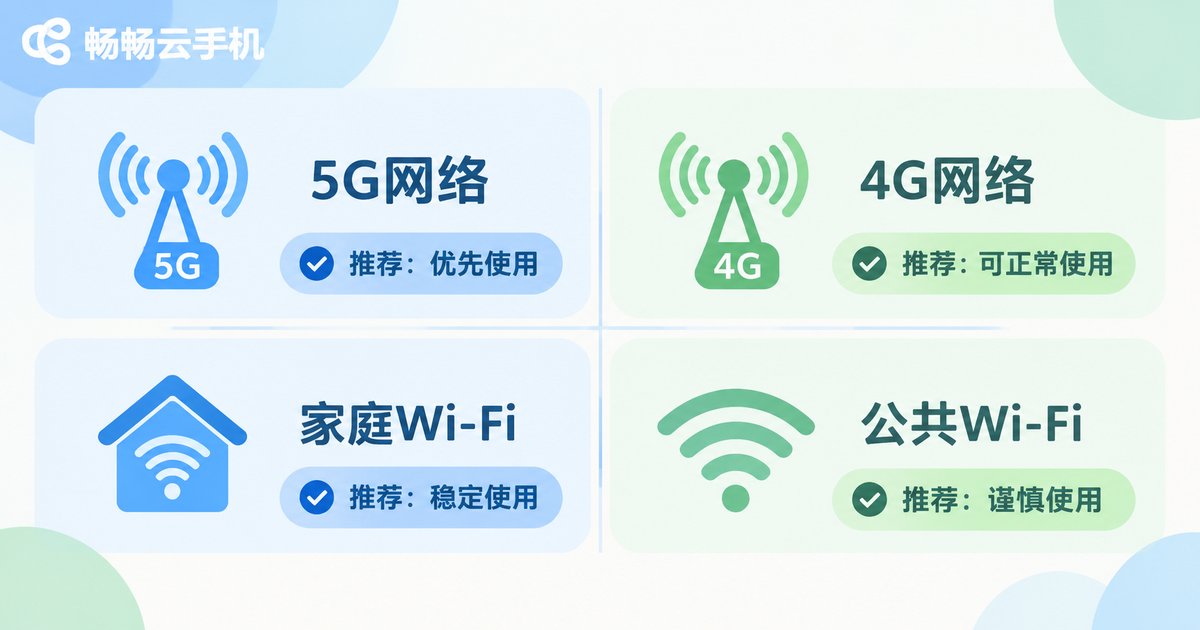
The table below follows a simple order of priorities: keep it smooth first, then keep it sharp. Find the row that matches your network.
| Network | Measured download | Resolution | Frame rate | Main idea |
|---|---|---|---|---|
| 5G mobile | 30 Mbps or more | 1080P | 30–60 fps | Plenty of headroom, favour clarity |
| 4G, good signal | 8–20 Mbps | 720P | 30 fps | Stability first, do not force 1080P |
| Home Wi-Fi (5 GHz) | 50 Mbps or more | 1080P or 2K | 60 fps | Max out, but avoid far walls |
| Home Wi-Fi (2.4 GHz) | 10–30 Mbps | 720P | 30 fps | Interference is common, trade frame rate first |
| Public Wi-Fi, weak or peak-hour networks | Under 3 Mbps | 540P–720P | 20–30 fps | Drop resolution first when it stutters |
A few practical rules:
- When it stutters, cut resolution before cutting frame rate. Resolution has the biggest effect on bitrate and gives the fastest relief.
- Bandwidth alone is not the whole story. Bandwidth decides whether the picture is sharp; latency and packet loss decide whether taps feel immediate. If your speed test looks great but every action lags half a beat, the issue is latency jitter, and lowering quality will not help much. Changing networks will.
- Leave headroom for peak hours. Between 8 pm and 11 pm, both home broadband and mobile networks get crowded. A setting that is smooth in the daytime can stutter at night, so drop one level in advance.
How to Adjust It in ccloudphone
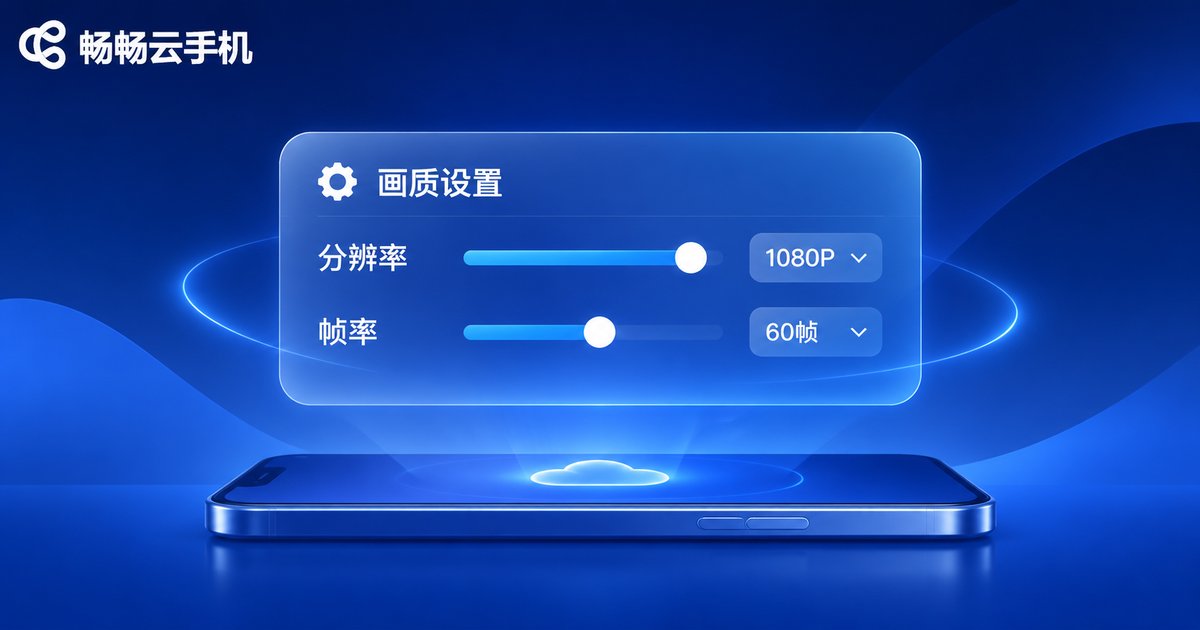
ccloudphone instances usually expose quality options such as clarity and frame rate, which you can switch before launching or while running. The recommended order is stability first, clarity second:
- Run at a lower quality for 5 to 10 minutes and confirm the picture is smooth and taps respond promptly.
- Raise resolution one level and watch for another 5 minutes, looking for blockiness, smearing or input delay.
- If it stays stable and you want more fluidity, raise the frame rate. If stuttering appears, step back one level.
One inherent advantage of cloud phones is worth mentioning: rendering, encoding and quality adjustment all happen in the cloud, so they do not consume your local phone's CPU or battery. Even a phone that is a few years old can display a high resolution image, as long as the network allows it.
Three Common Mistakes
Mistake 1: Always maxing out quality. The highest setting looks great, but if your network cannot sustain it, you get buffering and mosaic blocks, which feels worse than a steady 720P.
Mistake 2: Lowering resolution but leaving frame rate alone. When things already stutter, dropping from 60 fps to 30 fps often restores smoothness immediately with very little visual loss.
Mistake 3: Treating a single speed test as the answer. A speed test is a snapshot; a cloud phone is a continuous stream. The real test is whether 10 minutes of continuous use stays smooth, not whether the number looks impressive.
A One-Minute Self-Test
- Run a continuous speed test and check whether your download stays in the range you need (about 4 Mbps for 720P, 8 Mbps or more for 1080P).
- Try your actual tasks: scroll a list, play a video, tap through menus, one minute each, and notice how responsive it feels.
- Test again at peak hour. If the same setting feels noticeably worse at night, drop one level.
- Lock in one combination once you find a setting that does not stutter, so you are not re-tuning every time.
FAQ
Q1: If I have enough bandwidth, will it never stutter?
Not necessarily. Bandwidth governs sharpness, while latency and jitter govern responsiveness. If bandwidth is plentiful but latency keeps spiking, the picture will feel jerky, and lowering quality only helps a little.
Q2: My app shows 1080P, why does it still look a bit soft?
Cloud phone video is compressed. Fast motion and complex textures need more bitrate. Try raising bitrate or frame rate in the quality settings, and compare on a static page, which will look clearly sharper.
Q3: Why is it smooth in the daytime and laggy at night?
Peak-hour congestion is the usual cause. Keep one level of headroom in your usual setting, or prepare a separate night profile with lower resolution or frame rate.
Q4: Does lowering quality save data?
Yes. A lower bitrate means less traffic per minute. If you run long idle sessions on mobile data, choosing a lower resolution and frame rate noticeably reduces consumption.
Q5: Can an older phone handle high quality?
Usually yes. Rendering and encoding happen in the cloud, and the local device mainly decodes and displays. As long as your network meets the requirement, older devices can still deliver a good viewing experience.


