
Cloud Phone Low-Latency Mode Guide: Use Cases and Setup Tips
What Low-Latency Mode Actually Does
A cloud phone does not make your device faster. It moves an Android device running in a data center in front of your eyes. Every tap, swipe and key press travels over the network to the cloud, and the cloud encodes the screen and sends it back. That round trip is your latency.
Low-latency mode cuts costs along that path: it prioritizes input response and gives up a little image detail in exchange. Once enabled, encoding is more aggressive, buffering is shorter, and what you see arrives closer to what you did.
A simple analogy: normal mode is like developing photos one by one before handing them over — crisp, but half a beat behind. Low-latency mode is closer to a live broadcast — slightly rougher, but it reacts the moment you move.
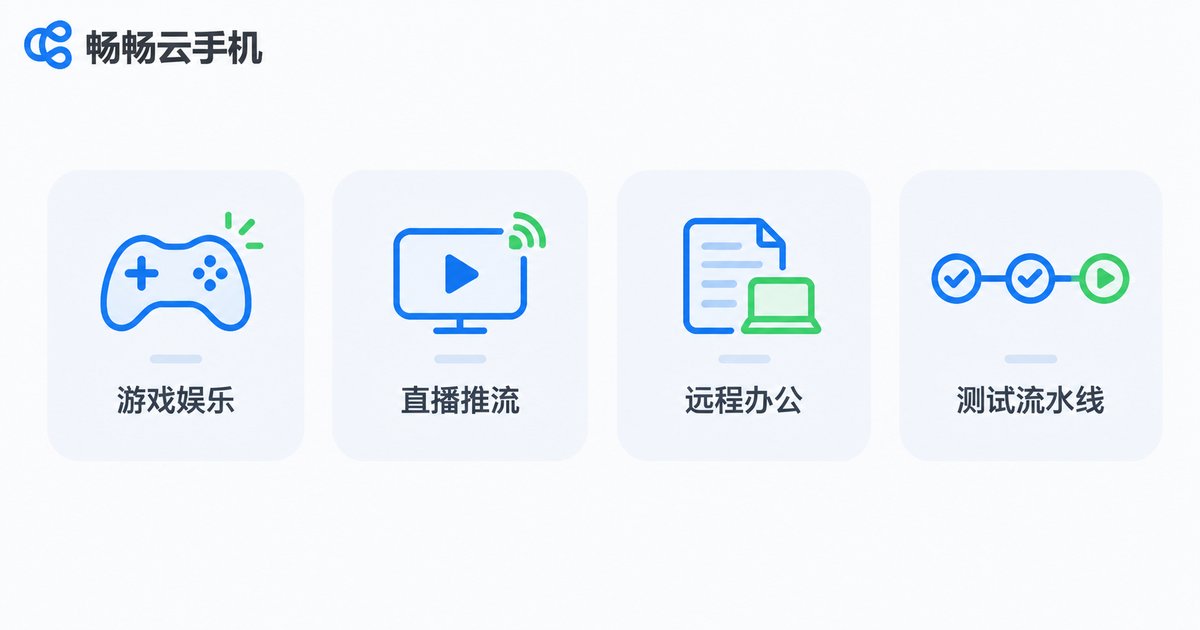
Scenarios Worth Enabling Low-Latency Mode
Low-latency mode is not better when left on all the time. It suits scenarios that are sensitive to reaction speed. These are the most common ones:
- Real-time competitive mobile games: in MOBA, shooter and racing titles, a few dozen milliseconds is often the difference between acting first and reacting second.
- Live streaming and screen demos: when the host operates in the cloud, viewers see the action in sync and interaction feels natural.
- Remote work and online teaching: spreadsheets, documents and software interfaces opened in the cloud follow your cursor and scrolling more closely, so you misclick less.
- Cloud game trials and cloud testing: in flows with rapid repeated taps, you stop double-checking whether a tap actually landed.
- Automation script debugging: if the screen comes back slowly, the logs and screenshots you read are out of date, and your judgment slips.
On the flip side, slow-paced needs such as watching videos, reading documents or running overnight idle tasks are better served by normal mode, which looks sharper and uses fewer resources.
Three Things to Check Before You Enable It
Many people turn on low-latency mode and feel no difference. Most of the time the problem is not the switch — it is one of these three things.
First, look at network quality, not network speed. Latency is sensitive to jitter and packet loss, not download throughput. A fast connection with heavy packet loss will still stutter; a stable Wi-Fi or 5G signal matters more than a link that merely looks fast. Run the built-in network test before you enable the mode and check latency and packet loss.
Second, know your device's decoding capability. Low-latency mode encodes more aggressively, and on an older phone or laptop the decoding load can cause slight stutter instead. In that case, drop the resolution or frame rate one notch so both ends have breathing room.
Third, decide whether you want clarity or responsiveness. Low-latency mode is fundamentally a trade-off: resources and bandwidth go to response speed first. Before switching it on, be clear about which one currently matters more to you.
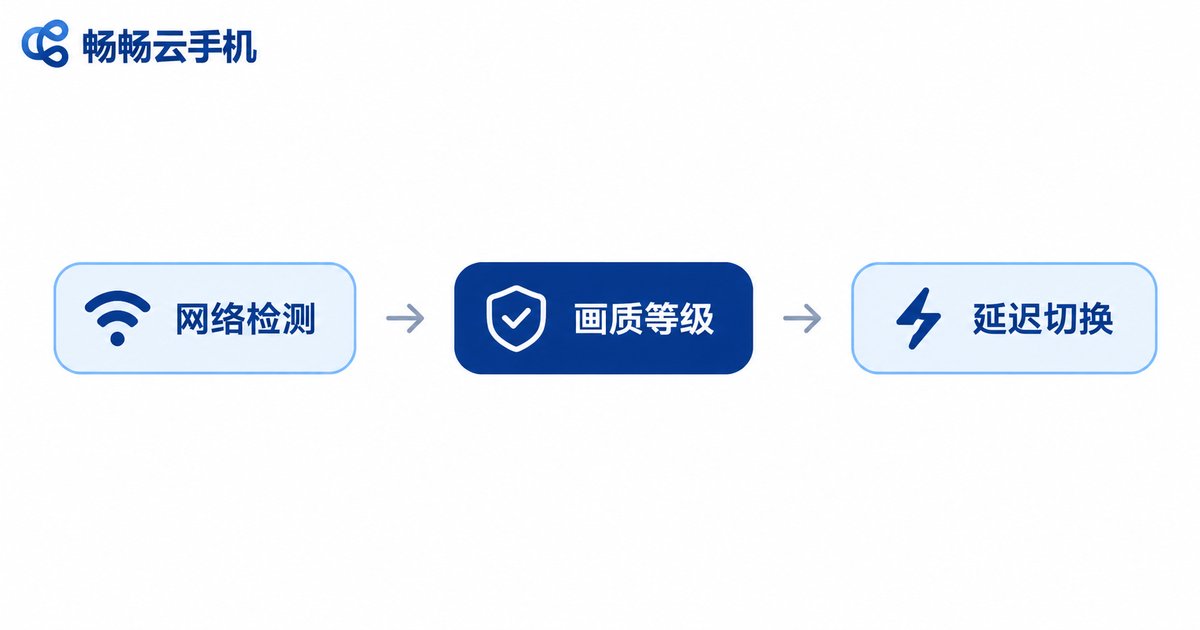
How to Enable Low-Latency Mode
Taking ccloudphone as an example, the whole flow is a few steps and takes about two or three minutes the first time:
- Sign in to the ccloudphone client and open the cloud phone instance you want to use.
- Open the instance's settings panel and find the network and display options.
- Switch the display mode to Low latency / Smooth first, and lower the resolution and frame rate one notch if needed.
- Return to the home screen and test a few swipes and taps to feel whether the responsiveness suits you.
- If the experience is not right, go back to the network test and fine-tune the settings instead of toggling the mode on and off.
Change only one setting at a time so you can tell which one made the difference.
Normal Mode vs. Low-Latency Mode
| Item | Normal mode | Low-latency mode |
|---|---|---|
| Input responsiveness | Average, steadier image | Noticeably more responsive |
| Image detail | Sharp and detailed | Slightly compressed |
| Bandwidth usage | Higher | Lower |
| Network sensitivity | More sensitive to speed | More sensitive to jitter and packet loss |
| Best for | Video, idle tasks, reading | Game battles, streaming, remote control |
Cautions When Using Low-Latency Mode
Do not force it on a weak network. When the network itself is unstable, low-latency mode makes stutter more obvious. Fix the network first, then talk about the mode.
Do not max out resolution and frame rate at the same time. Pushing both to the top gives back exactly the resources that low-latency mode freed up.
Watch how data usage varies by scenario. Low-latency mode usually uses less bandwidth, but if you stay on mobile data for long sessions, keep an eye on the total.
Mind device heat. Long sessions of rapid input keep the local device decoding continuously, which raises heat and battery drain. Short breaks are friendlier to your hardware.
Switch back when you are done. Low latency is not a permanent setting. After a stream or a match, normal mode is more comfortable for watching video.
Getting the Most Out of Low-Latency Mode on ccloudphone
ccloudphone provides Android instances that run in the cloud and stay online for long periods, while the client lets you switch display modes and quality levels locally at any time. For users who need to watch and act at the same time, treating low-latency mode as a temporary tool rather than a default is the safer habit.
In practice, run a network test inside ccloudphone first to confirm latency and packet loss, then decide whether low-latency mode is worth enabling. You will often find that most so-called cloud phone lag comes from network conditions and mismatched settings, not from the device itself.
FAQ
Q: I enabled low-latency mode but barely notice a difference. Why?
Check network jitter and packet loss first, then confirm your local device's decoding capability and current quality level. If all of these look fine, try lowering the resolution and compare.
Q: Does low-latency mode hurt image quality?
There is some compression, but usually only a small amount, mostly in fine detail and color gradients. For input-driven scenarios, that trade is worth it.
Q: Do I have to enable it to play games?
Enable it for real-time battles and fast-reaction gameplay. For idle and auto-battle titles, normal mode is sharper and lighter on resources.
Q: Wi-Fi or 5G — which suits low-latency mode better?
Both work. Stability is what counts. Choosing a stable, low-interference environment matters more than picking one network type.
Q: Do I have to switch manually every time?
Switching on demand is recommended. Go back to normal mode for video and documents, and enable low latency when you need responsive input — this balances experience and resource usage best.


