
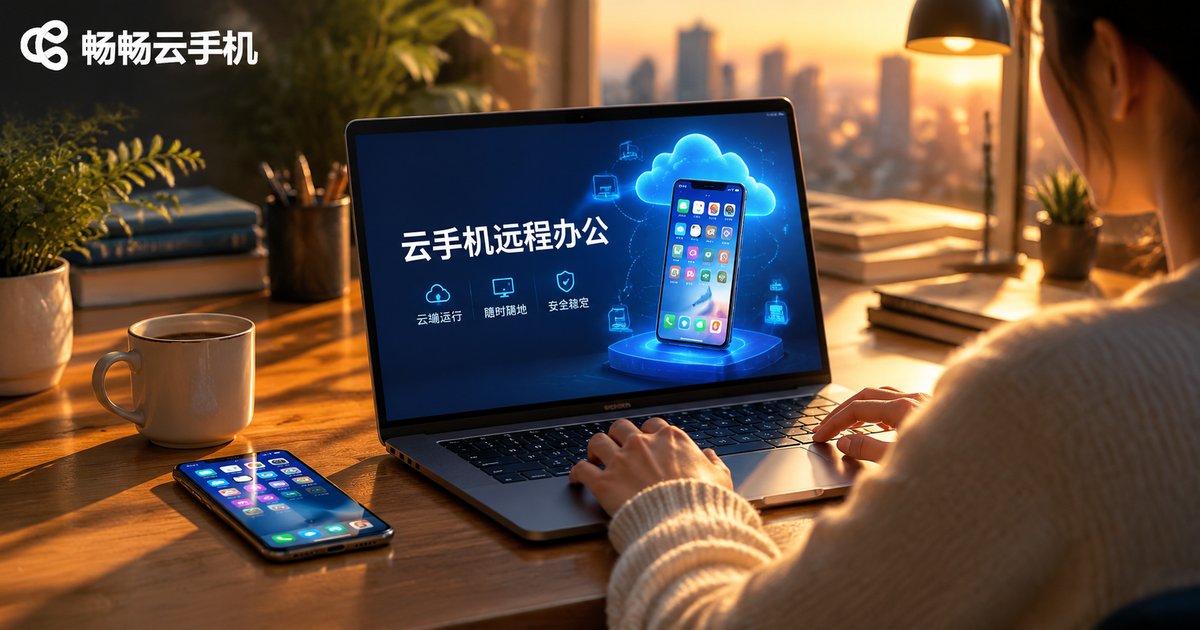
How to Use a Cloud Phone for Remote Work: Document Collaboration, Message Management, and Data Security
What Is Cloud Phone Remote Work?
A cloud phone is a virtual smartphone that runs in a cloud data center instead of in your hand. Your office apps, chat tools, and documents all live inside this 'phone in the cloud,' while the laptop, tablet, or spare phone in front of you is just a window for display and control. Computing happens in the cloud; your screen simply shows it. That is the basic principle of cloud phone remote work.
This model brings three immediate benefits: your work environment travels with you, so switching devices requires no re-setup; work apps stay fully separated from personal apps, so you can switch off after hours; and the cloud phone stays online around the clock, so messages never go missing just because your local device is powered down.
Document Collaboration: Your Office, in the Cloud
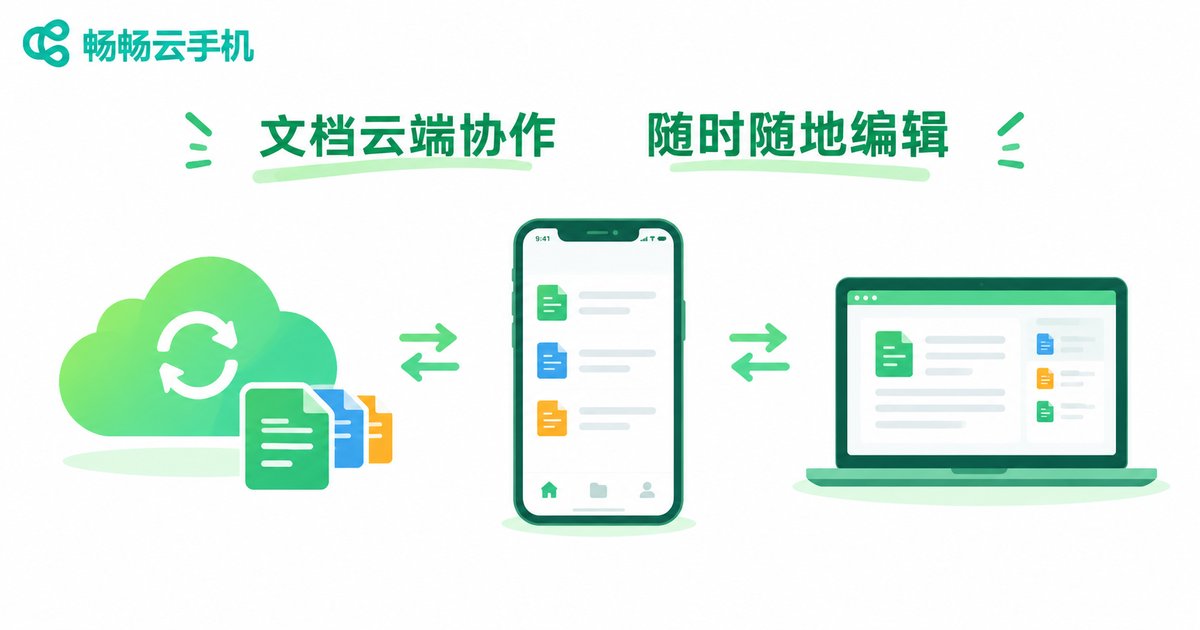
The classic headache of remote work is 'the file is on my other computer.' With a cloud phone, you install online document editors, cloud drives, and email inside the cloud phone itself. Files live in the cloud: teammates log in and edit in real time, and the version you see is always the latest.
A few practical tips:
1. Keep document apps in one place: Install your go-to document and cloud drive apps inside the cloud phone so every file has a single home—no more shuttling attachments between devices.
2. Share links, not files: When a colleague needs to weigh in, send a document link straight from the cloud phone; they open it and can view or edit immediately, avoiding version chaos.
3. Pick up where you left off: Edit a proposal from your phone during the commute, then log into the same cloud phone from your computer and continue seamlessly—your progress follows you.
| Aspect | Traditional Remote Work | Cloud Phone Remote Work |
|---|---|---|
| Device requirements | Tied to a specific computer or phone | Log in from any device |
| File storage | Scattered across local devices | Unified in the cloud |
| Device switching | Environment must be reconfigured | Log in and everything is restored |
| Message availability | Offline when the device is off | Online around the clock in the cloud |
| Data risk | Lost device can mean leaked data | Data stays in the cloud |
Message Management: Keep Work Chats Out of Your Personal Life
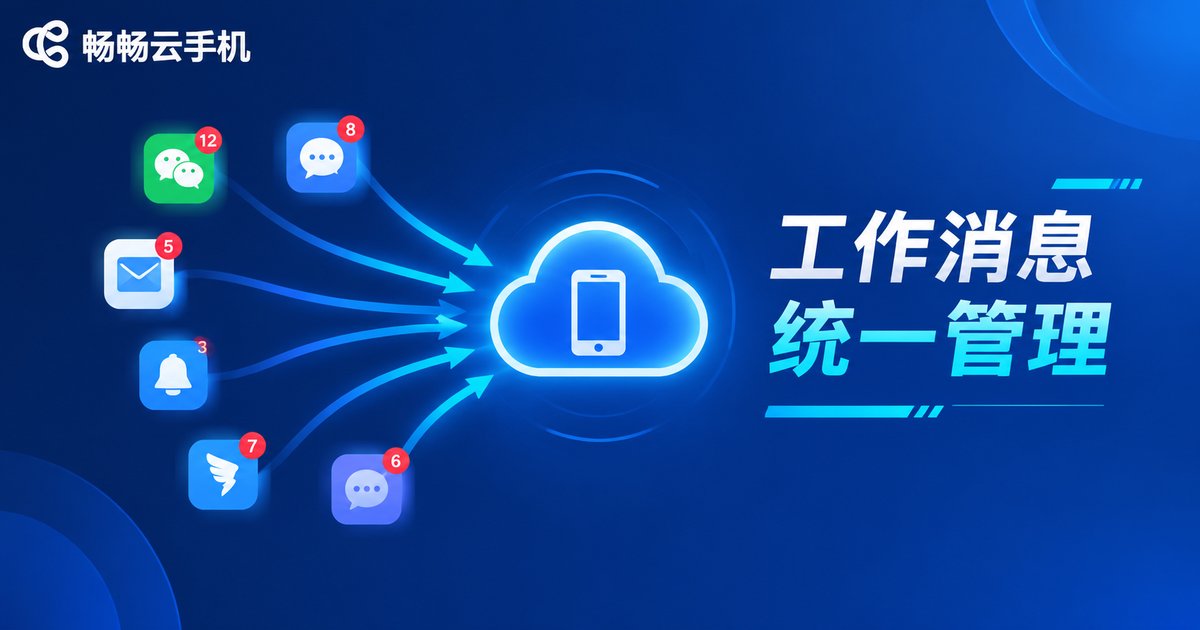
A common pain point: work group chats and family messages mixed in one phone, with important notices buried under stickers. A cloud phone can act as your dedicated 'work phone'—move all office communication apps into it and keep your personal phone for your personal life.
Why this works:
Focused handling: Every work conversation lives in one interface, so critical notices are far less likely to slip through.
Parallel identities: If you handle different project groups or client accounts at the same time, you can sign in to each inside the cloud phone without interference.
Always on: The cloud phone keeps running in the data center even when your local device is off; log back in and every message is waiting in order.
Data Security: Keep Business Data in the Cloud
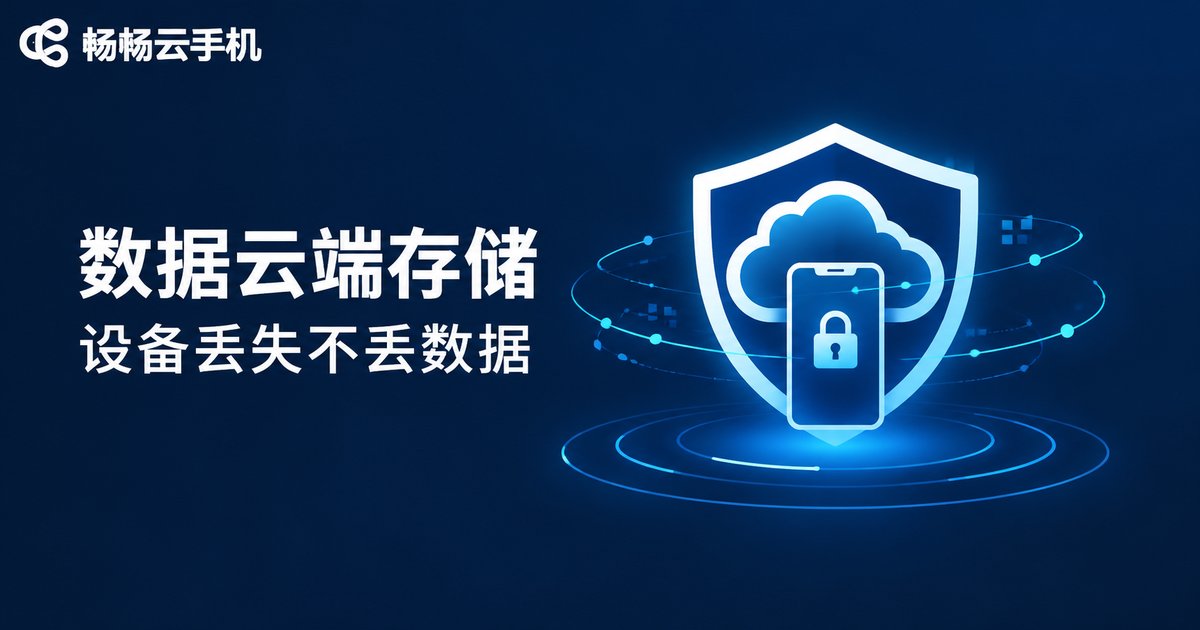
The biggest security risk of remote work is a lost device or an accidentally deleted local folder. Cloud phones ease this at the architectural level: work data lives primarily in the cloud data center, not on the local device.
In practice:
Losing the device doesn't mean losing data: If your phone is lost or broken, log into your cloud phone from any replacement device and your workspace reappears exactly as it was.
Work–life isolation: Work apps and data sit in the cloud phone's independent environment, separated from personal data on your local device, reducing cross-leakage risks.
Less left on the device: With documents edited online and messages stored in the cloud, little sensitive material remains locally—safer even if you lend the device to someone.
Of course, a cloud phone is not a magic safe. Keep good habits: use a strong password and change it regularly, avoid installing apps from unknown sources, and log out promptly when you step away.
Get Started with ChangChang Cloud Phone
Among cloud phone services, ChangChang Cloud Phone (ccloudphone) is a practical option worth considering. It provides an Android environment running in the cloud: after signing up, you can install document collaboration, communication, and other office apps inside the cloud phone and access it from multiple devices whenever you need—a full 'office' in your pocket. For the latest plans and feature details, visit the official ChangChang Cloud Phone website.
FAQ
Q: Does cloud phone remote work require a powerful local device?
No. Computing and storage happen in the cloud; your device only displays the screen and sends your taps. An ordinary phone or computer works smoothly—a stable network matters more than raw performance.
Q: Is the data in a cloud phone secure?
Cloud phone data is stored in the provider's data center with account-level isolation, so losing your local device does not directly expose your data. Pair that with strong password hygiene for double protection.
Q: Can I keep working if the internet drops?
Accessing a cloud phone requires a network connection. The cloud phone itself keeps running in the data center, so apps inside stay online during the outage—reconnect, log back in, and continue.
Q: How many work accounts can one cloud phone hold?
A cloud phone works like a regular phone, so you can sign in to any app normally. To run multiple accounts in parallel, combine several cloud phones according to the plans offered—see the official ccloudphone website for details.


