
Cloud Phone Applications in Online Education: Classroom Demos, Training Environments, and Usage Boundaries
When the Classroom Moves to the Cloud: New Infrastructure for Online Education
Over the past few years, online education has evolved from an emergency workaround into a routine teaching model. But teachers and administrators quickly hit a practical pain point: demonstrating and training on mobile apps is hard to do well in a conventional online class. To show how an app works, instructors hold a phone up to a webcam or wrestle with screen-mirroring cables; students assigned mobile testing exercises struggle with mismatched device models and OS versions.
Cloud phones fill this gap neatly. In plain terms, a cloud phone is an Android system running in a data center. It has a full phone interface where you can install apps, sign in to accounts, and perform everyday operations, but its body lives in the cloud while your local computer, tablet, or old phone serves merely as a window for viewing and control. For education, that means teaching environments can be built once, distributed on demand, and launched anytime.
Scenario 1: Classroom Demonstration — Put the Phone Screen in Front of the Whole Class
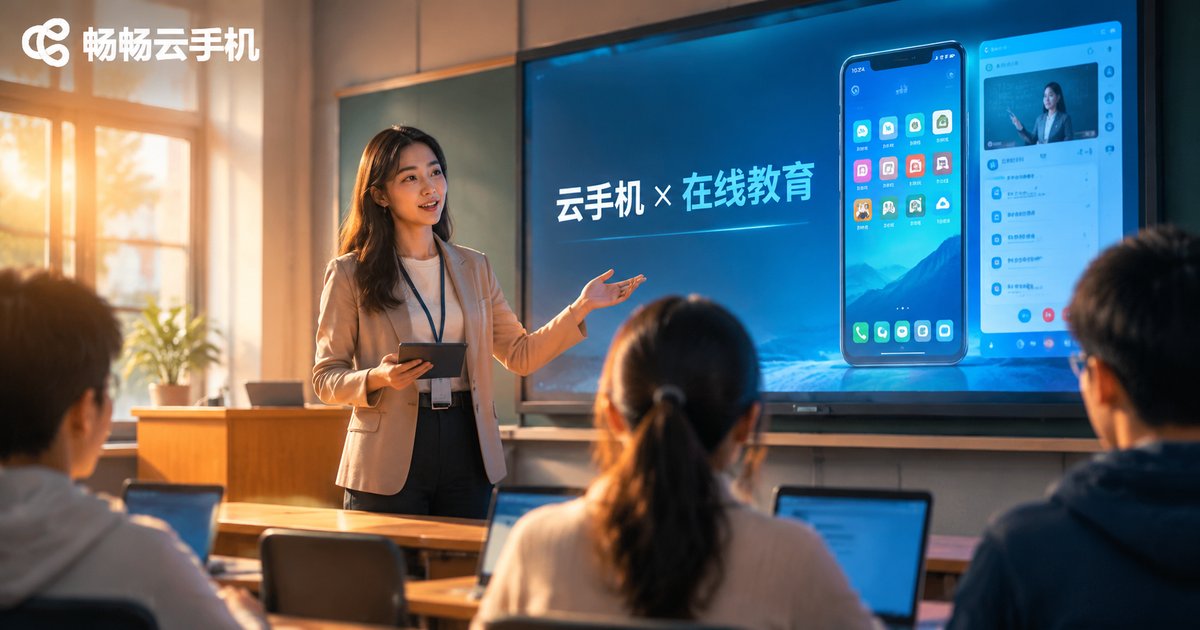
When teaching mobile office skills, short-video operations, or mobile UI design, instructors need a stable, sharp, livestream-friendly phone screen. Cloud phones offer several natural advantages here:
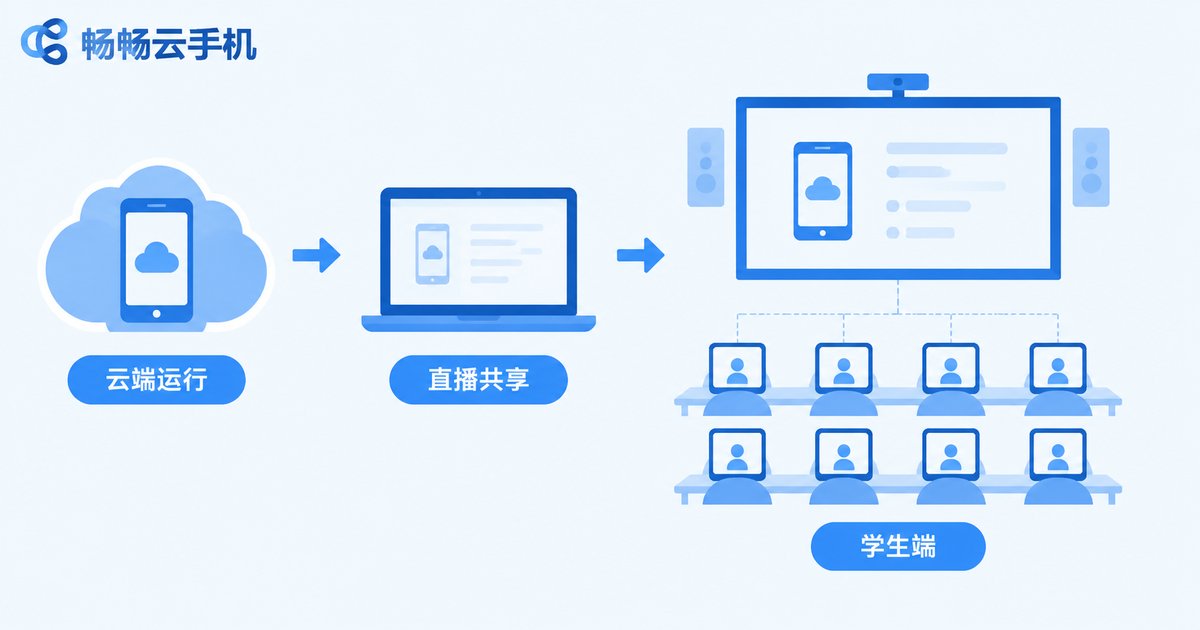
First, the picture comes straight from the cloud, independent of on-site hardware. The teacher opens the cloud phone client on a laptop and shares that window into the livestream software or classroom projector, so students see a native-resolution phone screen with no hand shake, glare, or blur.
Second, the demo environment can be prepared in advance. Accounts, apps, and sample data can all be configured in the cloud phone before class, so the lesson flows straight into the demonstration without frantic live setup.
Third, multiple cloud phones can run side by side. When explaining device adaptation or comparing different account perspectives, the teacher can open several cloud phone windows and switch between them, making the point far more intuitive for students.
Scenario 2: Training Environments — Give Every Student a Standard Device
If classroom demonstration solves seeing clearly, training environments solve practicing uniformly. In courses on mobile development, app testing, or new-media operations, the biggest headache is that student devices vary wildly: some run Android, some iOS, with different OS versions. Before a single test task gets done, half the session can disappear into environment troubleshooting.
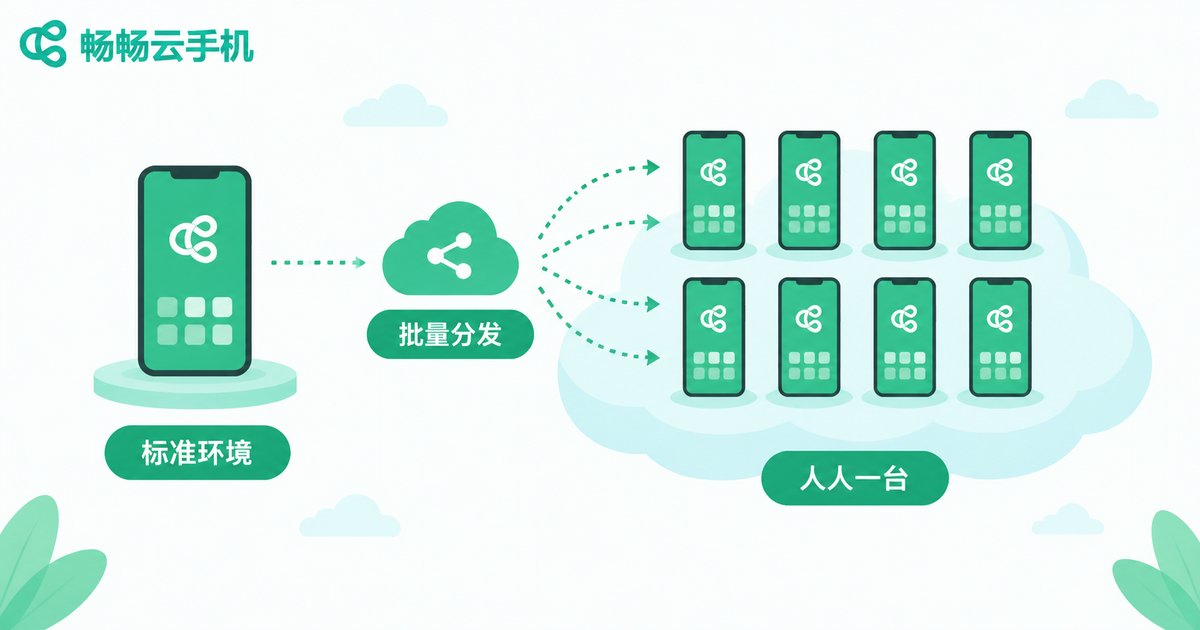
With cloud phones, the approach changes. The teacher first configures a standard teaching environment on one cloud phone — installing the course apps, signing in to test accounts, loading practice materials — then creates identical cloud phone instances in bulk, one per student, all consistent. Each student logs in from any internet-connected device they own and lands in exactly the same environment the teacher prepared.
Three side benefits follow: student devices stay protected, since experimental apps run in the cloud rather than cluttering personal phones; environments are saved and reproducible, so the next class continues from the last checkpoint and homework setups survive accidental deletion; and management is centralized, with batch install and cleanup letting teachers reset everything at the end of term.
Scenario 3: Usage Boundaries — What Fits, and What to Avoid
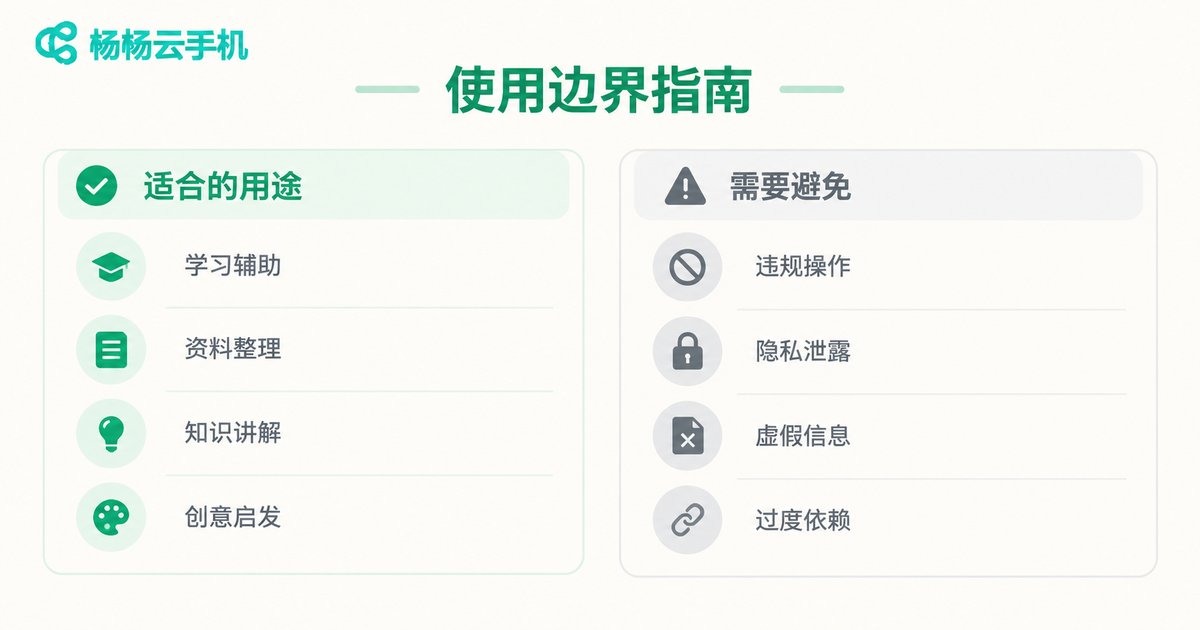
The handier a tool becomes, the more important its boundaries. In education, a cloud phone is a teaching efficiency tool, not an all-purpose shortcut. This table draws the line quickly:
| Suitable uses | Behaviors to avoid |
|---|---|
| Live classroom demos of mobile app operations | Exam answering, course auto-completion, or any dishonest shortcut |
| Mobile app development and testing practice | Bypassing platform or app security rules and terms of use |
| Distributing standardized practice environments | Storing or sharing copyright-infringing content |
| Repetitive workflow drills and procedure training | Practices that violate school IT management policies |
Beyond compliance, note two technical boundaries: cloud phones depend on network quality, so ultra-low-latency operations (such as competitive demos needing millisecond response) will feel network jitter; and any operation involving students' sensitive personal data deserves caution — use dedicated test accounts in shared teaching environments, avoid signing in to accounts holding large amounts of personal data, and clean up promptly after each course.
Rollout Advice: Three Steps to a Teaching-Grade Cloud Phone Setup
Step 1: define the teaching need. List which apps you will demonstrate, how many students need simultaneous access, and whether environments must persist. The more specific the requirement, the easier the selection.
Step 2: choose a reliable provider. Prioritize data-center stability, streaming smoothness, and batch management. Take ccloudphone as an example: it provides cloud Android instances with multi-device login management and always-on apps, covering both live demonstration and training distribution. Check the official ccloudphone website for current plans and pick according to your actual class size.
Step 3: pilot small. Validate the workflow with one or two classes or a single open lecture — pre-class setup, in-class demo, post-class cleanup — then scale gradually to the whole department.

FAQ
Q: Will the demonstration lag?
Smoothness depends mainly on your local network. Use a stable wired or high-speed Wi-Fi connection for teaching, and run a streaming test before class.
Q: Students lack powerful computers — can they still join?
Yes. All computing happens in the cloud; locally you only need any ordinary PC, tablet, or phone capable of playing a video stream smoothly. Older devices work fine.
Q: Can the whole class watch one cloud phone?
Yes. Through livestreaming or screen sharing, the picture reaches the entire class; keep control with the teacher or one designated student to avoid interference.
Q: Can cloud phones take exams or auto-complete courses for students?
No. Cloud phones are built for demonstration and practice; all assessments must follow school and platform rules — shortcuts only create compliance risk.
Q: How should data be handled after a course ends?
Build the habit of cleaning up immediately: sign out of test accounts, delete personal data, then have an administrator recycle or reset the instances to protect everyone's information.


