
Cloud Phone Remote Support Tips 2026: Screen Sharing and Collaborative Operations
Why Remote Support in 2026 Increasingly Runs on Cloud Phones
The old way of doing remote support is to ask the other person to send a screenshot, or to have them describe, step by step over the phone, what is on their screen. The setting you need is buried three menus deep, the app is stuck on a pop-up, the background process was killed by the system. These problems only exist on their machine, and explaining them by voice easily takes three or four rounds of back-and-forth. Half an hour is gone.
A cloud phone changes the approach: put the phone that needs support in the cloud, so both sides connect to the same device and the same screen. You do not need to remote control someone's real handset. You just share the cloud phone screen, and everyone can see it and, when needed, take over. This sidesteps cross-platform and cross-network compatibility issues, and it never touches the private content on the other person's own device.
Set Up a Shareable Cloud Phone in Three Steps
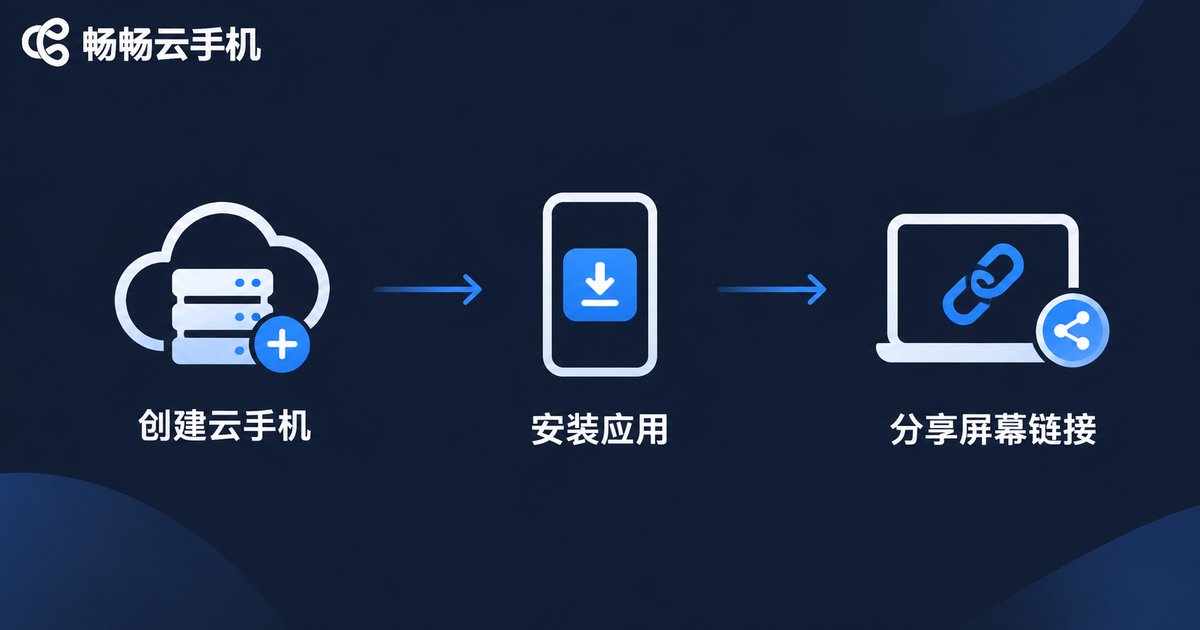
With ccloudphone, preparing a collaborative environment is straightforward and mostly done with a few clicks in the console:
Step 1: Sign in to the ccloudphone console and create a cloud phone instance
Step 2: Install the app that needs support inside the cloud phone (support desk, game, office software, etc.)
Step 3: Turn on screen sharing, send the collaboration link or room code to the other person, and they open it in a browser
No client software has to be installed on anyone's computer or phone. That is what makes cloud phones a good fit for remote support: the person being supported only has to look and click, with zero installation cost.
Screen Sharing Tips: Make It Clear and Keep It Responsive
Whether screen sharing works is not about whether the other person can see anything, but whether they can see it clearly and keep up. A few lessons that hold up in practice:
1. Let bitrate follow the network; do not force it to maximum. On a typical office connection, the smooth quality preset often beats high definition, because dragging lists and switching pages no longer produces large blocks of distortion.
2. Do not view portrait content in landscape. Many apps are designed vertically. Keep the original aspect ratio and scale to a comfortable size; it is far easier to identify button positions than stretching to fill the window.
3. Make the cursor obvious. When you say click here, a visible pointer trail beats ten sentences about the icon in the upper left corner.
4. When latency is high, lower resolution before lowering frame rate. Resolution affects clarity most directly, frame rate affects responsiveness most directly. Trade them off against what you actually need.
Collaborative Operations: From Telling to Showing
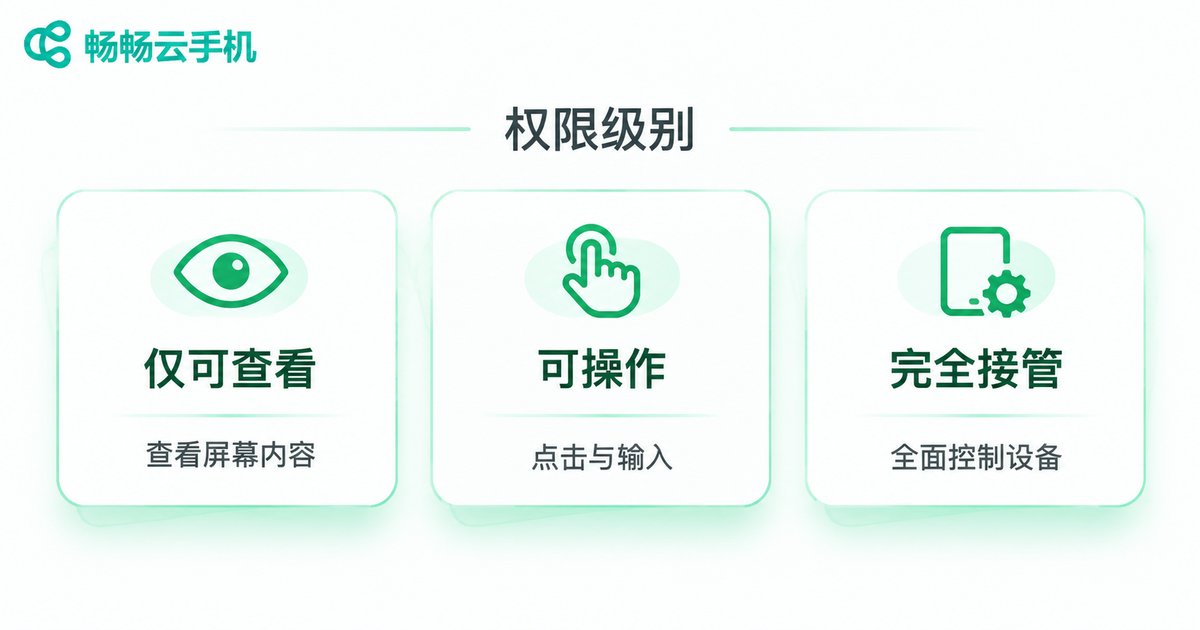
Screen sharing is only the first step. The real efficiency gain comes from collaborative operations. A common pattern is to split permissions into tiers and grant them temporarily:
| Permission tier | What it allows | Best for |
|---|---|---|
| View only | See the cloud phone screen in real time, no input | Training demos, multiple observers |
| Can operate | Click and type directly on the screen | The other person tries it while you watch |
| Full takeover | Complete control, including switching apps and changing settings | Tricky screens that need someone to step in |
The value of this structure: let the other person try first, and upgrade permissions only when they get stuck. That helps them remember the path through the app, so next time they will not need to ask anyone.
Three High-Frequency Scenarios That Feel Very Different
Customer support troubleshooting: when a user cannot describe which button they tapped, the agent simply looks at the shared screen and points to it in one sentence. The app is pre-installed in the cloud phone, so the user installs nothing on their own phone and their photo library and chat history stay private.
Onboarding and demos: the trainer operates one cloud phone while ten people watch, all seeing exactly the same screen. Anyone who wants to try it themselves gets a temporary can-operate permission, which is revoked right after.
Cross-device debugging: developers no longer need to collect every handset model. Reproduce one identical environment in a cloud phone, and colleagues can sign in from any browser on any computer to see the same live situation. Problem reports stop being a pile of screenshots.
Security and Permissions: Do Not Leave the Door Open
The most overlooked part of remote collaboration is what happens after it ends. A few habits are worth building: give collaboration links an expiry time so they die when the session does; revoke temporary permissions immediately; silence unrelated notification pop-ups during a shared session; and for anything involving account credentials, let the account owner type them rather than the person assisting.
ccloudphone instances run in isolated cloud environments, and collaboration happens only inside the cloud phone. It does not touch files or browser data on your local machine, which is a real relief when you are supporting someone outside your organization. Current configurations and plans are listed on the official website.
FAQ
Q: Can the other person see the screen without installing anything?
Yes. Screen sharing is usually accessed through a browser link, so they just open the page. No client required.
Q: What should I do if the shared screen stutters?
Lower the quality preset by one level first, then check the frame rate setting. Most stutter comes from bandwidth jitter, and one step down usually fixes it immediately.
Q: Can I let someone watch without letting them operate?
Yes. Set their permission to view only. That is the recommended tier for training, demos, and group observation.
Q: Will a cloud phone slow down my own computer?
The heavy computation happens in the cloud. Your machine only decodes and displays the video stream, so an ordinary office laptop runs it smoothly.
Q: If several people watch the same cloud phone, do they see different screens?
No. Everyone sees the same screen of the same device, perfectly in sync. That is the biggest advantage of cloud phone demos over having each person record their own screen.


