
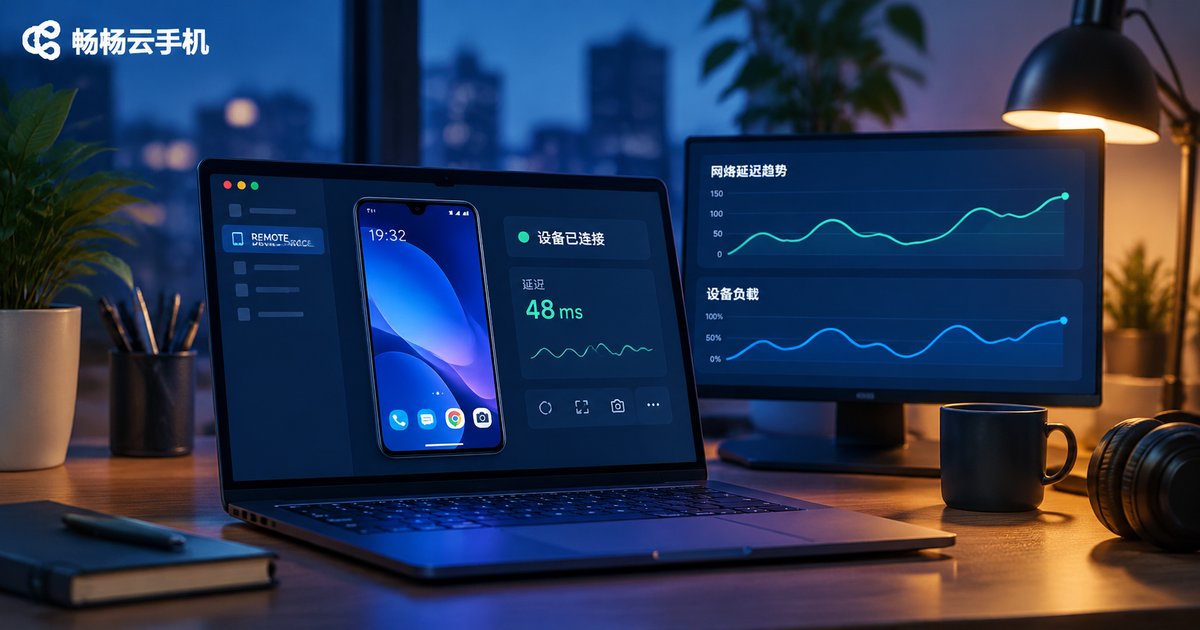
Cloud Phone Remote Real Device: Connection Methods, Screen Latency, and Testing Approaches
What Is a Cloud Phone Remote Real Device
A cloud phone remote real device is essentially a real Android phone running in a cloud data center that you operate remotely over the network. It runs on ARM servers with a complete Android system, so it can install apps, sign in to accounts, run games, and execute automation scripts.
Unlike an emulator on your computer, a cloud phone provides a real-device environment: independent device information, a genuine ARM instruction set, its own IP, and its own storage. For many scenarios that require a real device to pass detection, a cloud phone behaves much more like a physical handset.
Four Common Connection Methods
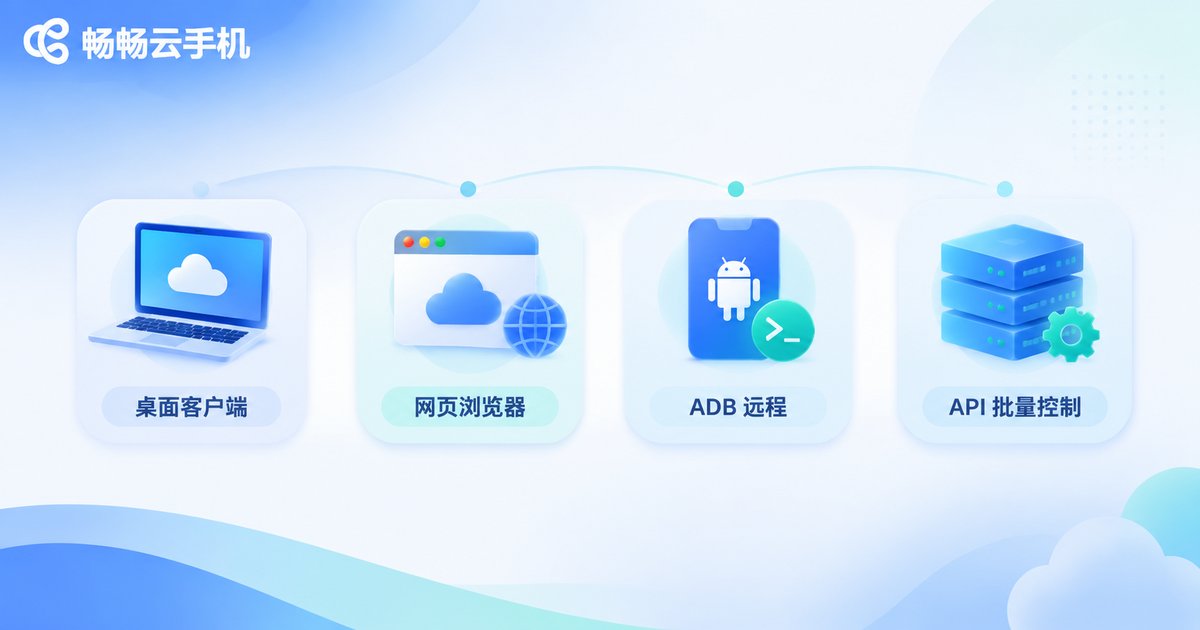
There are four main ways to connect to a cloud phone remote real device, and the right choice depends on what you need to do.
| Method | Best for | Pros | Limitations |
|---|---|---|---|
| Desktop client | Daily use, multi-instance management | Clear image, smooth controls | Requires installation |
| Web browser | Quick checks, cross-device access | No install, ready to use | Fewer features |
| ADB remote | Automated testing, scripting | Direct access to system capabilities | Needs technical skills |
| API / batch control | Bulk management, enterprise integration | Batch operations, easy to integrate | Depends on platform support |
For testers, the desktop client plus ADB is often the most efficient combo. For a quick login and check, the web browser is the easiest. When you need to manage dozens or hundreds of devices, API and batch control are the only practical options.
Where Screen Latency Comes From
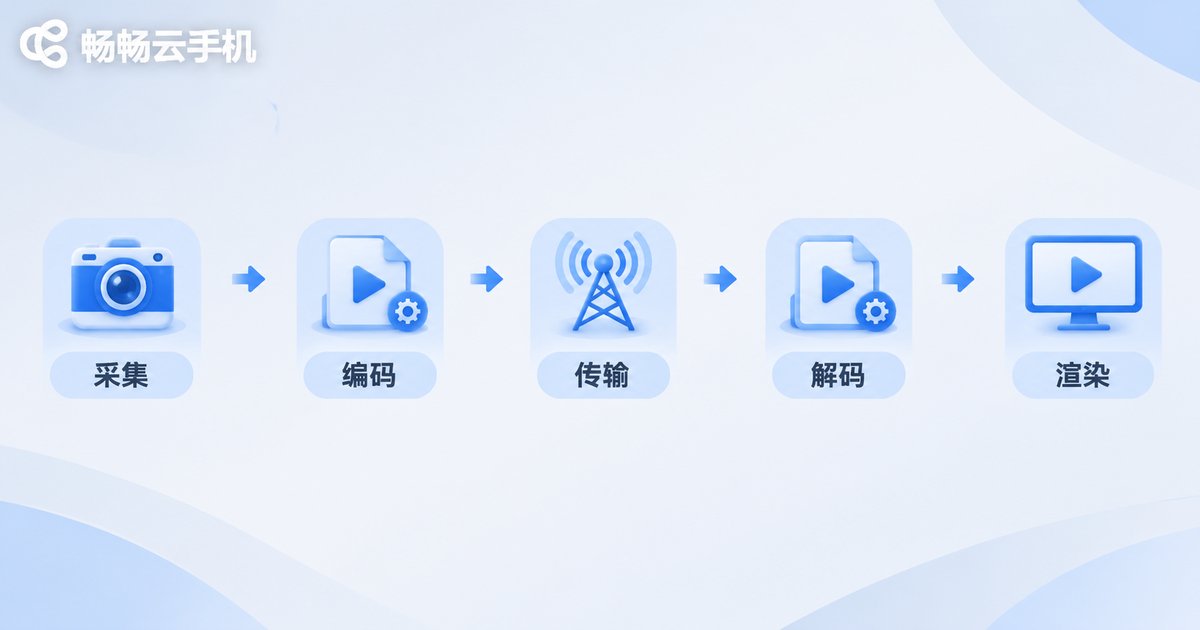
Many people blame the phone when a cloud phone feels laggy, but the real cause is the journey the image takes from the cloud to your screen. The full pipeline is roughly capture → encode → transmit → decode → render, and every step adds a little latency.
The biggest factors include network round-trip time (RTT), available bandwidth, codec choice (H.264 versus H.265), resolution and frame rate settings, current server load, and your local device's decoding performance.
| Factor | Impact on latency | How to tune |
|---|---|---|
| Network RTT | High RTT directly raises overall latency | Choose a nearby node, use wired network |
| Codec | H.265 saves bandwidth but needs more decoding | Match codec to device capability |
| Resolution and frame rate | Higher means better image and more latency | Lower to what is just enough |
| Server load | Heavy load slows down encoding | Choose a stable provider |
How to Test Latency
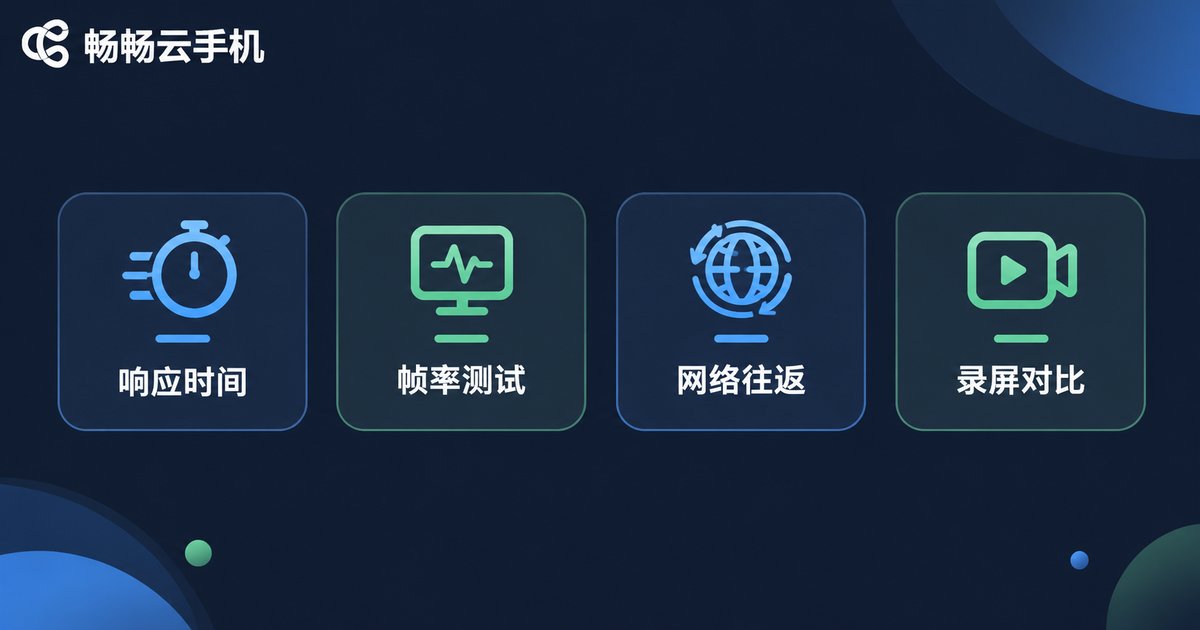
You should not judge latency by feel alone. A few simple methods can quantify it.
Method 1: Network round-trip test. Use ping from the cloud or your local machine to the node, and note the RTT — lower is better.
Method 2: Frame rate monitoring. Turn on the frame rate display inside the cloud phone and check whether the image stays at the expected rate during interaction.
Method 3: Screen recording comparison. Record both your tap action and the screen response, then compare frame by frame to measure the gap.
Method 4: Automation scripts. Use ADB or the platform API to send a tap with a timestamp, then read the time the screen changes for repeatable, objective data.
Combining these methods tells you whether latency comes from the network, your settings, or your local device.
How to Reduce Latency and Choose the Right Service
Optimizing latency is not complicated: pick a nearby node, use a wired connection where possible, lower resolution and frame rate to what you actually need, and enable hardware decoding locally. These adjustments often bring clear improvement.
When choosing a service, Ccloudphone (ccloudphone) provides cloud-based Android real-device environments built on ARM architecture, supporting desktop clients, web access, and APIs. It suits app testing, multi-account management, and automation scenarios. Please refer to the official website for the latest configurations and plans, and pick an instance spec that matches your actual use case.
Frequently Asked Questions
Q: How is a cloud phone different from an emulator?
An emulator runs on your computer as a virtualized environment, while a cloud phone runs on cloud ARM servers and behaves much more like a physical device, with more realistic device information and instruction set.
Q: What latency is considered normal?
Under normal network conditions and reasonable settings, the delay from action to screen response is usually acceptable. If it feels clearly laggy, check network RTT and local decoding performance first.
Q: How can I quickly test latency myself?
First use ping to check node round-trip time, then watch whether the frame rate is stable, and finally compare tap to response with a screen recording or script. All three together help you locate the issue.
Q: What if the connection is unstable?
Switch to a wired network, choose a closer node, lower resolution and frame rate, and make sure your local device is not overloaded by background tasks.
Q: Is a cloud phone suitable for automated testing?
Yes. Through ADB or platform APIs you can issue batch commands and capture screens, which is far more efficient than repeating manual operations on a single physical phone.


