

Cloud Phone ARM Servers: Runtime Environment, Resource Allocation and Usage Guide
What a Cloud Phone ARM Server Actually Is
A cloud phone is not a device you hold in your hand. It is a phone running on a server inside a data center. When you tap your local screen, the input travels over the network to the cloud, where the computing and rendering happen, and the resulting frames are streamed back to your display in real time. The physical machine that hosts these virtual phones is what we call a cloud phone ARM server.
Contrary to intuition, the best hardware for running Android instances is often not a standard x86 server but one built on ARM architecture. The reason is straightforward: apps and games in the Android ecosystem are almost all compiled for the ARM instruction set, so running them natively on ARM avoids any instruction translation layer, delivering compatibility and efficiency much closer to a real device.
Runtime Environment: What Runs on an ARM Server
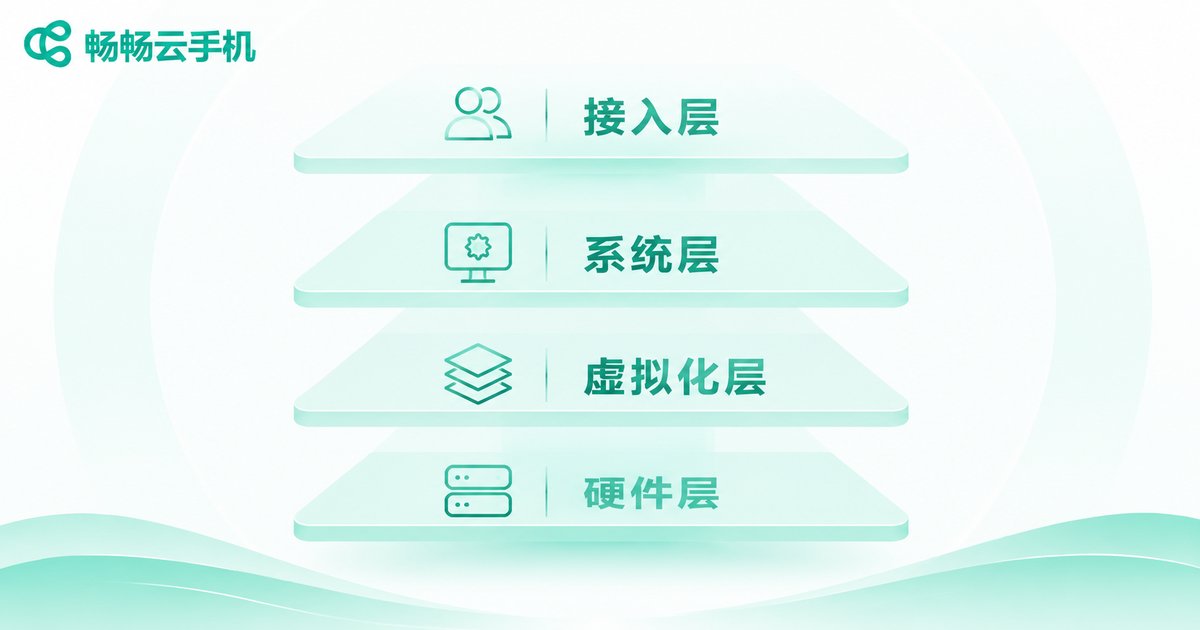
If you break a cloud phone ARM server down, it consists of several layers, and each one affects your actual experience.
Hardware layer. Multi-core, high-clock ARM processors, large memory and fast solid-state storage. A single machine hosts many phone instances at once, so the balance between core count and per-core performance matters a lot.
Virtualization layer. Splits physical resources into independent Android instances and schedules CPU time slices, memory and storage I/O. When this layer is well built, multiple instances do not fight each other for resources.
System layer. The cloud provides Android images of different versions. Apps only run on the Android version they support, so confirm the minimum system version your key apps require before choosing an image.
Rendering layer. Frames are not computed pixel by pixel on the CPU. A GPU or dedicated encoder handles rendering and video encoding, then streams the result to your device. This is what allows a cloud phone to feel close to local smoothness.
Network layer. Each cloud phone usually gets its own public address, and upstream and downstream bandwidth determine stream latency and file transfer speed. When bandwidth is short, the picture blurs first and then stutters.
ARM versus x86 in Practice
| Item | ARM cloud phone | x86 cloud phone |
| App compatibility | Native execution, most apps work out of the box | Requires a translation layer; some apps may crash |
| Performance overhead | Low, close to a real device | Translation adds measurable overhead |
| Instance density | More instances per machine, friendlier cost | Lower density at the same configuration |
| Best for | Mobile games, short video, social apps, bulk operations | Certain custom toolchains and niche cases |
The conclusion is simple: if your apps come from an Android app store, ARM is almost always the better default. Only when you depend on a specific toolchain do you need to evaluate x86 seriously.
Resource Allocation: How to Size Without Wasting Money
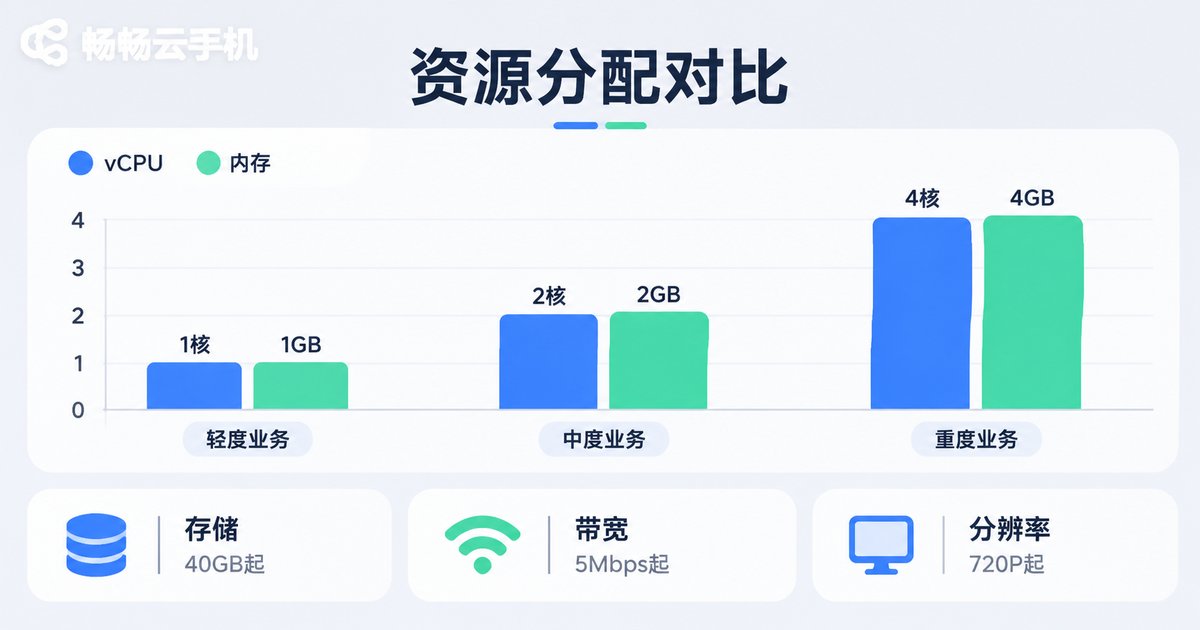
A cloud phone configuration is usually defined by a handful of parameters: vCPU cores, memory, storage, resolution and public bandwidth. Below is a reference table organized by workload.
| Scenario | vCPU | Memory | Storage | Resolution |
| Everyday apps, background tasks | 2 cores | 2–3 GB | 20 GB | 720P |
| Single mobile game, short video | 4 cores | 4–6 GB | 32–64 GB | 1080P |
| 5–20 parallel instances | 8+ cores | 16 GB+ | 100 GB+ | 1080P |
| Automation scripts, batch management | Scales with concurrency | Roughly 1:1 with instances | Based on app size | 720P–1080P |
Three practical rules:
First, memory becomes the bottleneck before CPU does. Android itself and modern apps are memory hungry. When memory runs short, the system aggressively reclaims background processes, which shows up as apps being killed and scripts breaking.
Second, resolution affects more than sharpness. Higher resolution increases GPU rendering and video encoding load. If bandwidth cannot keep up, the experience gets worse, not better. For large batches, 720P is often more cost effective than 1080P.
Third, leave storage headroom. The Android system, app caches, screenshots and recordings all consume space. Add about thirty percent on top of your estimate.
Usage Guide: From Provisioning to Running
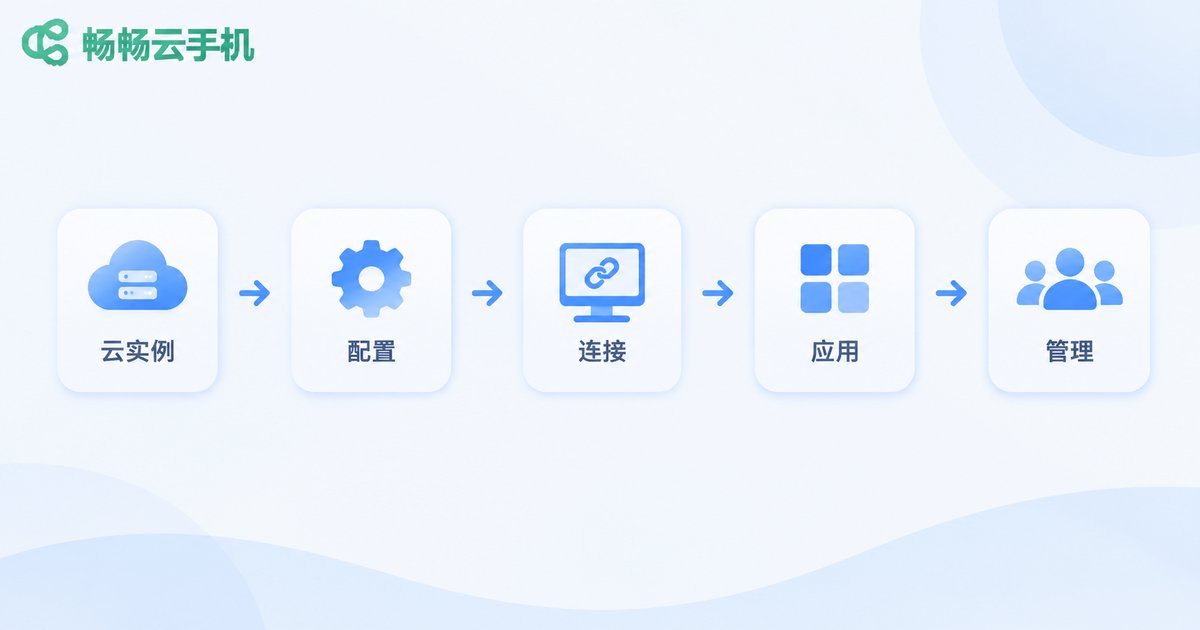
Once the configuration is settled, the operating flow is fairly standard. Just follow it in order.
Step 1: Provision the instance. Create an instance in the cloud phone console and choose the region, system image version and the configuration you decided on. Keep the same business in the same region to noticeably reduce input latency.
Step 2: Confirm the system image. Check the minimum Android version your key apps require and whether you need Google services or other runtime components. Choosing the wrong image makes every later problem harder to diagnose.
Step 3: Connect to the device. There are three common methods: a desktop client, a web console, or ADB and open APIs for your own management system. Use the client or web console for daily work and the API route for automation.
Step 4: Install apps. Search and install from the cloud app market, or upload an APK and install it across multiple instances at once instead of repeating the same steps manually.
Step 5: Multi-instance and group management. Put instances belonging to the same business into one group, then install, launch and capture screenshots in bulk. Clean grouping dramatically lowers maintenance effort later.
Step 6: Set keep-alive and power schedules. For workloads that must stay online, enable keep-alive and disable automatic system cleanup. For daytime-only work, scheduled shutdown saves a meaningful amount of resources.
Common Performance Issues and How to Triage Them
Stuttering picture and high input latency. Check your local network first, then whether the instance region is far from you, and finally whether bandwidth is being consumed by a large download on the same instance.
Apps crashing repeatedly. Most often this is insufficient memory or a system version mismatch, followed by the app validating the device model. Investigate step by step rather than blindly upgrading the configuration.
Slow uploads and downloads. File transfer uses cloud bandwidth, which is not the same as your home broadband. Batch transfers are best done off peak or in smaller chunks.
Instances competing under heavy multi-instance load. This usually means resource-heavy instances landed on the same physical machine. Spread them out or isolate the heavy ones into their own group.
Why Many Teams Choose Ccloudphone
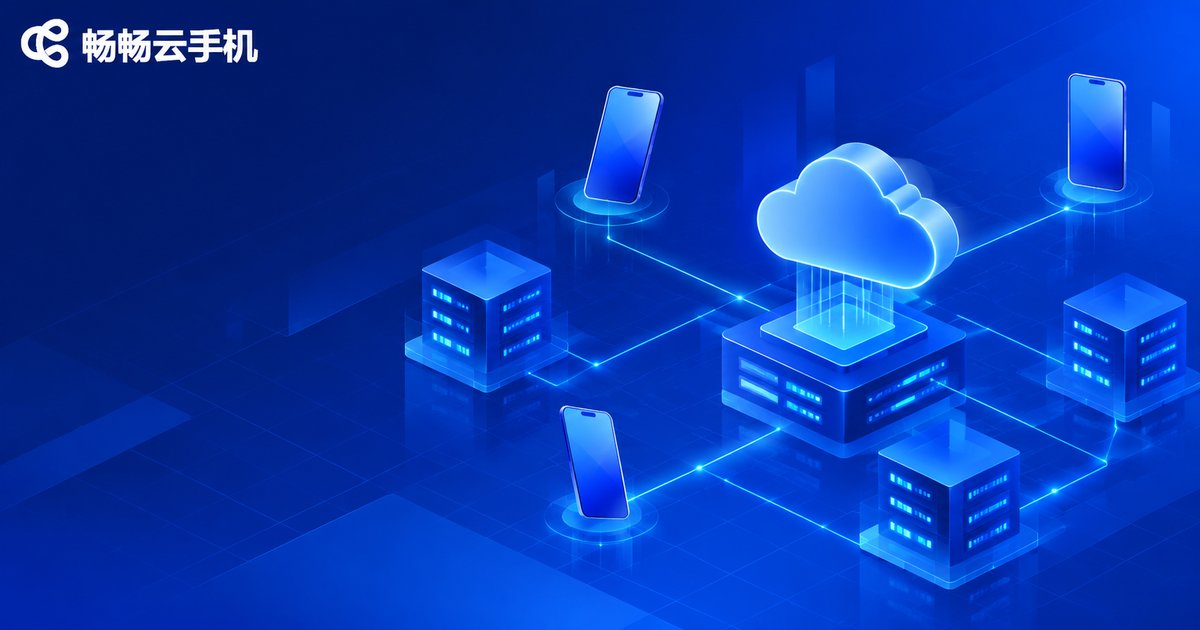
Ccloudphone provides cloud Android instances on ARM servers, so compatibility stays close to a real device and common apps and mobile games install and run directly. The console supports bulk creation, group management and unified operations across multiple instances, and with web and desktop clients you can do everything from a computer.
For workloads that need to stay online for long periods, Ccloudphone offers keep-alive mechanisms and a stable runtime environment, reducing interruptions caused by instances being reclaimed. If you plan to move a batch of work to the cloud, start with a small number of instances, validate the workflow, and then scale according to real load, which also makes configuration sizing far more accurate.
Frequently Asked Questions
Q: How is a cloud phone different from an emulator?
An emulator runs on your own computer and consumes local CPU and memory, and it stops when you shut down. A cloud phone runs on an ARM server in a data center, stays online around the clock, and your local device only displays the picture and sends input.
Q: Why do cloud phones use ARM servers instead of ordinary servers?
Because Android apps are almost all compiled for the ARM instruction set. A native ARM environment needs no translation layer, so compatibility and efficiency are closer to a real device and the overall cost of multi-instance hosting is lower.
Q: How much memory does one cloud phone need?
For a single lightweight app, 2–3 GB is usually enough. For mobile games or short video, 4–6 GB is recommended. If several apps stay resident for long periods, go higher.
Q: How do I avoid over- or under-provisioning?
Start with a mid-range configuration on your real workload, then watch memory usage and stutter for one to two weeks before deciding to upgrade or stay. Adjusting to actual load is more economical than maxing out from day one.
Q: Can a cloud phone stay online long term?
Yes. Choose a solution that supports keep-alive and disable automatic system cleanup, and the instance runs stably for extended periods regardless of whether your local computer is on.


