
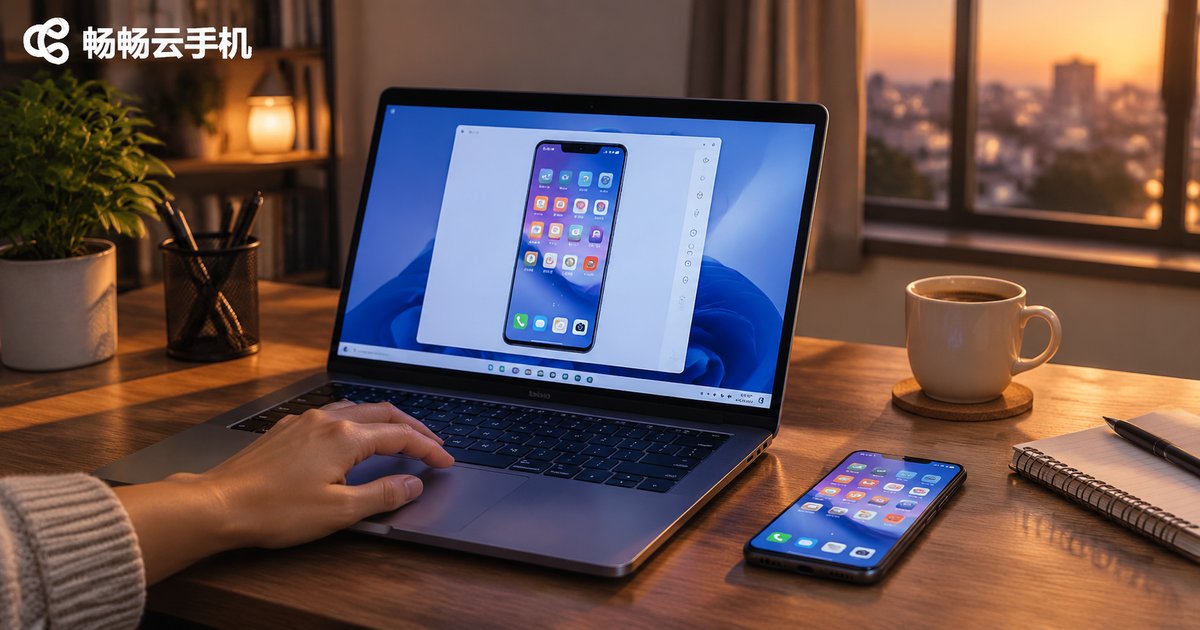
Cloud Phone and Cloud Real Device: Remote Operation, App Testing, and Use Cases
Cloud Phone vs Cloud Real Device: What Actually Differs
When people first hear “cloud phone,” many assume it means a handset sitting in a data center. That is half right. A cloud phone usually refers to a virtual phone instance running in the cloud, with its own system, storage, and network, which you access through a desktop or mobile client. A cloud real device usually means a physical handset in a data center, with a real chip and a real screen, scheduled remotely for your use.
The similarity is obvious: the device is not in your hand, but operating it feels like it is. The difference is equally obvious: virtual instances are cheaper, batchable, and resettable at any time, while physical devices behave closer to the phone your users actually hold, with more trustworthy graphics, sensor, and performance data.
How Remote Operation Actually Works
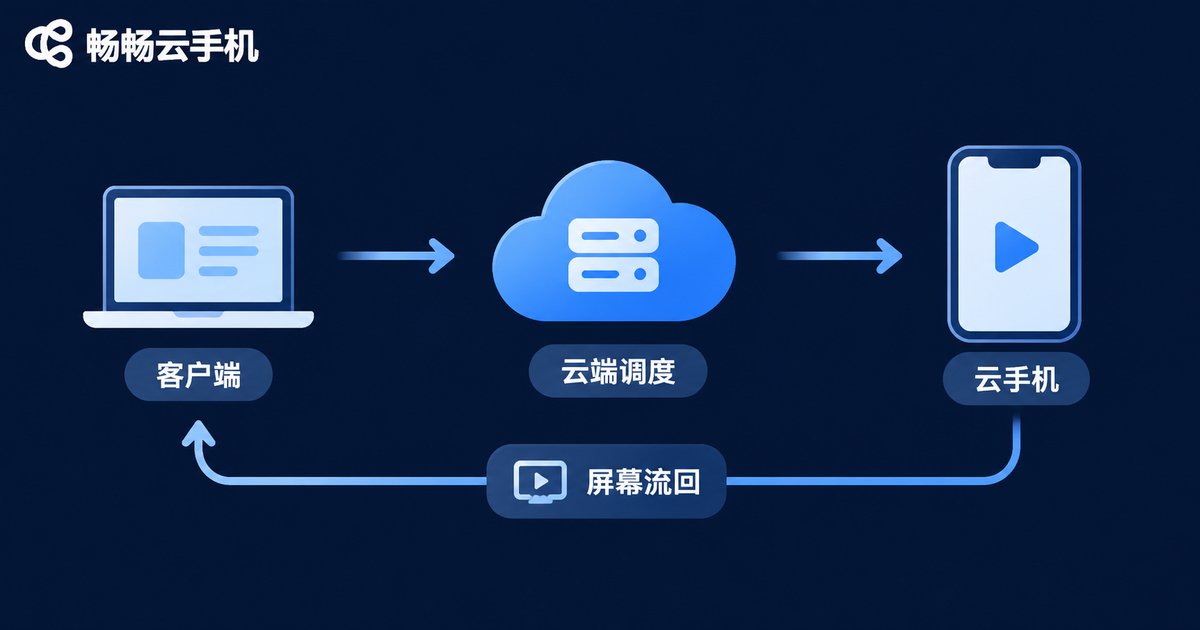
The pipeline is broadly the same for both: your client encodes taps, swipes, and keystrokes into commands, the cloud scheduler routes them to the right device, the device executes and streams the screen back in real time, and your client decodes and displays it. All of this happens within a few hundred milliseconds, so it feels like you are touching your own phone.
What separates a good service from a mediocre one comes down to three things: latency, image quality, and stability. High latency makes swipes trail and taps miss. Over-compressed video turns tables and text into mush. An unstable node drops your session in the middle of the night. So check data center location and network quality first, and feature lists second.
App Testing: Where Cloud Real Devices Earn Their Keep
For development and QA teams, the problem is very concrete: you cannot buy every phone model on the market, but you still need to know how your app behaves on them.
Three high-frequency testing moves:
- Compatibility coverage: install the same build on devices from different brands, system versions, and screen sizes, then watch for crashes, blank screens, broken layouts, and odd permission dialogs.
- Automated regression: push your UI automation scripts onto a cloud device queue, run the full suite overnight, and read the report in the morning.
- Issue reproduction: when a user reports “it always crashes on this model and this OS version,” spin up the same model and version, reproduce within minutes, and record the screen as evidence.
Compared with buying a pile of test phones, the value of cloud real devices is not “more devices” but always being able to reach the exact one you need, then releasing it. No desk space, no depreciation.
Four Common Use Cases
1. Remote work and device hosting: put core work accounts, business accounts, and admin tools on cloud devices so switching laptops or locations does not change your login environment or trigger endless verification loops.
2. Multi-instance and account management: operations teams often maintain several accounts at once. Separate cloud instances keep things clean and independent, and make it easy to check status in one place.
3. Content operations and streaming support: short video, live streaming, and community work often need long online hours. Park always-on tasks on cloud instances so your local phone stays free, and network and battery stop being bottlenecks.
4. Teaching and training: schools and training providers running mobile courses no longer need one physical phone per student. Provision a batch of cloud devices, let learners connect from a browser or client, and reclaim everything when class ends.
How to Choose Between the Three Options
None of the three is universally better; it depends on the problem you are solving. The table below is a good starting point.
| Dimension | Cloud phone (virtual) | Cloud real device (physical) | Local device |
|---|---|---|---|
| Form factor | Virtual phone in the cloud | Real handset in a data center | The phone in your hand |
| Cost structure | Lower, provision on demand | Moderate, rent by time slot | One-time purchase, wasted when idle |
| Model coverage | Create many identical instances | Covers mainstream brands and models | Limited to what you bought |
| Reset effort | One-click reset, reinstall anytime | Resettable, but queued | Manual reflash, slow |
| Best for | Multi-instance, always-on, batch ops | Compatibility and performance testing | Daily use, light debugging |
In one line: want scale and flexibility, go virtual; want fidelity and accuracy, go physical; just want a quick look, your own phone is enough.
What to Check When Picking a Cloud Phone Service
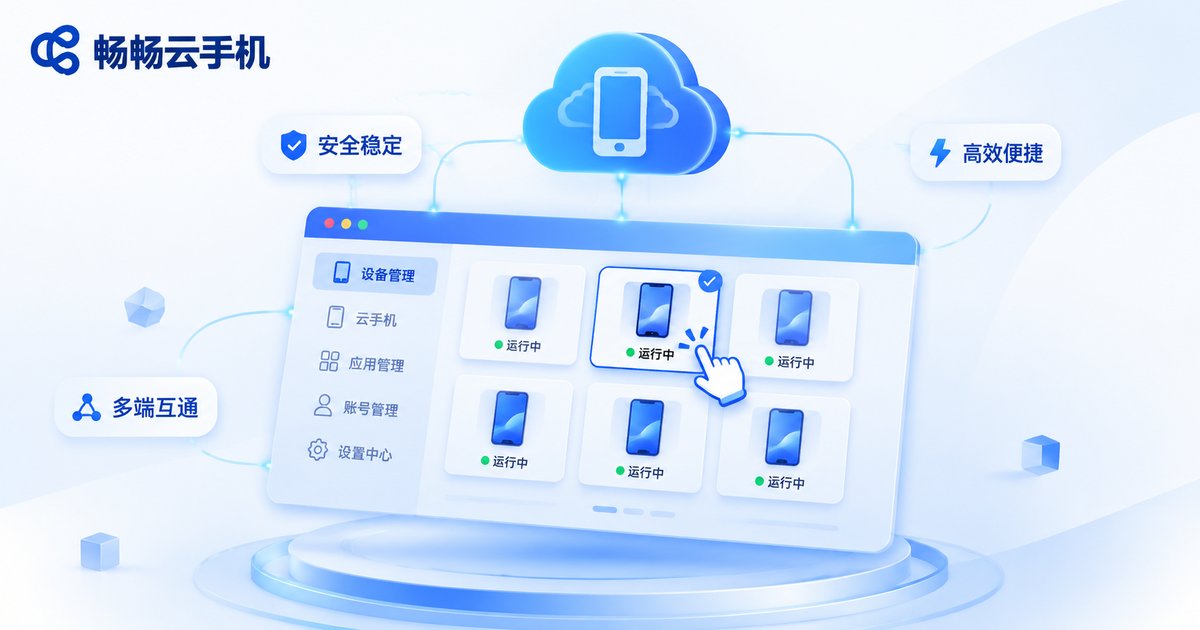
Take ccloudphone as an example. Services in this category compete on a handful of things: how responsive remote control feels, how well multiple instances are managed in parallel, how efficient batch operations are, and how stable long-running sessions stay. Check them in this order rather than starting from price:
- Latency and image quality: after connecting, test swipes, typing, and video playback to judge whether it feels responsive.
- Device specs: apps differ a lot in performance, OS version, and aspect ratio requirements. Confirm the specs you need exist first.
- Batch and reset: if you plan to run multiple instances, look closely at batch creation, batch restart, and one-click factory reset.
- Uptime and stability: always-on workloads hate 3 a.m. disconnects. Run a small instance for a few days continuously before scaling up.
- Data and permission management: for team use, clear account permissions and operation logs directly reduce long-term maintenance cost.
For specific device types, session lengths, and pricing, refer to the official ccloudphone website and estimate based on your own usage.
Getting Started: From Signup to Your First Working Task
1. Visit the ccloudphone website, register, and log in to the console
2. Pick an instance spec that fits your workload and create a cloud device
3. Wait for the instance to boot and open the remote control view
4. Install or import the apps you need and sign in to your accounts
5. Tune resolution and quality presets to balance latency against clarity
6. For multiple instances, copy the configuration and create them in a batch
7. Clean up: release instances you no longer need to avoid idle cost
If you are testing, start with the shortest possible path: install, launch, log in, run the core flow. Confirm it feels smooth before you scale out.
FAQ
Q: Can cloud phones and cloud real devices replace each other?
In many scenarios they are close enough, but they are not identical. Virtual instances suit high-volume, always-on, frequently reset workloads. Physical devices suit testing where rendering fidelity, sensors, and performance numbers matter.
Q: Is remote control latency uncomfortable?
It depends on data center distance and network quality. Everyday swiping, tapping, and typing usually feel fine. For extremely latency-sensitive actions such as competitive gaming, try a small instance first before deciding.
Q: Is data on cloud devices safe?
The service provider matters, and so do your habits: never share credentials, grant permissions on a need-to-know basis, clean sensitive data from devices after a task, and enable two-factor authentication on important accounts.
Q: Can one person manage many cloud devices?
Usually yes, through batch operations and a unified console. Standardize the repetitive steps (install, sign in, verify) and then use batch create, batch restart, and batch screenshots to work through them in groups.
Q: How many instances should a first-time user start with?
One is the safest start. Spend two or three days running your usual workflows, confirm latency, stability, and features meet expectations, then add instances as your needs grow.


