
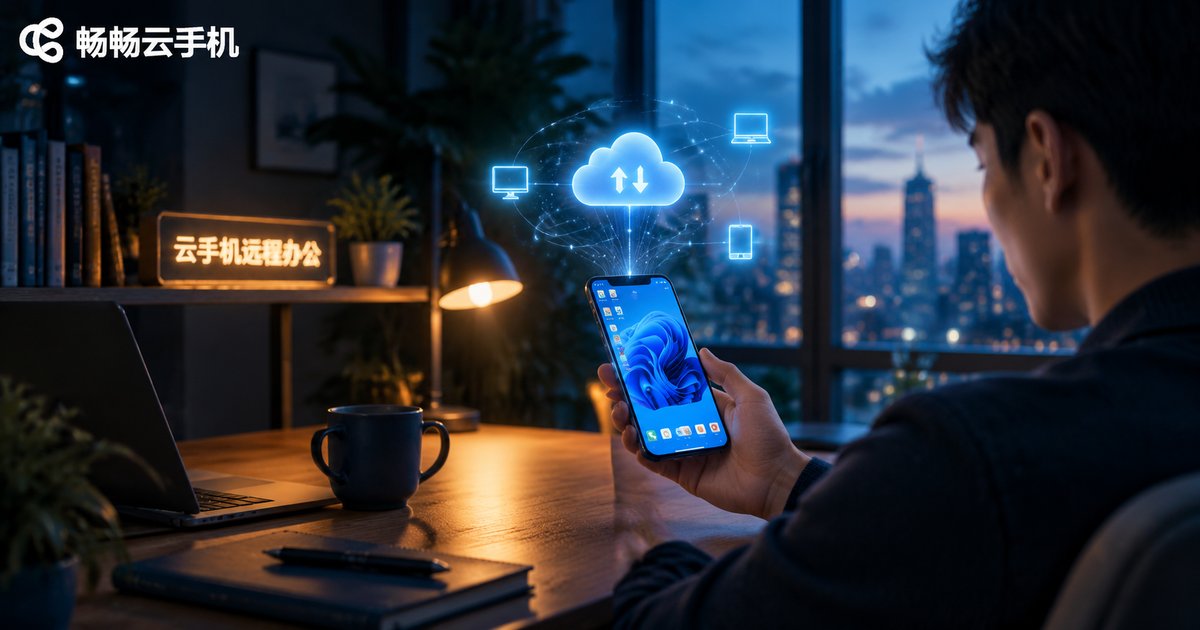
Cloud Phone Remote Work Setup Guide: Secure Access to Enterprise Intranet and Business Systems
The Biggest Remote Work Pain Point: Loss of Data Control
As more teams shift to remote and hybrid work, a hidden risk grows along with them: employees log into company systems from personal phones, and before anyone notices, customer records, order data, and financial reports are sitting on private devices. If a phone is lost, an employee leaves, or a file is simply forwarded once, the company's core data is completely out of control.
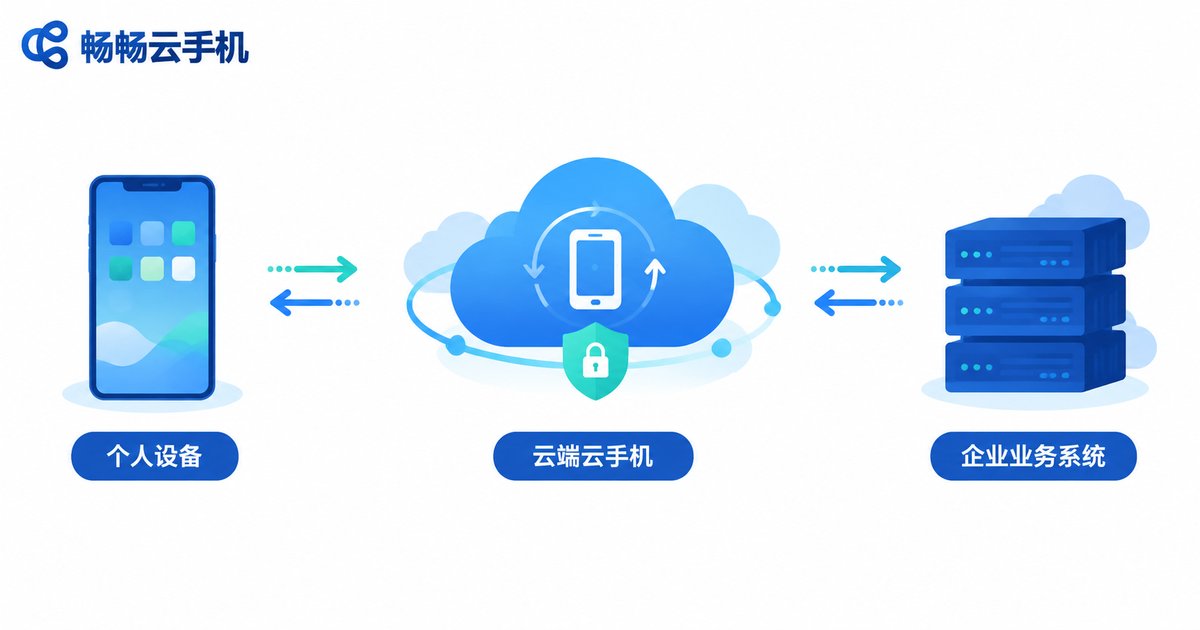
Cloud phones offer a completely new approach: move the entire work phone into the cloud. The phone or tablet in an employee's hand is just a display; the thing actually running business apps and storing work data is an independent cloud phone in the data center. Data flows entirely in the cloud and never touches local storage. When an employee leaves, the company simply reclaims the cloud phone, and personal devices stay perfectly clean with nothing to wipe.
Four Things to Prepare Before Setup
Before you start, confirm the following and the whole process will go much more smoothly:
1. List the business systems to move into the cloud. Write down the apps your team uses daily, such as OA approval, CRM, ERP, and enterprise messaging tools, and decide which ones must run inside the cloud phone.
2. Plan accounts and permissions. Who can access which systems, and who needs admin rights? Prepare a checklist in advance so you do not have to adjust settings one by one later.
3. Check the network environment. Cloud phones run in professional data centers, so local network requirements are modest. Regular home broadband or 4G/5G works fine; a stable connection of 10 Mbps or above is recommended.
4. Choose a reliable cloud phone provider. Focus on stability, security capabilities, and the quality of the management console. We will explain later why we recommend ChangChang Cloud Phone.
Set Up Cloud Phone Remote Work in Five Steps
Using ChangChang Cloud Phone as an example, here is how to build a secure remote work environment from scratch, with no technical background required.
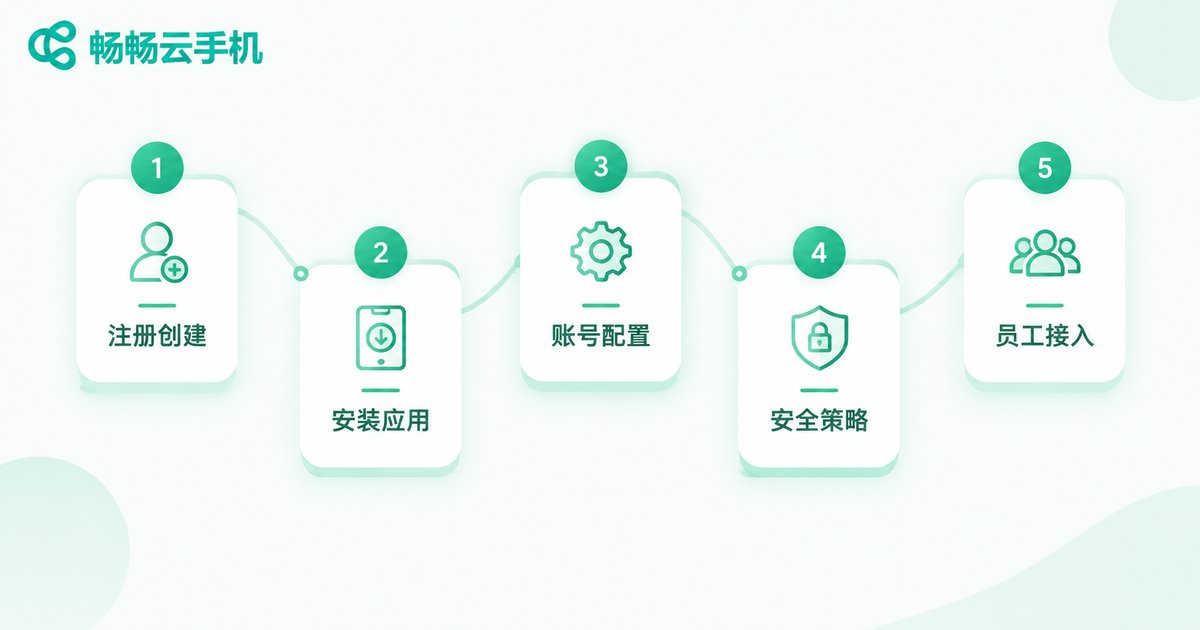
Step 1: Register and create cloud phones. Sign up for a business account on the ChangChang Cloud Phone website (ccloudphone.com) and create cloud phones in batch according to team size. Each cloud phone is an independently running Android system with its own device identity.
Step 2: Install business apps. Open the cloud phone desktop and install clients for OA, CRM, ERP, and other systems just as you would on a regular phone. Internal enterprise apps can be uploaded as installation packages and deployed to all cloud phones at once.
Step 3: Configure enterprise account login. Log into each business system with the company's unified account and enable two-step verification. Employees must pass both the cloud phone account check and the business system's identity verification for double protection.
Step 4: Set security policies. In the management console, enable screenshot blocking, screen-recording prevention, and on-screen watermarks, and disable exporting business data to personal devices. For sensitive roles, turn on operation logs so every access is on record.
Step 5: Connect employees. Employees install the ChangChang Cloud Phone client on their own devices, log in with the account assigned by the company, and see their own work phone. Everything runs in the cloud, leaving zero business data on personal devices.
Four Key Settings for Secure Intranet Access
Moving systems into the cloud is only step one. To truly achieve secure access to the enterprise intranet, do not skip these four settings:
Unified exit and whitelisting. All company cloud phones reach business systems through a unified network exit, and admins configure an access whitelist on the server side so only approved sources can connect.
No local data. The core security logic of a cloud phone is that data never leaves the cloud: files are opened, edited, and saved in the cloud, while the local device only mirrors the screen. Even if a device is lost, company data remains untouched.
Fine-grained permissions. Through the ChangChang Cloud Phone console, you can assign app permissions by department or role. Onboarding a new employee pushes a full work environment with one click; offboarding reclaims it just as quickly, wiping apps and data together.
Auditable behavior. With operation logs enabled, you have complete records of who accessed which system, when, and what they did, easily meeting compliance and audit requirements.
Cloud Phones vs. Traditional Remote Work Options
You might ask: can we just use remote desktop on personal computers, or issue company phones? One table makes the difference clear:
| Dimension | Cloud Phone | Personal Devices | Company-Issued Phones |
|---|---|---|---|
| Data security | Data stays in the cloud, never on local devices | Data scattered across personal devices, hard to control | Data stored locally; a lost phone means a leak |
| Hardware cost | No hardware purchases; provision on demand | Nearly free but high risk | Thousands per employee |
| Manageability | Unified console, batch deployment | Device-by-device setup, no consistency | Cumbersome issue-and-return process |
| Offboarding | One-click reclaim, data wiped together | Residual data, hard to recover | Must retrieve devices and clean manually |
| Flexibility | Log in from any device | Tied to specific computers and networks | Limited by physical hardware |
Why We Recommend ChangChang Cloud Phone
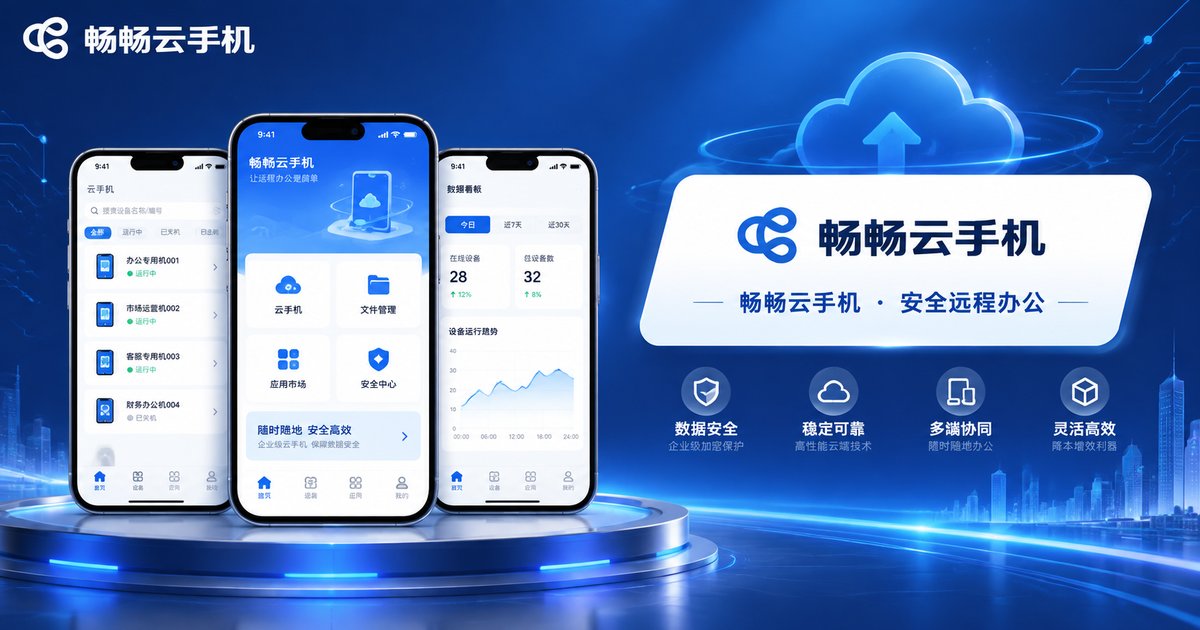
When choosing a cloud phone provider, enterprises care most about three things: stability, security, and easy management. ChangChang Cloud Phone (ccloudphone) delivers on all three:
Stable and smooth: Cloud phones run in professional data centers with round-the-clock availability. Apps open quickly and respond instantly, whether handling documents or approval workflows.
Secure and reliable: Data is encrypted in transit and stored in the cloud, with screenshot blocking, watermarks, and operation logs adding multiple layers of protection.
Effortless management: An enterprise-grade console supports batch creation, unified app installation, and group-based permissions, so one IT admin can manage the whole team's cloud work phones.
Flexible scaling: Add cloud phones anytime the team grows and release them when projects end, provisioning only what you use. For current plans and pricing, check the official ChangChang Cloud Phone website (ccloudphone.com).
FAQ
Q: If employees log into cloud phones from personal phones, will company data stay on their devices?
No. All apps and data run and are stored in the cloud; personal devices only display the screen. With screenshot blocking and export restrictions enabled, business data cannot be saved to personal devices.
Q: Do I need a technical team to set up cloud phone remote work?
No. Cloud phones work just like regular Android phones. Admins only need to create instances, install apps, and configure permissions in the web console, so regular office staff can handle it easily.
Q: Will cloud phones lag on a mediocre home network?
Cloud phones have modest local network requirements. A stable connection of 10 Mbps or above is enough for smooth use. Even during brief network fluctuations, cloud data is never lost; just reconnect and continue.
Q: Can multiple people share one cloud phone?
For business use, one cloud phone per person is recommended. This keeps operations secure, maintains data isolation and accountability, and the console supports assigning an independent cloud phone to each employee.
Q: What happens to a cloud phone when an employee leaves?
Admins reclaim the cloud phone with one click in the console; apps and data are wiped together. It can also be reset and reassigned to a new hire, recycling the resource.


