
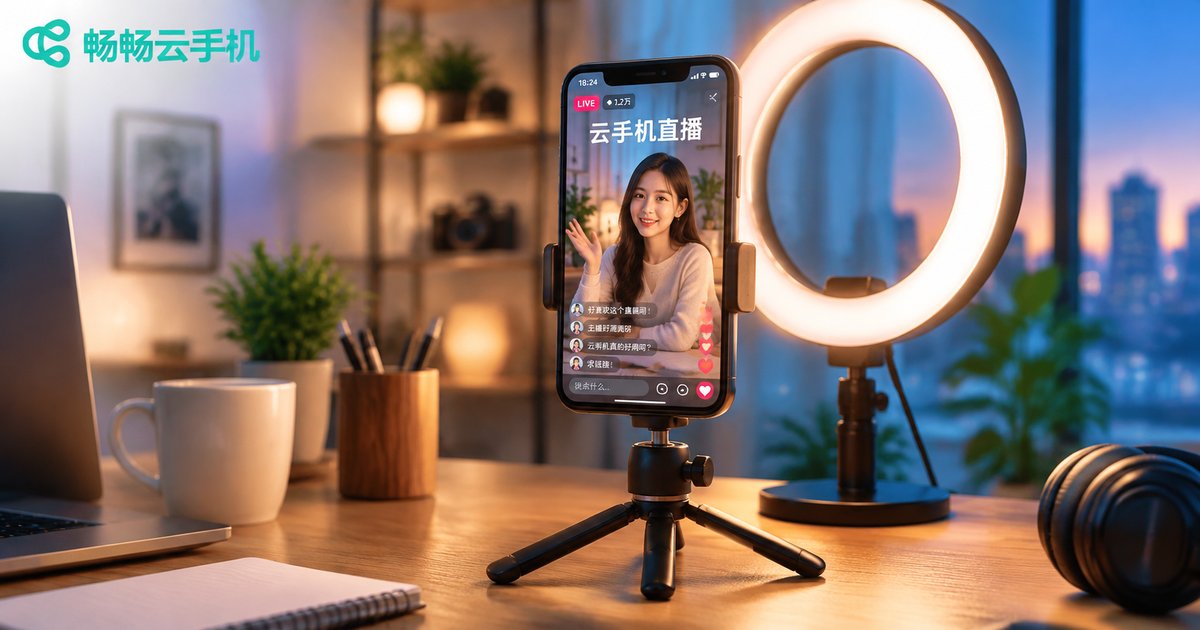
Cloud Phone Live Streaming Setup Tutorial: Multi-Platform Compliant Broadcasting and Quality Optimization
Why More and More Streamers Are Going Live from the Cloud
Most new streamers run into the same problems: they want to run accounts on several platforms but only own one phone; long sessions bring overheating, dropped frames, and battery anxiety; and it is nearly impossible to manage a broadcast while using the same phone for anything else. The root cause is that live streaming makes heavy demands on local hardware and network.
The idea behind a cloud phone is simple: move the broadcasting itself to the cloud. The stream is rendered and pushed from a data center, while your local phone is only used to control and monitor the session — like remotely operating a dedicated streaming machine parked in a server room. Your local device stays cool, the battery lasts, and incoming calls or pop-ups no longer interrupt the show.
Push Stream Settings: One Table to Understand Them All
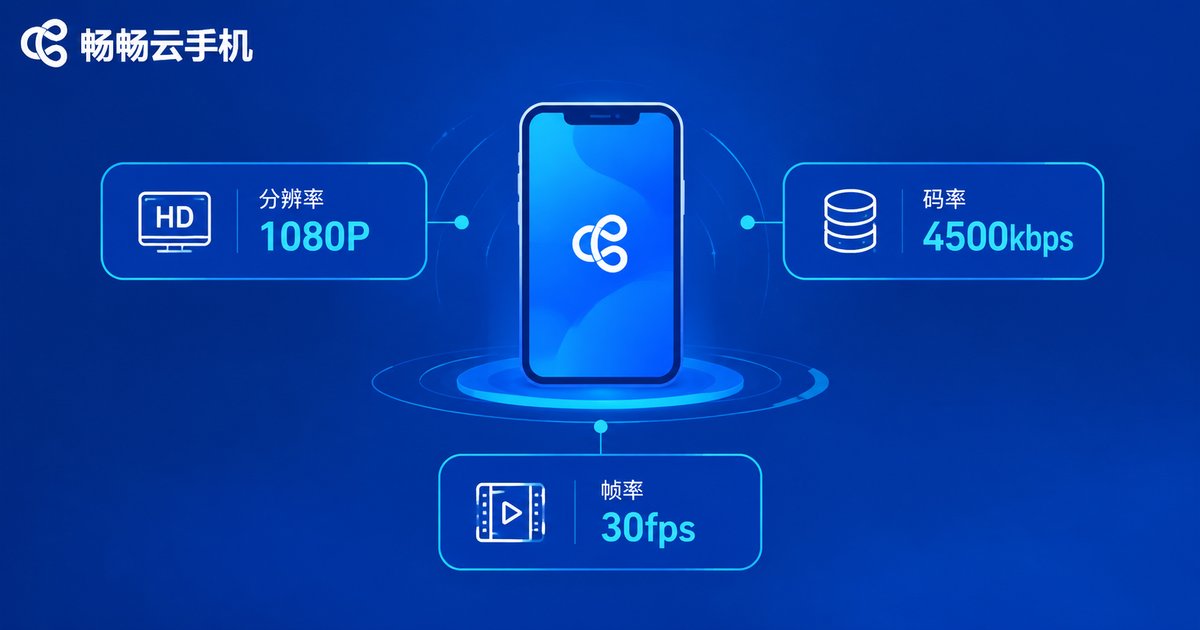
Push stream parameters decide what your audience sees. The three core settings are resolution, bitrate, and frame rate: resolution controls sharpness, bitrate controls how much detail survives compression, and frame rate controls smoothness. Higher is not always better — settings should match your bandwidth and content type.
| Scenario | Resolution | Bitrate | Frame Rate |
|---|---|---|---|
| Chat and talent shows | 720P | 2500–3500 kbps | 30 fps |
| Gaming and esports | 1080P | 4500–6000 kbps | 30–60 fps |
| E-commerce and product demos | 1080P | 4000–5000 kbps | 30 fps |
| Unstable network | 720P | 2000–3000 kbps | 30 fps |
If your platform supports custom push streaming, you will usually receive a push URL in this format:
rtmp://push.platform-domain/live/your-stream-keyThe stream key is the key to your live room. If it leaks, someone else can broadcast in your name. Never post it in group chats or share screenshots containing it, and reset it immediately in the platform dashboard if you suspect a leak.
Multi-Platform Broadcasting: Compliance Lines You Should Never Cross
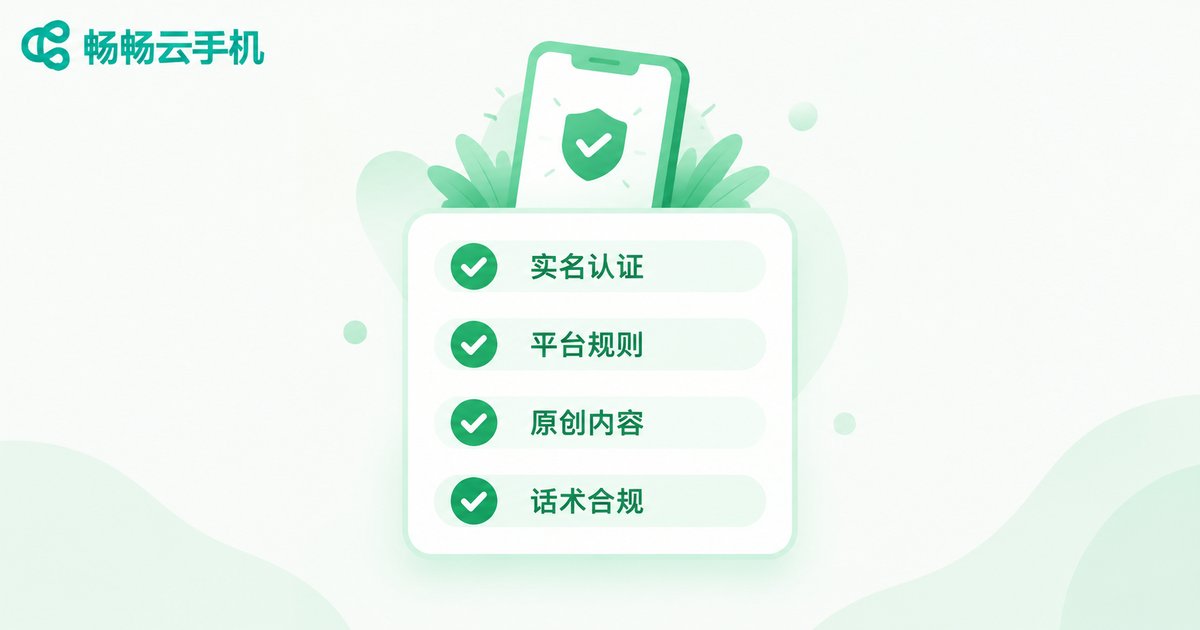
Streaming one show to several platforms is efficient, but the precondition is that every platform stays compliant. Keep these points in mind:
1. Complete identity verification everywhere. All major platforms require verified streamers, and cloud phones are no exception. Use one cloud phone instance for one platform account, so every account is easy to manage and audit.
2. Learn each platform's rules. Platforms differ in what content, language, and idle-stream behavior they allow. Ten minutes spent reading the streaming guidelines before going live saves you painful appeals later.
3. Create original content. Distributing your own stream to multiple platforms is fine, but rebroadcasting someone else's stream violates platform rules and can lead to throttling or bans.
4. Keep your language compliant. Avoid exaggerated claims, absolute superlatives, and banned phrases — e-commerce streamers in particular should follow advertising regulations.
Quality Optimization: Improvements That Cost Nothing
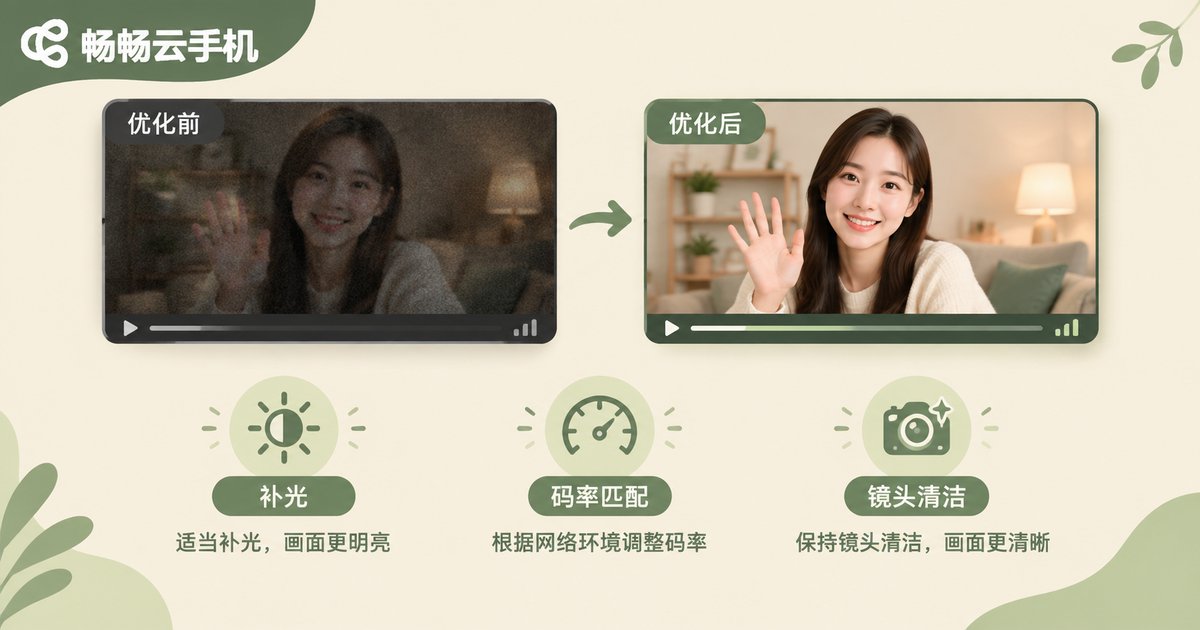
Why does someone else's stream look more polished on similar hardware? Usually it comes down to details:
Lighting comes first. An affordable ring light beats any beauty filter. Let the light hit your face from the front and avoid backlighting or harsh overhead light.
Match bitrate to resolution. 1080P with a bitrate that is too low produces visible blocking; if bandwidth is limited, drop to 720P in exchange for smoothness.
Clean lens, tidy background. Wipe the lens with a soft cloth and straighten up before going live — your average watch time will notice the difference.
Keep the network stable. A cloud phone streams from a professionally maintained data center, so local network jitter no longer directly affects your push stream — a built-in advantage for picture stability.

Step by Step: Going Live with ChangChang Cloud Phone
Once you decide to try cloud phone streaming, just follow these five steps:
Step 1: Register and log in on the official ChangChang Cloud Phone (ccloudphone) website.
Step 2: Create a cloud phone instance — one instance per streaming account.
Step 3: Install your streaming app inside the cloud phone, then log in and complete identity verification.
Step 4: Open the streaming settings and configure resolution, bitrate, and frame rate using the table above.
Step 5: Run a test stream first, confirm the picture and audio, then go live.
Throughout the process, the broadcast runs in the cloud while your local phone acts as a remote control — locking the screen, taking calls, or switching apps will not interrupt the stream. For multi-platform streamers, managing each platform on its own cloud phone instance is far more reliable than logging in and out on a single device.
FAQ
Q: Will cloud phone streaming look worse than streaming from a physical phone?
Not if your bitrate and resolution are set properly. Quality depends on push parameters and network, not on whether the device sits on your desk or in a data center.
Q: Can one cloud phone push to multiple platforms at the same time?
We recommend running one platform per cloud phone instance. Create a separate instance for each platform — it is both compliant and stable.
Q: What should I do if my stream key leaks?
Reset it immediately in the platform's live dashboard; the old URL becomes invalid right away. Avoid sharing screenshots that contain the key.
Q: My local phone is low-end. Can I still stream with a cloud phone?
Yes. All the heavy lifting happens in the cloud, and your local phone only needs to run the cloud phone app smoothly — the biggest benefit for users with older devices.
Q: What happens if my local network drops mid-stream?
The cloud phone keeps running in the data center, so the broadcast continues. Reconnect locally and pick up right where you left off.


