
Cloud Phone Data Backup & Migration Guide: Account Environment Export and Cross-Device Recovery
Many users run game accounts, social media accounts, and daily work apps inside a cloud phone. When you switch to a new physical phone or computer, or need to move to a new cloud phone instance, the biggest concerns are data loss and changes to the login environment. With the right backup and migration method, your entire account environment can be moved from one device to another completely, and the process is not complicated.
1. What Data in a Cloud Phone Needs Backing Up
Before you start, it helps to know exactly which data inside a cloud phone is worth backing up:
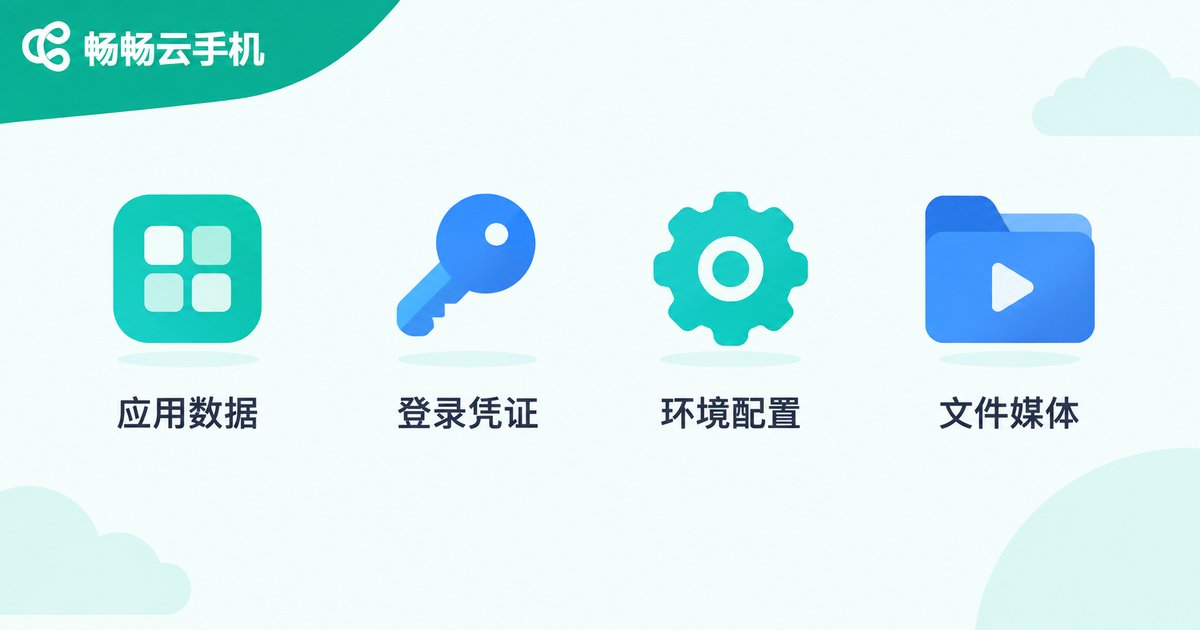
1. App and account data: game progress, chat history, favorites, and in-app configuration files. These are your core assets.
2. Login credentials: account passwords and saved login sessions for each platform. Once a login session expires, signing in again may trigger verification or even risk control.
3. Environment settings: the device model parameters, resolution, time zone, and language you configured for each account. For users running multiple accounts, keeping the environment consistent matters more than anything else.
4. Files and media: photos, videos, and installation packages stored in the cloud phone gallery and download folder.
2. Preparation Before Backup
Before backing up, we recommend doing three things:
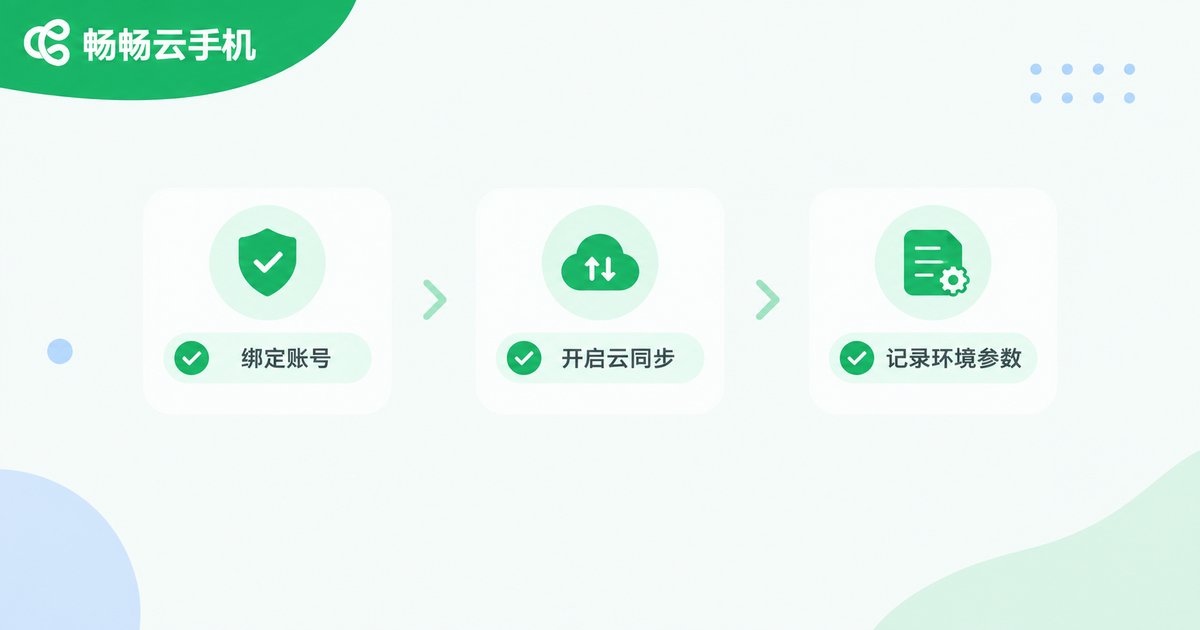
First, bind your accounts. Make sure every important app is linked to a phone number, email, or third-party login method. This is the foundation of data recovery.
Second, enable cloud sync. For games, use the official cloud save feature first; for messaging apps, turn on chat history cloud backup so the data is synced to the cloud first.
Third, record your environment parameters. Take screenshots of the current device model, system version, and common settings of your cloud phone, so you can restore the original environment as closely as possible.
3. How to Export Your Account Environment
Using ChangChang Cloud Phone (ccloudphone) as an example, exporting the account environment relies mainly on its cloud-based mechanism:
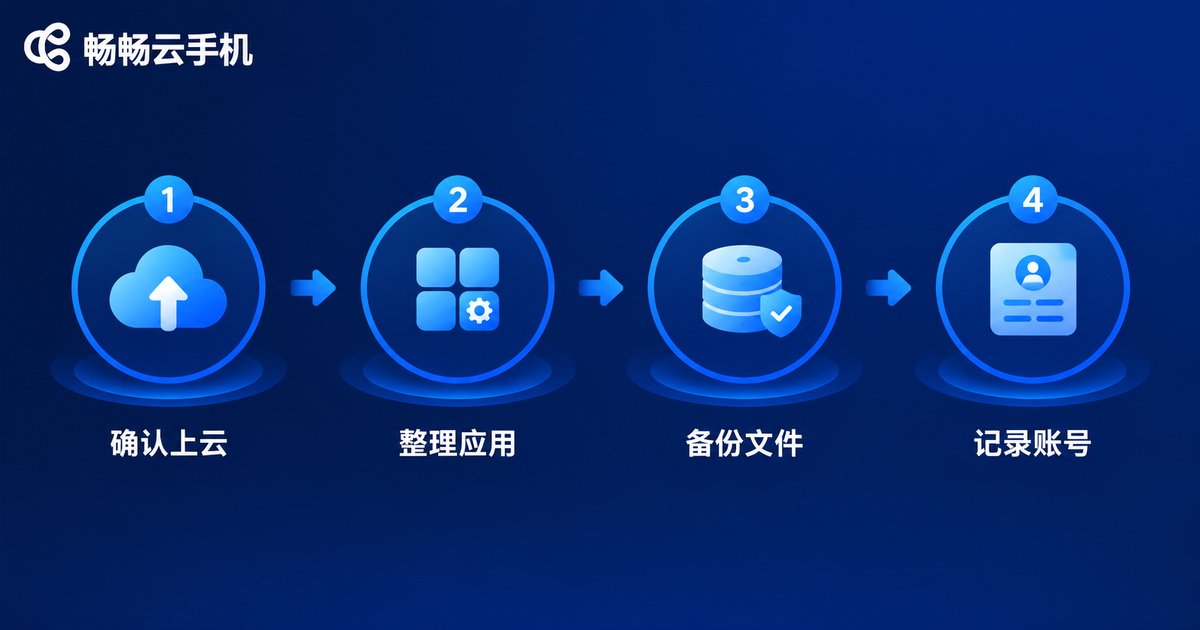
Step 1: Make sure data is in the cloud. Data on ChangChang Cloud Phone is stored on cloud servers. The apps you install and the data they generate live in the cloud, not on any single physical device. This means you do not need to manually copy data when switching devices.
Step 2: Review your app list. Check each running app in the cloud phone and confirm there is no unsynced local data, such as chat history or game saves that have not been uploaded.
Step 3: Back up important files. For files you need long term, use the file upload and download feature of the cloud phone to keep an extra copy on your local device or cloud drive as double insurance.
Step 4: Record account information. Organize the login accounts and security methods of each platform into a list and keep it safe.
4. The Complete Cross-Device Recovery Process
Once the environment is exported, restoring it on a new device is very simple:
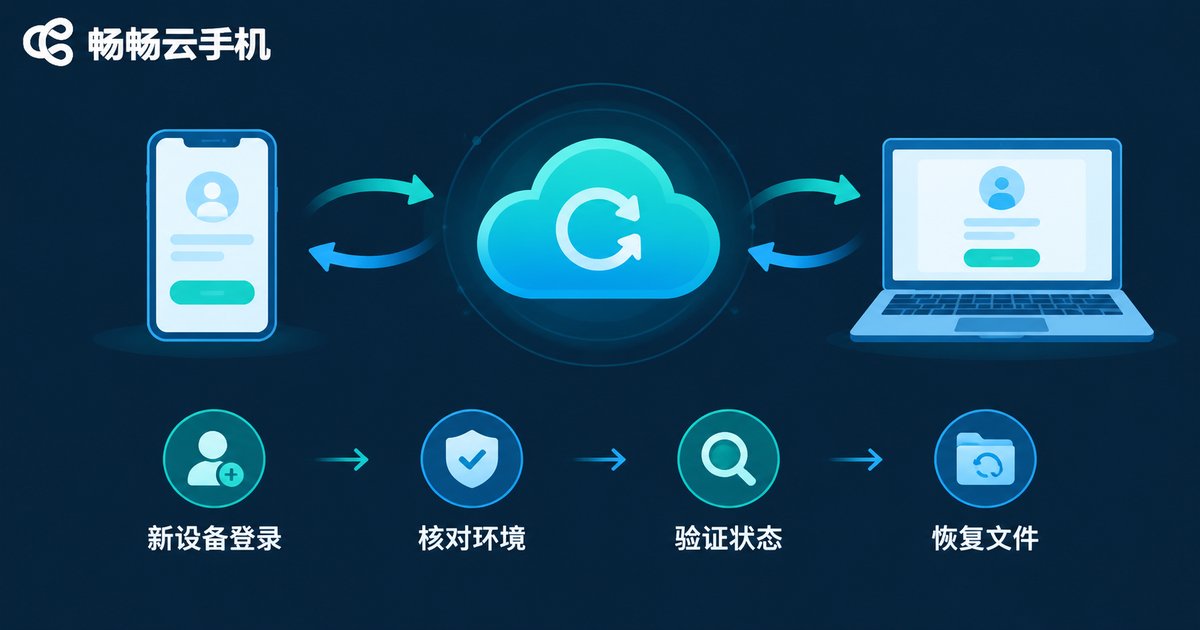
Step 1: Sign in on the new device. Whether you switched to a new phone or a new computer, just open the ChangChang Cloud Phone app or web version and sign in with the same account. Your cloud phone instance is still running in the cloud exactly as before, with all apps and data intact.
Step 2: Verify environment parameters. After entering the cloud phone, check the device model, resolution, and other parameters against your records to confirm the environment has not changed.
Step 3: Check login status. Open each important app one by one and verify the login status. Most apps keep their login sessions together with the cloud environment; a few may ask you to sign in again once.
Step 4: Restore files. Upload the files you previously backed up locally back to the cloud phone using the file upload feature.
5. Local Backup vs Cloud Backup
| Item | Local Backup | Cloud Backup |
|---|---|---|
| Data safety | Depends on the device; lost if damaged | Multiple copies on servers, more reliable |
| Recovery speed | Manual import, takes longer | Sign in and recover, almost seamless |
| Environment consistency | Hard to restore the running environment | Environment stays with the instance, naturally consistent |
| Best for | Extra copies of important files | The primary everyday solution |
As you can see, cloud backup is the primary solution for cloud phone scenarios, while local backup serves as double insurance for important files. Using both together is the safest approach.
6. Things to Watch During Migration
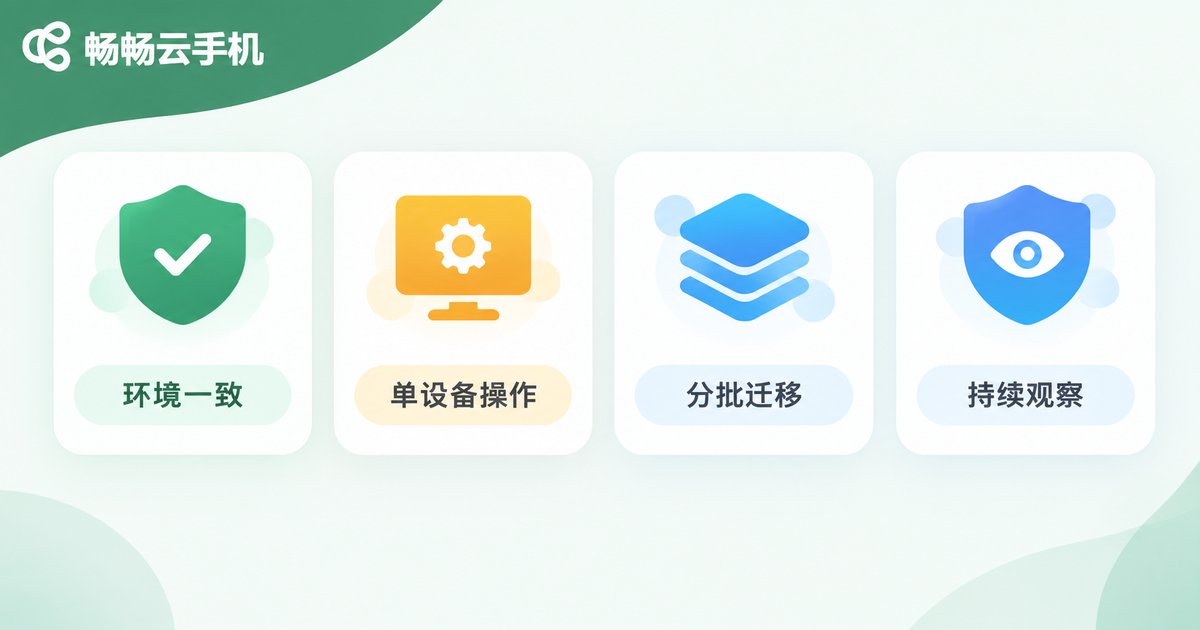
1. Keep the login environment consistent. Try to use the same environment parameters before and after migration, and avoid frequently changing the device model or region settings to reduce the risk of platform risk control.
2. Avoid operating on multiple devices at once. During migration, do not operate the same account on the old and new devices at the same time. Confirm the old device is signed out before using the new one.
3. Migrate in batches. If you manage many accounts, migrate them in batches, observe each batch for a few days, and continue only after everything runs normally.
4. Keep observing after migration. Pay attention to account status in the first few days after migration and handle any anomalies promptly.
7. Why Choose ChangChang Cloud Phone for Data Management
ChangChang Cloud Phone (ccloudphone) has several natural advantages for data backup and migration:
Runs in the cloud, data survives device changes: the cloud phone runs on cloud servers and its data is stored in the cloud. Switching phones or computers does not affect the apps and data inside; just sign in and continue.
Multiple instances, independent environments: it supports running multiple cloud phone instances, each with an independent environment. This suits users managing multiple accounts, and migration can be done instance by instance without interference.
Access anywhere: you can reach your cloud phone through the web or the client app, whether you are traveling or switching devices.
If you are looking for a cloud phone with secure data and easy migration, visit the ChangChang Cloud Phone official website (ccloudphone) to learn more.
FAQ
Q: Will my game progress be lost if I get a new phone?
No. Cloud phone data is stored on cloud servers and has nothing to do with your physical device. Sign in with the same cloud phone account on the new device, and the instance and its data are still there, ready to continue.
Q: Do I need to sign in to all apps again after migration?
Most apps keep their login sessions together with the cloud environment, so no re-login is needed. A few apps with higher security may ask for verification once, which is normal.
Q: Can I migrate multiple accounts together?
Yes, migrate them instance by instance, since each instance has an independent environment. We recommend migrating in batches and observing each batch for a few days before continuing.
Q: How do I back up files from the cloud phone to my local device?
Use the file upload and download feature of the cloud phone to download files you want to keep long term, and upload them back when needed.
Q: Will migration trigger platform risk control?
Cloud phone migration only changes the device you use to access it, while the running environment and parameters of the cloud phone stay the same. Normal migration does not change the login environment of your accounts; just avoid operating the same account on old and new devices at the same time.


