
How to Do App Compatibility Testing with Cloud Phones? Multi-Version Android Switching and Log Capture Tutorial
Why App Compatibility Testing Needs Cloud Phones
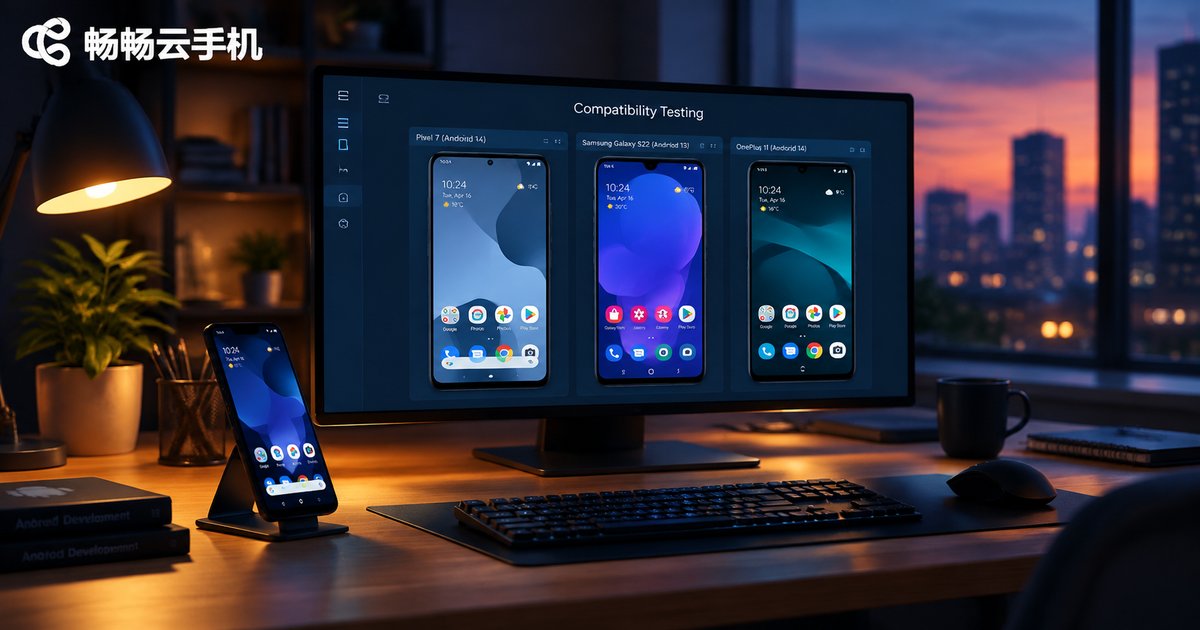
To serve mainstream users, an app must adapt to multiple Android versions, various screen resolutions, and different vendor customizations. The traditional approach of buying a pile of physical devices is expensive, takes up space, and requires more purchases with every new device release. Cloud phones change this: they provide independent Android environments in the cloud that you can launch and switch anytime, turning compatibility testing into a lightweight daily routine.
For developers and QA teams, cloud phones offer three core benefits: low-cost coverage of multiple OS versions, parallel testing across instances, and clean environments that can be reset anytime. Let's walk through the actual workflow step by step.
The Complete Cloud Phone Compatibility Testing Workflow
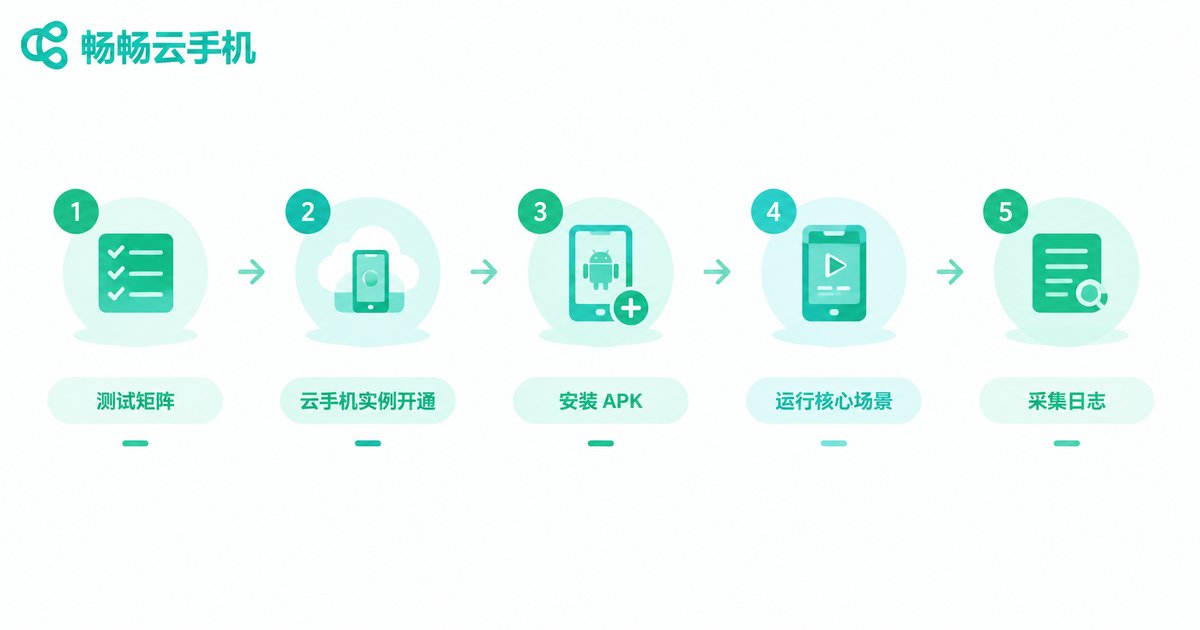
A standard cloud phone compatibility testing process has five steps:
Step 1: Define your test matrix. List target Android versions (e.g., Android 9/10/11/12/13/14), mainstream resolutions (720P/1080P/2K), and key device characteristics to form a test checklist.
Step 2: Provision cloud phones for each environment. Create instances with different configurations in the CCloudPhone console; each instance is an independent Android environment.
Step 3: Install the app under test. Upload the APK to each cloud phone. Keep both release builds and older versions handy to verify upgrade compatibility.
Step 4: Execute core scenarios. Run key paths such as sign-up, core features, payment flows, and push notifications, watching for UI adaptation and functional issues.
Step 5: Capture logs and archive findings. When anomalies appear, capture logs and record the symptom, reproduction steps, and system version for developers.
How to Switch Between Multiple Android Versions
Multi-version testing is the heart of compatibility work. With cloud phones, you do not need a separate device for each Android version. The key idea is to organize instances by version:
1. Create version groups. Name and manage cloud phone instances by system version, such as an Android 11 test group and an Android 13 test group, so each device environment is clear at a glance.
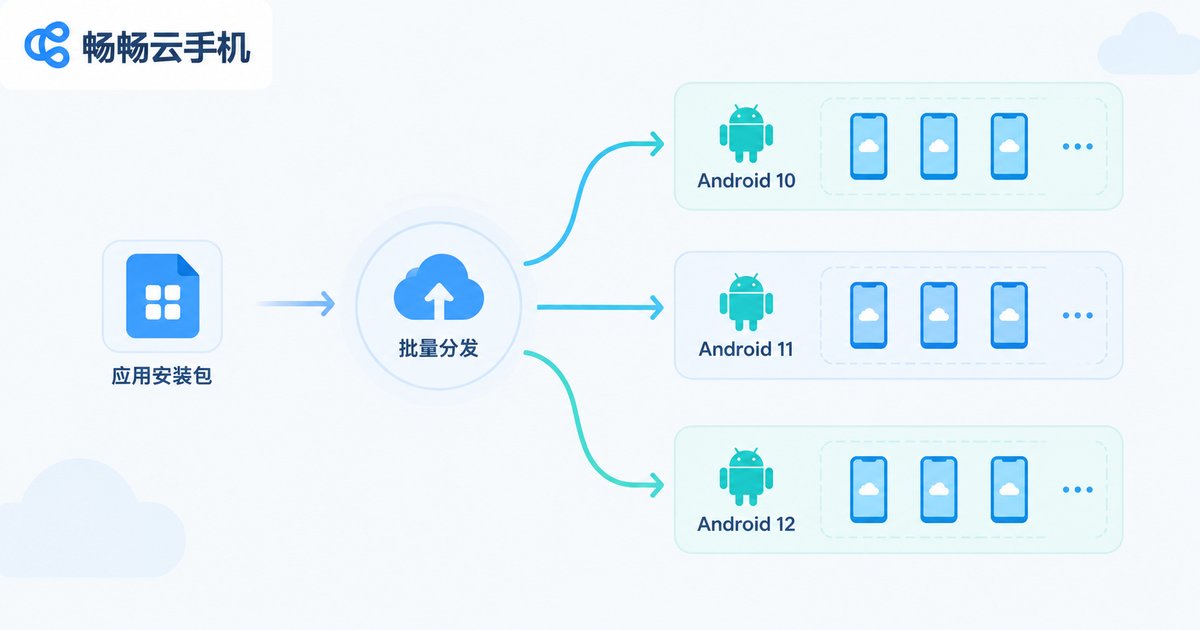
2. Distribute the same APK in bulk. Use group-control and batch operations to install the same APK on instances across versions in one action instead of installing manually one by one.
3. Run test cases in parallel. Execute the same test suite on multiple instances simultaneously and compare behavior across Android versions, focusing on permission prompts, background keep-alive, and notification display differences.
4. Document version differences. Summarize results into a comparison table, for example:
| Test Item | Android 10 | Android 12 | Android 14 |
|---|---|---|---|
| Install and launch | Normal | Normal | Normal |
| Permission prompts | One-time grant | Precise grant required | Precise grant required |
| Background location | Normal | Restricted | More strictly restricted |
Handing developers a table like this is far clearer than verbally saying the higher versions have issues.
Log Capture and Crash Analysis Tutorial
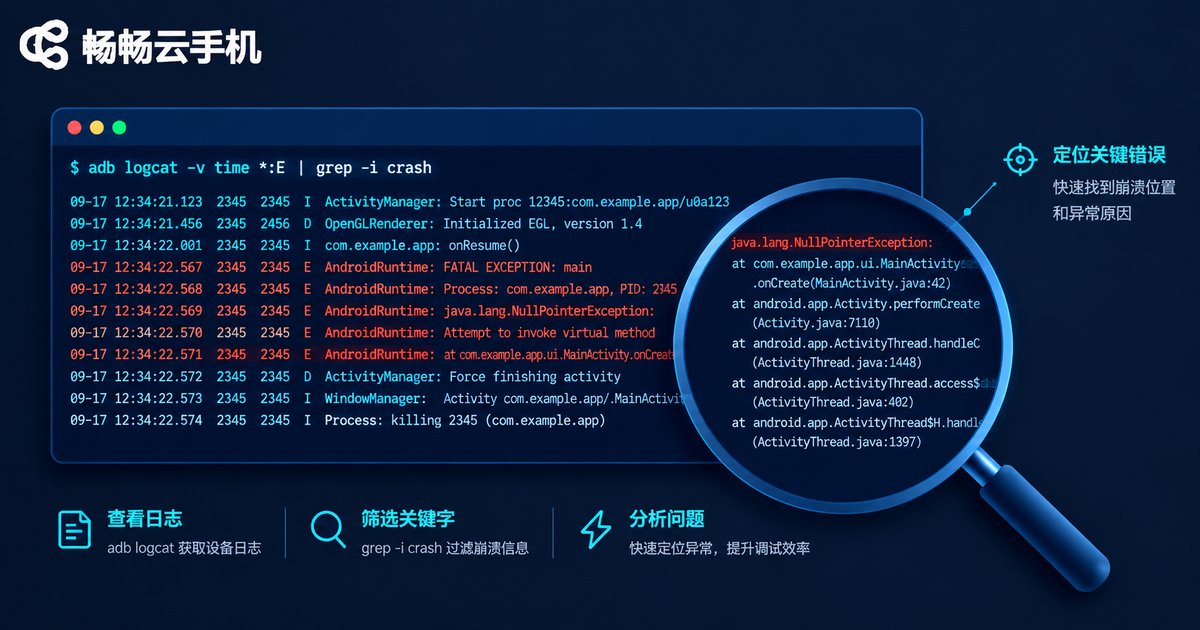
When you encounter crashes, freezes, or abnormal behavior during testing, logs are your strongest evidence. Cloud phones support ADB connections to instances; here are the common commands for log capture:
# Connect to a cloud phone instance (local mapped port as an example)
adb connect 127.0.0.1:5555

# List connected devices
adb devices

# Capture full real-time logs and save locally
adb logcat -v time > app_full_log.txt

# Capture error-level logs only to locate crashes quickly
adb logcat *:E > error_log.txt

# Export a full report after reproducing the crash
adb bugreport bugreport.zip
A few practical tips:
Clear before reproducing. Run adb logcat -c to clear old logs, then reproduce the issue so the captured log is clean with a high signal-to-noise ratio.
Filter by package name. Use adb logcat | grep your.package.name (findstr on Windows) to see only your app's output.
Watch for FATAL EXCEPTION. Search for this keyword in crash logs; the stack trace beneath it is the key to locating the problem.
Preserve environment info. Record the instance's system version, resolution, and app version together to build a complete issue profile.
Local Devices vs Cloud Phones: Cost Comparison
| Aspect | Local Device Testing | Cloud Phone Testing |
|---|---|---|
| Hardware cost | High, thousands per device | Low, provision instances on demand |
| OS version coverage | Limited to devices on hand | Switch between Android versions anytime |
| Parallel testing | One person, one device, serial | Multiple instances running cases simultaneously |
| Environment reset | Reflashing is tedious and risky | One-click reset to a clean state |
| Team collaboration | Devices must be physically passed around | Cloud instances shared across the team |
Why Choose CCloudPhone for Compatibility Testing
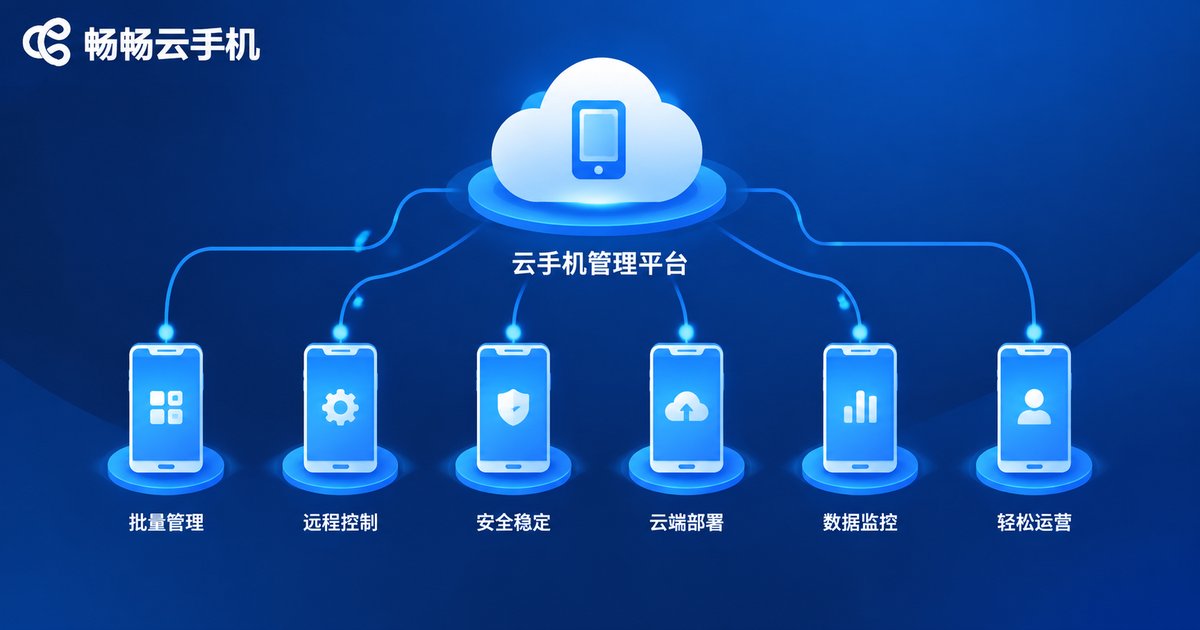
Among cloud phone services, CCloudPhone (ccloudphone) is friendly to testing scenarios: cloud Android instances run independently and support multi-instance and batch management. Visit the CCloudPhone official website to provision instances on demand. Compatibility testing that once required a room full of devices can now be done on a few cloud phone instances. Whether you are an indie developer validating before release or a QA team running regression tests, you can significantly reduce hardware investment and maintenance costs.
FAQ
Q: Are cloud phone test results consistent with real devices?
Cloud phones run a real Android system environment, so most functional compatibility issues can be reproduced on them. For scenarios tightly coupled to hardware such as sensors or NFC, supplement with a small number of physical devices.
Q: Do I need to reinstall the app after switching Android versions?
Instances are independent, so after switching to an instance with a different system version you install the app on that instance. With batch installation, one action distributes the app to many instances efficiently.
Q: Does log capture require root access?
No. Capturing logcat output via ADB does not require root; standard developer permissions are enough, and this is a routine operation in cloud phone testing.
Q: Can one computer capture logs from multiple cloud phones at once?
Yes. Each instance uses a different ADB port; after connecting, capture separately with adb -s serialnumber logcat.


