

How to Write Cloud Phone Automation Scripts: A Zero-Basics Tutorial from Recording to Scheduled Execution
Why More People Run Automation Scripts on Cloud Phones
Daily quests, check-ins, reward claims — these repetitive taps are boring, time-consuming, and easy to forget. A cloud phone automation script hands those repetitive actions to a device running in the cloud: teach it once by hand, and it repeats the workflow exactly as instructed.
Unlike running macros on your own phone, a cloud phone runs in a remote data center. It uses none of your local battery or memory, and cloud tasks keep running even when you close the app, lock the screen, or power off your device. That is why mobile gamers and multi-account operators increasingly move their automation to the cloud.
Before You Start: Get a Cloud Phone Ready
Before writing any script, you need a working cloud phone. Taking ChangChang Cloud Phone (ccloudphone) as an example, the setup is simple:
1. Download the ChangChang Cloud Phone app from its official website or an app store, then register and log in.
2. Add a cloud phone device from the device list.
3. Just like a normal phone, install the app you want to automate inside the cloud phone and log in to your account.
Once done, your cloud phone works as an always-online device, and every recording and scheduling step below happens on it.
Step 1: Record Your First Script
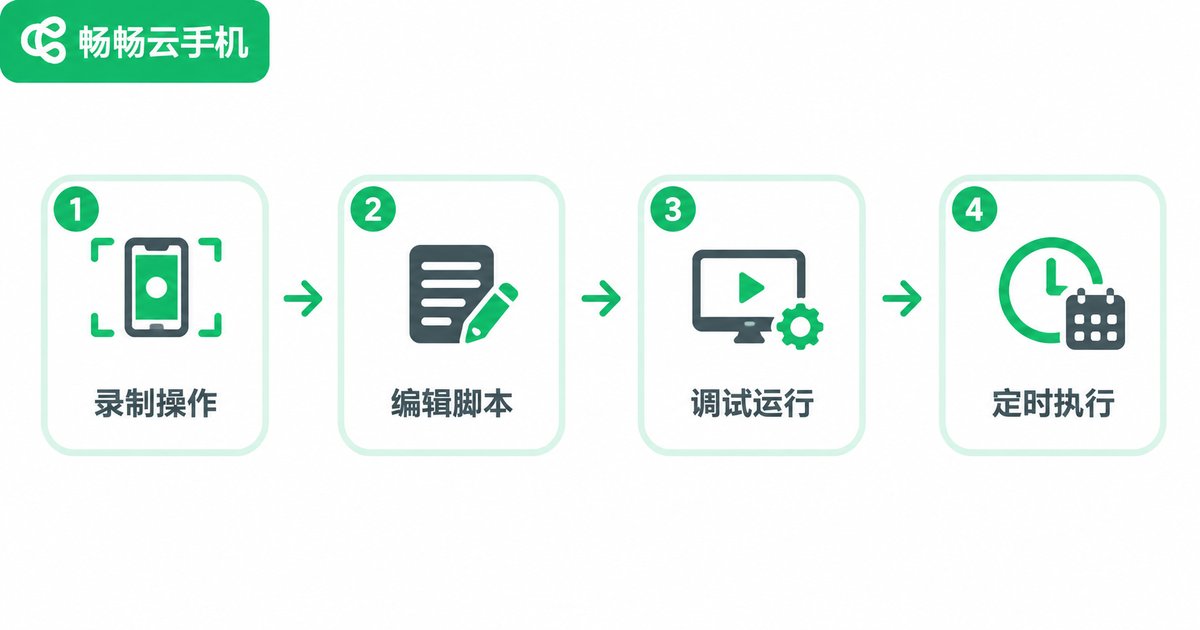
The most beginner-friendly approach is to record first and fine-tune later. Perform the workflow once by hand, and the system logs every tap, swipe, and pause, then generates the script automatically.
On ChangChang Cloud Phone, the general path is: open the automation tool → create a new recording → perform the full workflow inside the cloud phone (for example, open the game, tap check-in, claim rewards, return to the home screen) → stop and save the recording, then give the script a memorable name.
Three recording tips: move slowly so every step is captured; keep the path consistent by always starting from the same screen; close the loop by ending where you started, which makes looping much easier.
Step 2: Understand the Script and Make Simple Edits
A recorded script is essentially a list of commands: where to tap, what to tap, and how long to wait. Once you understand a few basics, you can tweak it yourself:
# A simple daily check-in script example
launch_app('TargetApp')
wait(5000)
tap('Check-in button')
wait(2000)
tap('Claim reward')
wait(1500)
go_home()
There are only three common edits: adjust wait times — lengthen them on slower networks; fix tap positions — re-record that step if the interface has changed; add loop counts — for example, run the daily routine three times.
Step 3: Test Run and Verify the Script
Before scheduling anything, run the script manually once. Check two things: whether every step taps the right spot, and whether the total runtime is reasonable. If one step keeps failing, the wait time is probably too short or the interface has changed — just re-record that step.
Always run the full flow with run-now first, and only hand it over to scheduled tasks once it runs cleanly. That gives you the highest success rate.
Step 4: Schedule It and Free Your Hands
Once the script is stable, set up a scheduled task. In the automation settings of ChangChang Cloud Phone, it usually takes three steps: choose the script → set the execution time (daily at a fixed time, or on a repeating interval) → save and enable.
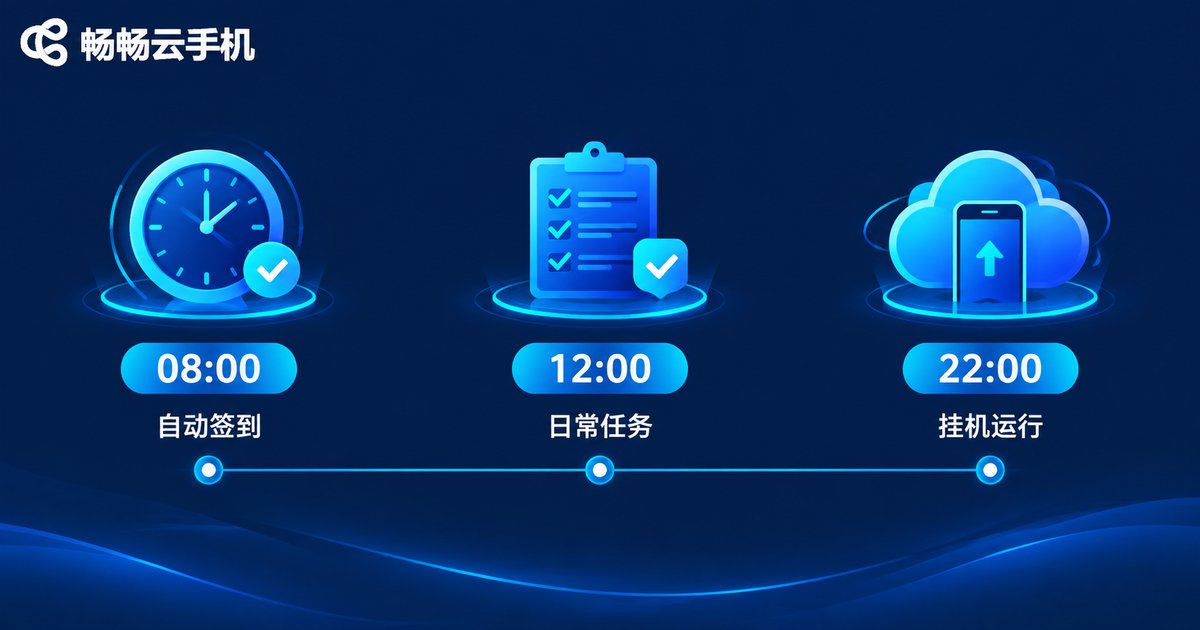
After that, even if your own phone is powered off — while you sleep or work — the cloud phone completes the tasks on time in the cloud. Put check-ins in the morning, dailies at noon, and idle farming overnight, with no conflicts.
| Method | Best for | Difficulty | Time cost |
|---|---|---|---|
| Manual play | Occasional gaming | None | Repeated time every day |
| Record and replay | Fixed daily routines | Beginner-friendly | About 10 minutes to record once |
| Scheduled execution | Must-do dailies, multi-account operation | Recording skill only | Set once, works long term |
Scenarios That Fit Cloud Phone Automation Best
Daily quests and check-ins: daily missions, check-in rewards, and stamina clearing run automatically once scheduled.
Multi-account operation: run the same script on different cloud phones separately, without the hassle of switching accounts back and forth.
Long idle sessions: idle progression and resource farming run around the clock on the cloud device, while your local phone stays untouched.
Pitfalls Beginners Should Avoid
1. Recording too fast and missing steps: slow down while recording and leave a gap between actions.
2. Wait times too short: network fluctuations slow down loading, so set generous waits.
3. Not re-recording after UI updates: when the app updates or event screens change, re-record the affected steps promptly.
4. Execution frequency too high: overly dense task intervals cause errors; set a natural, human-like rhythm and stay compliant for long-term use.
FAQ
Q: Can I use cloud phone automation scripts without any programming skills?
Yes. Record your operations once and the script is generated automatically; afterwards you only tweak wait times and loop counts — no coding required.
Q: Will scheduled tasks still run on the cloud phone if my local phone is powered off?
Yes. The cloud phone runs in the data center, so tasks execute in the cloud regardless of your local phone being off or offline.
Q: Can one cloud phone hold multiple scheduled tasks?
Generally yes, you can set several tasks at different times. For the exact script and scheduling features available, check the current version inside the ChangChang Cloud Phone app.
Q: Will a recorded script still work on another cloud phone?
If both devices share the same resolution, it usually works directly; different resolutions may cause tap offsets, so re-record under the same resolution.
Q: How do I reduce the risk of script failures?
Keep the rhythm human-like, leave enough wait time, re-record after app updates, and always test-run with run-now before enabling the schedule.


