
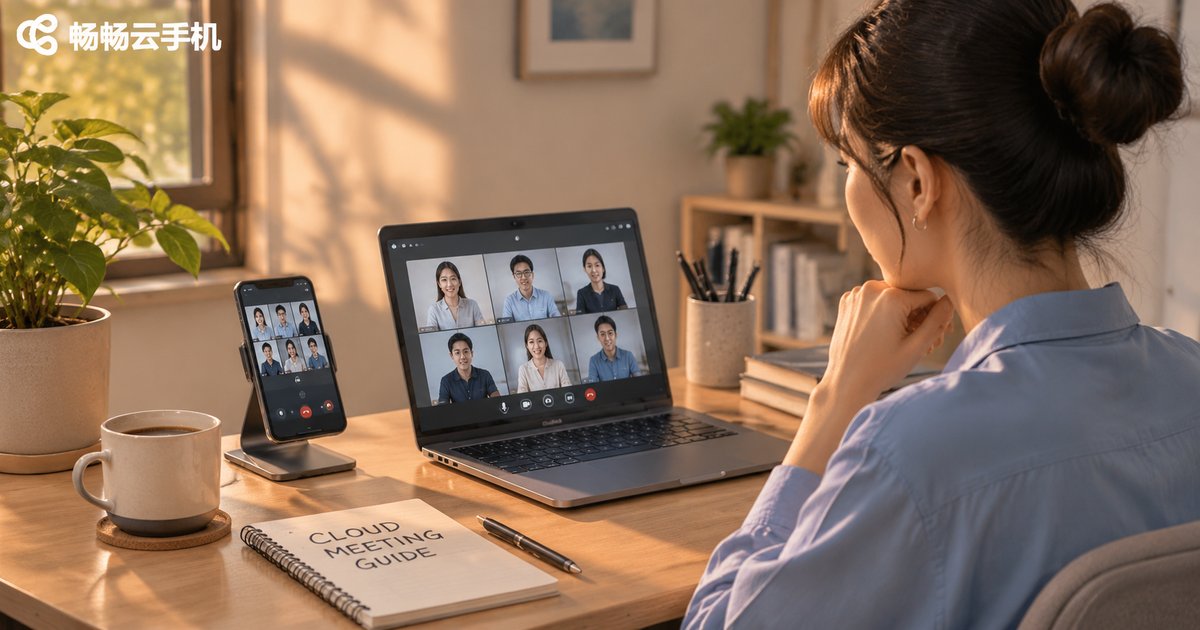
Cloud Phone Remote Meeting Guide: Display, Audio, and Screen Sharing Settings
Why More People Host Remote Meetings on a Cloud Phone
On a business trip, on a borrowed laptop, or holding nothing but a tablet — installing your meeting app on the local device gets awkward fast. You log in again, your files are somewhere else, and private documents end up sitting on someone else's machine. A cloud phone moves that friction into the cloud. It is essentially an Android device running in a data center, and you connect to it over the network. Your meeting apps, chat history, and work files stay inside that cloud instance, so whichever device you sign in from, you land on the same desktop.
The benefits are straightforward: your device stops being the limit, since a phone, a tablet, or a thin laptop can all pull up the same meeting screen; files stop leaking, because the local device only displays pixels and never stores documents; and you stay online, since the cloud instance keeps running even when your handset is powered off.
Cloud phone meetings have their own quirks, though. Display, audio, and screen sharing — if any one of the three is misconfigured, the experience drops off immediately. Here is the whole flow, step by step.
Three Things to Do Before the Meeting Starts
Most people who complain about lag after joining actually planted the problem beforehand. Spending two minutes on these three checks saves half an hour of fiddling later.
First, measure your bandwidth. A cloud phone encodes the picture in real time and streams it to you, so it is more sensitive to network quality than a local meeting. Run a speed test, then compare against the reference values below.
| Meeting type | Suggested download | Suggested upload | What it feels like |
|---|---|---|---|
| Voice only | 0.5 Mbps | 0.3 Mbps | Lightest load, survives weak networks |
| 720p video | 2 Mbps | 1 Mbps | Enough for everyday discussion |
| 1080p video | 4 Mbps | 2 Mbps | Choose it when expressions and gestures matter |
| 1080p + screen share | 6 Mbps | 3 Mbps | The usual combo for slide decks and reports |
Second, pick a nearby node. When connecting to the cloud phone, choose the data center closest to you — latency usually drops noticeably. With high latency you will feel that half-beat delay where you finish a sentence and the other side nods a moment too late.
Third, decide what you will share. The whole cloud desktop, or a single document window? Deciding in advance means no hunting for buttons once the meeting is live.
Display Settings: Let Them See You Clearly
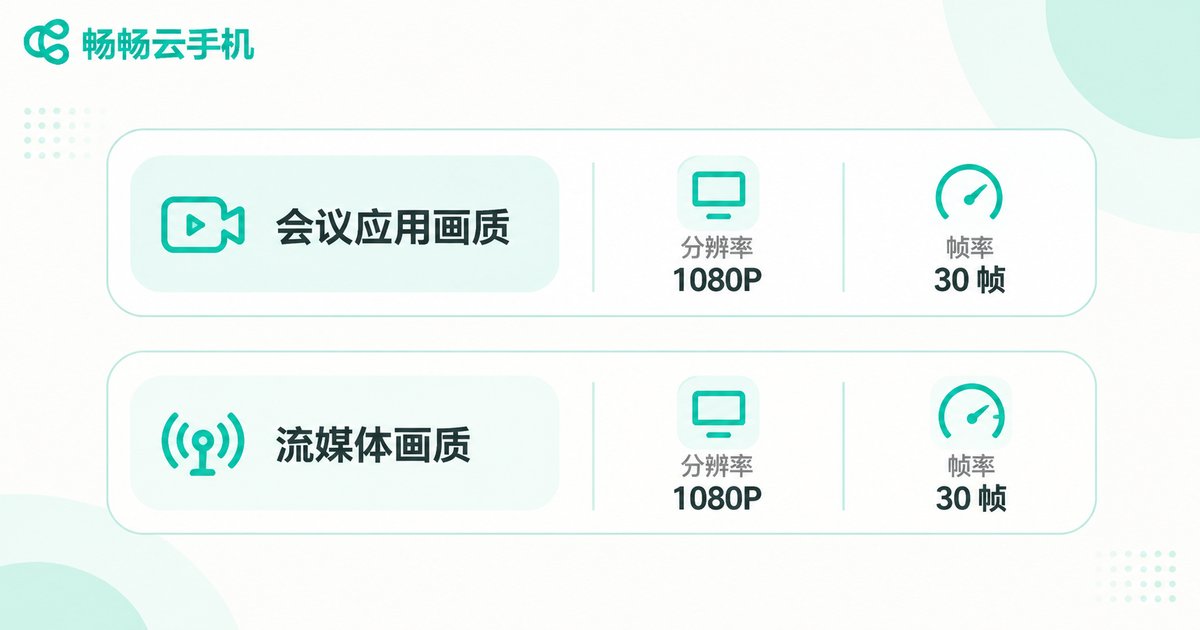
Display on a cloud phone works at two layers: the quality options inside the meeting app, and the streaming quality of the cloud phone client itself. Both need to be right for a clean picture.
Meeting app quality. Open the video settings after joining. Common options are high definition, standard, and auto. On an average connection, lock it manually to 720p so the app does not keep stepping up and down — constant switching looks worse than a steady lower setting. Switch to 1080p only for demos where fine detail matters.
Streaming quality. The cloud phone client typically exposes resolution and frame rate. For meetings, prioritize frame rate over resolution: lips and hand gestures move constantly, and a low frame rate makes the picture stutter visibly, while a slightly lower resolution still looks natural. A safe combination is 720p at 30 fps, dropping to 20 fps on weak networks.
Camera and framing. The camera feed inside the cloud phone comes from your local device, so local angle and lighting decide everything. Put the light source in front of you rather than behind, raise the lens to eye level, and let your face fill roughly a third of the frame. If the cloud meeting app cannot find the camera, first confirm the cloud phone client has been granted camera permission at the system level.
One commonly missed point: virtual backgrounds and beauty filters consume extra compute. On a modest cloud instance, turning them off noticeably improves stability.
Audio Settings: Let Them Hear You Clearly
Audio complaints outnumber video complaints, and most of them are configuration issues rather than broken hardware.
Microphone permission and device selection. Confirm the microphone permission inside the cloud phone system first, then manually select the correct input device in the meeting app's audio settings. The default is not always the headset you just plugged in, and choosing manually once saves you from the classic five minutes of talking to nobody.
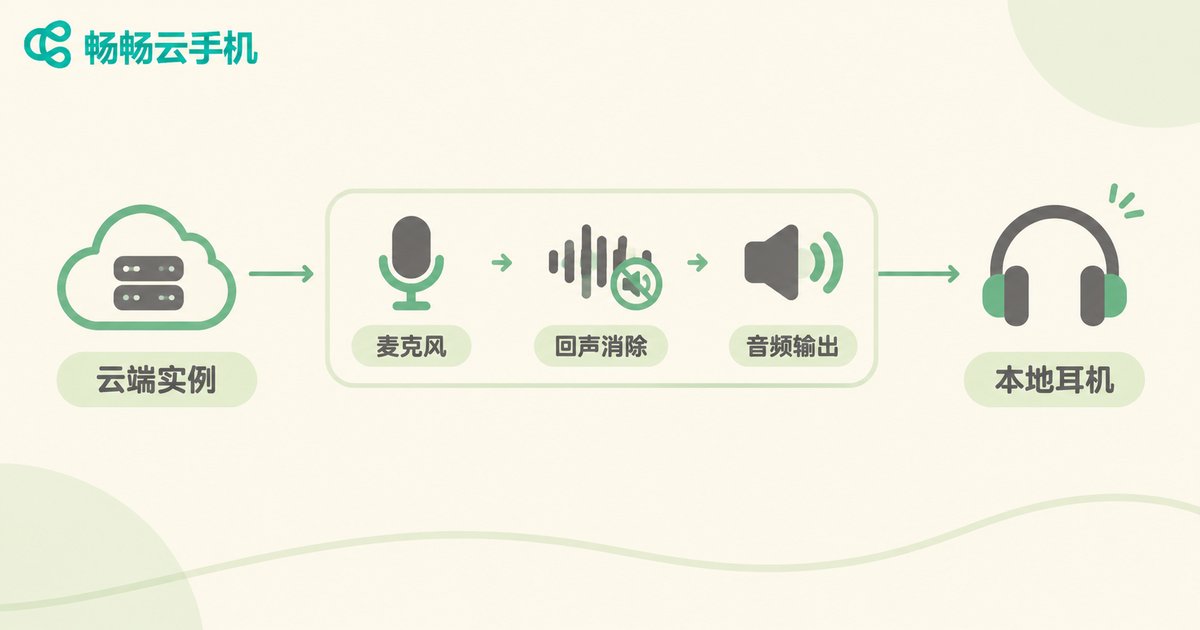
Echo and feedback. Nearly all echo comes from speaker output and an open microphone at the same time. The fix is simple: wear a headset, or keep only one device with an open mic in the room. If the cloud phone client offers echo cancellation, leave it on.
Audio forwarding. This step is unique to cloud phones. Sound played inside the cloud instance has to be routed back to your local device before you can hear it. If you see lips moving but hear nothing, check whether the client's audio output channel is enabled, then check whether your local device is muted or turned all the way down.
A three-second check before you speak. After joining, say 'can you hear me' and watch the input level meter in the meeting app. If the meter does not move, the problem is on the input side. If it moves but nobody hears you, the problem is almost certainly your upload.
Screen Sharing: Hand the Material Over Cleanly
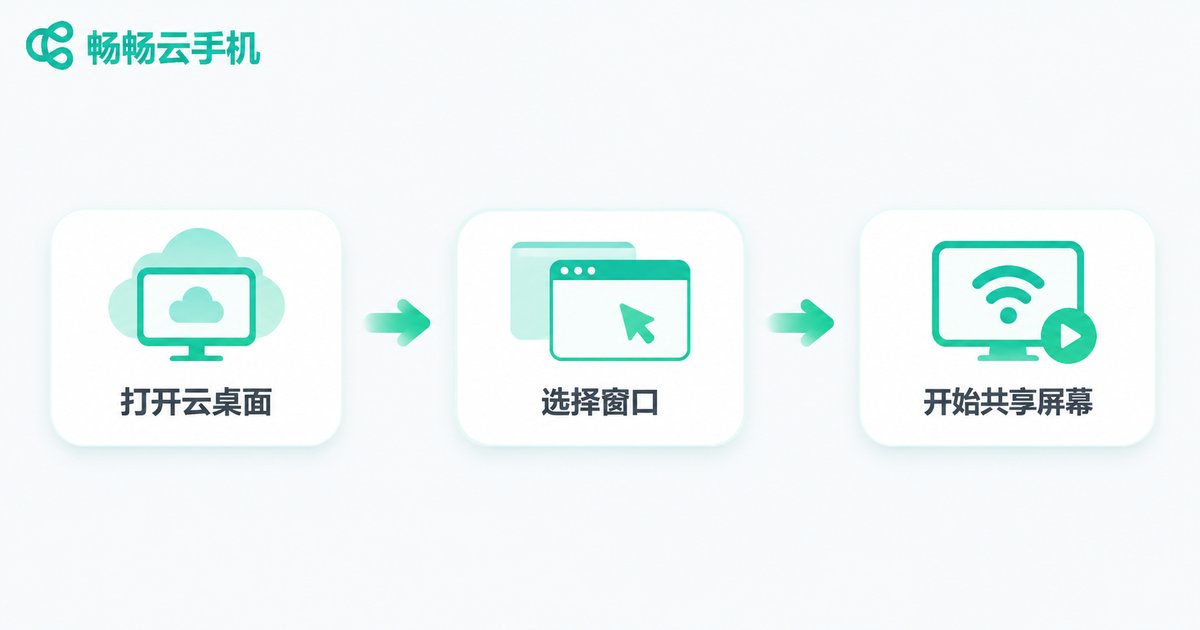
Screen sharing is where remote meetings fail most often, and on a cloud phone it is a bit different: what you share is the cloud desktop, not your local computer.
Confirm what you are sharing first. Meeting apps usually offer three choices: the entire desktop, a single window, or a single application. For slide decks and reports, sharing a single window is safest — it avoids exposing unrelated windows and avoids cropping caused by resolution mismatch.
Clean the desktop before sharing. The cloud instance may have chat and mail clients running. Turn off message notifications, or switch to do-not-disturb, so one popup cannot derail the whole presentation.
Adjust the resolution before sharing. If the cloud instance is in portrait phone ratio while the other side watches on a landscape monitor, you get wide black bars on both sides. Switch the cloud phone to landscape or a near-16:9 ratio before sharing documents — text and tables become far easier to read.
Do not do heavy work while sharing. Opening large documents or switching between many apps during a share turns the picture into a slideshow. Open everything you need beforehand and only switch windows while sharing.
How This Works in Practice on CCloudPhone
Putting these settings into a real tool is actually a smooth process. Take CCloudPhone (ccloudphone): it is an Android cloud phone running in the cloud, and you connect from a phone, tablet, or desktop client, always arriving at the same cloud desktop.
A practical setup looks like this: install the meeting app and all your working files inside the cloud instance, so the local device only displays the picture and captures camera and microphone, and any device you switch to picks up where you left off; connect ten minutes early and run a quick check of picture clarity, microphone input, and audio output; and when you need to stay on standby for a long stretch, keep the cloud instance online so closing your laptop lid does not drop the call — open it again and you are back in.
For people juggling several meetings a day, or joining from a commute, a cloud phone drives the cost of switching devices close to zero. You do not re-login and re-download files on every machine — you just keep the network healthy and get the display and audio settings right once.
Frequently Asked Questions
Q: The picture keeps stuttering on my cloud phone meeting. What do I check first?
Network first, then quality. Run a speed test and confirm download is above 2 Mbps, then lock the frame rate and drop resolution to 720p in the client. If your local network is fine and it still stutters, switching to a closer data center node usually makes a clear difference.
Q: Nobody can hear me, but the level meter in the meeting app is moving?
That means the audio is reaching the meeting app, so the issue is likely your upload or the other side's output device. Ask them to check their volume while you rule out upload congestion by pausing background downloads and other heavy cloud tasks.
Q: I can see them, but they cannot see my camera. Why?
Check three permission layers in order: the cloud phone client's camera permission, the camera permission inside the cloud Android system, and the meeting app's own camera authorization. Missing any one of them and the video never appears. Also confirm no other app is holding the local camera.
Q: My screen share shows up as a black screen. What now?
Try a different sharing mode: switch from sharing the entire desktop to sharing a single window. Then set the cloud phone display ratio close to 16:9, which prevents cropping or abnormal scaling that can produce a black frame.
Q: There is an echo during the meeting. How do I stop it?
It is almost certainly speaker output and an open microphone running together. Put on a headset, or keep only one device with an open mic in the room, and the echo disappears immediately. If the client has an audio processing toggle, keep echo cancellation enabled.
Q: Should I shut down the cloud phone after the meeting?
No need. The cloud instance can stay online, and you simply reconnect for the next meeting. If you will not use it for a while, release the instance from the client when convenient.


