
How to Use Cloud Phones for Content Creation: Asset Management, Upload/Download, and Collaboration
Why Content Teams Are Moving to Cloud Phones
Short videos, articles, livestream clips—the daily work of a content team is no longer something one person and one computer can handle. Assets keep piling up, devices keep multiplying, and team members are spread across different cities. A cloud phone turns one device into a shared workspace you can log into anytime, giving asset management, upload/download, and multi-person collaboration a unified answer for the first time.
This article skips the fluff. Following the real working order of a content team, it explains how cloud phones fit into these three stages and how much friction they remove.
1. Asset Management: Gather Scattered Files into One Cloud Space
In the traditional setup, raw footage sits on the photographer's phone, editing projects live on the editor's computer, and finished cuts end up in the operations team's drive. Finding one clip often means asking in three different group chats.
Using a cloud phone for asset management means treating it as the team's asset hub:
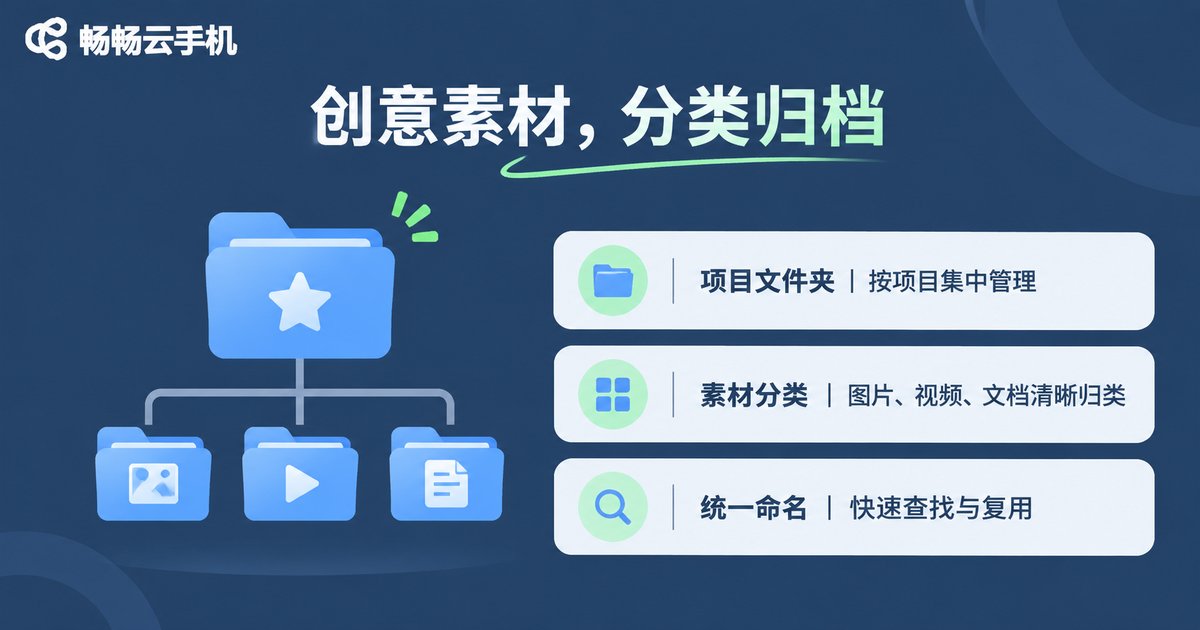
- One entry point: upload footage, screen recordings, and downloads to the cloud phone right away, organized into folders by project and date so anyone can follow the trail.
- No local storage pressure: the cloud phone's storage is separate from your local device, so large asset libraries stay in the cloud while your phone stays smooth.
- Access anytime: switch devices or computers, log into the same cloud phone, and your assets are still there—no re-copying needed.
The key is setting folder rules first: name by project + date + asset type, so everyone can find files and put them in the right place. Only then does asset management really hold up.
2. Upload & Download: A Fast Lane Between Devices
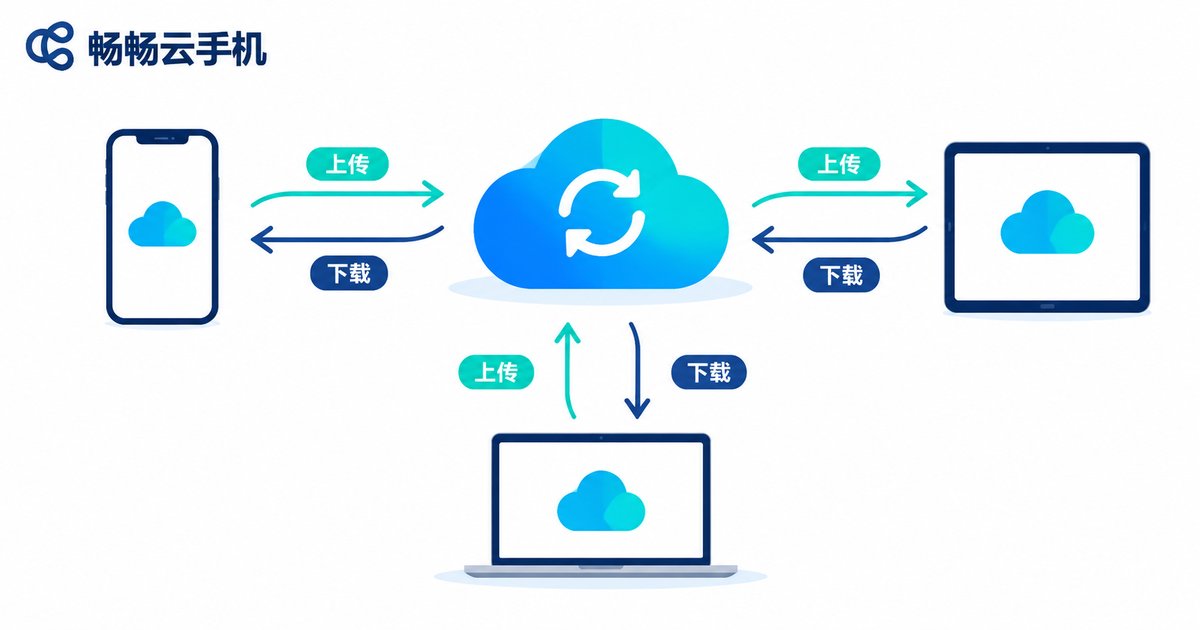
The most time-consuming part of content work is often not the creation itself, but shuffling files between devices. The core value of cloud phone upload and download is upload once, use everywhere.
A few common use cases:
| Scenario | Traditional approach | Cloud phone approach |
|---|---|---|
| Camera footage transfer | Copy to computer via card reader, then upload to drive | Upload directly to the cloud phone, instantly visible to the team |
| Delivering final cuts | Zip and send a link | Distribute directly inside the cloud phone, with a consistent file location |
| Multi-platform publishing | Log in and upload repeatedly on each device | Upload once from a single cloud phone, no repetition |
What is even more practical: a cloud phone does not depend on any single physical device. Laptop today, tablet tomorrow—log into the same cloud phone and your upload/download progress and file locations stay exactly the same.
3. Collaboration: Sharing One Device with Clear Boundaries
The biggest fear in a content team is not knowing who is editing what halfway through. The collaboration logic of a cloud phone is to turn the device into a shared workbench:
- Members log in individually into the same cloud phone environment and see the same assets and the same app state;
- Usage is scheduled by project to avoid several people operating the same screen at once;
- Accounts and environments stay isolated, keeping personal and team accounts separate to reduce misoperations and leak risks.
For teams across cities and time zones, this shared-device approach is far less painful than sending files back and forth and chasing versions. Combined with asset folder conventions, new members can get up to speed quickly.
4. A Practical End-to-End Workflow
Put the three pieces together and a complete workflow looks like this:
- After shooting or recording, upload all assets to the project folder in the cloud phone;
- Edit and lay out inside the cloud phone (or export), then save the final cut back to the same directory;
- Operations distributes directly from the cloud phone to each platform, keeping publishing records in the same environment;
- During review, the team logs into the cloud phone, browses assets and final cuts by project folder—all in one place.
Throughout the process, no one asks who has the file, and no one argues about which version is correct.
5. What to Look for When Choosing
Not every cloud phone is built for content creation. Focus on these points:
| Focus area | Why it matters |
|---|---|
| Storage and transfer speed | Assets are large; slow upload/download directly kills efficiency |
| Multi-device login | Phone, tablet, and computer must all connect before collaboration is possible |
| Environment stability | Long online sessions without disconnects are essential to trust a workflow to it |
| Account isolation | When a team shares a device, permissions and data boundaries must be clear |
ccloudphone (畅畅云手机) is designed with these needs in mind: cloud storage separated from local devices, multi-device login, and long-running online environments—well suited for content teams that want asset management and collaboration to actually run. For specific configurations and available features, refer to the official website.
FAQ
Q1: Can a cloud phone directly manage the assets on my own phone?
A cloud phone is an independent cloud device. Assets need to be uploaded to the cloud phone first for unified management; once uploaded, any logged-in device can access the same files.
Q2: If several team members use one cloud phone, will they interfere with each other?
We recommend assigning usage by project or by time slot to avoid multiple people operating the same screen simultaneously. Account-level isolation further reduces misoperations.
Q3: Will large-file uploads and downloads be slow?
Transfer speed depends on the network environment and cloud phone configuration. For actual performance, refer to the official website and your own usage results.
Q4: Which content teams are cloud phones suitable for?
Teams with large asset libraries, multiple devices, and collaborative needs—such as short video, article, and livestream clip teams—especially those whose members are spread across different locations.


