
How to Fix Audio Desync in Cloud Phone Live Streaming: Audio Latency and Device Troubleshooting
First, tell fixed offset apart from growing drift
When audio and video fall out of sync in a live stream, there are usually only two patterns, and their root causes are completely different. Identifying which one you have can save half of your troubleshooting time.
Fixed offset: the audio is always a consistent amount behind the video — say, half a beat late — and that gap never changes. This usually comes from playback buffer settings, a constant delay between capture and encoding, or a one-time clock alignment that never happened.
Growing drift: everything lines up at the start, but fifteen minutes in the audio keeps falling further behind until the gap is several seconds. This is almost always clock drift — audio and video are running on two different clock sources, one slightly fast and one slightly slow, and the error keeps accumulating.
The test is simple: check the gap with a stopwatch the moment you go live, then check again at the ten-minute mark. Same gap both times means fixed offset; a larger gap means drift.
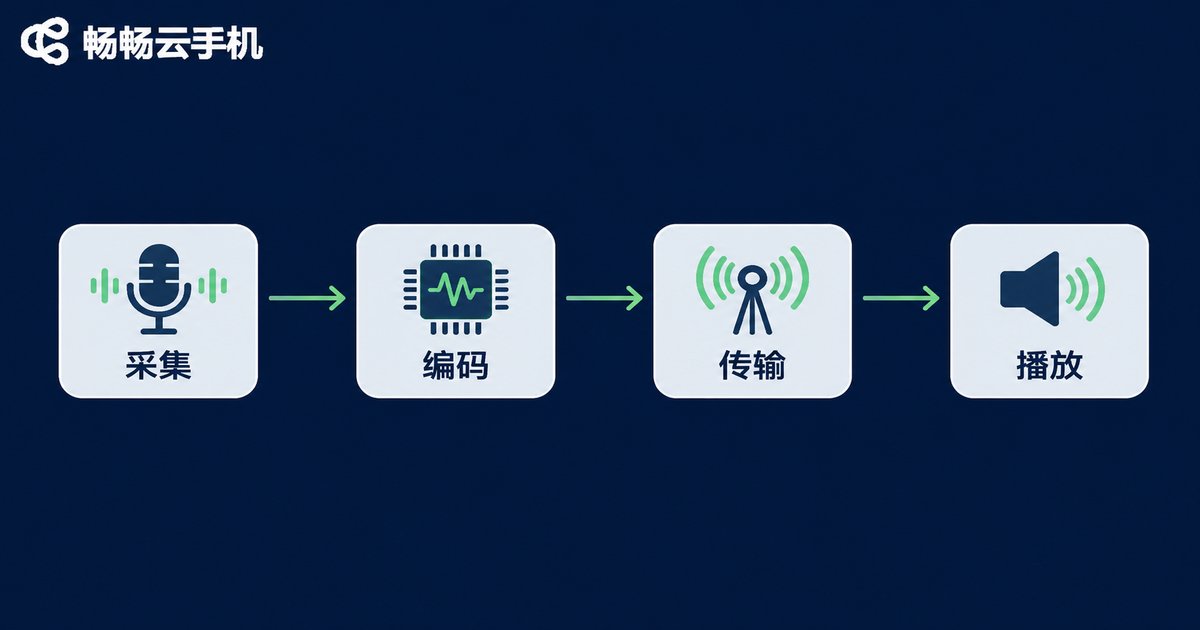
How audio gets slower, step by step: the full audio pipeline
In cloud phone live streaming, audio does not travel straight from the microphone to your viewers' ears. It passes through several stages, and every stage has a buffer. Bigger buffers are more stable but add more latency.
- Capture: the microphone or in-app audio is sampled into a digital signal. Built-in noise suppression, echo cancellation and loudness leveling all add tens of milliseconds.
- Encoding: the audio is compressed into a bitstream, usually frame by frame. Longer frames mean more delay.
- Transmission: the audio crosses the network between cloud and local device, where a jitter buffer deliberately waits a little longer to avoid stutter from packet loss.
- Decoding and playback: the local player buffers once more before the sound actually comes out.
Together these four stages typically float between 100 and 800 milliseconds. The moment one stage applies a different buffering strategy than the video path, the two tracks start to slip apart.
A five-minute self-check: rule out the simplest causes first
Before you touch any parameters, run through the list below. Most mysterious sync problems live right here.
| Check | Typical symptom | What to do |
|---|---|---|
| Bluetooth headset | Audio clearly lags; switching to wired fixes it | Use a wired headset or speakers while streaming |
| System sound effects | Audio sounds richer but arrives later | Turn off equalizers, spatial audio and enhancement |
| Background apps | Stutter and drift start a few minutes in | Close background music, screen recorders and calls |
| Network jitter | Audio stutters, then shifts back overall | Prefer wired network or a stable Wi-Fi link |
| Streaming software settings | Same desync on a different device | Check sample rate, bitrate and audio offset |
On the cloud phone: three settings that matter most
If you are streaming from an Android instance running in the cloud, the audio settings you need are almost always in these three places.
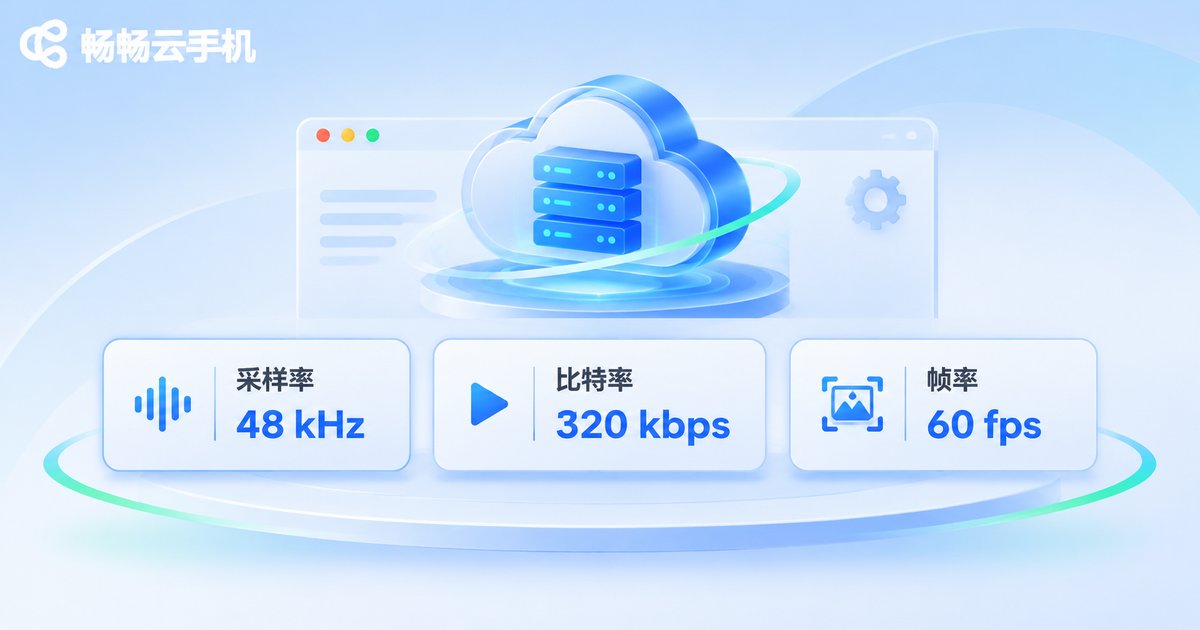
- Mismatched sample rates: if the instance outputs 44.1kHz while the streaming app captures at 48kHz, the system has to resample, which adds latency. Keep the whole chain at 48kHz.
- Audio bitrate and buffering: a bitrate that is too low triggers frame padding and extra buffering. Pin audio at around 128kbps instead of leaving it on auto.
- Very high video frame rates: the higher the frame rate, the heavier the per-frame encoding load. Some apps protect video and let audio queue up. For live streaming, 30fps is usually plenty.
Also check the instance itself. If CPU and memory stay pegged, encoding threads get starved and the result looks like audio that speeds up and slows down at random. Leave some headroom before you go live.
On your local device: three details everyone misses
Many people stare at the cloud phone while the real problem sits on the desk in front of them.
First, Bluetooth headsets. Bluetooth audio goes through an extra encode and transmission cycle, typically adding 100 to 300 milliseconds depending on the codec. Streaming with a Bluetooth headset is basically installing a fixed offset on purpose.
Second, system sound effects. Noise reduction, surround sound and loudness leveling all sound pleasant, but each one buffers a chunk of audio before processing it. That delay stacks up.
Third, background apps. A background music player, screen recorder or voice call can grab the audio channel and force a sample-rate switch, which is exactly how a stream starts drifting mid-session.
What to adjust inside your streaming software
Most streaming apps expose these settings, and each one is worth confirming:
- Audio sync offset: measured in milliseconds. If audio is late, shift it earlier (negative); if it is early, shift it later (positive). Move in 50 to 100 millisecond steps and fine-tune against a recording.
- Buffer size: if it is manually adjustable, do not max it out. As small as works is best; oversized buffers create an obvious fixed delay.
- Hardware encoding: enabling it cuts encoding latency noticeably and lightens the load on the cloud instance.
After adjusting, record a three to five minute clip and review it rather than trusting the live preview, which has its own buffering.
Why long streaming sessions belong on ccloudphone
If your troubleshooting ends with a local device that cannot keep up, too much background interference, or a need to stay live for hours on end, moving the stream onto ccloudphone removes a lot of that friction.
ccloudphone provides Android instances that run in the cloud, so pushing the stream, keeping it online and managing multiple accounts all happen server-side. Your local machine only handles viewing and control, which means no thermal throttling on your own hardware to introduce audio and video jitter. Cloud instances also sit on a more stable network path, so long sessions are less likely to hit the buffer reshuffling that comes from local network switching.
When you stream from ccloudphone, do three things first: set the audio sample rate to 48kHz across the board, pin the audio bitrate at 128kbps, and keep video at 30fps. Once those are fixed, the audio path becomes predictable — and even if you need compensation, a single fixed offset is enough.
FAQ
Q: It looks perfectly in sync on my phone, but viewers say the audio is late. Why?
The local preview usually runs on a low-latency path, while the pushed stream goes through encoding, upload, platform transcoding and viewer-side buffering. Your audience sees a much longer chain, so always judge by the viewer's experience or a recorded replay.
Q: Do I need to re-tune the audio offset every time I go live?
Usually not, if the device and settings have not changed. But if you switched headsets, changed networks, or rebuilt the cloud instance, verify it again.
Q: I set an offset but it still drifts further over time. What now?
That is almost certainly clock drift rather than fixed latency, and compensation alone will not cure it. Check that sample rates match, disable system sound effects, and rule out background apps grabbing the audio channel before switching to a more stable runtime.
Q: Does streaming from a cloud phone add extra audio delay?
There is an additional network hop between cloud and local device, but that delay is usually a stable fixed value that one offset correction can align. Compared with a local device whose audio speeds up and slows down under thermal throttling, a stable delay is far easier to handle.
Q: Will raising the audio bitrate make desync less likely?
No. Bitrate affects quality, not synchronization. A bitrate that is too low can cause buffering, but pushing it higher only adds bandwidth pressure. Around 128kbps is a solid range for live streaming.


