
2026 Cloud Phone Online Document Collaboration: Permissions and Data Security
Why more teams edit documents inside cloud phones in 2026
One clear shift over the past year: documents are no longer opened only on laptops. A salesperson fills in a quote on a cloud phone at a client site, a marketer reviews a draft on the subway, a contractor signs into a shared sheet from a temporary device. Cloud phones turn a device into a doorway, and the same document may be open on an office monitor, a home laptop and a cloud phone at the same moment.
Convenience also widens the risk. The collaboration chain in a cloud phone is usually longer: device, cloud instance, document service, storage. If permissions are wrong at any point in that chain, an internal proposal can turn into a public link. Here are the points worth checking first in 2026.
Permissions: separate what can be seen from what can be changed
Most incidents are not caused by attackers. They are caused by permissions given too generously. Hand a contractor an editable link and they can also see every file in the same folder. Give an intern manage rights and they may rewrite the inherited permissions of a shared folder.
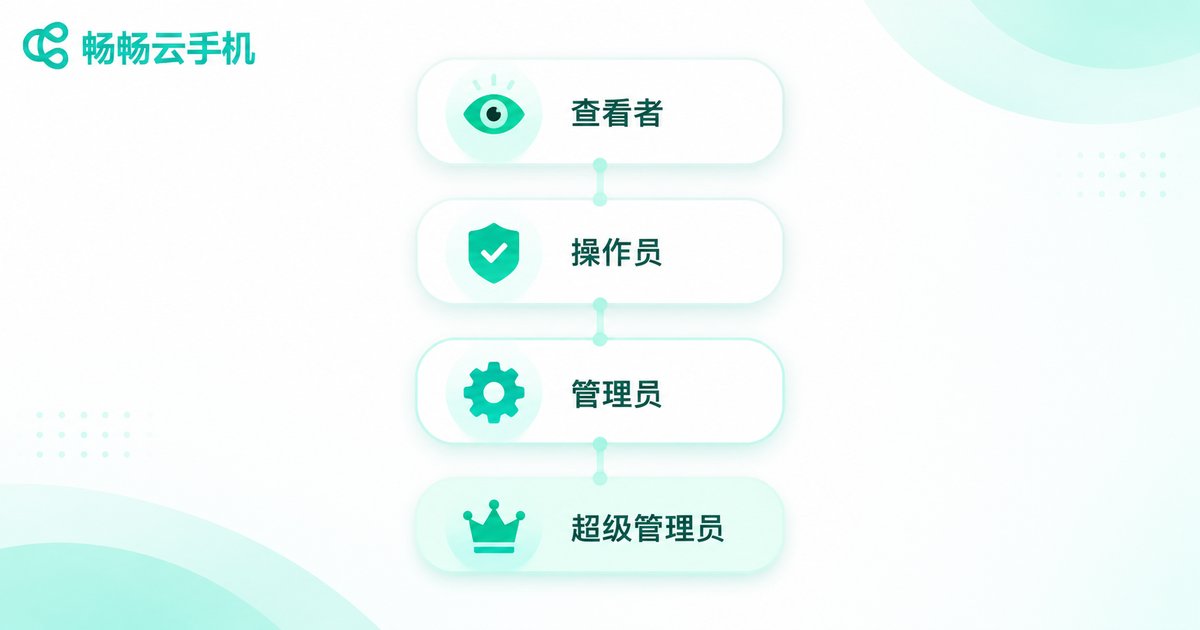
Before collaboration starts, define the roles clearly:
| Role | Who it fits | Suggested rights | Common mistake |
|---|---|---|---|
| Viewer | External clients, one-off reviewers | View only, download and copy disabled | Treating comment rights as read-only |
| Commenter | People who give feedback but do not edit | Comment and suggest | Forgetting to turn off export |
| Editor | Core project members | Edit, but cannot reshare | Inheriting rights from a parent folder |
| Admin | One or two owners | Change rights, read logs | Everyone holding an admin account |
A simple rule: attach permissions to people, not to links. If you can share with named people, do not use an anyone-with-the-link setting, and never drop the link into a group chat. Revoke access when the project ends, because a lot of leaks happen in the third month after launch.
Data security: four exits that are easy to miss
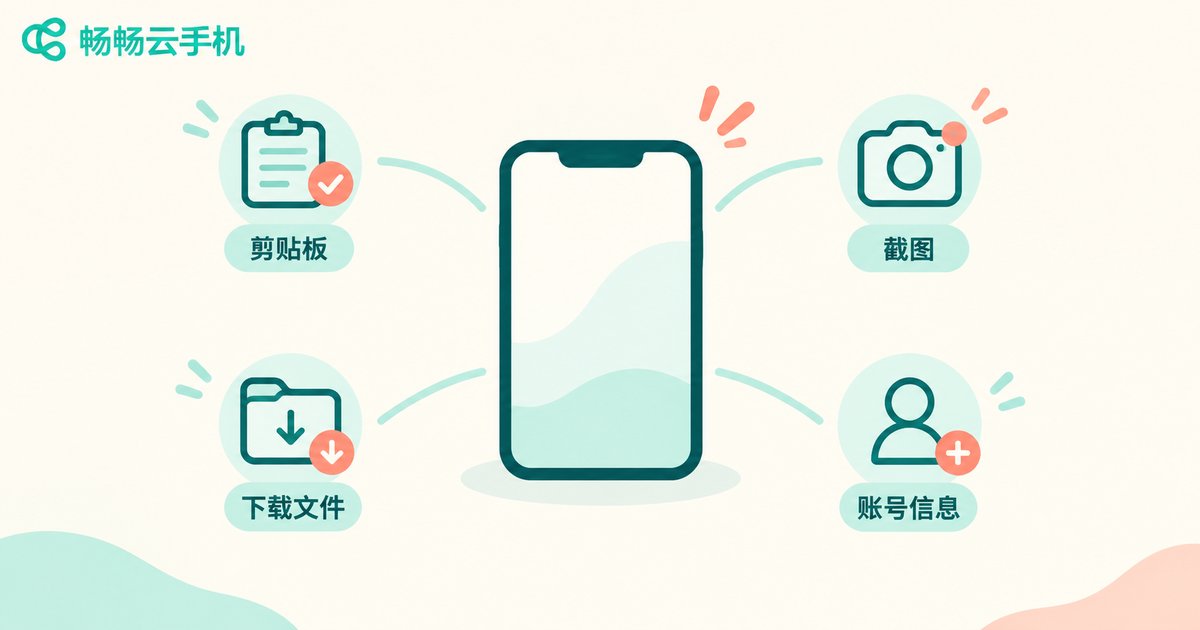
When you work inside a cloud phone, data has a few exits that are easy to overlook. Checking them one by one pays off.
1. The clipboard. Many cloud phones sync the clipboard both ways by default, so a customer list you copied locally appears in the cloud, and the reverse also happens. Turn clipboard sync off when handling sensitive material.
2. Screenshots and screen recording. The screenshot is not the problem; the chat app it lands in is. Agree as a team that pages showing customer details or contract amounts are never screenshotted and sent out.
3. The download folder. Files downloaded inside a cloud phone stay on the cloud instance. If several people share that instance, the next person to log in may see them. Use a dedicated instance, or clear the download folder when collaboration ends.
4. The account itself. Shared accounts are the most common gap of all. One account per person is what makes an audit trail possible, and what lets you trace a problem back when something goes wrong.
A collaboration checklist you can finish in ten minutes
Collect everything above into one list and run through it at the start of every project:
- Set the document level first: public, internal or sensitive
- Assign rights by role, never anyone-can-edit
- Turn off clipboard sync and auto-download you do not need
- Enable watermarks and access logs for sensitive documents
- Revoke access within 24 hours of project close
- Review who is still in shared folders once a month
The whole list takes under ten minutes, yet it blocks most low-level incidents. Security is not one big rebuild; it is a string of small habits.
What a cloud phone actually does in collaboration
A cloud phone is not a document system. It is an access point. What really decides your safety is the permission model of the document service itself, plus the policies you configure on that cloud phone.
ccloudphone provides dedicated cloud device instances, and accounts can be mapped one to one with instances, which suits teams that need several people to work on the same business system in shifts. Combined with the permission settings inside your document service, this lets you keep the device shared while keeping accounts and data separate. Before rolling it out, confirm three things: whether the instance is dedicated, whether clipboard and download policies are configurable, and whether accounts can truly be one per person. For device specifications and usage details, refer to the official ccloudphone website.
Frequently asked questions
Q: Are documents inside a cloud phone safe by default?
No. A cloud phone only provides the environment. Permissions and data policies are something you configure. Defaults usually favour convenience over strictness.
Q: If several people share one cloud phone instance, will they see each other's files?
If they share the instance and the same login account, they may well see downloaded files. The safer setup is one account per person, or a dedicated instance per person.
Q: Does turning off clipboard sync get in the way of normal work?
Barely. In most collaboration scenarios the content is edited directly in the cloud, and clipboard sync mainly helps copy external material in, which is exactly where the risk sits.
Q: What rights should an external client get for a review?
View or comment rights, with download and export disabled. If they genuinely need to edit, share with named people only, grant edit rights, and agree on a date to revoke.


